

















How-To: Control RADIUS Policies and Behavior Based on Intune Device Compliance
Overview - How to Match RADIUS Policies on Intune Device Compliance
In this pattern, you can use a device’s Intune compliance state to control authentication behavior. A common use case of this is to place compliant devices in a separate VLAN than non-compliant devices. This approach allows you to segment your network based on device compliance, enhancing security and ensuring that compliant devices have access to the resources they need while restricting non-compliant devices.
How Are Devices Evaluated for Compliance?
EZRADIUS uses Microsoft Intune Compliance Policies to determine whether a device is compliant or non-compliant. When a device attempts to connect to your network, EZRADIUS can be configured to check the device’s compliance status with Intune. Based on the evaluation, the access policy can either match or not match.
How Often Are Devices Evaluated for Compliance?
Devices are evaluated for compliance each time they attempt to connect to the network. However, there are a few factors that can influence how often devices are evaluated:
- Last Intune Check-In: If a device has not checked in with Intune recently, it may use a cached compliance status, which could lead to a delay in recognizing changes in compliance status.
- Network Reconnection: If a compliant device becomes non-compliant while connected, it may not be evaluated until it disconnects and reconnects to the network.
- Network Caching: Some networks may cache the RADIUS response for a certain period, which could delay the recognition of changes in compliance status.
Prerequisites for Implementing RADIUS Policies Based on Device Compliance
To implement this architecture, ensure you have the following prerequisites in place:
- You have an active Microsoft Intune subscription and have set up compliance policies for your devices.
- Your network infrastructure supports VLAN segmentation based on RADIUS responses and has VLANs configured for compliant and non-compliant devices.
- You have an active EZRADIUS subscription
How to Implement RADIUS Policies Based on Device Compliance
Step 1: Issue Device Certificates to Your Intune Devices
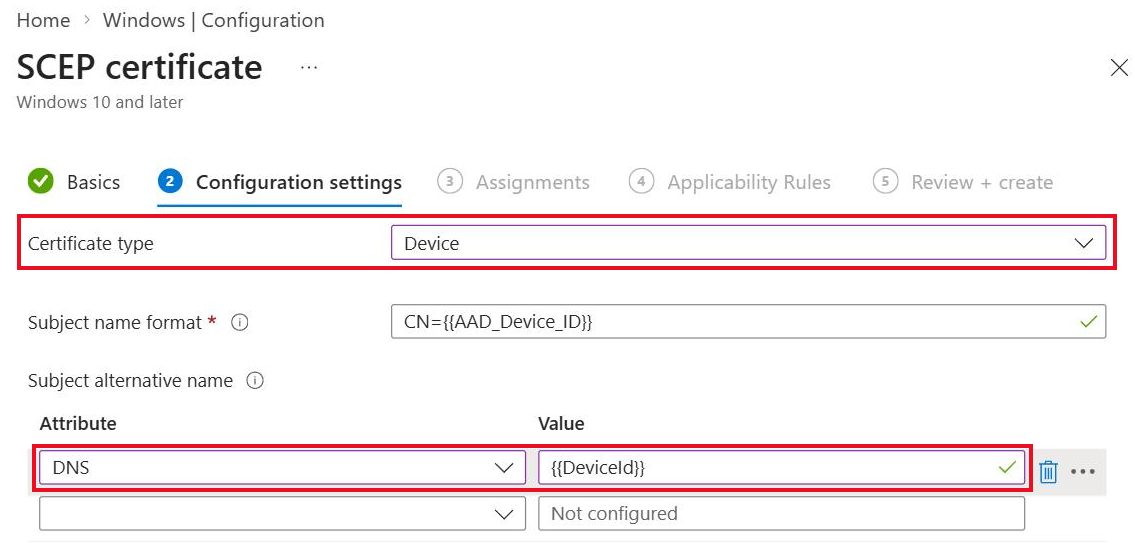
For Intune device compliance to be evaluated in EZRADIUS, you must issue and use device certificates that include the Intune Device ID in either the Subject or a Subject Alternative Name (SAN). This allows EZRADIUS to identify the device and check its compliance status in Intune.
In Intune, make sure you have at least one SCEP certificate profile that issues device certificates with a DNS Subject Alternative Name set to the {{DeviceId}} variable, as described in our Intune SCEP guides. This variable will be replaced with the actual Intune Device ID when the certificate is issued.
Step 2: Create an EZRADIUS Access Policy for Compliant Devices
The first access policy you’ll create will be for compliant devices. This policy will match compliant devices and place them in the appropriate VLAN.
- Navigate to your EZRADIUS portal
- From the left-hand menu, select Policies
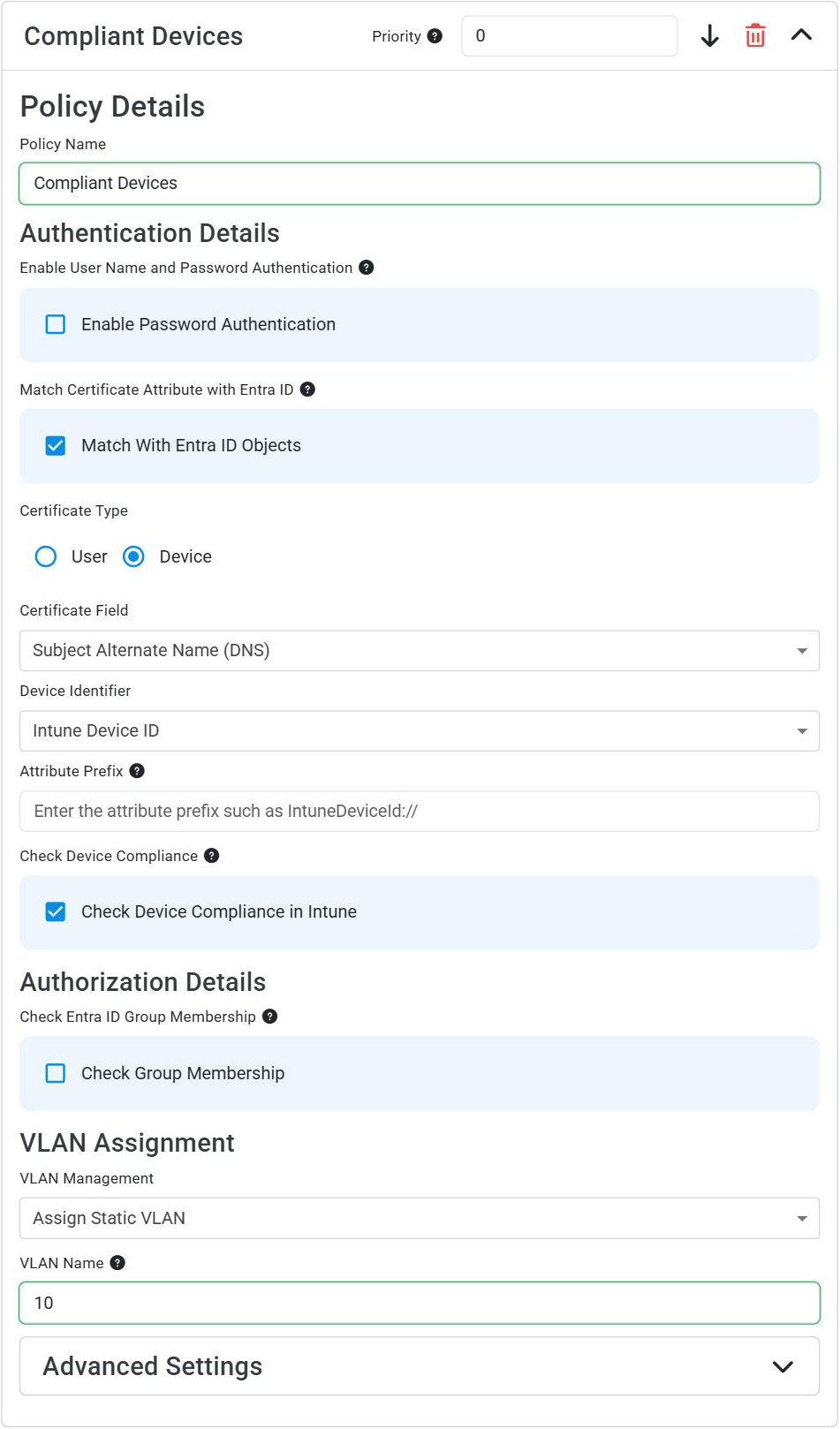
- In either a new or existing policy, add a new Access Policy with the following settings:
- Policy Name: Compliant Devices
- Match With Entra ID Objects: Check this box
- Certificate Type: Device
- Certificate Field: Select the field which contains your Intune Device ID (usually the Subject Alternate Name (DNS))
- Device Identifier: Intune Device ID
- Attribute Prefix: Leave empty. Only set this if you added a prefix to the device ID in your SCEP profile (for example
IntuneDeviceId://{{DeviceId}}), in which case enter that prefix (IntuneDeviceId://) so that only the actual Device ID value is used for compliance checks. - Check Device Compliance in Intune: Check this box
- VLAN Management: Set to Assign Static VLAN
- VLAN Name: Enter the VLAN ID/name for compliant devices
- Click Add Policy to add your access policy
You should now have an access policy that looks like this:
Step 3: Create an EZRADIUS Access Policy for Non-Compliant Devices
Now that you have an access policy for compliant devices, you can create a second access policy which matches on all Intune devices (regardless of compliance status) and places them in a separate VLAN. Since access policies are evaluated in order, compliant devices will match to the first policy and be placed in the compliant VLAN, while non-compliant devices will not match the first policy but will match the second policy and be placed in the non-compliant VLAN.
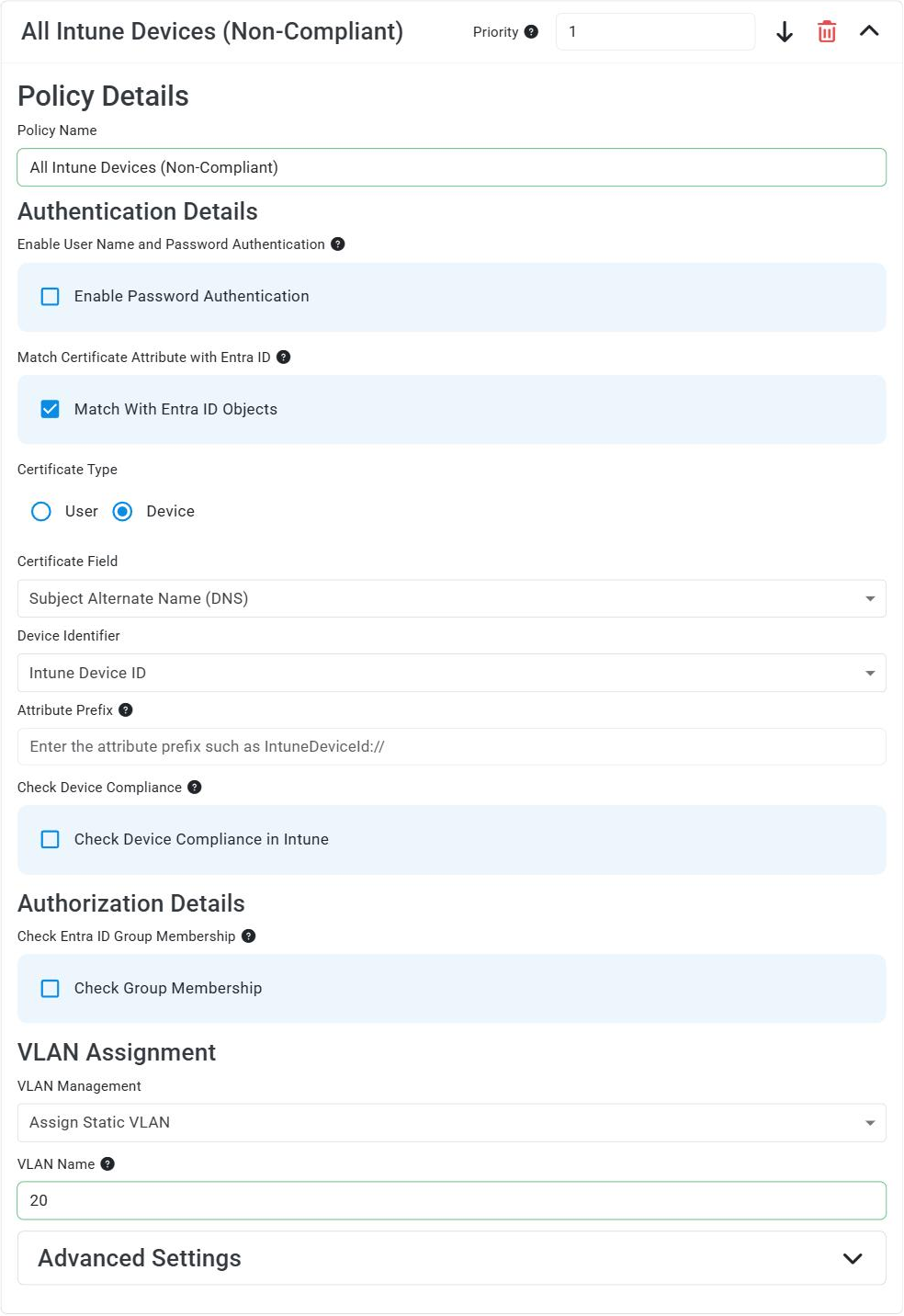
- Add a second Access Policy with the following settings:
- Policy Name: All Intune Devices (Non-Compliant)
- Match With Entra ID Objects: Check this box
- Certificate Type: Device
- Certificate Field: Select the field which contains your Intune Device ID (usually the Subject Alternate Name (DNS))
- Device Identifier: Intune Device ID
- Attribute Prefix: Leave empty. Only set this if you added a prefix to the device ID in your SCEP profile (for example
IntuneDeviceId://{{DeviceId}}), in which case enter that prefix (IntuneDeviceId://) so that only the actual Device ID value is used for compliance checks. - Check Device Compliance in Intune: Leave this box unchecked
- By leaving this box unchecked, this policy will match all active Intune devices, regardless of their compliance status.
- VLAN Management: Set to Assign Static VLAN
- VLAN Name: Enter the VLAN ID/name for non-compliant devices
- Click Add Policy to add your access policy
You should now have an access policy that looks like this:
Step 4: Reorder Your Access Policies
Since access policies are evaluated in order, make sure that your compliant device policy is listed above your non-compliant device policy (with a lower priority number). To reorder your policies, simply click the up/down arrows next to the policies until they are in the correct order.
You should now have your access policies ordered with Compliant Devices above All Intune Devices (Non-Compliant), like this:

Make sure to save your RADIUS policy after making these changes.