How-To: Control RADIUS Policies and Behavior Based on Entra ID Group Membership
Overview - How to Match RADIUS Policies on Entra ID Group Membership
In this pattern, you can use a user or device’s Entra ID group membership to control authentication behavior. A common use case of this is to place devices in different VLANs based on their Entra ID group membership. This approach allows you to segment your network based on user or device attributes, enhancing security and ensuring that different groups of users or devices have access to the resources they need while restricting access for others.
Common scenarios for this include:
- BYOD vs Corporate-Owned Devices: You could have an Entra ID device group for corporate-owned devices and another group for BYOD devices.
- Roles/Departments: You could have Entra ID user groups for different roles or departments in your organization, such as HR, Finance, IT, etc., and apply different access policies based on group membership.
- Employee vs Guest Users: You could have an Entra ID user group for employees and another user group for guests.
- Students vs Faculty: In an educational environment, you could have separate Entra ID user groups for students and faculty, and apply different access policies based on group membership.
When Should I Use User vs Device Group Membership for RADIUS Policies?
Whether to use user or device Entra ID groups depends on how your clients authenticate on the network. An EZRADIUS access policy only has visibility to the username or certificate that is used for authentication, so the type of group membership that can be used for policy matching depends on the authentication method:
- If your clients authenticate with Entra ID username and password (EAP-TTLS), only user Entra ID group membership will be available for RADIUS policy matching.
- If your clients authenticate with device certificates (EAP-TLS), only device Entra ID group membership will be available for RADIUS policy matching.
- If your clients authenticate with user certificates (EAP-TLS), only user Entra ID group membership will be available for RADIUS policy matching.
How Often Is Entra ID Group Membership Evaluated for RADIUS Policies?
Entra ID group membership is evaluated each time a client attempts to authenticate to the network. When a RADIUS authentication request is received, EZRADIUS checks the username or certificate against Entra ID to determine group membership and applies the appropriate access policy based on that group membership. Therefore, any changes in Entra ID group membership will be reflected in RADIUS policy matching the next time the user or device attempts to authenticate to the network.
Note that EZRADIUS caches Entra ID group membership information for a short period of time to optimize performance, so there may be a delay of a few minutes between when a change is made in Entra ID group membership and when that change is reflected in RADIUS policy matching if a user or device has recently authenticated and their group membership information is cached. However, in general, you can expect changes in Entra ID group membership to be reflected in RADIUS policy matching within a few minutes at most.
Prerequisites for Implementing RADIUS Policies Based on Entra ID Group Membership
To implement this architecture, ensure you have the following prerequisites in place:
- You have created Entra ID groups that contain the users or devices you want to use for RADIUS policy matching.
- You have an active EZRADIUS subscription.
How to Implement RADIUS Policies Based on Entra ID Group Membership
To match on Entra ID group membership in your EZRADIUS access policies, follow these steps:
- Navigate to your EZRADIUS portal
- From the left-hand menu, select Policies
- In either a new or existing policy, add a new Access Policy with the following settings:
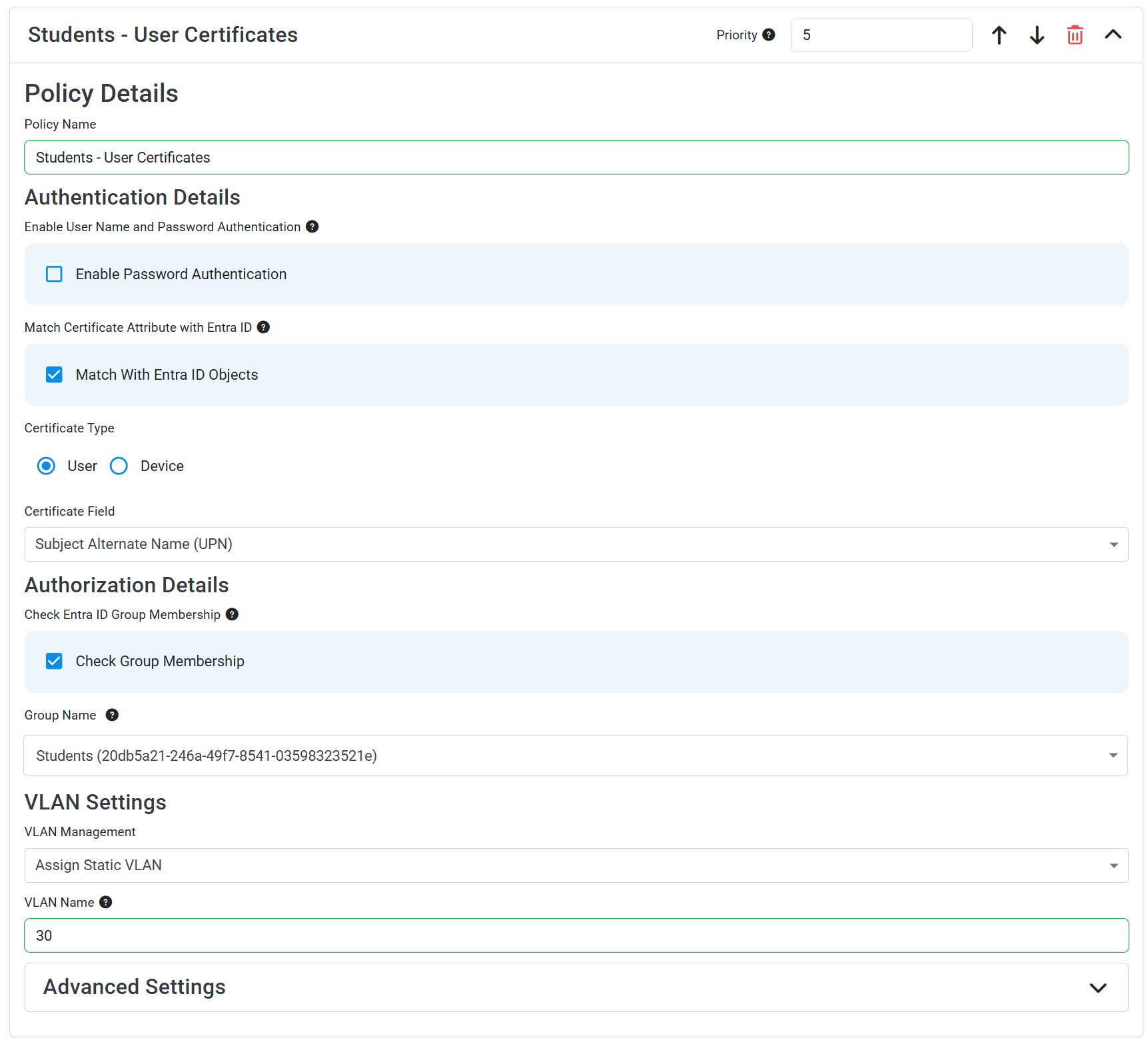
- Policy Name: Enter a name that indicates which group this policy is for (e.g., “Corporate-Owned Devices Policy”)
- Enable Password Authentication: Leave this unchecked since you will be using certificate-based authentication
- Match With Entra ID Objects: Check this box, as you need to match the certificate to an Entra ID object to check group membership
- Certificate Type: Select “Device” or “User” depending on whether your clients are using device or user certificates for authentication
- Certificate Field: Select the field in the certificate that contains the user’s UPN or the device’s Entra ID or Intune device ID. If you followed our EZCA Intune SCEP guides, this is “Subject Alternate Name (UPN)” for user certificates, “Subject Name” for the Entra ID device ID (
CN={{AAD_Device_ID}}), or “Subject Alternate Name (DNS)” for the Intune device ID ({{DeviceId}}). - Device Identifier: If using device certificates, select “AAD Device ID” or “Intune Device ID” depending on which identifier is included in the certificate field you selected.
- Attribute Prefix: Leave empty unless you added a prefix to the device ID in your SCEP profile (e.g.,
IntuneDeviceId://{{DeviceId}}), in which case enter that prefix (e.g.,IntuneDeviceId://) so that only the actual Device ID value is used for group membership checks. - Check Group Membership: Check this box
- Group Name: Enter the name of the Entra ID group you want to match on (e.g., “Students”). EZRADIUS will search for this group name in Entra ID and list all groups with a matching name. Select the correct group from the list to ensure accurate matching.
- Make sure to select the correct type of group (user vs device) based on the type of certificate authentication you are using, as EZRADIUS will only be able to match on the correct type of group for the authentication method.
- Set any additional fields such as VLAN assignment as desired for this group
- Click Add Policy to add your access policy
You should now have an access policy that looks like this:
- Navigate to your EZRADIUS portal
- From the left-hand menu, select Policies
- In either a new or existing policy, add a new Access Policy with the following settings:
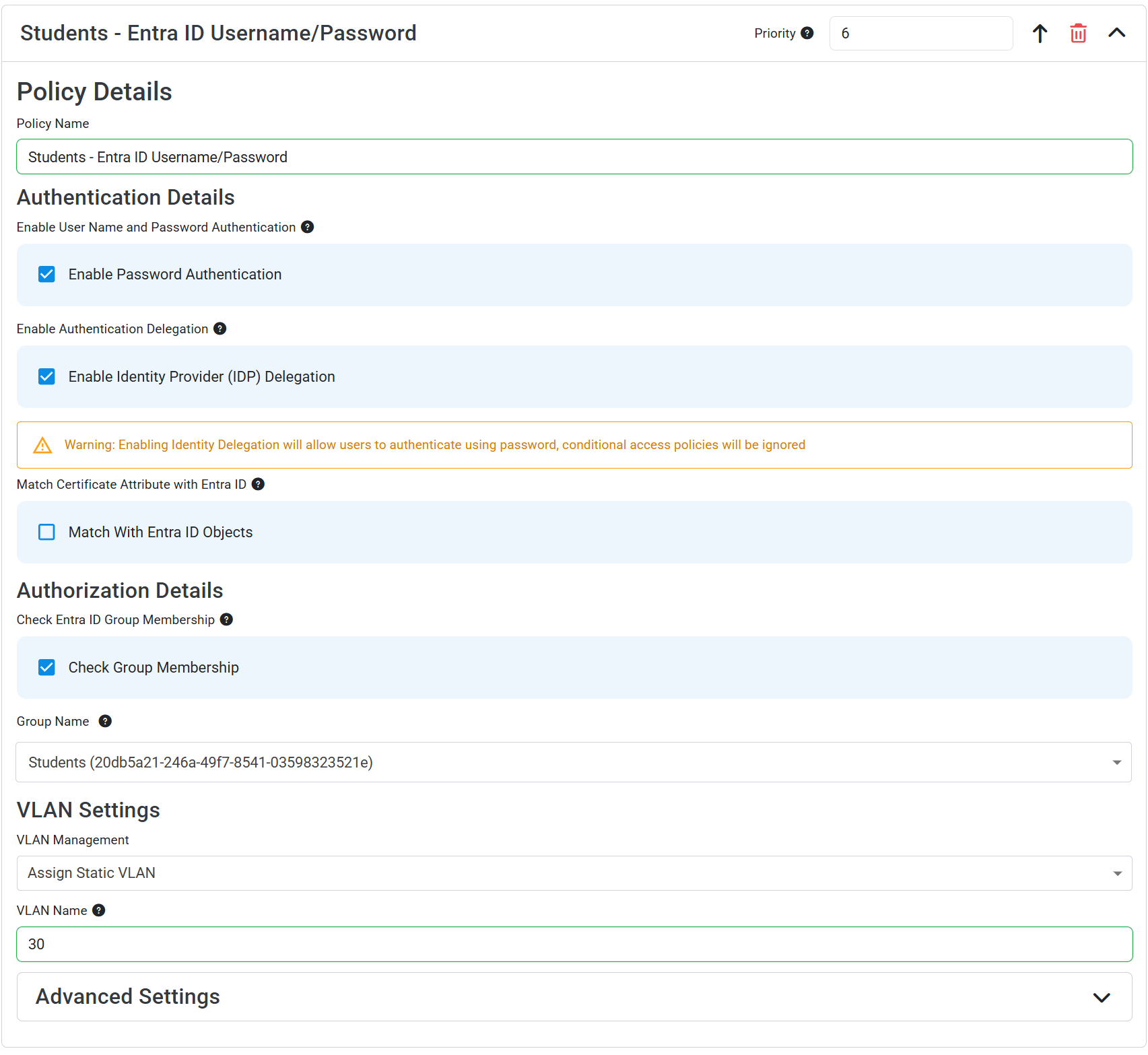
- Policy Name: Enter a name that indicates which group this policy is for (e.g., “Employee Users Policy”)
- Enable Password Authentication: Check this box
- Enable Identity Provider (IDP) Delegation: Check this box to allow users to authenticate with Entra ID credentials
- Match With Entra ID Objects: Keep this box unchecked, as EZRADIUS already knows the user based on the username
- Check Group Membership: Check this box
- Group Name: Enter the name of the Entra ID group you want to match on (e.g., “Students”). EZRADIUS will search for this group name in Entra ID and list all groups with a matching name. Select the correct group from the list to ensure accurate matching.
- Make sure to select a user group since you are using user authentication, as EZRADIUS will only be able to match on user groups for this authentication method.
- Set any additional fields such as VLAN assignment as desired for this group
- Click Add Policy to add your access policy
You should now have an access policy that looks like this: