









How-To: Call the EZCA API with Swagger Documentation
Overview - What is the EZCA API?
The EZCA API allows you to interact with your EZCA subscriptions, policies, and other resources programmatically. With the API, you can automate tasks, integrate with other systems, and take actions directly from your applications.
What Can You Do with the EZCA API?
Anything you can do in the EZCA portal, you can also do through the API. This includes:
- Manage your EZCA subscriptions and configuration
- Manage your certificate authorities
- Request new certificates
- Initiate certificate renewals
- Approve or reject pending certificate requests
- Review audit logs
- …plus any other action available in the portal
To see the full list of available API endpoints and their capabilities, check out the EZCA API Swagger Documentation.
View Swagger DocumentationWho Can Use the EZCA API?
The EZCA API is available to all EZCA customers. Since it’s what powers the EZCA portal, any user or application with access to the portal can also call the API, as long as they have the necessary permissions. To restrict access to the API, make sure your EZCA roles and permissions are set up correctly.
What Services Can the EZCA API Integrate With?
The EZCA API can be called from any service or application that can make HTTP requests and handle bearer token authentication. In Azure, you can easily call the API using a managed identity or service principal from services like Azure Functions, Azure Logic Apps, Azure Automation, and more. You can also call the API from your own custom applications, scripts, or any other environment that supports HTTP requests.
What Identities Can Call the API?
The EZCA API can be called using any Entra ID user account or Entra ID applications, including service principals and managed identities.
There are two common ways to interact with the API:
- Delegated Access: Have a user take actions and use their own credentials to call the API. They will have the same permissions as they have in the EZCA portal. Best for frontend applications where users are directly interacting with the API.
- Application Access: Create an Entra ID application and use its credentials to call the API. This allows you to grant specific permissions to the application, independent of any user. Best for backend applications or services that need to run without user interaction.
Step-by-Step Guide: How to Call the EZCA API Programmatically
The following steps will guide you through the process of calling the EZCA API programmatically.
Prerequisite for Calling the EZCA API
Before you can call the EZCA API, make sure you have admin consented the EZCA application in your Entra ID tenant. Without this step, you won’t be able to authenticate and call the API.
Register the EZCA ApplicationStep 1: Create the Identity That Will Call the API
To call the EZCA API, you need to create an identity that will be used for authentication. This can be either an Entra ID user account or an Entra ID application (service principal or managed identity).
Once the EZCA application has been admin consented in your tenant, any user account can call the API using their own credentials. We’ll cover roles and permissions in an upcoming section, so for now just make sure the user account you plan to use is active and can sign-in to myaccount.microsoft.com.
To use an Entra ID application to call the API, you first need to create a service principal or managed identity in your Entra ID tenant. Both user-assigned and system-assigned managed identities are supported.
No matter how you created your application, make sure to note its Name and Client ID (Application ID), as you’ll need this information to authenticate and call the API.
Step 2: Grant Permissions to the Identity
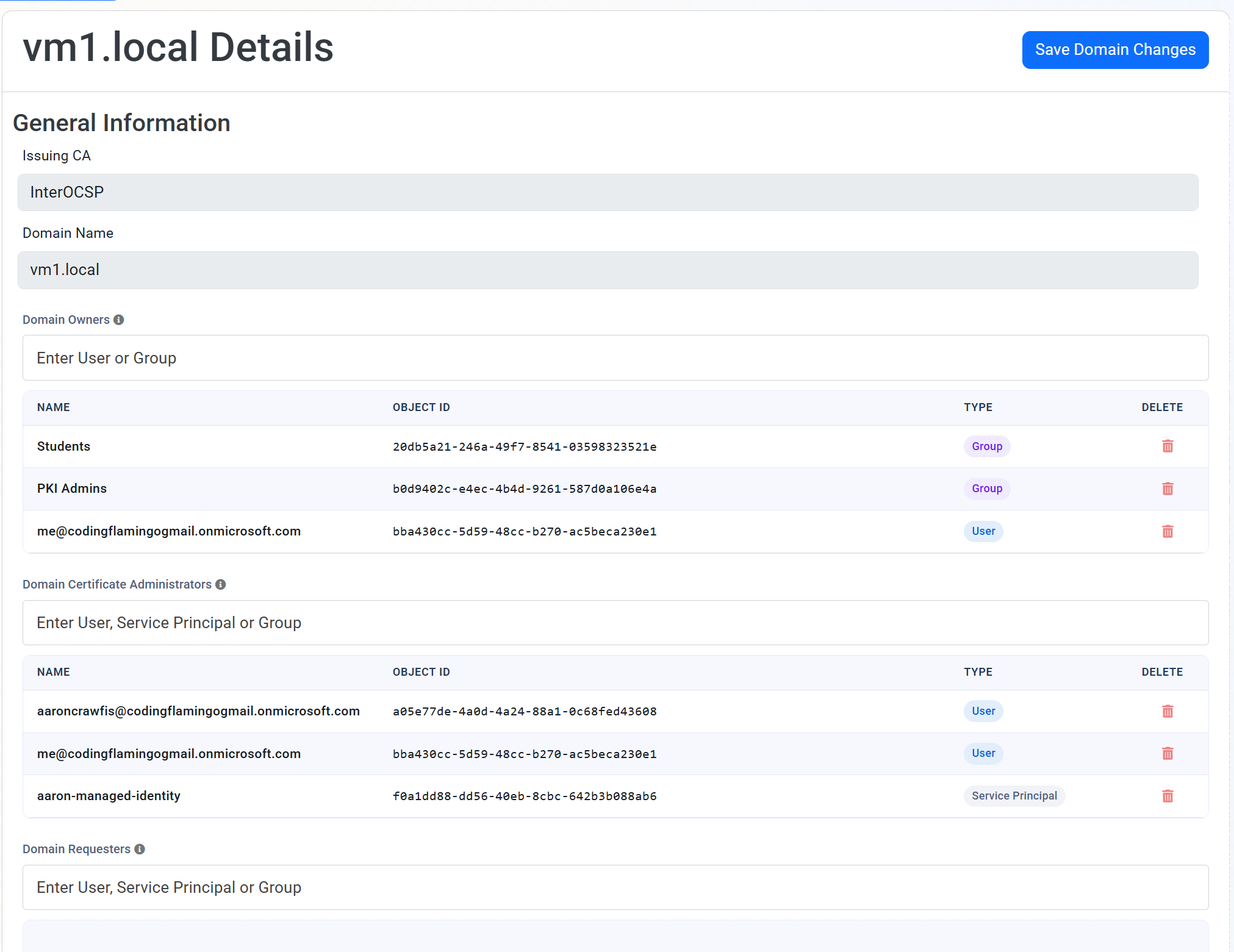
To call the EZCA API, the identity you created in Step 1 needs to have the appropriate permissions on your EZCA Subscription(s) and/or Domain(s). The API uses the same role-based access control (RBAC) model as the EZCA portal, so you can assign roles to your users, groups, and applications to control what they can do with the API.
Refer to our Subscription management and Domain management documentation for more details on how to assign roles and permissions to your Subscriptions and Domains.
To prevent misuse, EZCA currently restricts the EZCA Subscription PKI Admin Role to users only, and prevents service principals and managed identities from being assigned the PKI Admin Role. This means only users can update subscription billing, SIEM export, and RBAC settings. Please use the Domain Certificate roles for application-based access to the API. If you need PKI Admin-level permissions for an application, please reach out to our team to discuss your scenario and potential solutions.
You should see the Friendly Name and Object/Client ID of the identity you just assigned a role to in the list of users and applications with access to the subscription:
Step 3: Get a Token to Authenticate with the EZCA API
To authenticate with the EZCA API, you need to obtain a bearer token from Entra ID. The process for getting a token depends on the type of identity you’re using (user account or application) and the authentication flow you choose.
EZCA supports the default scope for Azure management APIs, which is https://management.core.windows.net/.default (https://management.core.usgovcloudapi.net/.default for GCC High). This is the scope az account get-access-token uses by default. Tokens issued for https://management.azure.com are not accepted. This means that when you request a token, you don’t have to manually specify scopes for the EZCA API. Just use the default scope, and as long as the identity has the appropriate role assigned in your EZCA subscription, the token will work for authenticating with the API.
If you’re using an Entra ID user account to call the API, you can use the OAuth 2.0 Authorization Code Flow to get a token. This flow requires user interaction, so it’s best suited for frontend applications.
If you’re testing the API and want to quickly generate a token without setting up a full authentication flow, you can use the Azure CLI to get a token for your user account:
az login
az account get-access-token
The output will include an accessToken field, which is the bearer token you can use to authenticate with the EZCA API.
If you’re using an Entra ID application (service principal or managed identity) to call the API, you can use the OAuth 2.0 Client Credentials Flow to get a token. This flow does not require user interaction, making it ideal for backend applications and services.
Getting a Token with Azure CLI for Managed Identities
If you’re using a managed identity, you can get a token using the Azure CLI. Make sure you’re running the CLI in an environment where the managed identity is available (e.g., an Azure VM or Azure Function with a managed identity assigned):
az login --identity
az account get-access-token
The output will include an accessToken field, which is the bearer token you can use to authenticate with the EZCA API.
Getting a Token with Azure CLI for Service Principals
If you’re using a service principal, you can get a token using the Azure CLI by providing the service principal’s credentials:
az login --service-principal -u <CLIENT_ID> -p <CLIENT_SECRET> --tenant <TENANT_ID>
az account get-access-token
The output will include an accessToken field, which is the bearer token you can use to authenticate with the EZCA API.
Step 4: Pick Your API Endpoint
When calling the EZCA API, make sure to use the correct base URL for your region. The base URL for the API depends on your region.
EZCA API Endpoints
EZCA runs in four different instances, each hosted in different regions to provide low latency and data residency for customers around the world. The endpoints for each instance are as follows:
| Endpoint | Description |
|---|---|
| https://portal.ezca.io | Global endpoint for accessing the EZCA service. |
| https://eu.ezca.io | European endpoint for accessing the EZCA service, hosted in EU-specific regions. |
| https://au.ezca.io | Australian endpoint for accessing the EZCA service, hosted in AU-specific regions. |
| https://portal.ezca.us | US Government endpoint for accessing the EZCA service, hosted only in Azure Government GCC High regions. |
Step 5: Make Your EZCA API Call
Now that you have your token and know which endpoint you want to call, you can make your API request. The API uses standard HTTP methods (GET, POST, PUT, DELETE) and expects the bearer token in the Authorization header. Here’s an example of how to call the API using curl (replace <EZCA_ENDPOINT> with your instance’s endpoint from the table above, such as portal.ezca.io):
curl -X GET "https://<EZCA_ENDPOINT>/api/Dashboard/GetInfo" \
    -H "Authorization: Bearer <YOUR_ACCESS_TOKEN>" \
    -H "Content-Type: application/json"
You should receive a response from the API with information about the account used to authenticate:
{
  "ActiveCerts": <number>,
  "RevokedCerts": <number>,
  "RegisteredDomains": <number>,
  "CertsExpiring15Days": <number>,
  "CAByStatus": {},
  "CAByKeyType": {},
  "CertsByCreation": {},
  "CertAutoRenew": {}
}
You can also enter your bearer token directly in the Swagger documentation to test out different API endpoints and see the responses in real-time. Just click the “Authorize” button in the Swagger UI, enter your token, and then you can make API calls directly from the documentation. To view the Swagger documentation, navigate to https://<EZCA_ENDPOINT>/swagger/index.html, replacing <EZCA_ENDPOINT> with the endpoint of your EZCA instance from the table above (for example portal.ezca.io or eu.ezca.io).
Troubleshooting Tips for Calling the EZCA API
If you run into issues when calling the EZCA API, here are some troubleshooting tips to help you resolve common problems:
I Got a 200 OK Response, But There is No Data
If you receive a 200 OK response but the data is empty or not what you expected, you might be calling the wrong endpoint or you may not have permission to your EZCA subscription.
First, make sure you’re calling the correct instance of EZCA for your region, and double-check the API endpoint you’re using. Refer to the EZCA API Endpoints section above to confirm you’re using the correct base URL and endpoint for your region.
Next, check that the identity you’re using to call the API has the correct role assigned in your EZCA subscription. If the identity doesn’t have permission to access the subscription, you may get an empty response or a response that doesn’t include the data you expected. See the Grant Permissions section above for more information on how to assign roles and permissions.
I Got a User Does Not Have Permission Error
If you receive an error indicating that the user or application does not have permission to call the API, it’s likely that the identity you’re using does not have the necessary role assigned in your EZCA subscription. Refer to the Grant Permissions section above to ensure that the identity has the appropriate role assigned.
I Cannot Add My Entra ID Application to a PKI Admin Role
If you’re trying to assign the PKI Admin Role to an Entra ID application (service principal or managed identity) and are unable to do so, this is because EZCA currently restricts the PKI Admin Role to users only. This means that service principals and managed identities cannot be assigned the PKI Admin Role. If your application needs to call the API, assign the appropriate Domain Certificate role described in the Grant Permissions section above. If you need PKI Admin-level permissions for an application, please reach out to our team to discuss your scenario and potential solutions.
I’m Still Having Issues
If you’ve tried the troubleshooting tips above and are still having issues calling the EZCA API, please don’t hesitate to reach out to our support team for assistance.