

















How-To: Update Your Cloud RADIUS Subscription Payment Method in EZRADIUS
Overview - Update Your Cloud RADIUS Subscription Payment Method in EZRADIUS
Want to add or change the payment method associated with your EZRADIUS Cloud RADIUS subscription? No problem! Follow the steps in this guide to update your payment method and ensure uninterrupted service for your Cloud RADIUS subscription.
What Payment Methods Do EZRADIUS Subscriptions Accept?
EZRADIUS subscriptions can be paid via one of the following methods:
- Trial Subscription: If you are on a trial subscription, no payment method is required. Your trial will automatically expire after the trial period ends unless you choose to add a payment method and upgrade to a paid subscription.
- Credit Card: You can add a credit card to your subscription for automatic billing.
- Azure Marketplace: You can create an Azure Marketplace SaaS subscription to pay for your Cloud RADIUS subscription through your Azure account. This allows you to consolidate billing and take advantage of any existing agreements you have with Microsoft.
- Pre-Paid Invoice: For larger organizations, we also offer pre-paid invoicing options. Please contact our sales team for more information on invoicing.
- Managed Service Provider (MSP): If you are working with a managed service provider, they will manage the billing and payment for your subscription on your behalf. Please contact your MSP for assistance with updating your payment method.
Can I Switch My EZRADIUS Subscription Between Payment Methods?
Moving between payment methods is possible, but the process will depend on the type of payment method you are switching from and to.
| Current Payment Method | New Payment Method | Notes |
|---|---|---|
| Trial Subscription | Credit Card | You can add a credit card to your trial subscription to upgrade it to a paid subscription. See the Add or Update Credit Card section below for instructions on how to add a credit card. |
| Credit Card | Credit Card | You can update the credit card information associated with your subscription at any time. See the Add or Update Credit Card section below for instructions on how to update your credit card information. |
| * | Azure Marketplace | Azure Marketplace subscriptions use a different billing system and other payment methods cannot be converted to it. You will need to create a new Azure Marketplace subscription and migrate your policies to it. |
| * | Pre-Paid Invoice | Contact our sales team to discuss options for creating or migrating to a pre-paid invoice. |
| * | Managed Service Provider (MSP) | If you are working with an MSP, please contact your MSP for assistance with updating your payment method. |
| Azure Marketplace | * | Azure Marketplace subscriptions use a different billing system and cannot be converted to other payment methods. You will need to create a new subscription with the desired payment method and migrate your policies to it. |
| Pre-Paid Invoice | * | If you wish to move from a pre-paid invoice to another payment method, please contact our sales team to assist with the transition. |
| Managed Service Provider (MSP) | * | If you are working with an MSP and wish to change your payment method, please contact your MSP for assistance. |
| * | Trial Subscription | You cannot switch back to a trial subscription once you have upgraded to a paid subscription, and new trial subscriptions cannot be created once you have had a paid subscription. Contact our sales team if you have questions about your subscription options. |
How to Add or Update a Credit Card Payment Method for Your EZRADIUS Subscription
If you are currently on a trial subscription or have an existing credit card on file, you can add or update your credit card information to ensure your cloud RADIUS subscription remains active.
-
Log in to your EZRADIUS portal. You can find your portal URL at portal.ezradius.io.
-
Navigate to Settings to view your subscription details.
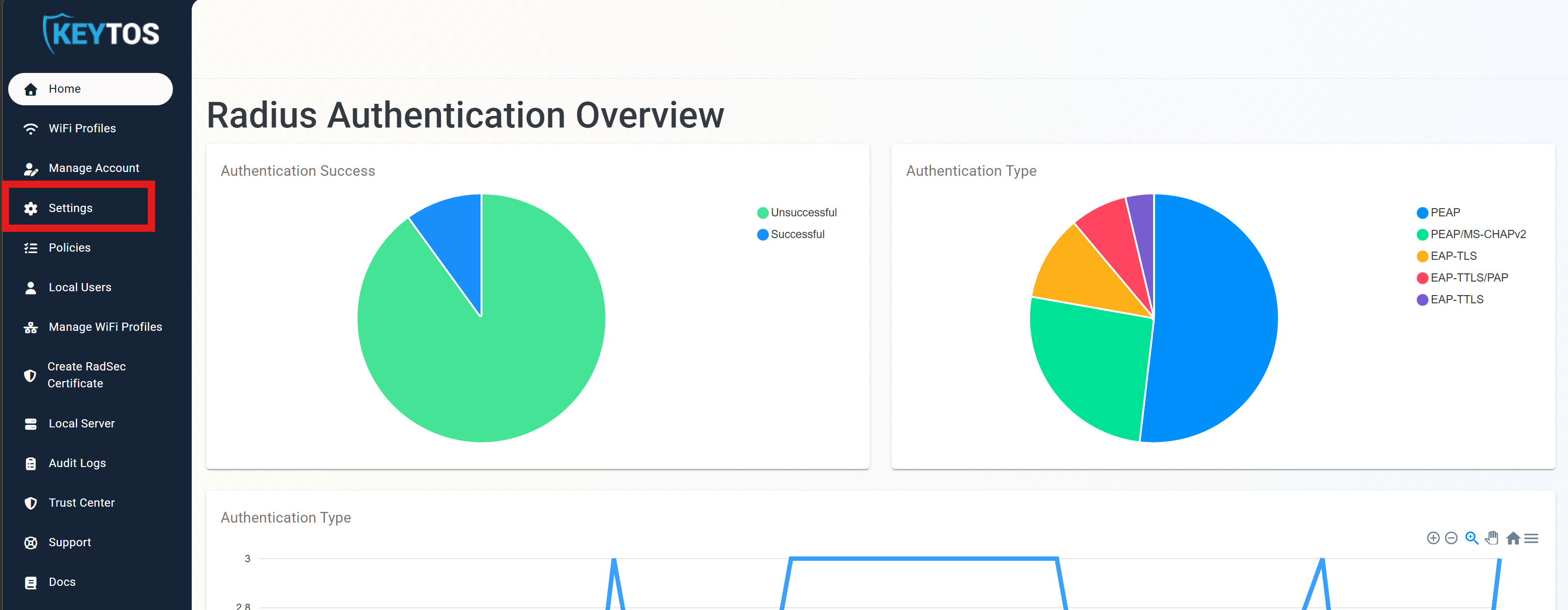
-
Scroll down to Payment Information and update your credit card information. You can add a new credit card or update the existing card on file.

-
Scroll up and click Save Changes to save your updated payment information.
If you do not see the Payment Information section in your subscription settings, it may be because you are on an Azure Marketplace subscription, you have a pre-paid invoice, or your subscription is managed by an MSP. Contact your MSP or our sales team for assistance with updating your payment method.