How-To: Mix Username + Password and Certificate-Based Authentication in the Same RADIUS Policy
Overview - How to Mix Username + Password and Certificate-Based Authentication in the Same RADIUS Policy
In this pattern, you can use EZRADIUS to support both username + password authentication (local or Entra ID) and certificate-based authentication within the same RADIUS policy. This approach allows you to provide flexible authentication options for different types of users and devices while maintaining a single, unified RADIUS architecture. There are a few scenarios where this can be useful:
- You have a mix of corporate-owned devices that use certificate-based authentication and BYOD devices that use Entra ID username + password authentication
- You are in the process of transitioning from one authentication method to another (e.g., moving from username + password to certificate-based authentication) and need to support both methods during the transition period
- You have some users (e.g., contractors or temporary workers) who should authenticate with username + password, while the rest of your users authenticate with certificates
How Are EZRADIUS Access Policies Evaluated When Multiple Authentication Methods Are Used?
When you add a Trusted Certificate Authority (CA) to your EZRADIUS policy, it enables EAP-TLS authentication for all Access Policies that you create, even if you enable Password Authentication in those policies. This means that enabling Password Authentication enables both username + password authentication and certificate-based authentication in the same access policy. Be careful, because if you want different VLANs or authentication behavior based on the authentication method used, you will need to configure additional settings to ensure your certificate users don’t end up in the same VLAN or have the same access as your other users.
What Patterns and Practices Can I Use to Mix Authentication Methods?
When mixing authentication methods in the same RADIUS policy, there are a few different patterns and practices you can use to control how authentication requests are processed and ensure that users end up in the correct VLANs or have the correct access based on their authentication method:
- If both authentication methods should have the same access and be in the same VLAN, you can simply add your Trusted CAs to your RADIUS policy and enable password authentication on your Access Policy. Both authentication methods will match against the one Access Policy and users will authenticate with the same access regardless of whether they use certificates or username + password.
- If you want to separately control access for certificate-based authentication and username + password authentication, you can create separate Access Policies for each authentication method. In the Access Policy that is meant for certificate-based authentication, you can leave the defaults to enable all certificates, or add additional filters. In the Access Policy that is meant for username + password authentication, you can enable password authentication, as well as add a certificate matching policy that always fails to ensure that only username + password authentication is used in that policy. This allows you to have separate Access Policies for each authentication method, without users matching against the wrong Access Policy.
How to Implement Mixed Authentication Methods in the Same RADIUS Policy
To set up mixed EAP-TLS certificate-based authentication and username + password authentication in the same RADIUS policy, follow these steps:
Step 1: Enable Certificate-Based Authentication in Your RADIUS Policy
To begin mixing authentication methods, you first need to enable certificate-based authentication in your RADIUS policy by adding your Trusted Certificate Authorities. This will allow you to use EAP-TLS authentication in your access policies using certificates issued by those CAs.
- Begin on your Policies page in the EZRADIUS portal
- Scroll down to your existing RADIUS policy (or create a new one)
- Under Accepted Certificate Authorities, select the Certificate Source for your CA (EZCA or Local CA) and add your trusted CA(s) to the policy
Step 2: Create an EAP-TLS Certificate-Based Authentication Access Policy
Now that you have established your Trusted Certificate Authorities, you can create an access policy that uses EAP-TLS certificate-based authentication. This will allow users and devices with valid certificates issued by your trusted CAs to authenticate.
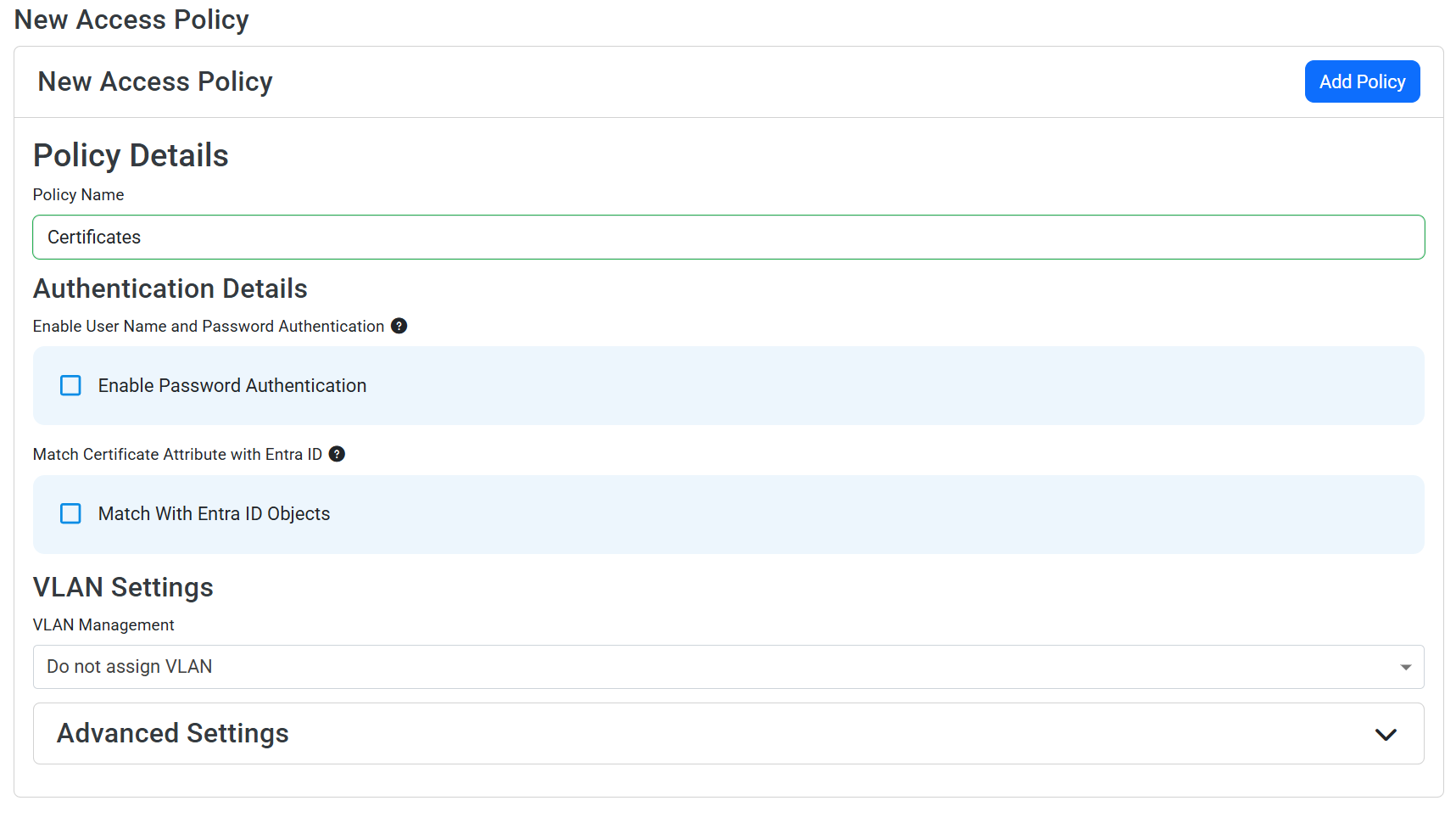
- Scroll down to Access Policies > New Access Policy
- Enter a Policy Name such as “Certificates”
- Optionally enable Match With Entra ID Objects if you want to also match with Entra ID groups or other objects in this policy. See this guide for more details on how to match your certificates with Entra ID groups.
- Optionally set VLAN Management or Advanced Settings to control additional matching options.
- Click Add Policy to add your access policy to your RADIUS policy.
Step 3: Create a Username + Password Authentication Access Policy
Next, create a separate access policy that uses username + password authentication. This will allow users who do not have certificates to authenticate using their Entra ID credentials (or local RADIUS credentials if you are not using Entra ID).
- Scroll down to Access Policies > New Access Policy
- Enter a Policy Name such as “Username + Password” or “Entra ID Users”
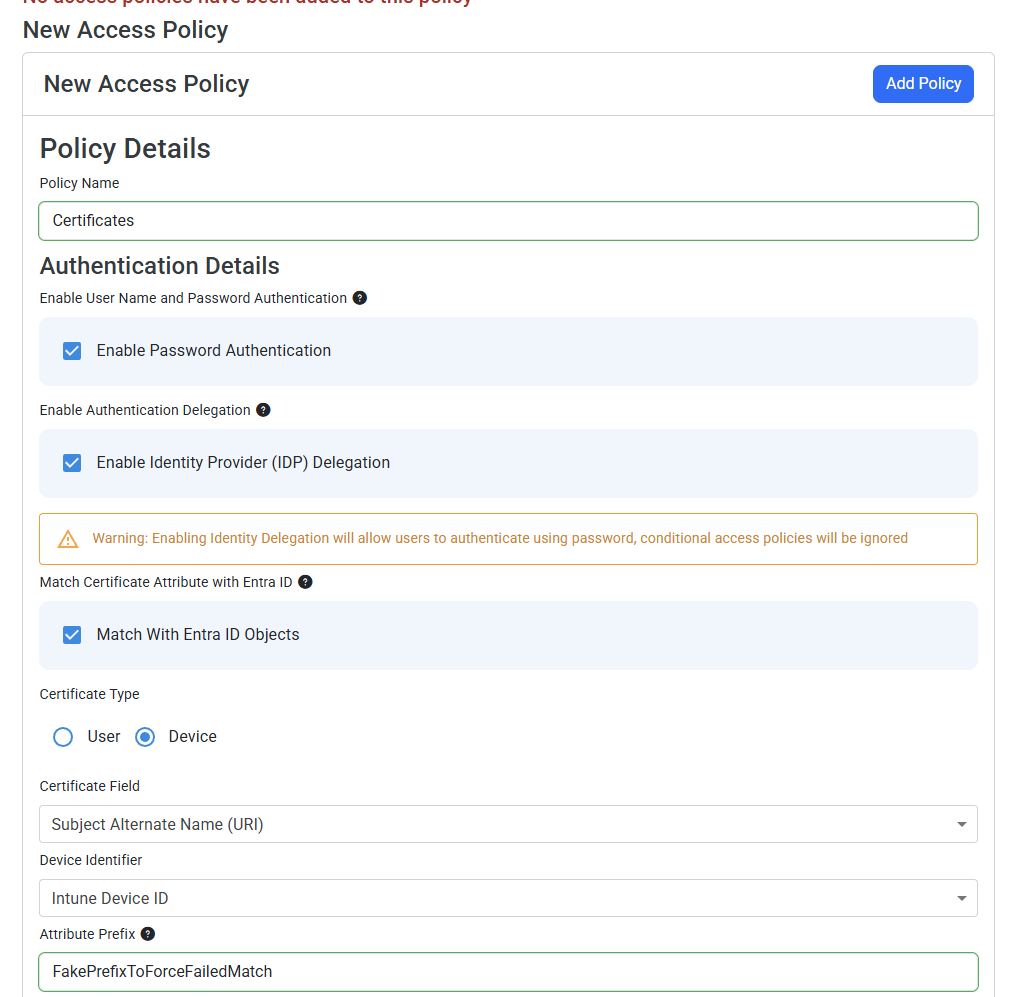
- Check the box for Enable Password Authentication to enable username + password authentication in this access policy
- Enable Identity Provider (IDP) Delegation if you want to use Entra ID for authentication in this policy. If you are not using Entra ID, leave this unchecked and ensure you have local RADIUS users configured.
- Optionally check Check Group Membership if you want to restrict this access policy to certain Entra ID groups. See this guide for more details on how to match with Entra ID groups.
- Optionally set VLAN Management or Advanced Settings to control additional matching options.
How to Disable Certificate Authentication on This Access Policy
Because you previously added your trusted CAs to your RADIUS policy, EAP-TLS certificate-based authentication is technically enabled for this access policy as well. If you want to ensure that only username + password authentication is used in this access policy, and that valid certificates do not match, follow these steps. You’ll be adding a certificate matching policy that always fails, which will prevent certificate authentication from succeeding in this access policy:
- Check Match With Entra ID Objects
- For Certificate Type, select Device (even if you are using user certificates, still select Device here)
- For Matching Scheme, select Always Mismatch
- For Certificate Field, select any option such as “Subject Alternate Name (UPN)”
- Select any value for Device Identifier, such as “Intune Device ID”
- Under Attribute Prefix, enter “FakePrefixToForceFailedMatch” or any value that will not be present in any of your actual certificates
With this configuration, username + password authentication will still work in this access policy, but certificate-based authentication will always fail because the certificate match will always fail. This allows you to effectively disable certificate authentication in this access policy while still having it enabled in your RADIUS policy for other access policies that should allow certificate authentication.
- Click Add Policy to add your access policy to your RADIUS policy.