

















How-To: Issue SCEP Certificates in NinjaOne on macOS
Overview - Issuing SCEP Certificates with NinjaOne on macOS
In this guide, we will walk through the steps to configure NinjaOne to issue SCEP certificates from your EZCA SCEP CA to macOS devices using an Apple management profile (.mobileconfig) file. At a high level you will:
- Configure your EZCA SCEP CA to use a static SCEP challenge.
- Create an Apple management profile (.mobileconfig) file that includes the necessary CA certificate and SCEP payload to issue certificates from your EZCA SCEP CA.
- Update your NinjaOne policies to deploy the management profile to your macOS devices and begin issuing SCEP certificates.
Let’s get started!
How to Configure NinjaOne to Issue SCEP Certificates on macOS - Video Tutorial
Check out the video tutorial below for a step-by-step walkthrough of how to configure NinjaOne to issue SCEP certificates on your macOS devices from your EZCA SCEP CA!
How to Configure NinjaOne to Issue SCEP Certificates on macOS - Step-by-Step Guide
The following steps will guide you through the process of configuring NinjaOne to issue SCEP certificates to your macOS devices from your EZCA SCEP CA.
Prerequisites for Configuring NinjaOne with SCEP
- You will need a NinjaOne account with the appropriate permissions to create and deploy policies and scripts.
- You will need an EZCA SCEP CA set up and ready to issue certificates.
Step 1: How to Configure NinjaOne with Apple MDM for macOS Device Management
To manage and deploy Apple management profiles to your macOS, iOS, and iPadOS devices, you will first need to configure Apple MDM in NinjaOne. This involves creating an Apple MDM push certificate and uploading it to NinjaOne to establish trust between NinjaOne and Apple’s Push Notification Service (APNs). This allows NinjaOne to send management profiles, including the SCEP certificate profile we will create later, to your macOS, iOS, and iPadOS devices.
You only need to configure Apple MDM in NinjaOne once for your organization. After the initial setup, you can deploy Apple management profiles to all your macOS, iOS, and iPadOS devices without repeating this process.
-
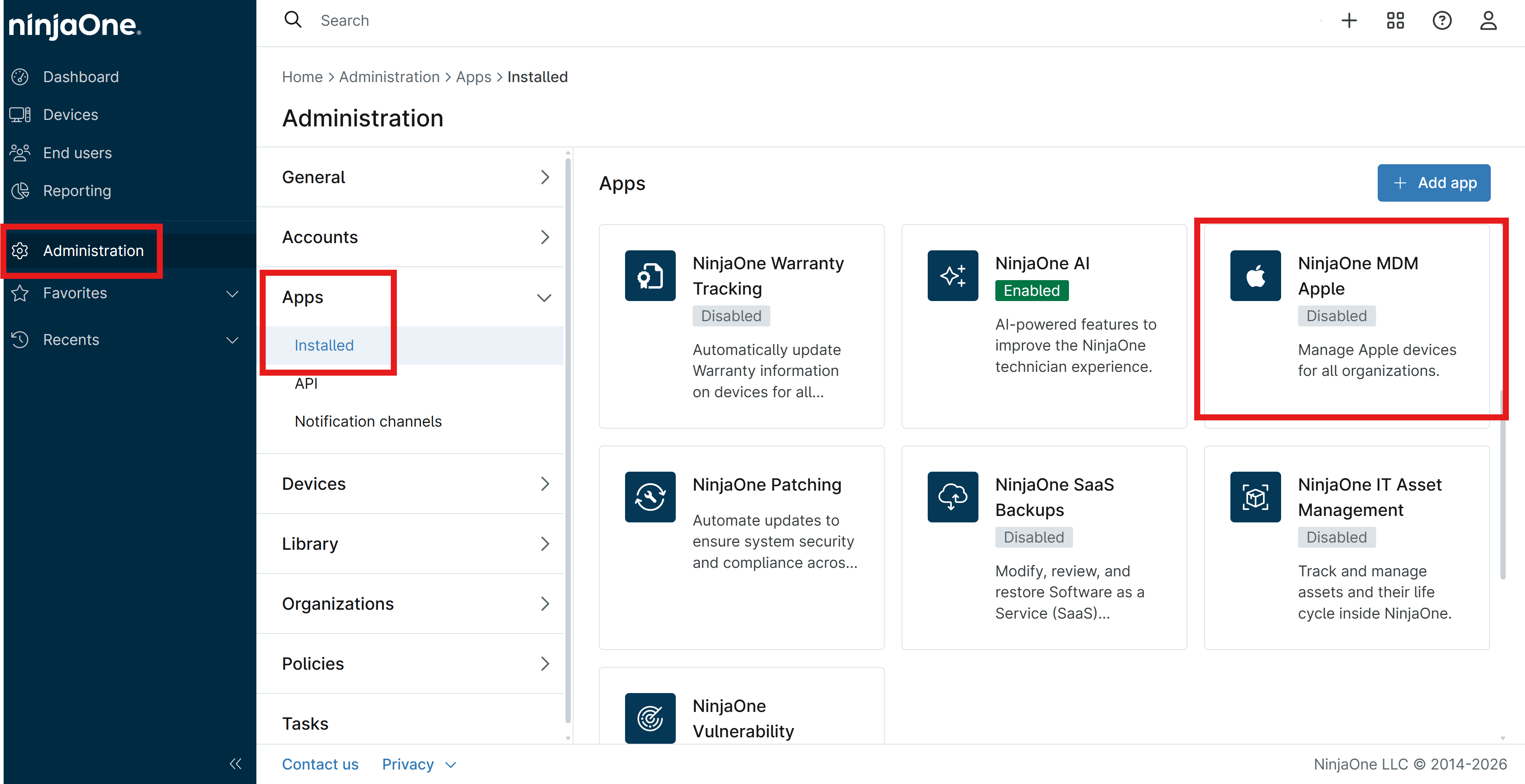
Navigate to Administration > Apps > Installed and select NinjaOne MDM Apple from the list.
-
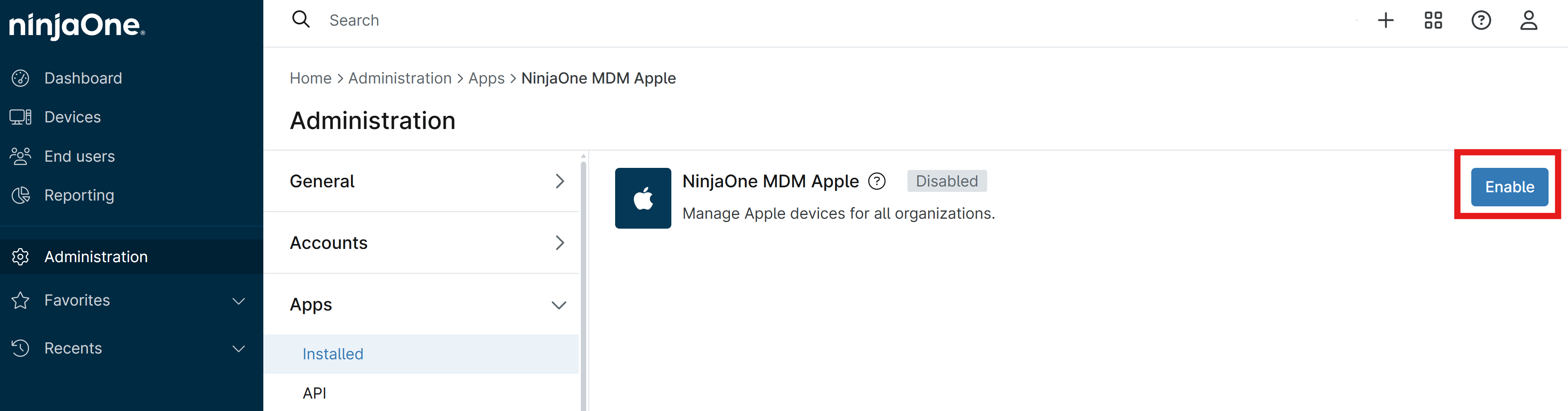
Click Enable to begin the process of configuring Apple MDM.
-
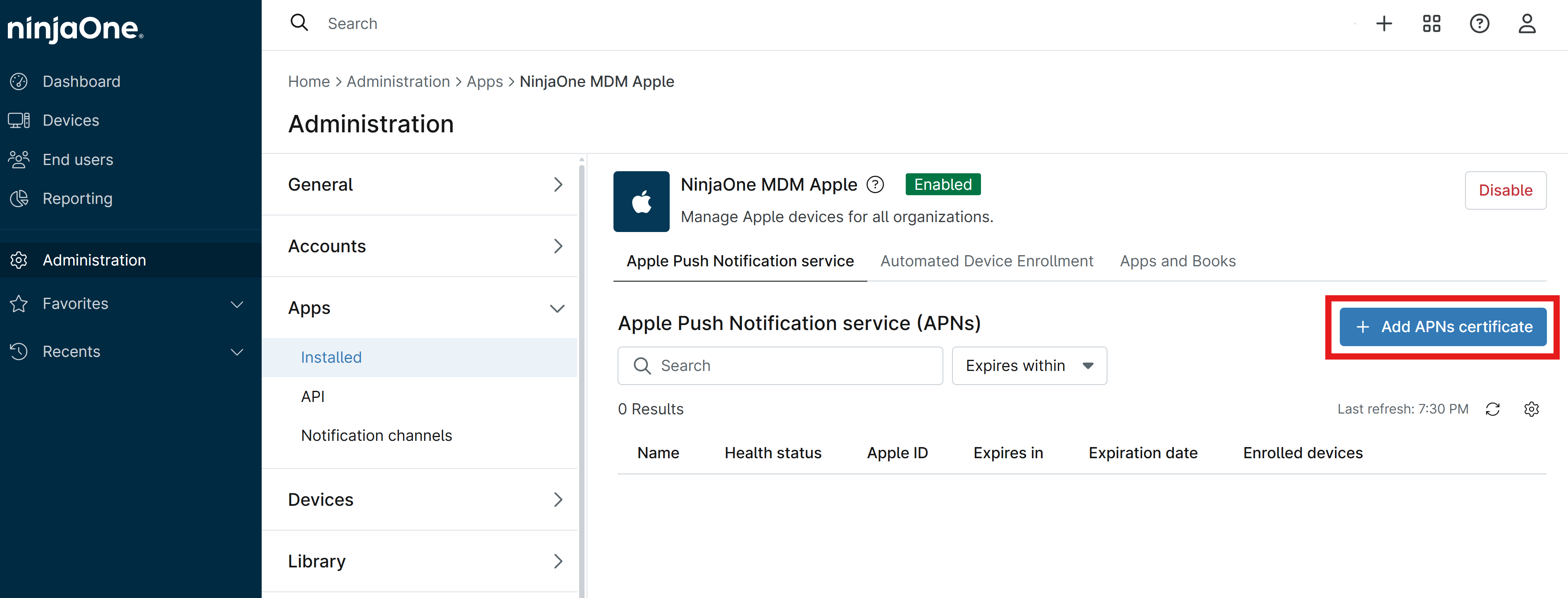
Click + Add APNs certificate to download, sign, and upload your Apple MDM push certificate.
-
Click Download file to download the CSR file that you will need to sign with Apple to create your APNs certificate.
-
Click Apple Push Certificates Portal to open the Apple Push Certificates Portal in a new tab, and sign in with your Apple ID.
-
Click Create a Certificate, read and accept the terms, and upload the CSR file you downloaded from NinjaOne.
-
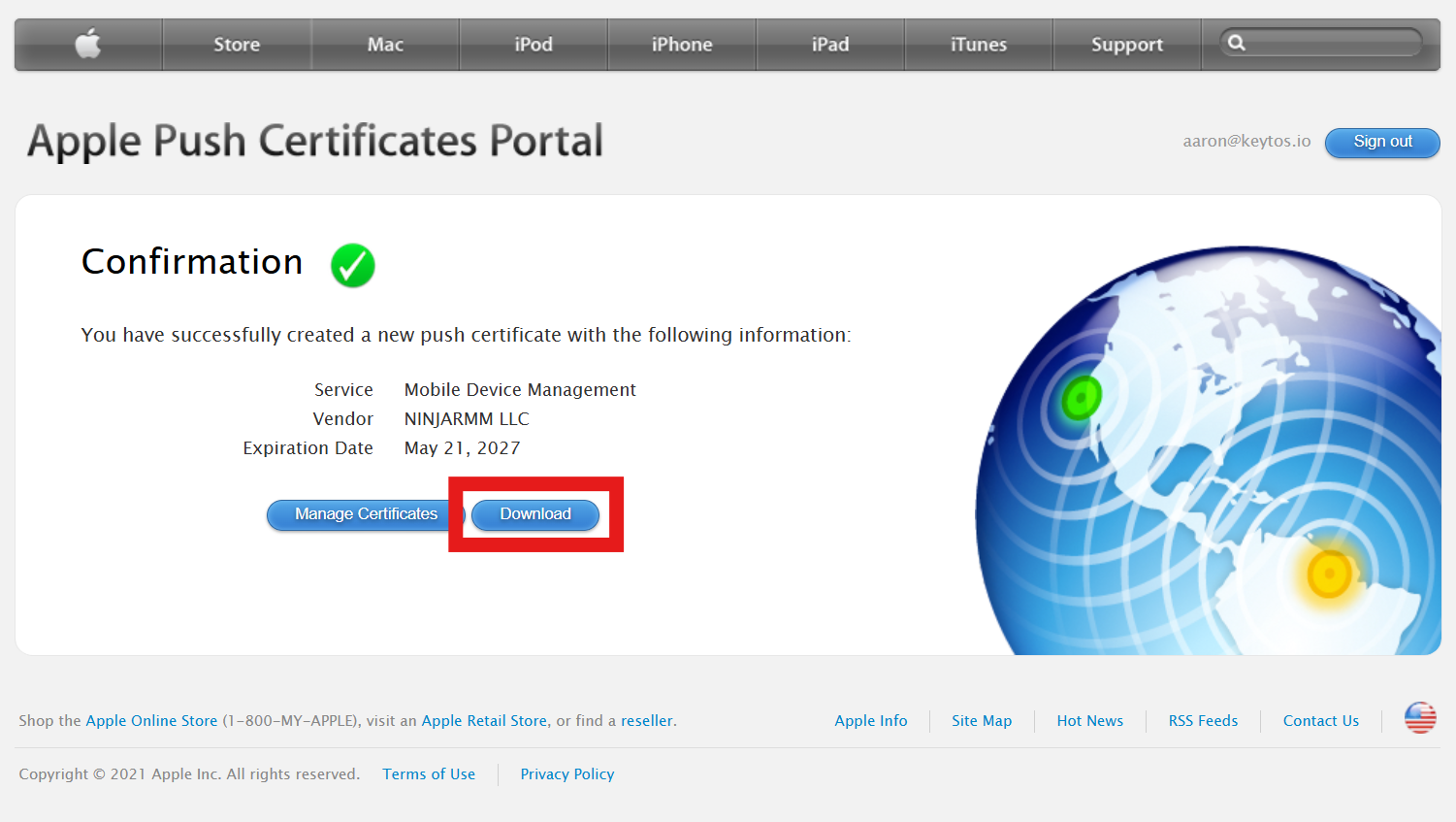
Click Download to download the signed APNs certificate from Apple. Save this file to your computer.
-
Set a calendar reminder for 30 days before the noted Expiration Date to ensure you renew your APNs certificate before it expires, as an expired APNs certificate will cause MDM management and SCEP certificate issuance to stop working until the certificate is renewed and updated in NinjaOne.
-
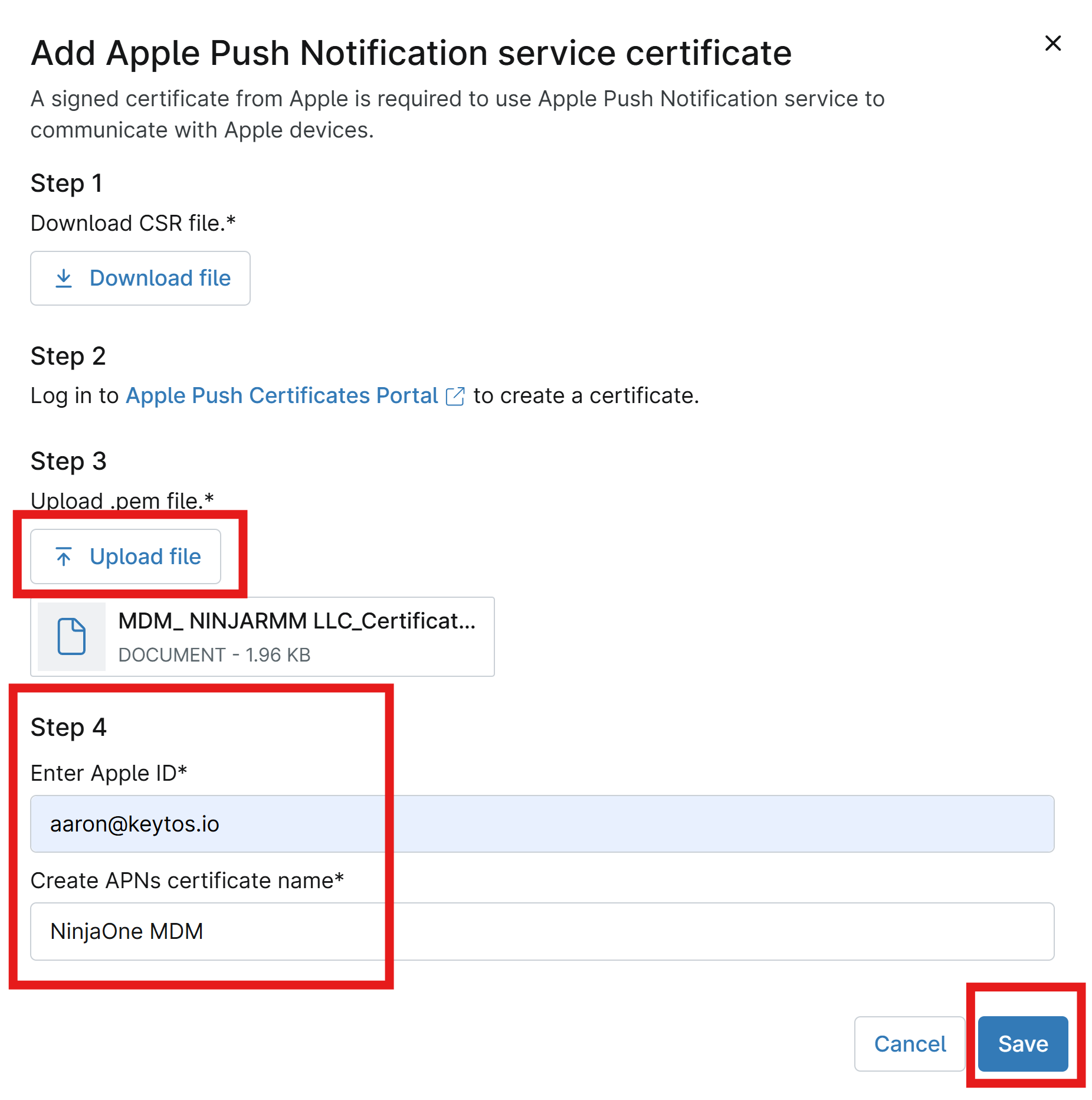
Return to the NinjaOne tab and click Upload file to upload the APNs certificate you downloaded from Apple.
-
Enter your Apple ID that you used to sign the APNs certificate in the Apple ID field, and add a descriptive name for Create APNs certificate name.
-
Click Save to save your APNs certificate in NinjaOne and complete the Apple MDM configuration process.
-
Done. You now have Apple MDM configured in NinjaOne and can deploy Apple management profiles to your macOS, iPadOS, and iOS devices.
Step 2: How to Create an Apple Management Profile with EZCA SCEP Payload for macOS
An Apple management profile is a file with a .mobileconfig extension that contains configuration settings and payloads that can be deployed to Apple devices, including macOS. To issue SCEP certificates from your EZCA SCEP CA to your macOS devices, you will need to create a management profile that includes both your CA certificate(s) and a SCEP payload configured to request certificates from your EZCA SCEP CA. You can create this file manually or use a tool like Apple Configurator 2 to create the profile through a graphical interface. Check out our Apple Configurator guide for step-by-step instructions on how to create a management profile with a SCEP payload using Apple Configurator.
Note that when you set your Subject Name and Subject Alternative Name (SAN) fields in the SCEP payload, you can use variables that will be replaced with device-specific and user-specific values when the profile is deployed. See the NinjaOne documentation for more information on their available variables and how to use them in your management profiles. You can also use Apple’s built in variables as well, in combination with NinjaOne’s variables and static values.
| Variable | Description |
|---|---|
${device.location.name} |
This is the device’s assigned location name value. |
${device.location.id} |
This is the device’s assigned location ID value. |
${device.organization.name} |
This is the device’s organization’s name value. |
${device.organization.id} |
This is the device’s organization ID value. |
${device.serialNumber} |
This is the device’s serial number value. |
${device.id} |
This is the device’s GUID value (unique identifier). |
${device.owner.email} |
This is the device’s assigned user email address value. |
${device.owner.firstName} |
This is the device’s assigned user’s first name value. |
${device.owner.lastName} |
This is the device’s assigned user’s last name value. |
${device.owner.displayName} |
This is the device’s assigned user’s display name value. |
You should now have a .mobileconfig file that contains the necessary CA certificate(s) and SCEP payload to request certificates from your EZCA SCEP CA. In the next steps, we will upload this file to NinjaOne and configure it to be deployed to your macOS devices.
Step 3: How to Deploy Apple Management Profile with SCEP Payload to macOS Devices in NinjaOne
Now that you have your Apple management profile with the SCEP payload created, you can deploy this profile to your macOS devices using NinjaOne.
-
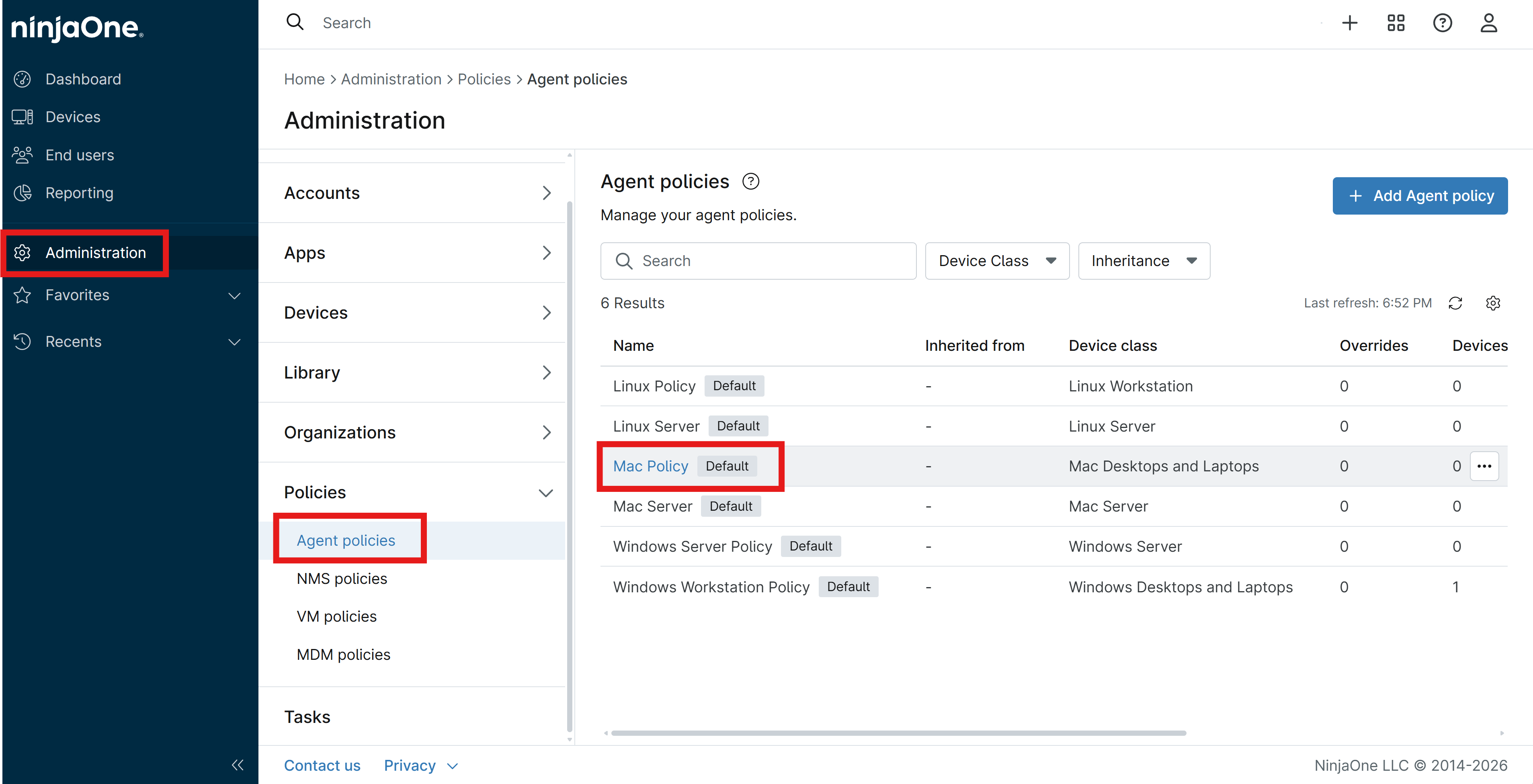
In the NinjaOne portal, navigate to Administration > Policies > Agent policies and select the Mac policy you want to deploy the profile with, or create a new policy if needed.
-
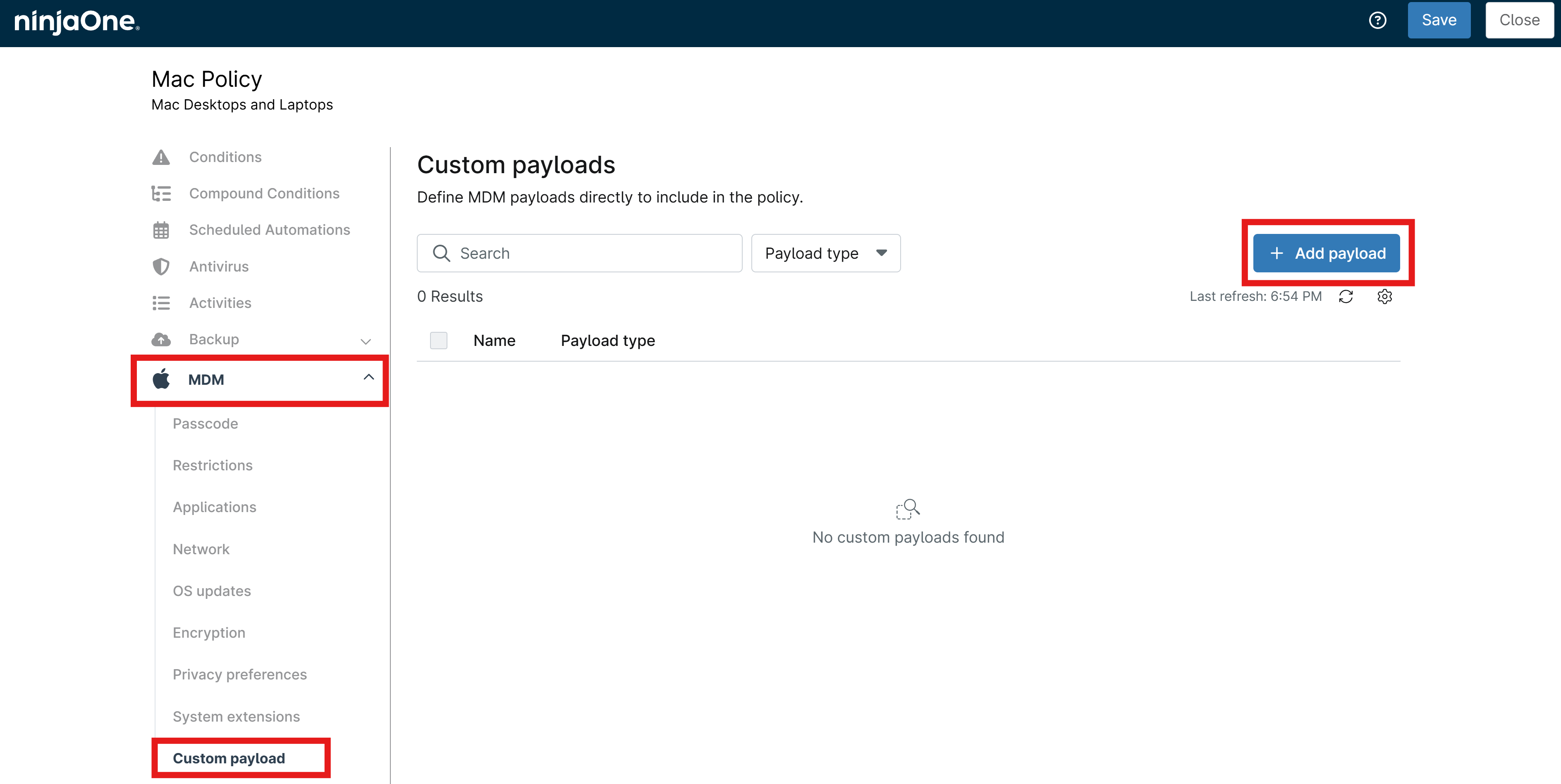
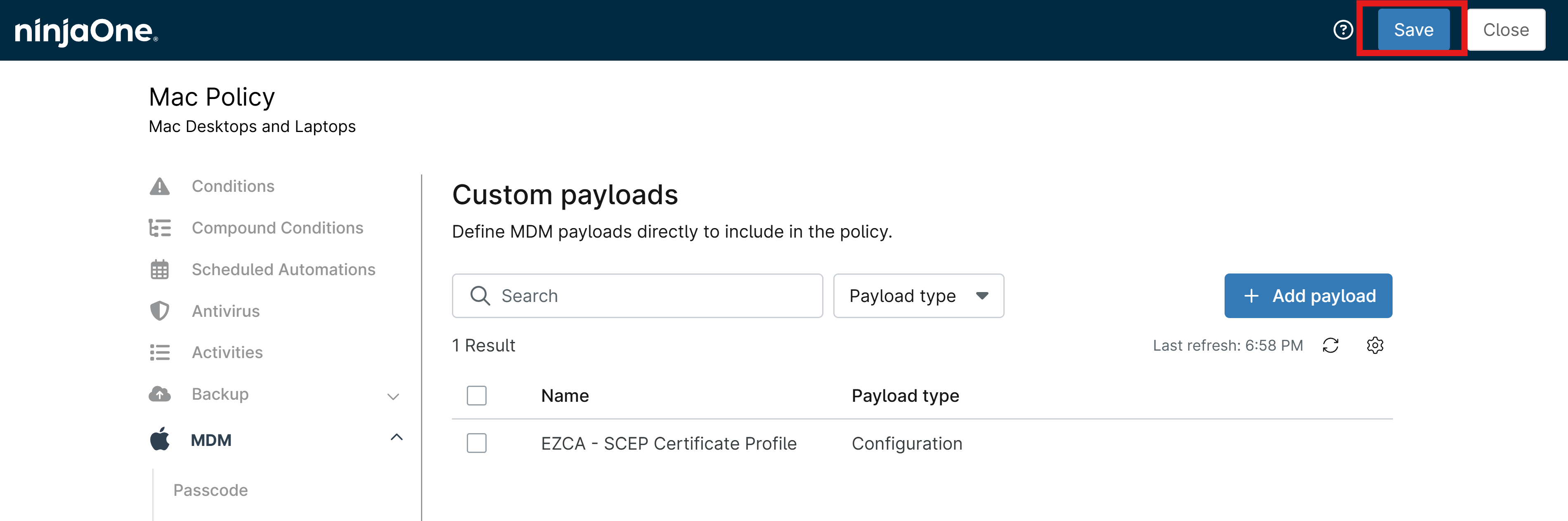
From the left-hand menu, select MDM > Custom payload and click on the + Add payload button.
-
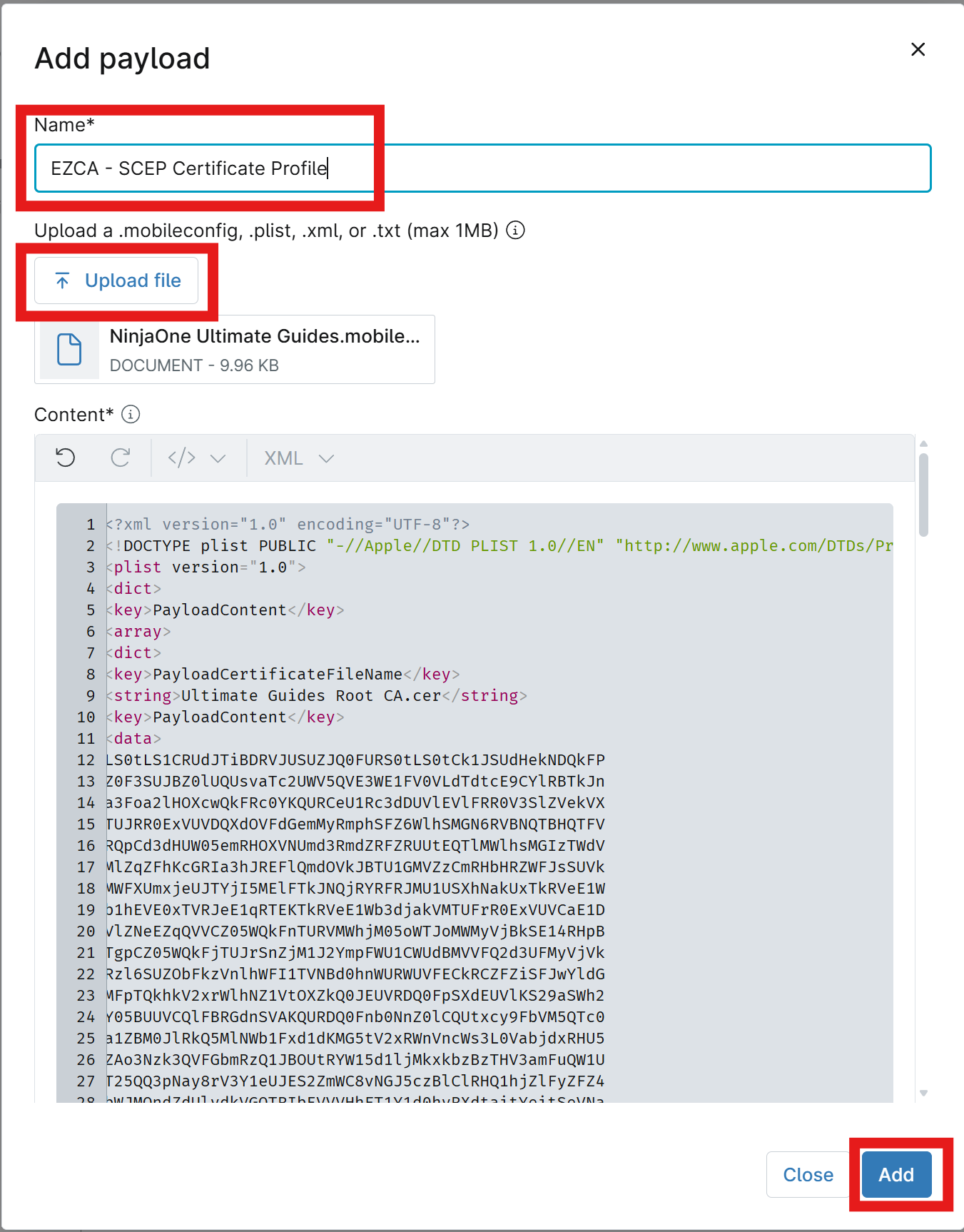
Set the Name to
EZCA - SCEP Certificate Profile(or a name of your choice), and click Upload file to upload the.mobileconfigfile you created in the previous step. -
Click Add to add the custom payload to the policy.
-
In the top-right corner, click on the Save button to save your changes to the policy.
Step 4: How to Join Your macOS Devices to NinjaOne via MDM Enrollment to Receive Custom Payloads
In order for your macOS devices to receive the Apple management profile with the SCEP payload that you deployed in the previous step, they will need to be enrolled via the MDM enrollment profile method. Enrolling via a DMG or PKI installer will not work for receiving MDM-deployed custom profiles, as those enrollment methods do not establish the necessary MDM management channel between the device and NinjaOne for deploying profiles.
To enroll your macOS devices via MDM enrollment:
-
Navigate to your NinjaOne portal.
-
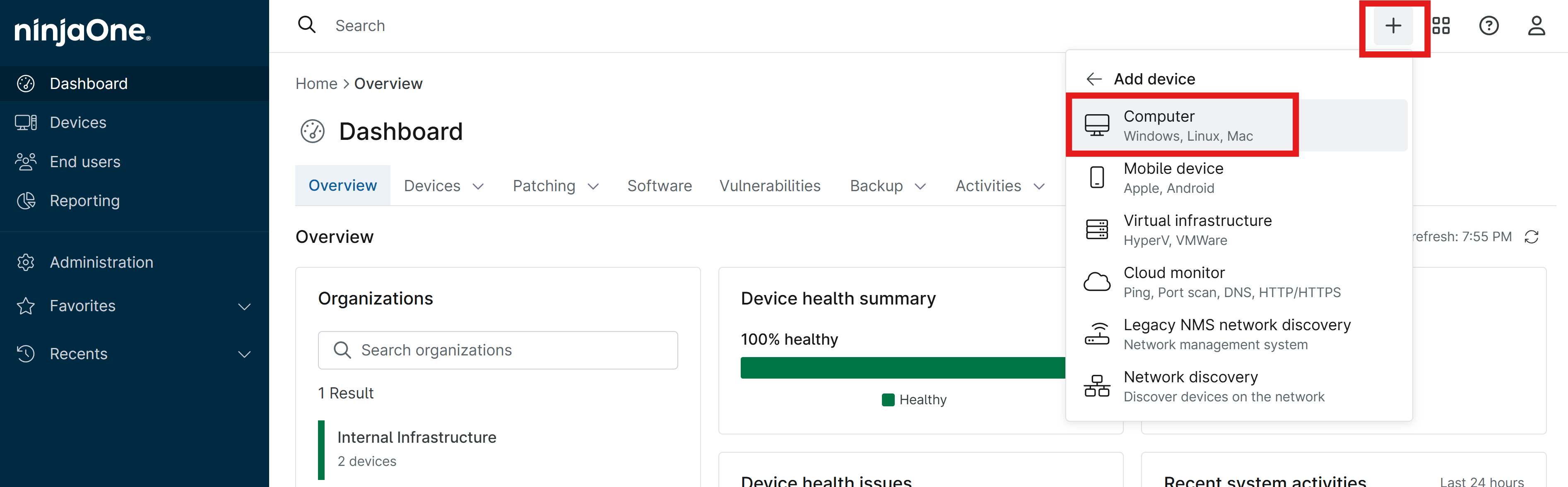
In the top-right corner, click the + button, then Device, then Computer.
-
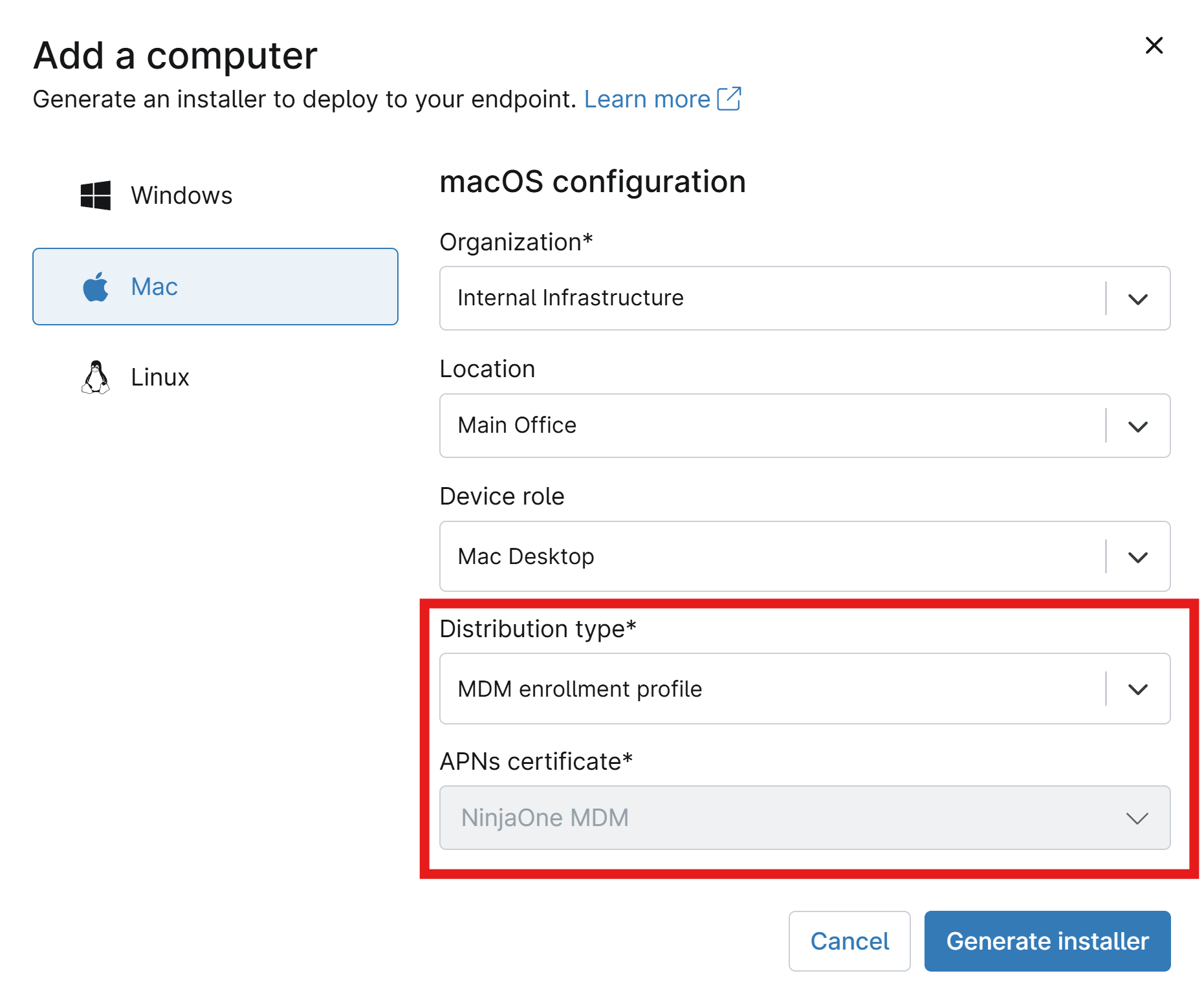
Select Mac and fill in your organization/location/role information.
-
Set Distribution type to MDM enrollment profile and select your APNs certificate if you have more than one.
-
Click Generate installer and distribute the generated .mobileconfig file to your users to install on their devices and complete the enrollment process.
Step 5: Verify SCEP Certificate Issuance on macOS Devices
Once your macOS devices are enrolled in NinjaOne MDM and have received the Apple management profile with the SCEP payload, they should automatically request and install SCEP certificates from your EZCA SCEP CA based on the configuration in your .mobileconfig file. You can verify that the certificates have been issued and installed correctly by checking the certificate store on the macOS device.
Make sure your devices are enrolled via MDM enrollment profile method, as other enrollment methods like DMG or PKI installer will not work for receiving MDM-deployed profiles and thus will not receive the SCEP certificate profile.
-
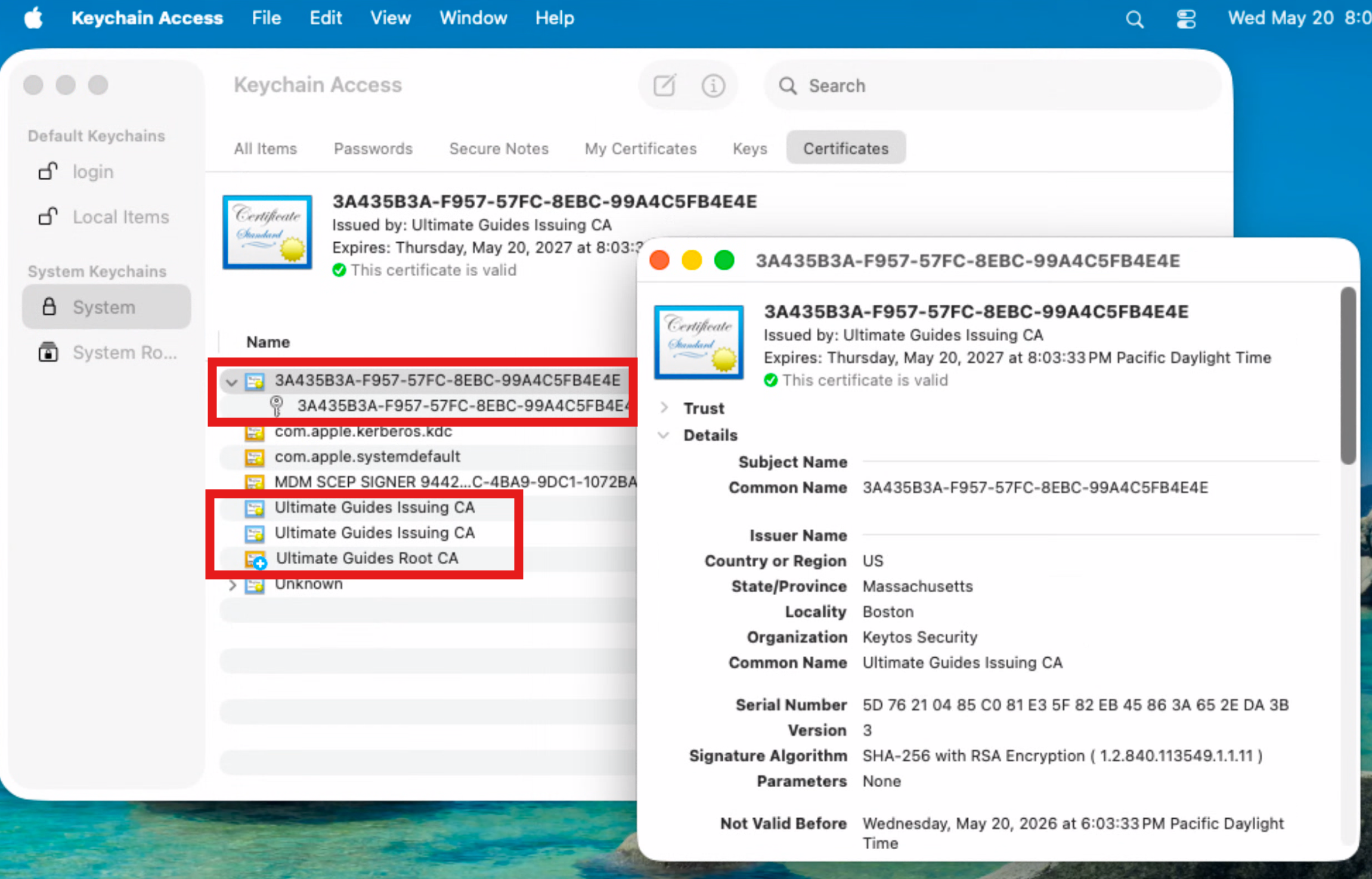
On the macOS device, open the Keychain Access application.
-
In the left-hand pane, select System under Keychains and Certificates under Category.
-
Look for the SCEP certificate that was issued from your EZCA SCEP CA. You can verify the issuer and other details of the certificate by double-clicking on it to open the certificate viewer.
Enjoying EZCA? Leave Us a Review!
We hope you’re enjoying using EZCA to issue your SCEP certificates in NinjaOne! If you have a moment, we would greatly appreciate it if you could leave us a review on G2. Your feedback helps other IT professionals discover EZCA and helps us continue to improve our service. Thank you for your support!