

















How-To: Issue a RadSec Client Certificate for Your Network Device
Overview - How to Create a RadSec Certificate for Your Network Device
When configuring RadSec (RADIUS over TLS) with EZRADIUS, you will need to create a client certificate and private key for your network device, and also upload the EZRADIUS RadSec CA certificate to your network device so that it can trust the EZRADIUS RadSec server.
The RadSec client certificate and private key are used by your network device to authenticate itself to the EZRADIUS RadSec server when establishing a secure RADIUS connection. The EZRADIUS RadSec CA certificate is used by your network device to verify the identity of the EZRADIUS RadSec server and establish trust. This two-way trust relationship ensures that your network device can securely communicate with the EZRADIUS RadSec server for RADIUS authentication.
Some network devices, such as Cisco Meraki, come pre-installed with a RadSec client certificate and private key, and do not allow you to upload your own. In this case, you will need to download the pre-installed client certificate or its CA certificate from the network device and upload it to the EZRADIUS portal when adding a RadSec server.
How to Create a RadSec Certificate and Private Key for Your Network Device
A RadSec Client Certificate is required to authenticate your network controller (RADIUS client) to the EZRADIUS server over a secure TLS connection. You can create a RadSec Client Certificate using EZCA or a 3rd Party Certificate Authority.
How to Create a RadSec Client Certificate Using EZCA
EZRADIUS is integrated with EZCA to make it easy to generate a new RadSec Certificate directly in your browser.
-
First, make sure you’ve added your EZCA Certificate Authority to your EZRADIUS policy under RadSec (RADIUS TLS) Client Configuration > Trusted Certificate Authorities and saved the policy.
-
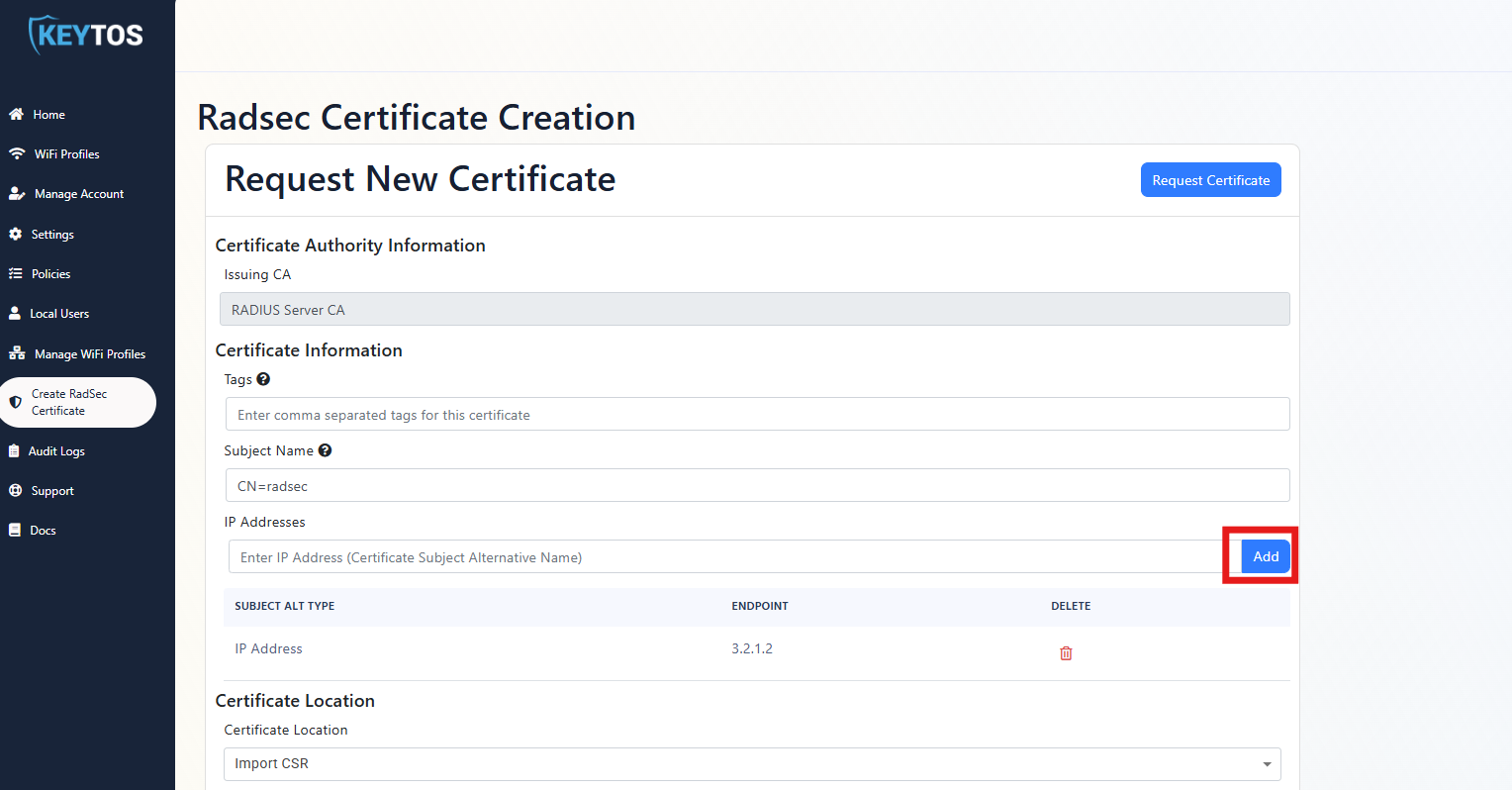
In the EZRADIUS dashboard, from the left-hand menu click on Create RadSec Certificate. (If you don’t see this option, make sure you have added an EZCA Certificate Authority to your policy as mentioned in the previous step.)
-
Under the Issuing CA dropdown, select the EZCA Certificate Authority you previously added to your EZRADIUS policy. If you just have one, it will be selected by default.
-
Optionally add Tags for your certificate to help identify it later.
-
Keep the Subject Name as CN=radsec.
-
Enter at least one IP address of your network controller in the IP Address field and click Add. This field isn’t used for RadSec authentication so even if you have a dynamic IP, you can still proceed with your current IP.
-
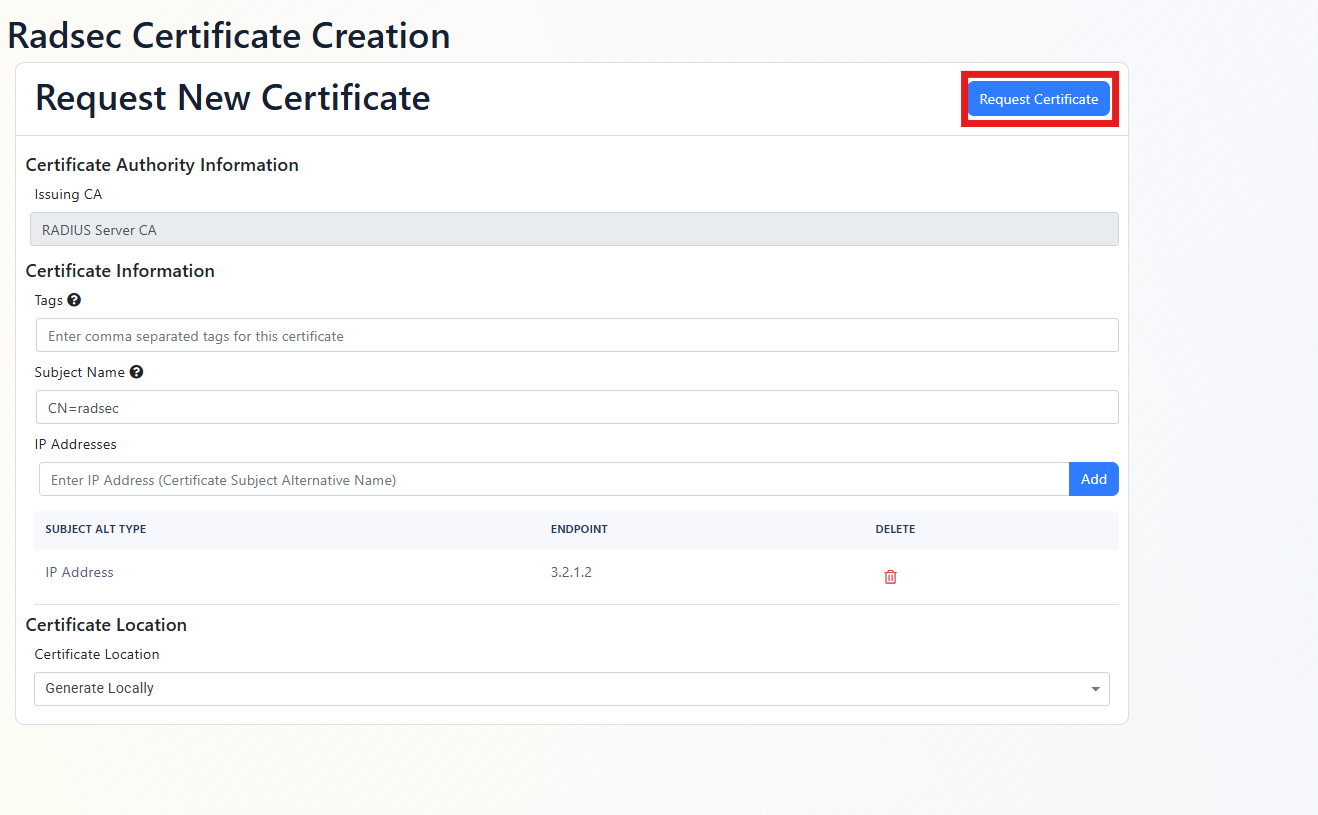
In the Certificate Location dropdown, select Generate Locally.
-
Click on Request Certificate. It will take a few seconds to generate the certificate.
-
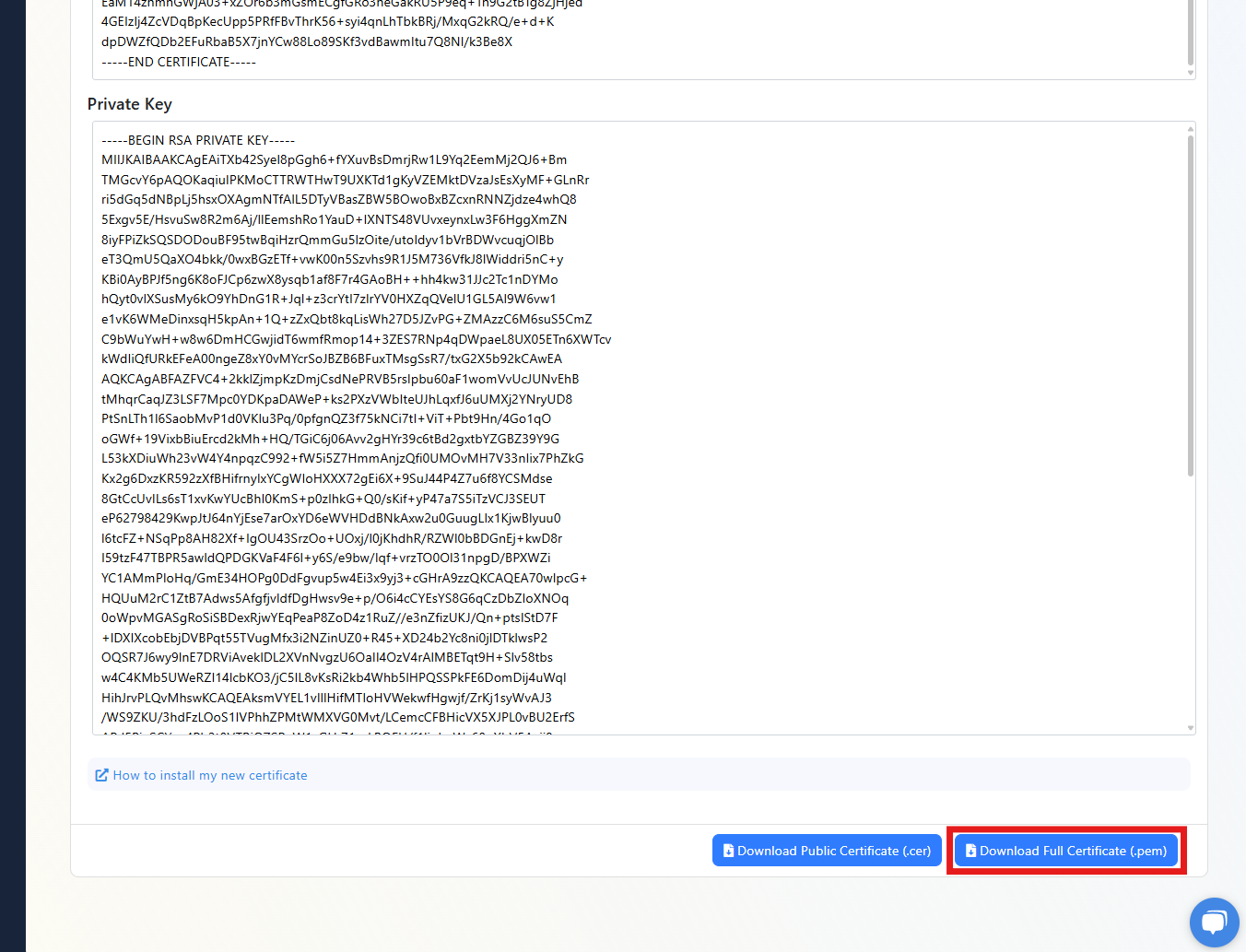
Click on Download Full Certificate.
-
This will download 2 files. The
.keyfile is the private key and the.pemfile is the certificate.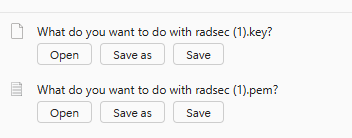
How to Create a RadSec Client Certificate Using a 3rd Party Certificate Authority
Refer to your PKI documentation for creating a new RadSec Client Certificate. You will need both the certificate (.pem) and the private key (.key) files.
Any 3rd Party Certificate Authority that can generate a certificate with the appropriate fields can be used to create a RadSec Client Certificate.
- First, make sure you’ve added your 3rd Party Certificate Authority to your EZRADIUS policy under RadSec (RADIUS TLS) Client Configuration > Trusted Certificate Authorities and saved the policy.
- Refer to your PKI documentation for creating a new RadSec Client Certificate. You will need both the certificate (
.pem) and the private key (.key) files.
How to Get the RadSec CA Certificate from EZRADIUS
The RadSec CA Certificate is used by your network controller to verify the identity of the EZRADIUS server when establishing a secure TLS connection. You can download the RadSec CA Certificate directly from the EZRADIUS dashboard.
-
Navigate to the EZRADIUS Policies page from the left-hand menu.
-
Click Download RadSec CA Certificate and save it to your local machine. It should be named
radsec_ca.cer, or similar.