

















Connect to Work or School Wi-Fi on Android with Keytos Connect
Connect to Work or School Wi-Fi on Android with Keytos Connect
If your workplace or school allows personal and bring-your-own-devices (BYOD) to connect to their Wi-Fi network, Keytos Connect simplifies the process and makes it as easy as just a few clicks to get connected.
Simply download Keytos Connect for Android, sign in, and you’ll be up and running in no time. Keytos Connect will automatically detect the Wi-Fi network and configure your device to connect securely without the need for any manual configuration.
How to Download the Keytos Connect App for Android
To get started with Keytos Connect on Android, simply download & install the app from the Google Play Store and you will stay up to date with the latest releases and features.

What Can My Workplace or School See or Do On My Android Device?
Keytos Connect is designed to be a lightweight application with the minimum amount of permissions required to install network profiles and connect to Wi-Fi.
Things Keytos Connect CAN Do On Your Android
Keytos Connect and your workplace or school can do the following on your device on it is installed and you are signed in:
- Install trusted certificates on your device which allow it to securely communicate with your workplace or school Wi-Fi.
- Install and renew a user certificate for your work or school account into your personal certificate store which is used to sign you into your work or school Wi-Fi.
- Install a Wi-Fi profile on your device for your workplace or school Wi-Fi networks, which tells your device which certificates to use when establishing a secure connection.
- Send notifications if you need to sign-in again or take any other manual actions.
Things Keytos Connect CANNOT Do On Your Android
Keytos Connect and your workplace or school cannot do the following on your device once Keytos Connect is installed:
- View your files and folders.
- Install other applications.
- View your screen.
- Track your on-device network activity or browsing history (although they may implement network tracking outside of Keytos Connect. Consult with your IT team for any questions).
- Make any changes to your browsers or other applications on your device.
How to Connect to Work or School Wi-Fi on Android with Keytos Connect - Step-by-Step Guide
The following steps will walk you through how to install the Keytos Connect application for Android and connect to your workplace or school Wi-Fi network:
Step 1: How to Install the Keytos Connect Application for Android
The first step to connect to your workplace or school Wi-Fi is to install the Keytos Connect application for Android. The section above details each installation method. The easiest way is the Google Play Store.
Step 2: How to Launch Keytos Connect and Install Your Wi-Fi Profiles on Android
Once you get Keytos Connect installed, you can launch it and install your available Wi-Fi profiles.
-
Launch Keytos Connect on your device.
-
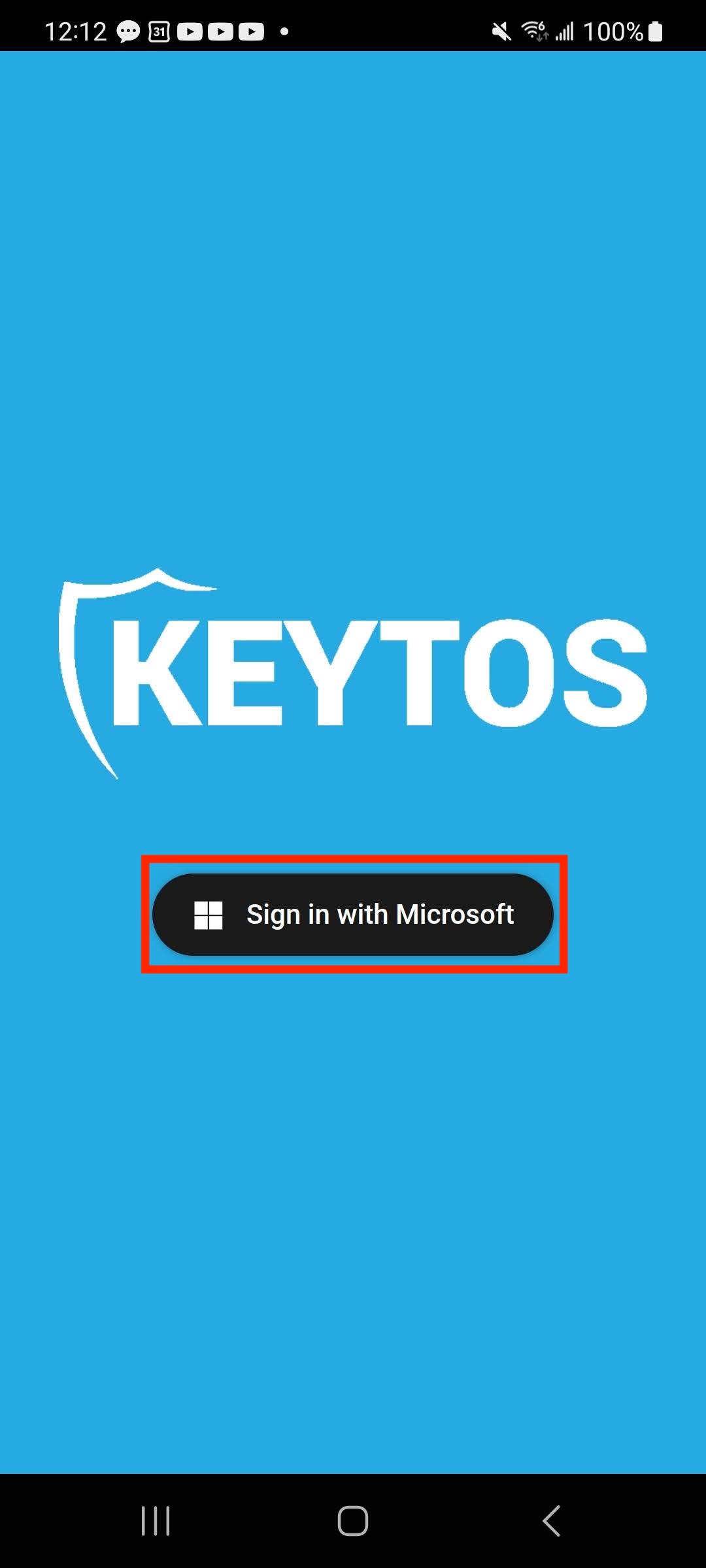
On first launch you will be prompted to login with your Microsoft workplace or school (Entra ID) account. Click the Sign in with Microsoft button to launch a login window and complete the sign-in process. Make sure to use your email address given to you by your workplace or school.
-
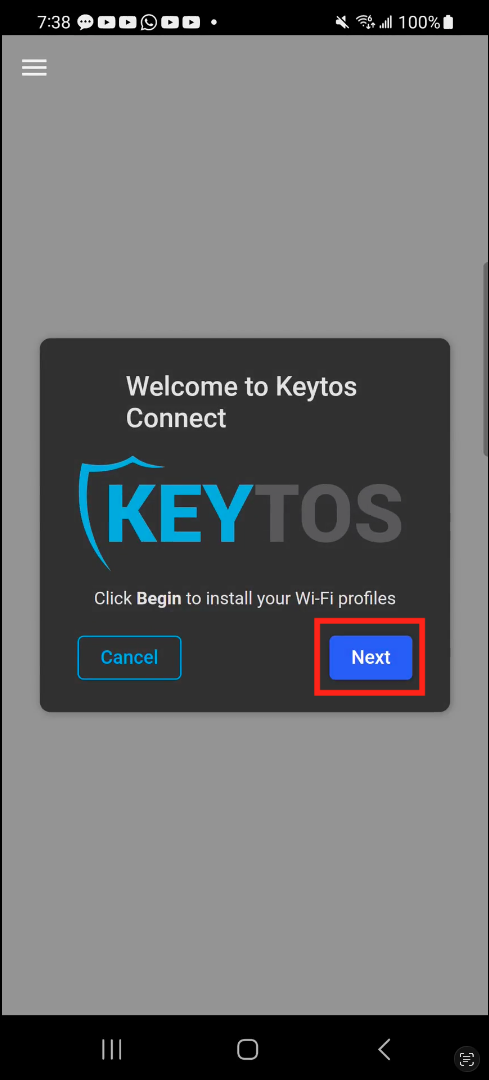
Upon a successful login, Keytos Connect will automatically begin the installation process. Click Begin to start the installation process.
-
Keytos Connect will guide you through the process of installing the Wi-Fi profiles containing the certificates and Wi-Fi configuration required to connect.
-
After granting the permission to suggest Wi-Fi networks, the application will install all your available Wi-Fi profiles and return you to the dashboard.
Step 3: How to Connect to Your Workplace or School Wi-Fi on Android
Now that you have installed your Wi-Fi profile(s), you can connect to your workplace or school Wi-Fi. If your Wi-Fi network is configured to auto-connect, you should automatically connect to the network. If the network is not configured to connect automatically, you can:
- Open Settings and navigate to Connections > Wi-Fi.
- Refresh the Wi-Fi page. You may have to wait up to 15 seconds for the Wi-Fi network to appear.
- Find the Wi-Fi network provided by your workplace or school and click to connect.
- Done! You should now be connected to your workplace or school Wi-Fi network.
How to Troubleshoot a Failed Wi-Fi Connection on Android After Configuring Keytos Connect
Failed to Sign In to Keytos Connect on Android
If you’re unable to sign-in to Keytos Connect on your device start by verifying the following:
- Make sure you’re currently connected to an internet connection such as a Guest Wi-Fi network or cellular connection.
- Make sure you used your workplace or school email address & account. Personal accounts will not work.
- If required by your IT team, make sure you successfully completed multi-factor authentication.
If you’ve verified the above steps and still cannot sign-in, consult your workplace or school’s IT team to make sure they have configured the Keytos Connect application on their end, and your account is enabled to use Keytos Connect.
Failed to Install Wi-Fi Profiles Using Keytos Connect on Android
If Keytos Connect failed to install the Wi-Fi profile during initial onboarding start by verifying the following:
- Make sure your device isn’t managed by another Mobile Device Management (MDM) platform such as Microsoft Intune. If both try to apply the same certificates or Wi-Fi profile they can conflict and cause unexpected results.
- Make sure you accept the Suggested Wi-Fi Network permission. If you dismissed or denied the permission prompt, you can enable it in your device settings under Settings > Apps > Keytos Connect > Permissions > Suggested Wi-Fi Network.
If you’ve verified the above steps and still cannot complete the Wi-Fi profile installation, consult your workplace or school’s IT team.
Failed to Connect to Wi-Fi Network on Android
If you’ve successfully installed your workplace or school’s Wi-Fi profiles and cannot connect to the Wi-Fi network, verify the following:
- Make sure Wi-Fi is enabled on your device.
- Make sure you’re connecting to the correct Wi-Fi profile and SSID. The Keytos Connect homepage will show you which networks are configured on your device.
- Try removing and reinstalling the Wi-Fi profile.
If you’ve verified the above steps and still cannot connect to Wi-Fi, consult your workplace or school’s IT team.
How To Uninstall a Wi-Fi Profile in Keytos Connect on Android
If you no longer need to connect to your workplace or school Wi-Fi or need to attempt a reinstallation, follow these steps:
How To Remove a Wi-Fi Profile in the Keytos Connect Application
To uninstall a Wi-Fi profile in the Keytos Connect application:
- Open the Keytos Connect application.
- Click the three-dots icon (⁝) next to the Wi-Fi profile name that you want to remove.
- Select Remove Profile to delete your Wi-Fi profile.
- Keytos Connect will automatically delete all the previously installed certificates and network profile.