














How-To: Update Local Server for Cloud RADIUS
Note: Starting May 2026, local proxy servers auto-update when new versions are released. While older versions of the local proxy will continue to operate, they will not be automatically updated and will miss out on any future features until they are manually updated to a version that supports auto-update.
Prerequisites for Updating Your EZRADIUS Local RADIUS Proxy
This guide assumes you have already set up a local RADIUS proxy. If you have not already done so, please follow this guide how adding and deploying a local RADIUS proxy server. If your local RADIUS proxy was deployed after May 2026, the proxy will automatically update itself to the latest version.
Overview: How to Update a Local RADIUS Proxy for Cloud RADIUS
In this guide, we will walk you through the steps to update a Local RADIUS Proxy for your Cloud RADIUS setup in EZRADIUS. Updating your local proxy will ensure you have all the latest features.
How to Download an EZRADIUS Local Proxy Configuration Bundle
-
In a browser, open your EZRADIUS portal.
-
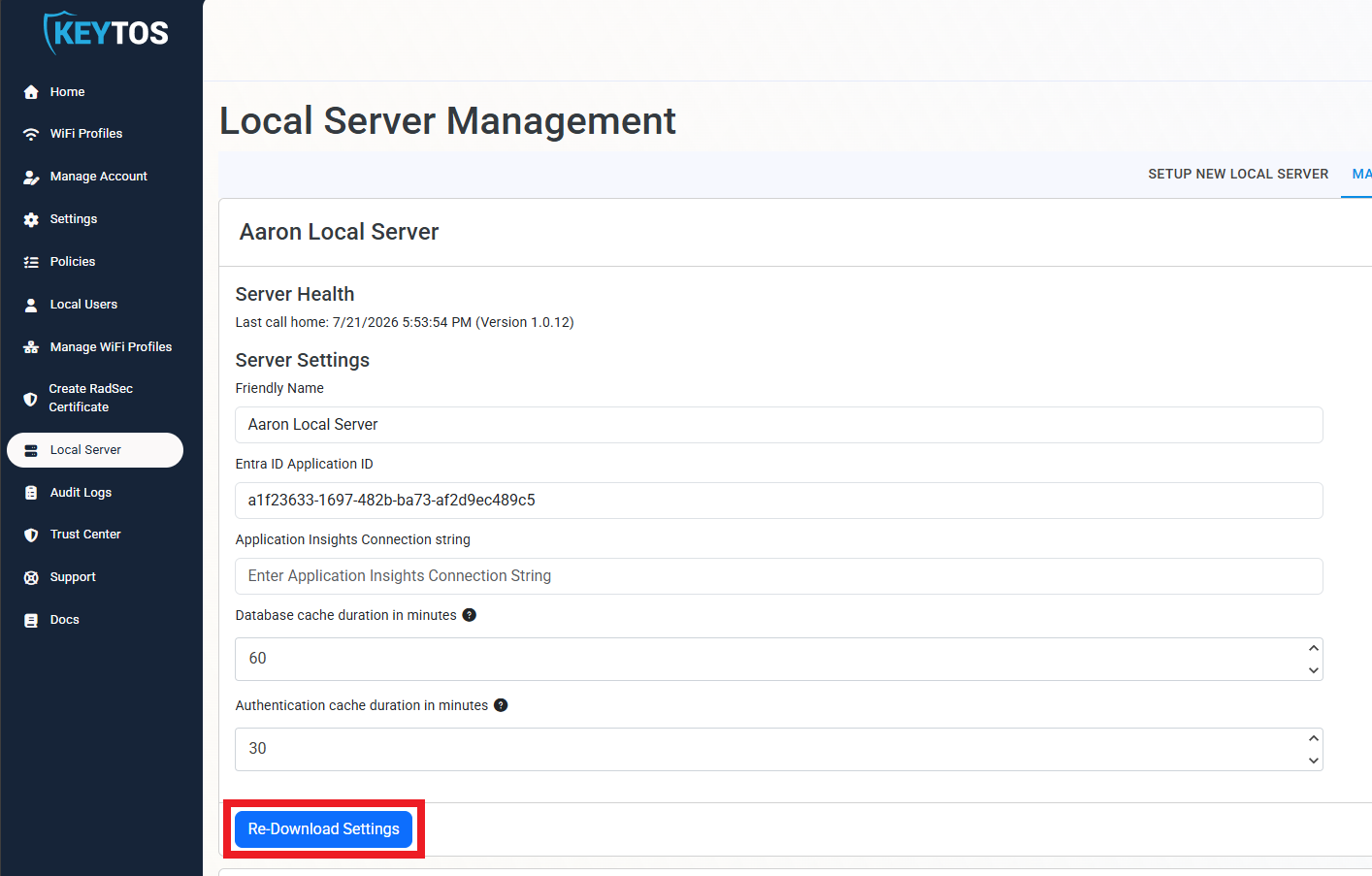
Navigate to Local Server and click on it.
-
Ensure you are in the Manage Local Server tab.
-
Scroll down to your local server and click Re-Download Settings.
-
This will download a zip file bundle containing a Docker script and server certificates.
-
Extract the zip file in a secure location.
How to Add a New Local RADIUS Proxy Entra ID Application Certificate
-
In a browser window, open your Azure portal.
-
Navigate to Entra ID
-
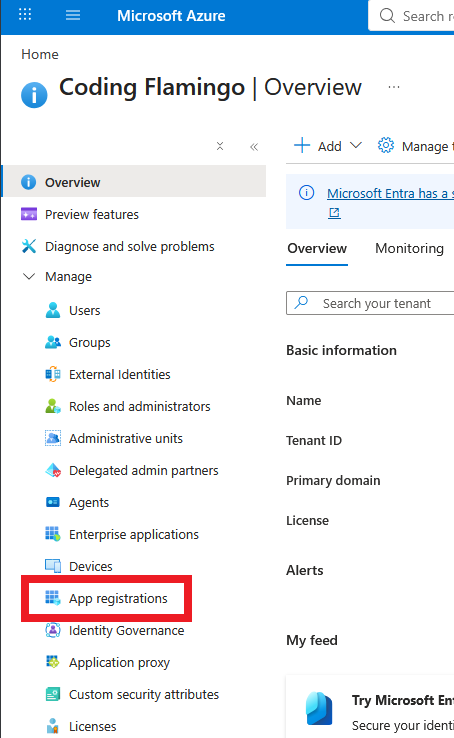
Under Manage select App registrations
-
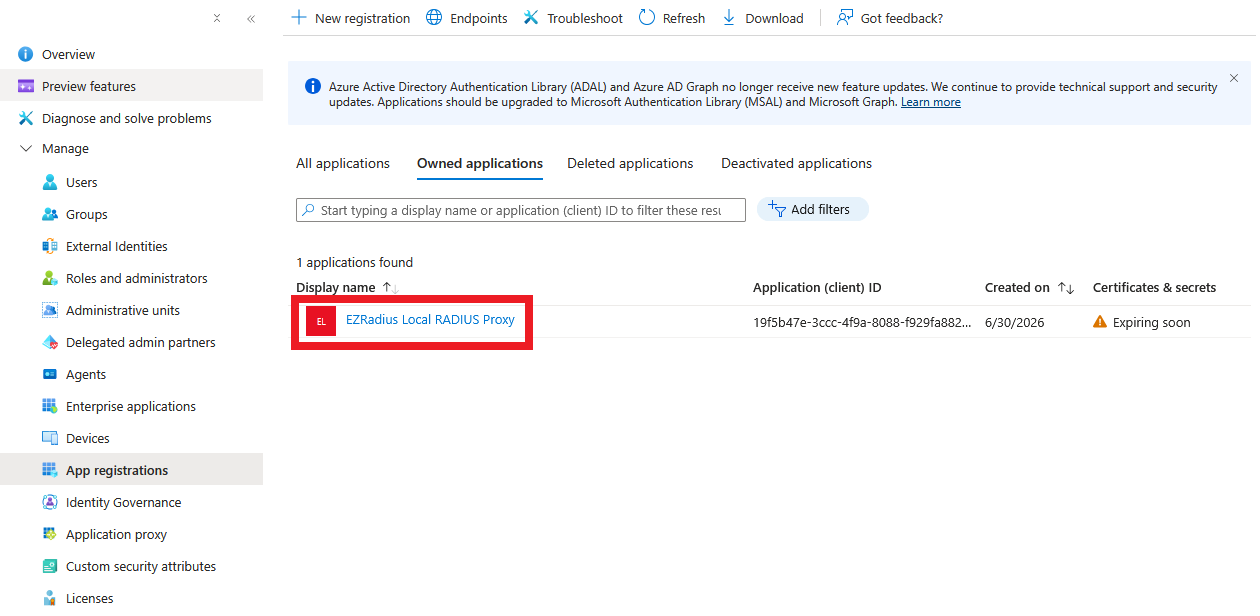
Find your existing local RADIUS proxy and click on it.
-
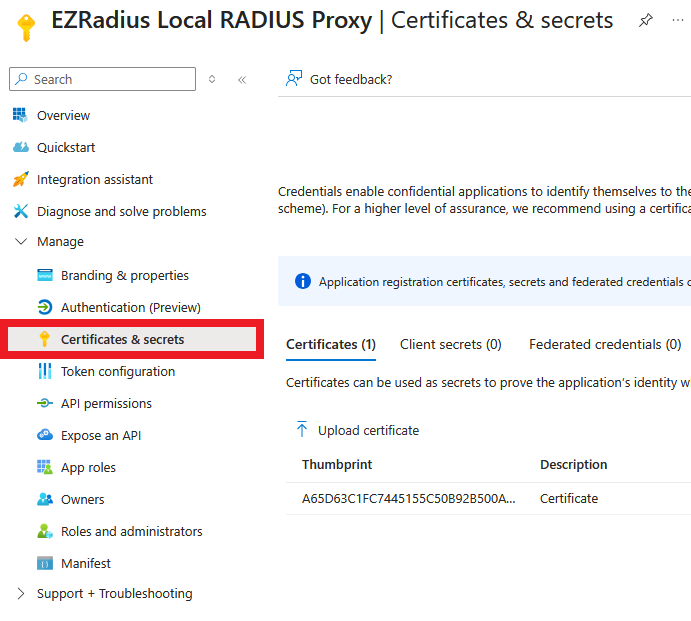
Under Manage select Certificates & secrets..
-
Make sure you are in the Certificates tab.
-
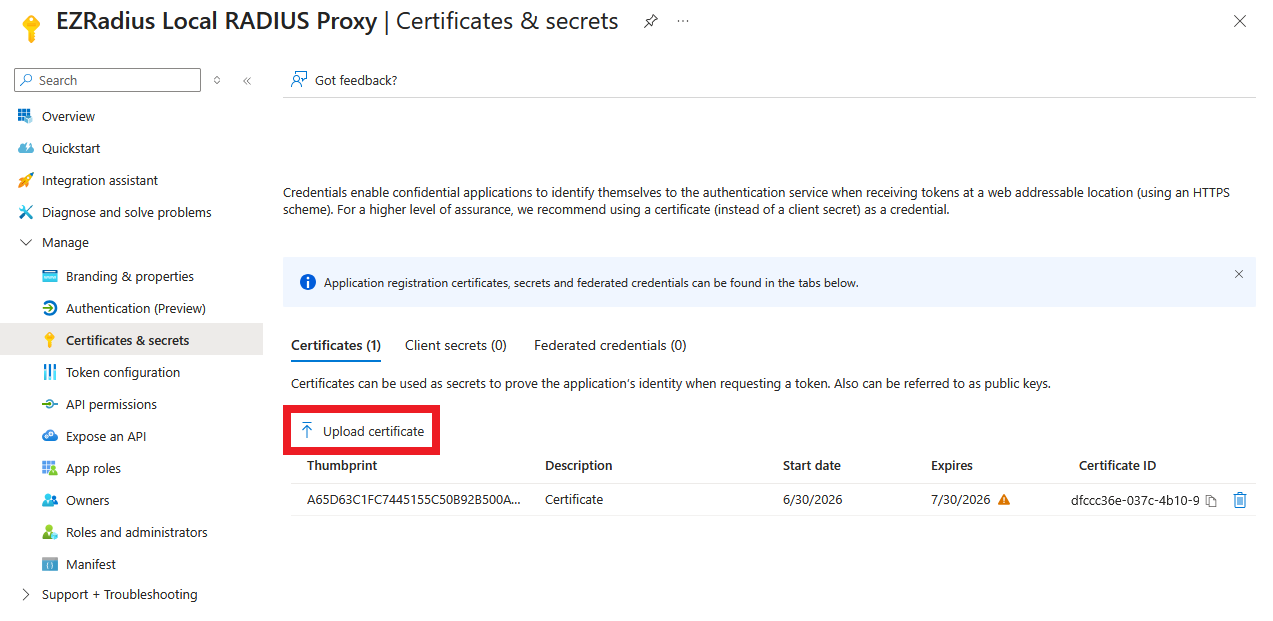
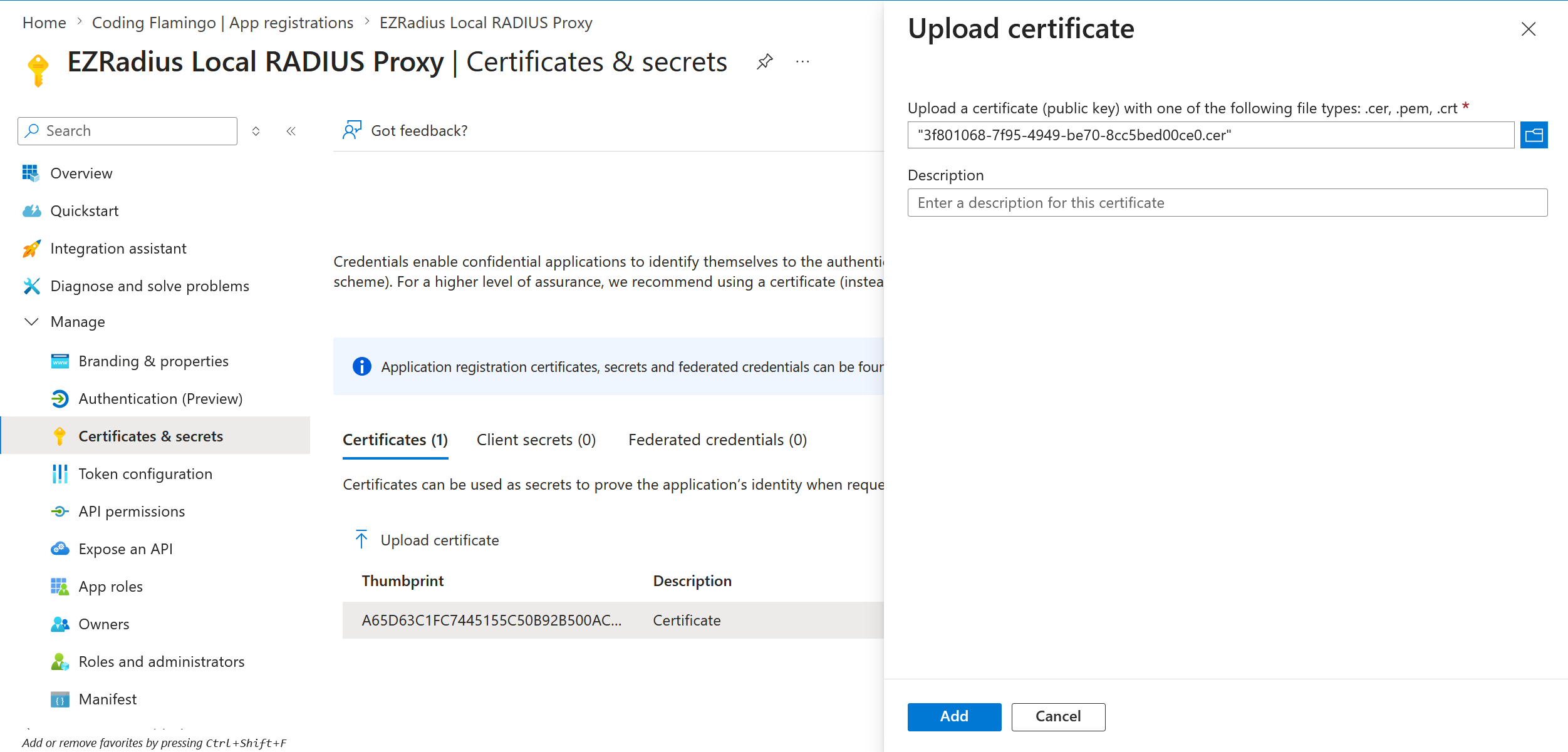
Click Upload certificate.
-
Upload the .cer file (not the .pem file).
-
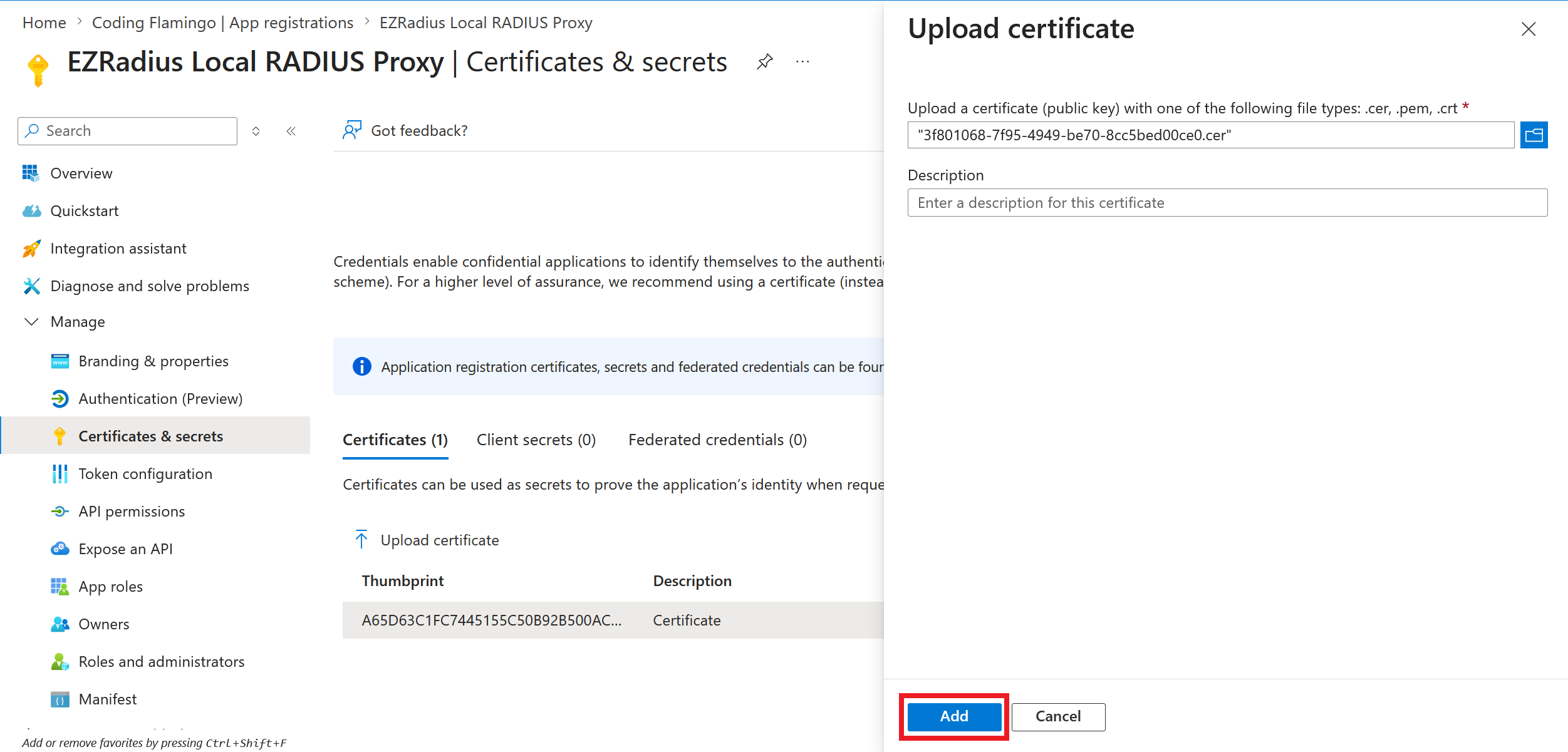
Click Add at the bottom of the page.
How To Run the Updated Local RADIUS Proxy Docker Container
Now that you have updated the certificate in your Entra IP application, you will need to restart your Docker container so it pulls the latest EZRadius version.
The following steps use the bash script that is included in the zip file you downloaded from EZRADIUS when you registered your local RADIUS proxy. This script will set up and run the Docker container for your local RADIUS proxy with all the necessary environment variables and configurations.
The following docker run command requires a volume mount for the client certificate that you downloaded from EZRADIUS, so make sure to update the path to the certificate file on your server in the --volume parameter. See the Docker Container reference section above for more details on the container specifications and environment variables. (For example: APPLICATIONINSIGHTS_CONNECTION_STRING is an optional variable.)
- SSH into or open a terminal window on the server where you want to deploy the RADIUS proxy.
- Create the directory where you want to deploy the RADIUS proxy. For this example we will use
~/Keytos/EZRADIUS/.mkdir -p ~/Keytos/EZRADIUS/ - From your local machine, upload the contents of the zip file you downloaded from EZRADIUS to the server. You can use
scpor any other method you prefer. For example:scp path/to/your/downloaded/localserver_<GUID>.zip user@your-server-ip:~/Keytos/EZRADIUS/ - Back in the terminal on your server, navigate to the directory where you uploaded the zip file.
cd ~/Keytos/EZRADIUS/ - Unzip the zip file.
unzip localserver_<GUID>.zip - Navigate into the unzipped directory.
cd localserver_<GUID>/ - Make the script executable.
chmod +x script.sh - Run the script.
./script.sh - The script will install and configure the RADIUS proxy.
If you prefer to manually run the Docker container without using the provided bash script, you can use the docker run command that is included in the script.sh file. This command is pre-configured with all the necessary environment variables and settings based on the information you provided during registration of your local RADIUS proxy in EZRADIUS.
docker run --detach --restart=always --pull=always \
	--publish 1812:1812/udp --publish 1813:1813/udp --publish 2083:2083/tcp --publish 8080:8080 \
	--env LocalServer__providerEndpointUrl=https://local.<region>.ezradius.io/ \
	--env LocalServer__certificateFilePath=/app/certificate.pem \
	--env AppDetails__ClientID=<YourClientID> \
	--env AppDetails__AppID=<YourAppID> \
	--env AppDetails__HomeTenant=<YourHomeTenant> \
    --env APPLICATIONINSIGHTS_CONNECTION_STRING="<YourApplicationInsightsConnectionString>" \
	--volume <YourCertificateFile>.pem:/app/certificate.pem:rw \
	keytos-eqgzasb8bufxa0cd.azurecr.io/ezradius/local-server:latest
If you prefer to use Docker Compose to manage your local RADIUS proxy container, you can create a docker-compose.yml file with the following content. Make sure to update the environment variables and volume mount path with the correct values for your setup.
See the Docker Container reference section above for more details on the container specifications and environment variables. (For example: APPLICATIONINSIGHTS_CONNECTION_STRING is an optional variable.)
name: ezradius

services:
  local-server:
    image: keytos-eqgzasb8bufxa0cd.azurecr.io/ezradius/local-server:latest
    restart: always
    pull_policy: always
    ports:
      - "1812:1812/udp" # RADIUS authentication
      - "1813:1813/udp" # RADIUS accounting
      - "2083:2083/tcp" # RADIUS Over TLS (RadSec)
      - "8080:8080/tcp" # Health checks and management API
    environment:
      LocalServer__providerEndpointUrl: "https://local.<region>.ezradius.io/"
      LocalServer__certificateFilePath: "/app/certificate.pem"
      AppDetails__ClientID: "<YourClientID>"
      AppDetails__AppID: "<YourAppID>"
      AppDetails__HomeTenant: "<YourHomeTenant>"
      APPLICATIONINSIGHTS_CONNECTION_STRING: "<YourApplicationInsightsConnectionString>"
    volumes:
      - type: bind
        source: ./data/setup/<YourCertificateFile>.pem
        target: /app/certificate.pem
        read_only: false
Your local RADIUS proxy should now be updated.