














How-To: Manage EZCA Certificates with the EZCA Kubernetes Operator
Overview - Manage Certificates in Your Kubernetes Cluster Using the EZCA Kubernetes Operator
The EZCA Kubernetes Operator is a tool that allows you to manage your EZCA certificates in your Kubernetes cluster. You store a certificate in a Kubernetes kubernetes.io/tls Secret. The controller watches it and, before it expires, renews it using EZCA and updates the Secret in place. Your workloads can continue to use the Secret without any downtime or expired certificates.
Prerequisites for Using the EZCA Kubernetes Operator
- You have an active EZCA plan.
- You have a Kubernetes cluster and Helm installed.
How to Create Your EZCA Kubernetes Operator and Issue a Certificate - Step by Step Guide
Step 1: How to Create an SSL Certificate in EZCA
In order to use the EZCA Kubernetes Operator, you will need to create an initial SSL certificate in EZCA. This can be done in several ways. Select the tab specific to your needs to create the certificate:
EZCA allows users to securely create a certificate in the browser by locally generating a private key in the browser and then requesting a certificate, following the PKI best practices of the private key never leaving the client’s computer.
-
Navigate to https://portal.ezca.io/ (or your EZCA URL).
-
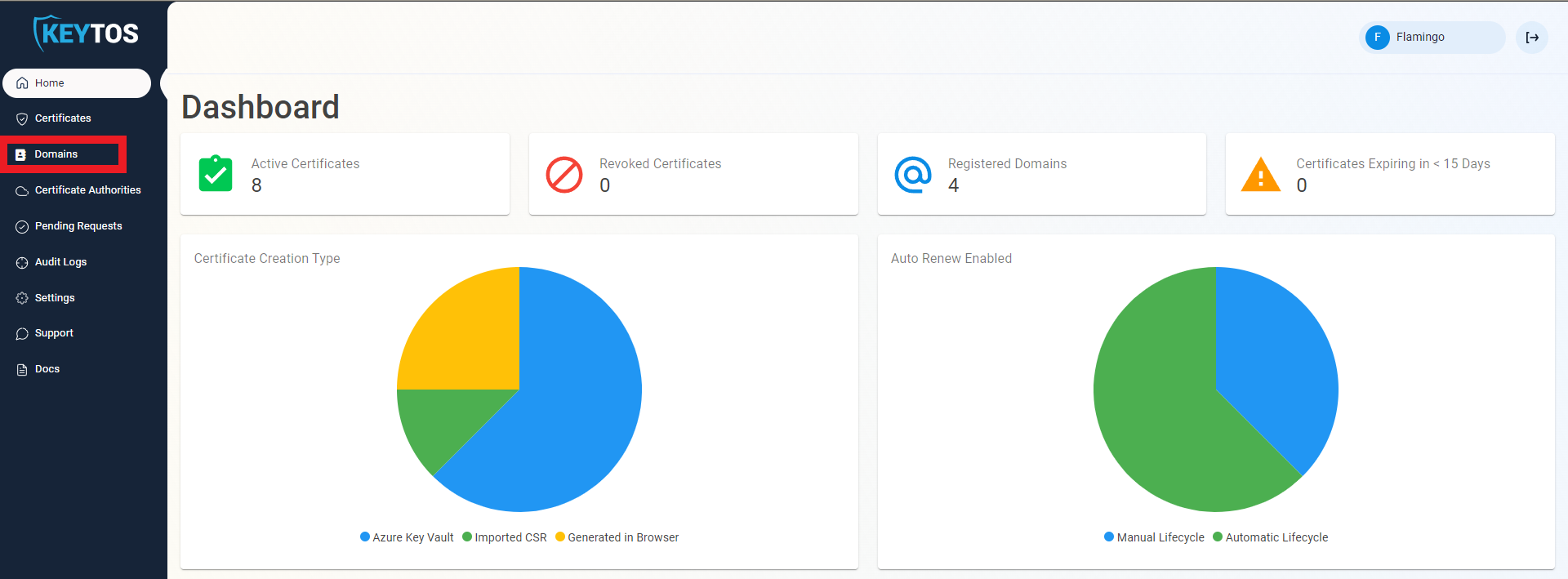
Navigate to Domains.
-
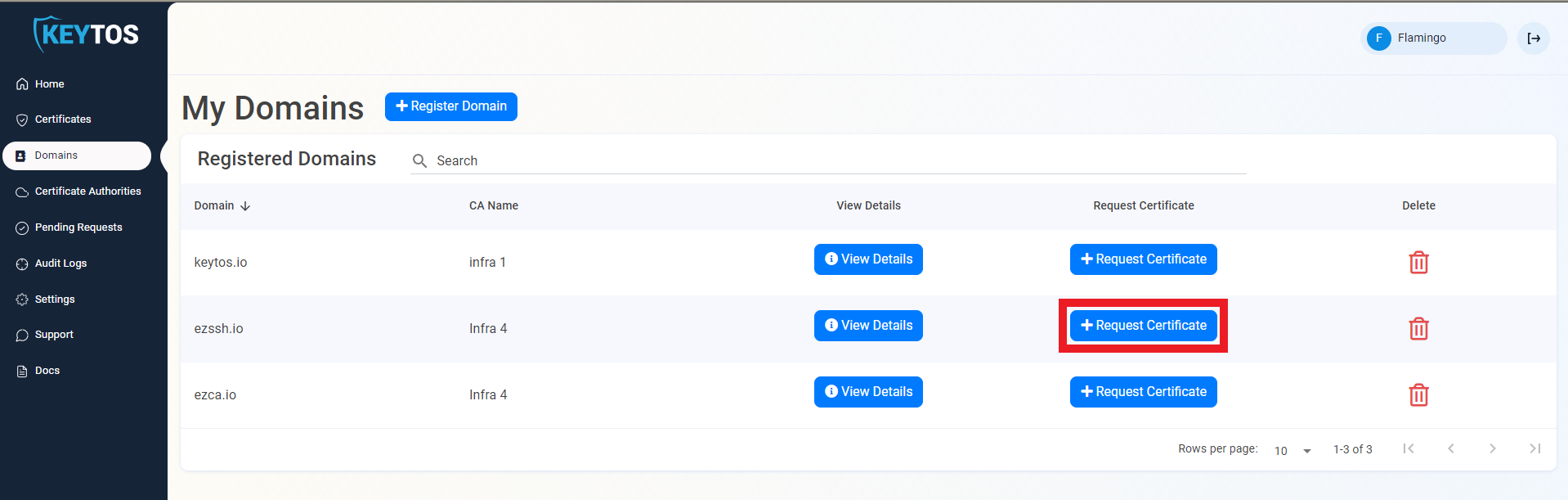
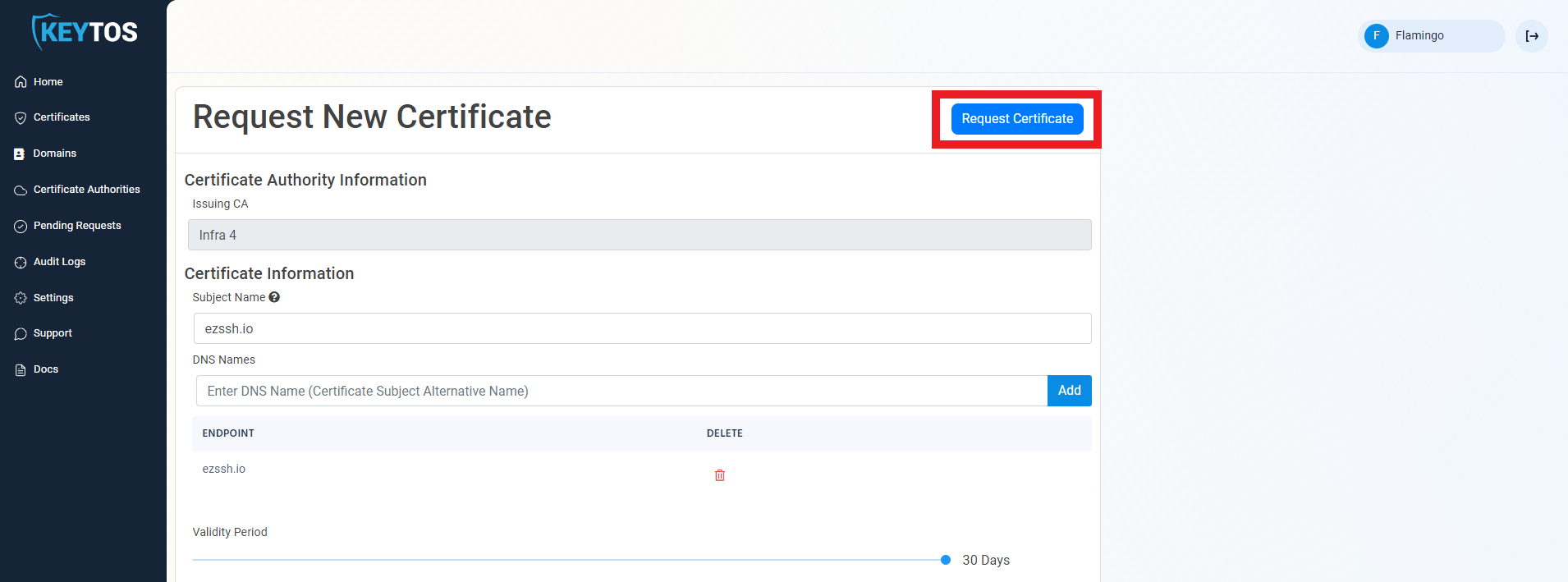
Click the Request Certificate button on the domain you want to request a certificate for. For the bootstrap certificate, this can be any domain.
-
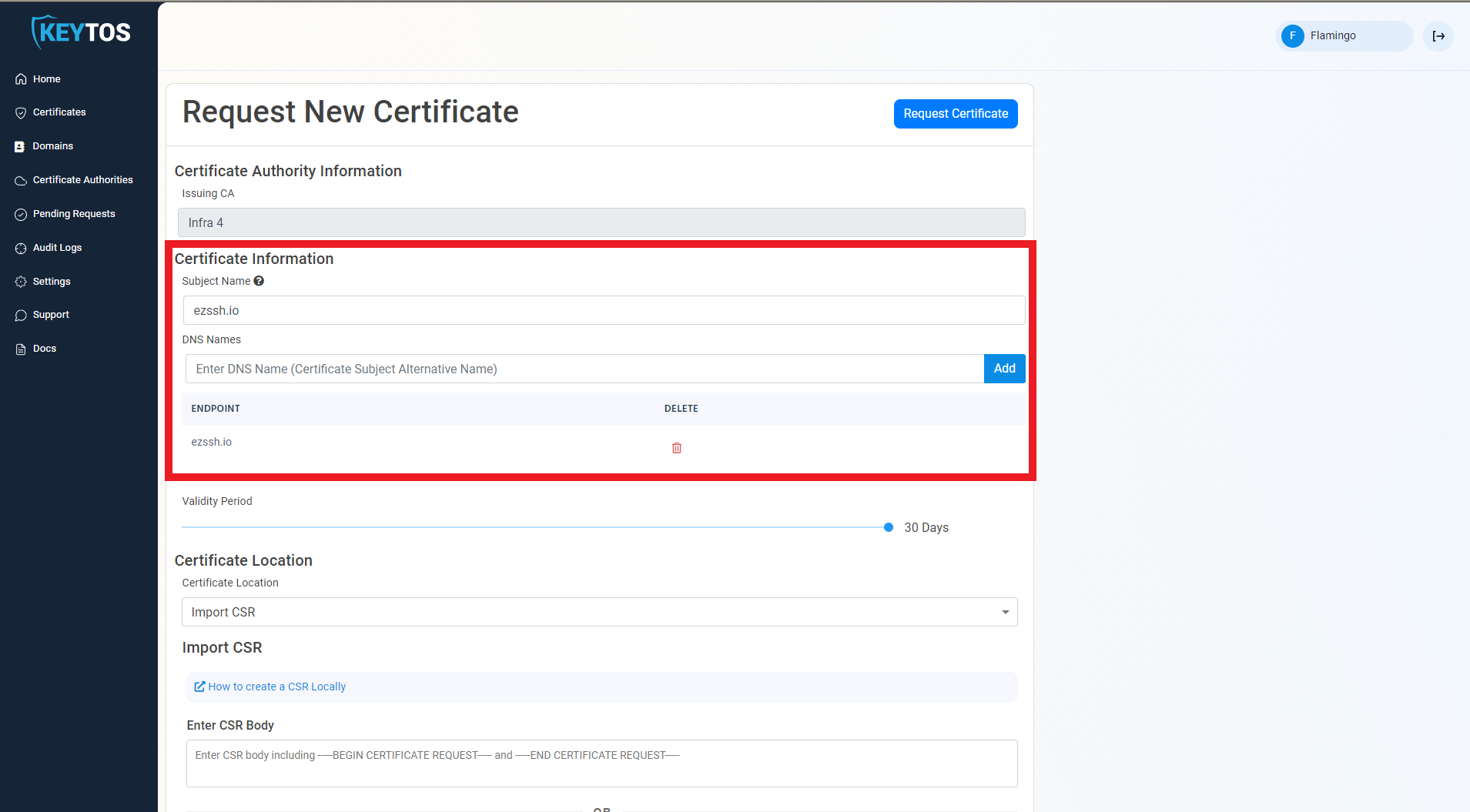
This will pre-populate the Subject Name and Subject Alternate Names with the selected domain.
-
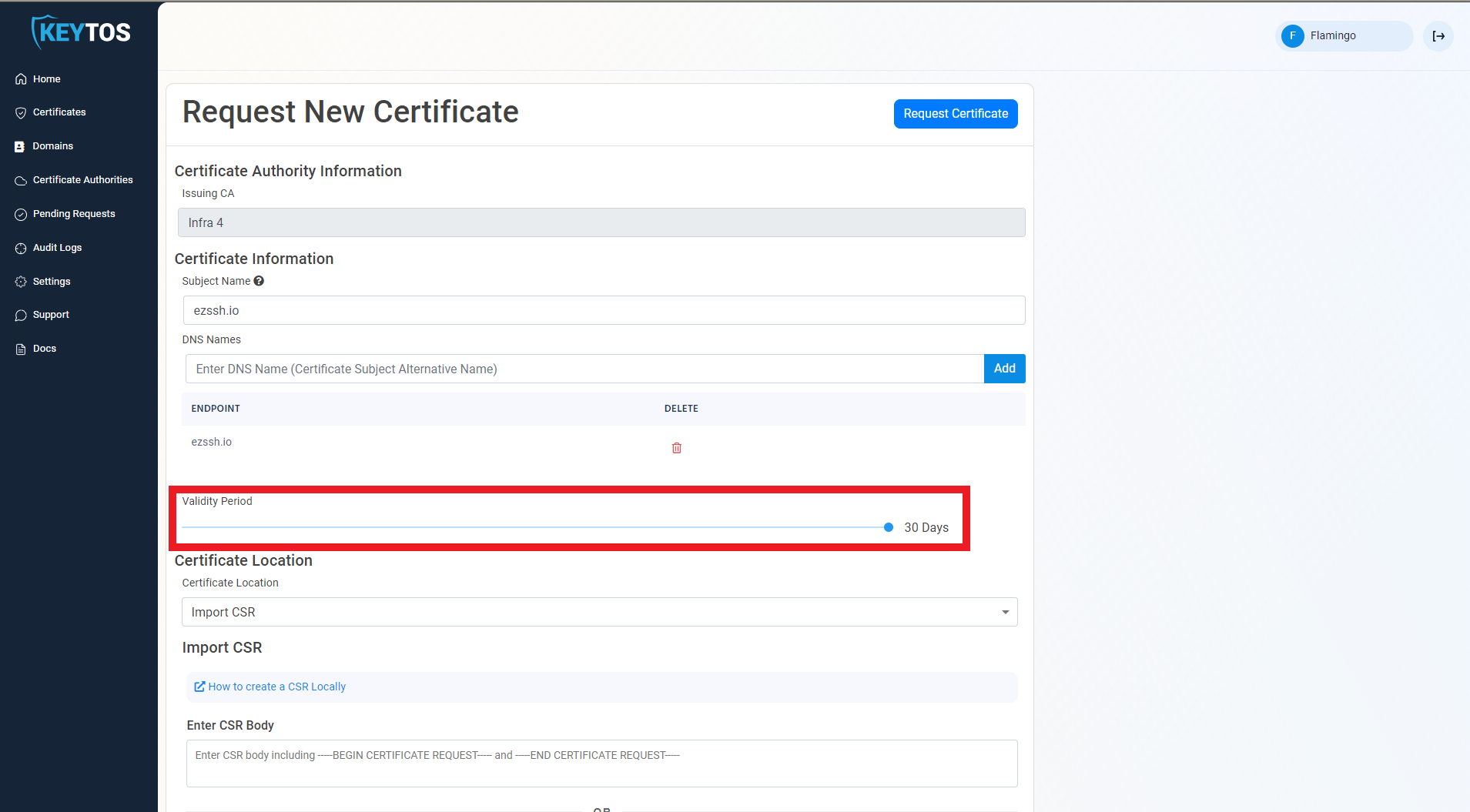
By default, EZCA will request the certificate to be the maximum validity allowed by your administrators. If you want to decrease the lifetime of the certificate, adjust the validity slider.
-
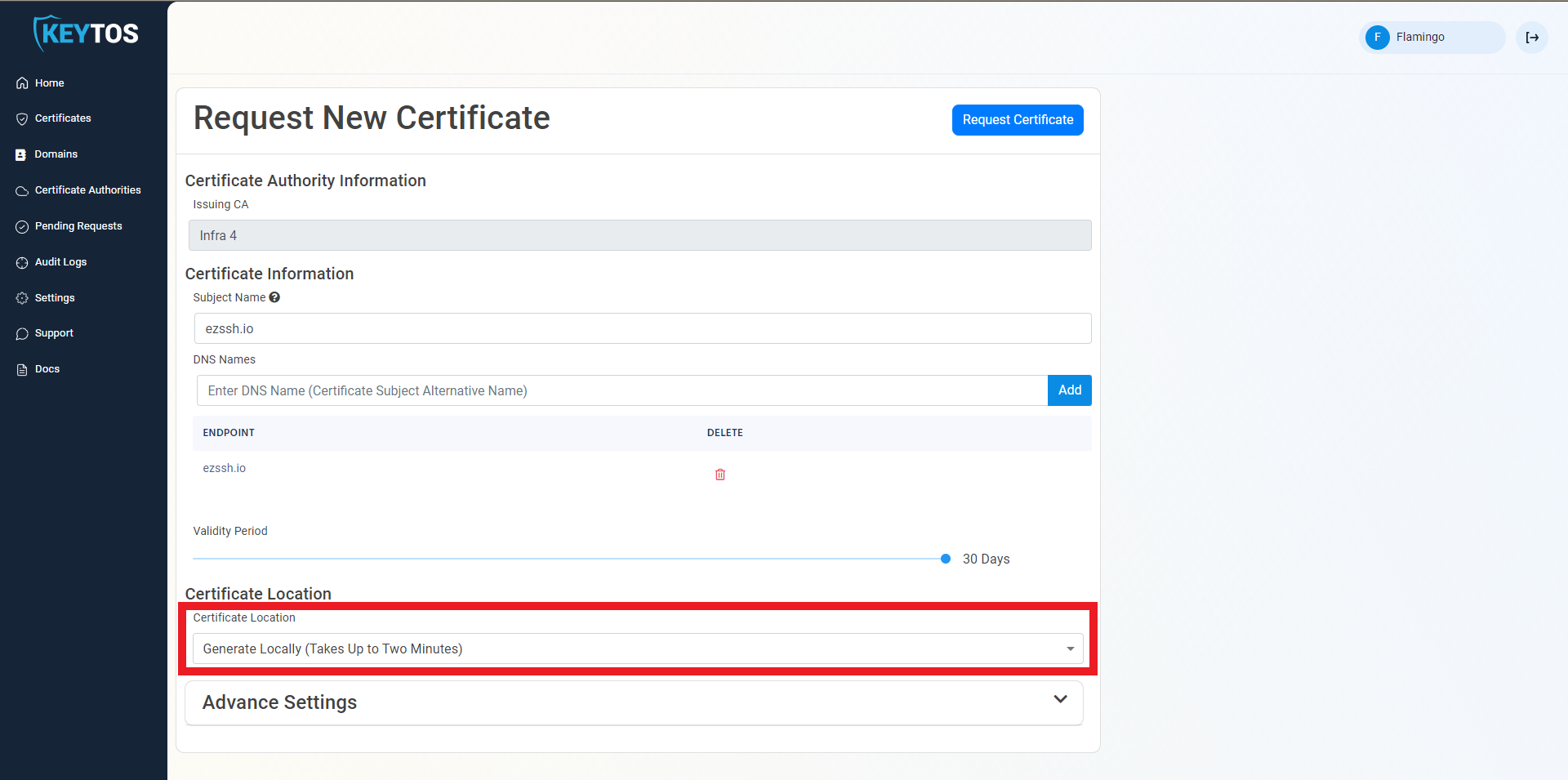
From the Certificate Location dropdown, select the Generate Locally option.
-
At the top right of the form, click the Request Certificate button.
-
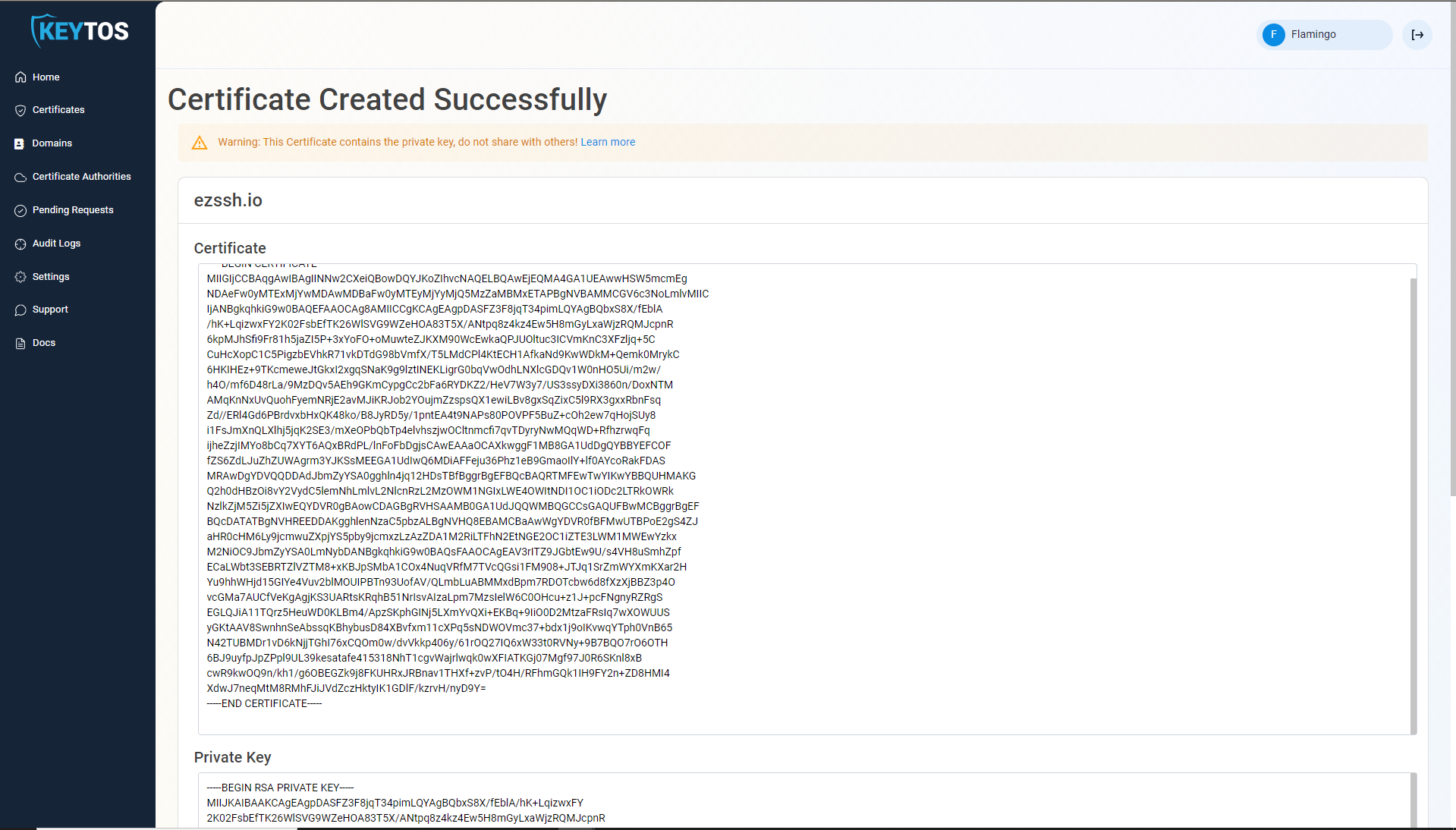
Your Certificate has been created successfully.
-
Click Download Full Certificate (.pem) to download the certificate and private key.

-
Open the PEM file and separate the certificate and private key into two separate PEM files named
bootstrap.crtandbootstrap.key, respectively. If you haveopensslinstalled, this can be done with the following commands:openssl pkey -in <path-to-downloaded-pem> -out bootstrap.key openssl x509 -in <path-to-downloaded-pem> -out bootstrap.crt
The Keytos Terraform Provider lets you create the bootstrap certificate as code. Make sure to go over the detailed documentation and descriptions for each data source and resource to understand its parameters and intended behavior. For an example of a terraform integration for the Keytos Terraform Provider, see an end-to-end integration of the Keytos Terraform Provider and the EZCA Kubernetes Operator.
-
To run your terraform, navigate to the directory holding your terraform configuration and run the following command:
terraform init -upgrade -
Apply the terraform to create the certificate. Pass in the values file for the terraform provider:
terraform apply -var-file=<path-to-var-file> -
After completion, run the following commands to output your certificate and private key:
terraform output -raw cert_pem >bootstrap.crt
terraform output -raw private_key_pem >bootstrap.key
Step 2: How to Create the Bootstrap Secret in Kubernetes
The bootstrap secret is the SSL certificate that will be used to authenticate your cluster and to rotate the certificate. The following commands will create a namespace in Kubernetes and add the certificate as a secret in the namespace.
kubectl create namespace ezca-cert-controller-system

# Pass in the path to your PEM cert and path to your PEM private key for the --cert and --key arguments
kubectl -n ezca-cert-controller-system create secret tls cluster-cert-identity \
  --cert=bootstrap.crt --key=bootstrap.key
Step 3: How to Configure your EZCA Kubernetes Operator
To configure the Kubernetes Operator, you will need to create a values.yaml file, which will be installed using Helm. Copy the following values.yaml file and fill in your values.
global:
  ezcaURL: https://portal.ezca.io

clusterIdentity:
  name: master-cert-identity-1
  certSecretName: cluster-cert-identity
  renewalThreshold: 20
NOTE: Ensure that the lifetime of the certificate is within range of the maximum certificate validity period of the CA itself. Otherwise, certificate issuance will fail.
NOTE: Ensure that you have created all the namespaces referenced in your
values.yaml.
Step 4: How to Install the Kubernetes Operator
Next, run these command to install the Kubernetes Operator in your cluster.
helm pull oci://keytos-eqgzasb8bufxa0cd.azurecr.io/ezca/helm/ezca-cert-controller \
  --untar --destination /tmp/ezca-cert-controller

kubectl apply --server-side --force-conflicts \
  -f /tmp/ezca-cert-controller/ezca-cert-controller/crds/

helm upgrade --install ezca-cert-controller-system \
  oci://keytos-eqgzasb8bufxa0cd.azurecr.io/ezca/helm/ezca-cert-controller \
  --namespace ezca-cert-controller-system --create-namespace -f values.yaml
To view your new operator in your cluster, use the following commands:
helm list -n ezca-cert-controller-system
# Expected Output:
# NAME                            NAMESPACE                       REVISION     UPDATED    STATUS          CHART    APP VERSION
# ezca-cert-controller-system     ezca-cert-controller-system     9            ...        deployed        ...      ...
kubectl get cci
# Expected Output:
# NAME                     READY   EXPIRATION             THUMBPRINT                                 AGE
# master-cert-identity-1   True    2026-09-24T12:38:47Z   91A0220325F51684CA00D0CE36F7D8B6B1364C7A   3d21h
kubectl get secret -n ezca-cert-controller-system
# Expected Output:
# NAME                                                TYPE                 DATA   AGE
# cluster-cert-identity                               kubernetes.io/tls    2      3d22h
# sh.helm.release.v1.ezca-cert-controller-system.v1   helm.sh/release.v1   1      3d21h
# ...
Done! You should now have the EZCA Kubernetes Operator installed in your cluster. The operator will keep the certificate up to date by renewing it with EZCA before it expires.
How to Configure Multiple Certificates with the EZCA Kubernetes Operator
The EZCA Kubernetes Operator supports installing multiple certificates in different namespace by adding to your values.yaml file. To do this, repeat the steps above to create an SSL bootstrap certificate and add it to each namespace. Then, run the Helm commands to upgrade your Helm chart with the new values. Here is an example:
global:
  ezcaURL: https://portal.ezca.io

clusterIdentity:
  name: master-cert-identity-1
  certSecretName: cluster-cert-identity
  renewalThreshold: 20

appCerts:
  - name: cert-1
    namespace: my-namespace
    validityInDays: 30
    certSecretName: cert-1
  - name: cert-2
    namespace: my-namespace
    validityInDays: 30
    certSecretName: cert-2
Reference: What Values Can I Set for the EZCA Kubernetes Operator?
Your values.yaml can include many values to customize the EZCA Kubernetes Operator to fit your needs. See the chart below for details.
| Key | Default | Description |
|---|---|---|
global.cloud |
Public |
Azure sovereign cloud for Entra ID / Graph. One of Public, USGov. |
global.ezcaURL |
https://portal.ezca.io |
Base URL of your EZCA instance. Required. |
global.appInsightsConnString |
"" |
Optional App Insights connection string. When it is set, renewals/rotations/errors are reported. |
clusterIdentity.name |
"" |
metadata.name of the ClusterCertIdentity. Blank → not created. |
clusterIdentity.certSecretName |
cluster-cert-identity |
Name of the pre-existing kubernetes.io/tls Secret with the bootstrap certificate. |
clusterIdentity.certSecretNamespace |
"" |
Namespace of that Secret. Blank → the release namespace. |
clusterIdentity.renewalThreshold |
20 |
Percent of lifetime remaining at/below which to renew (1-99). |
appCerts[].name |
app-cert-<n> |
metadata.name of the Kubernetes resource. |
appCerts[].namespace |
"" |
metadata.namespace; blank → release namespace. |
appCerts[].validityInDays |
— | Requested lifetime in days. Unset → issuer default (90 days). |
appCerts[].certSecretName |
entry’s name |
Name of the issued-cert Secret. |
appCerts[].renewalThreshold |
20 |
Percent of lifetime remaining at/below which to renew (1-99). |
To view the appCerts, use the following command:
kubectl get mc -A
# Expected Output:
# NAMESPACE        NAME               READY   EXPIRATION             THUMBPRINT                                 AGE
# my-namespace-1   namespace-1-cert   True    2026-09-24T20:44:35Z   CD1465B9B4195FA7C0A1FBC41C01C8DC0A649159   3d15h
# my-namespace-2   namespace-2-cert   True    2026-09-24T20:44:38Z   18612084B05EC7522CA071FF2823FFA99D6CA209   3d15h
View the full schema for each subsection here or a more detailed example here.
How to Uninstall the EZCA Kubernetes Operator
To uninstall the Helm chart, run the following command:
helm uninstall ezca-cert-controller-system --namespace ezca-cert-controller-system
This will not delete the Custom Resource Definitions (CRDs) from your cluster. You must delete them manually. Use the following command:
kubectl delete crd certidentities.ezca.keytos.io clustercertidentities.ezca.keytos.io managedcredentials.ezca.keytos.io