












How-To: Create a RadSec Client Certificate in Keytos Shield
Overview - What is a RadSec Client Certificate?
When a network access point or switch connects to Keytos Shield via RadSec (RADIUS over TLS), it needs to present a client certificate that Keytos Shield can trust and validate. Some network devices, such as Cisco Meraki, use a certificate issued by the vendor’s own CA. However, for other network devices such as Unifi, you will need to install a RadSec client certificate that you created in Keytos Shield. This guide will go over creating a RadSec client certificate in Keytos Shield for RadSec authentication with your network controller.
Step-by-Step Guide - How to Issue RadSec Client Certificates in Keytos Shield
Follow these steps to create and issue a RadSec client certificate in Keytos Shield.
Prerequisites for Creating RadSec Client Certificates in Keytos Shield
Before you begin creating RadSec client certificates in Keytos Shield, ensure that you have completed all the necessary prerequisites:
- The Keytos Entra ID applications are registered in your tenant.
- You have signed up for a Keytos Shield Plan.
- You are a Subscription Owner or Network Administrator.
- You have completed the Keytos Shield Network Security onboarding
How to Create a Keytos Shield RadSec Client Certificate
-
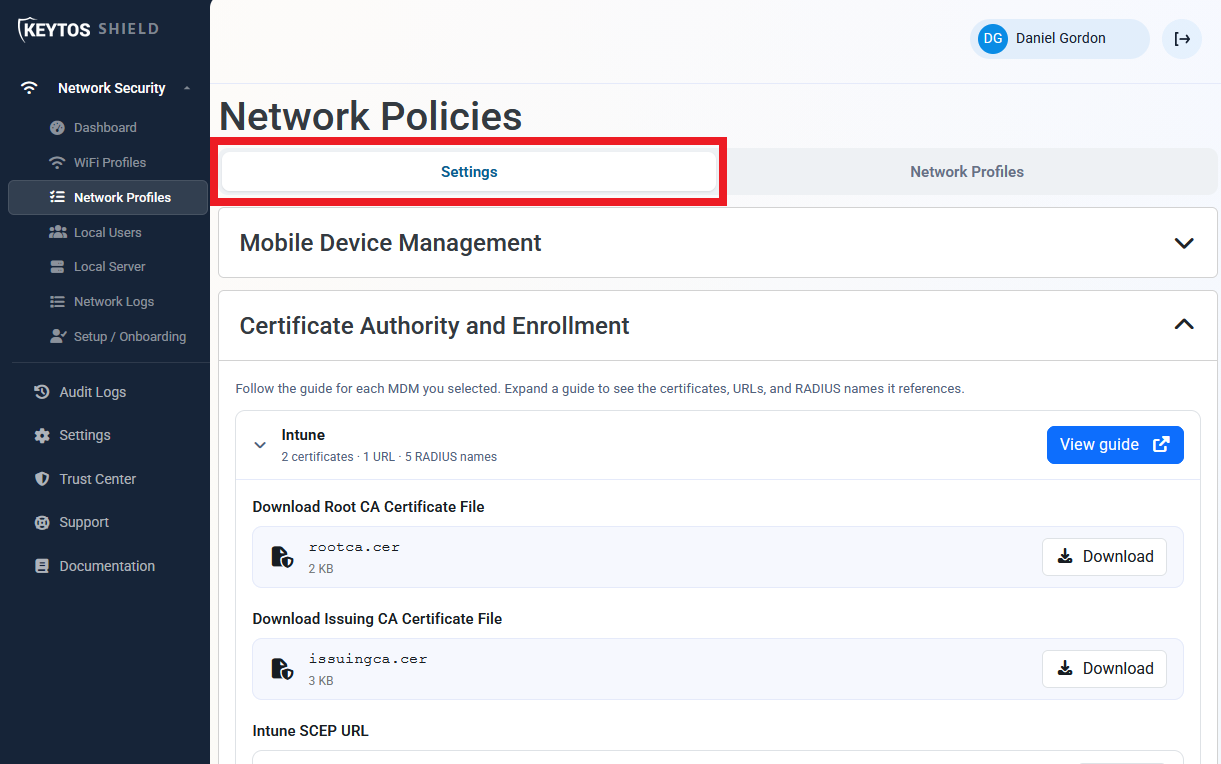
Navigate to the Keytos Shield Network profiles page from the left-hand menu.
-
At the top of the page, select the Settings tab.
-
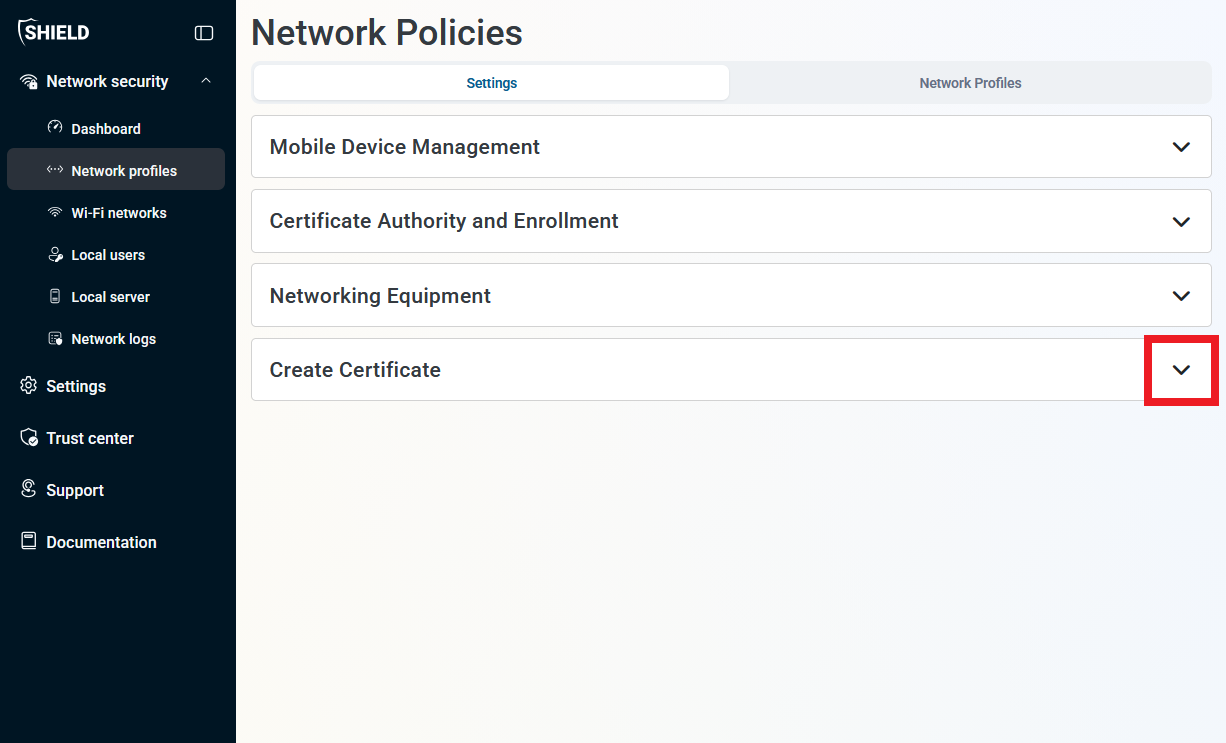
Scroll down to the bottom of the page and expand the Create Certificate section.
-
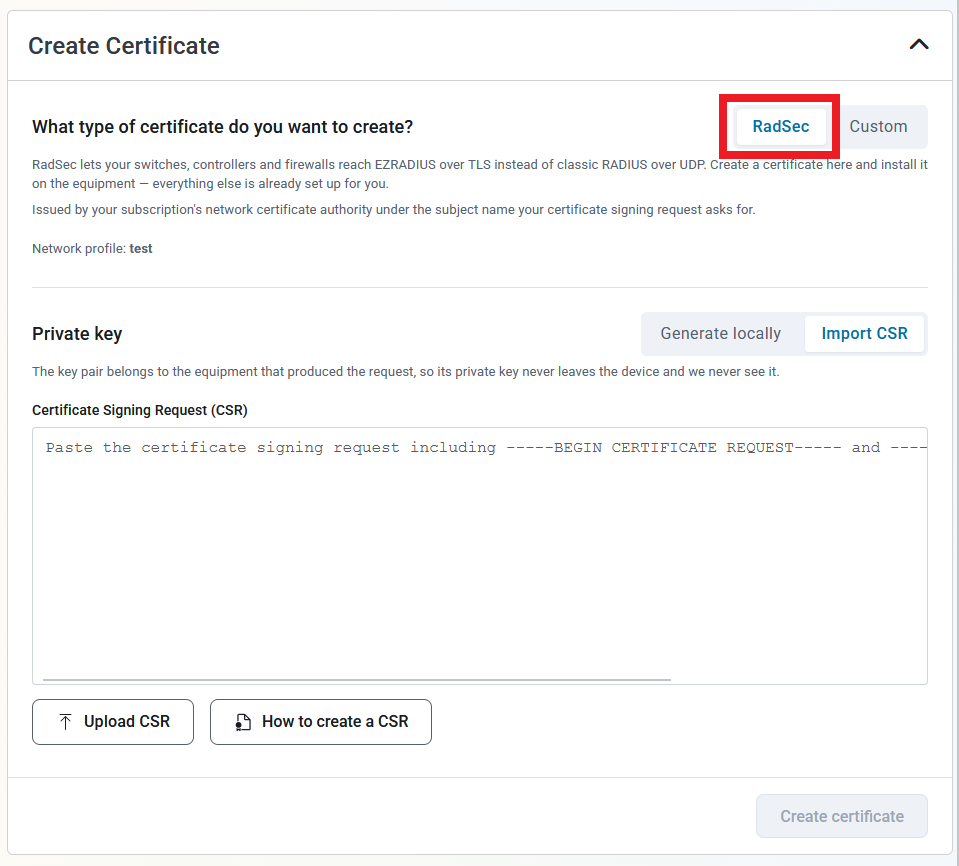
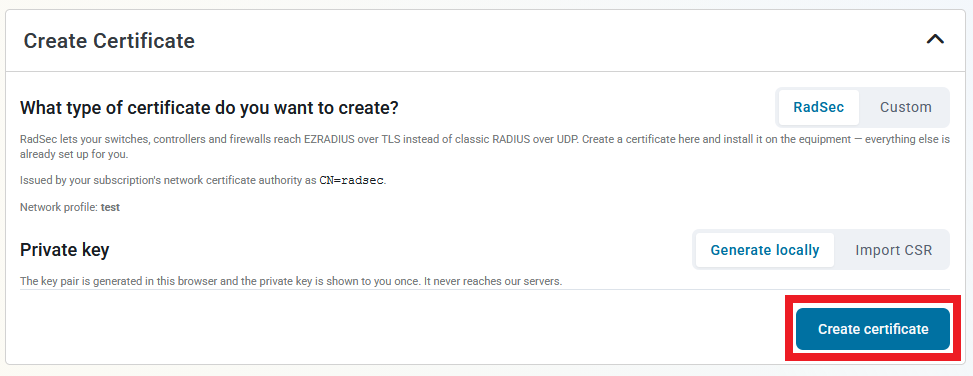
For What type of certificate do you want to create? select RadSec.
-
For the Private key, either select Generate Locally or Import CSR depending on your use case.
- If you select Generate Locally, Keytos Shield will generate the private key for the certificate in your browser and then issue the RadSec client certificate. The private key never leaves the browser and you can download both the certificate and the private key.
- If you select Import CSR, you will need to provide a Certificate Signing Request (CSR) from your network device for Keytos Shield to issue the RadSec client certificate. Click How to Create a CSR for guidance on generating a CSR from your device.
-
Click Create certificate.
-
Once the certificate has been created, click Download Certificate and Download Private Key (if applicable). These should download as
radsec.cerandradsec.key, respectively.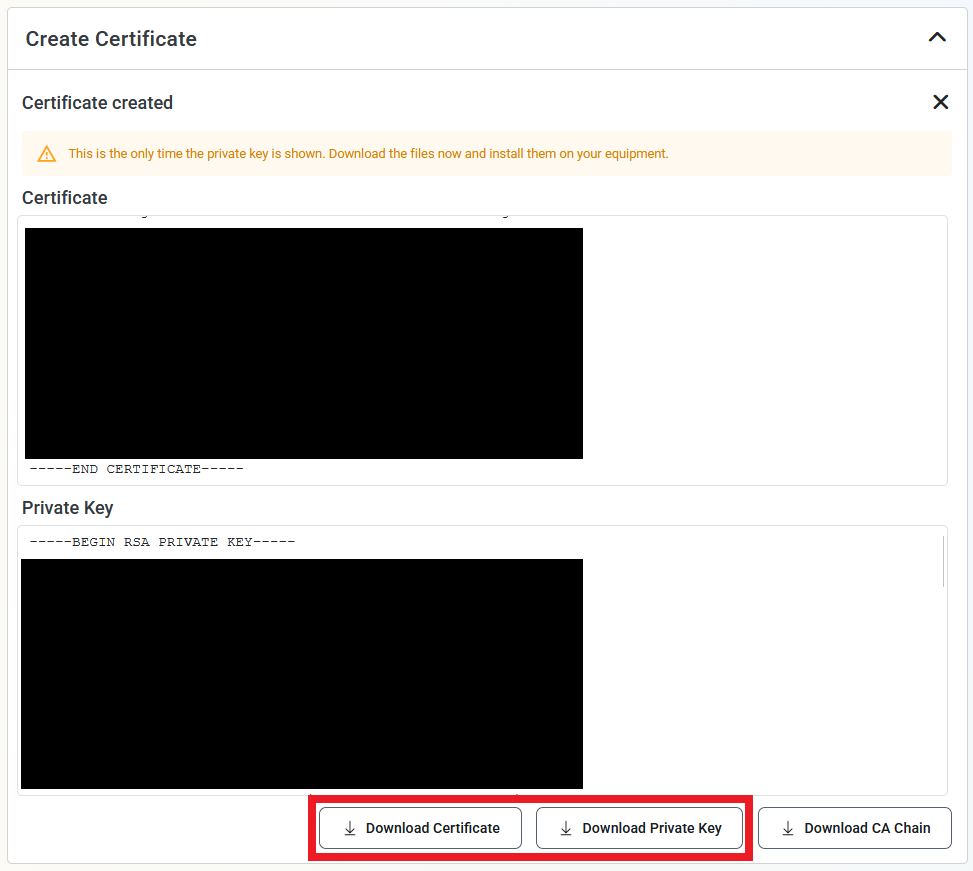
-
Done! You should have created a RadSec client certificate that you can upload to your networking device for RadSec authentication.