














How To Distribute Keytos Shield Network Profiles to Apple Devices in SimpleMDM
Overview - How to Distribute Network Profiles to Apple Devices via SimpleMDM
SimpleMDM is a Mobile Device Management (MDM) platform that allows you to configure and manage your organization’s macOS, iOS, and iPadOS devices.
To connect your SimpleMDM-managed Apple devices (macOS, iOS, iPadOS) to your network, you need to distribute a configuration profile that includes the necessary network settings, authentication methods, and certificates. This guide will walk you through the steps to configure and push these profiles to Apple devices using Microsoft SimpleMDM.
Step-by-Step Guide: How to Configure Devices for Passwordless EAP-TLS Network Authentication in SimpleMDM
Follow these steps to configure and push the necessary SimpleMDM configuration policies for Apple devices:
Prerequisites for Configuring Apple Network Profiles for SimpleMDM
Before you begin configuring network profiles for Apple devices via SimpleMDM, ensure that you have completed all the necessary prerequisites:
- The Keytos Entra ID applications are registered in your tenant.
- You have signed up for a Keytos Shield Plan.
- You have existing access policies in Keytos Shield.
- You are a Subscription Owner or Network Administrator.
- You have checked SimpleMDM under “Which MDMs do you use to manage your devices” in Keytos Shield.
- You are an SimpleMDM Administrator.
Step 1 - How To Configure and Download Your Apple Configuration Profile in Keytos Shield
The following section will guide you through the steps to configure your Wi-Fi profile to use RADIUS authentication with EAP-TLS for Shield.
-
Log into your Keytos Shield portal.
-
From the left-hand menu, navigate to Wi-Fi networks.
-
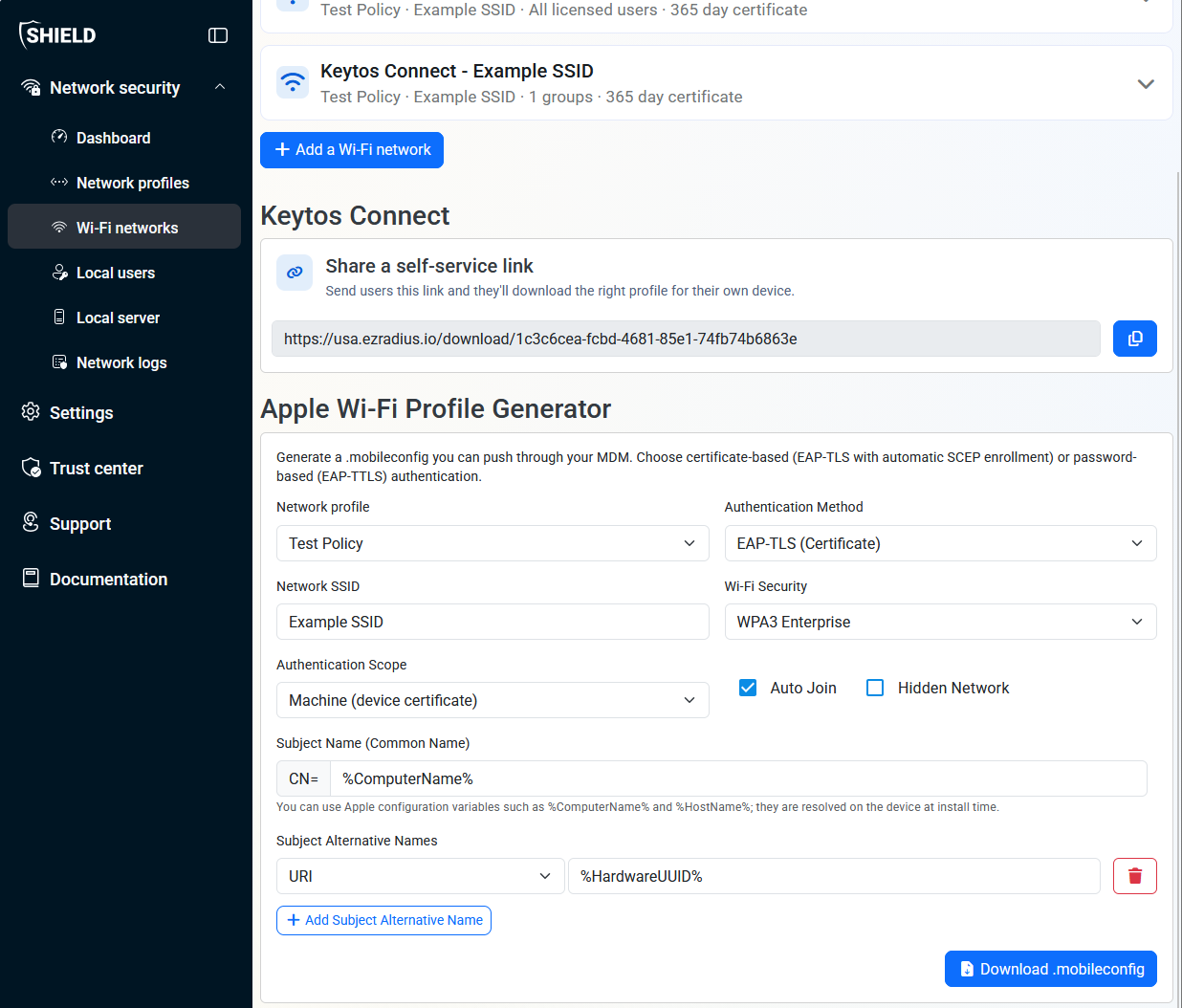
Scroll down until you see the Apple Wi-Fi Profile Generator section.
-
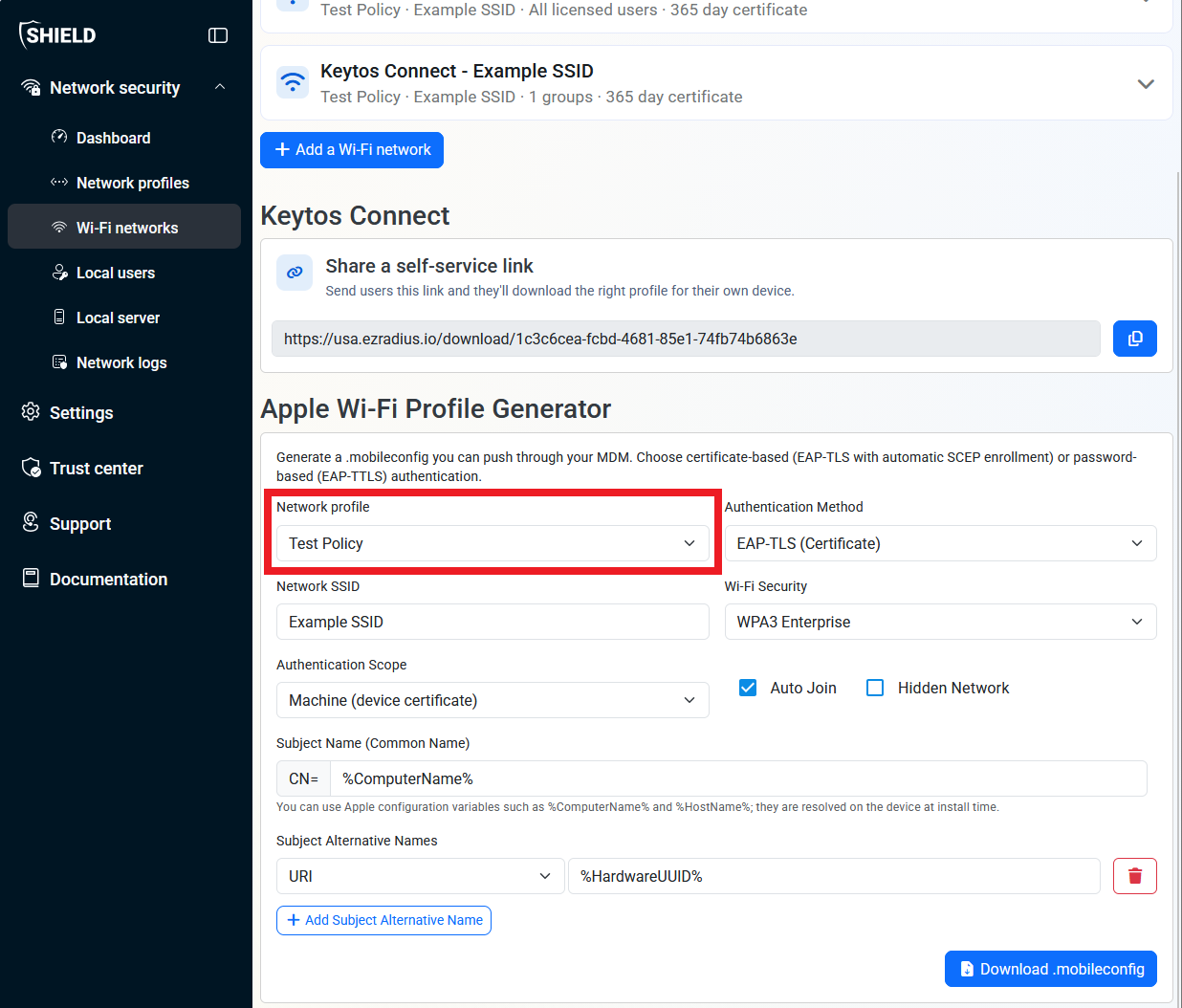
Select your Network profile.
-
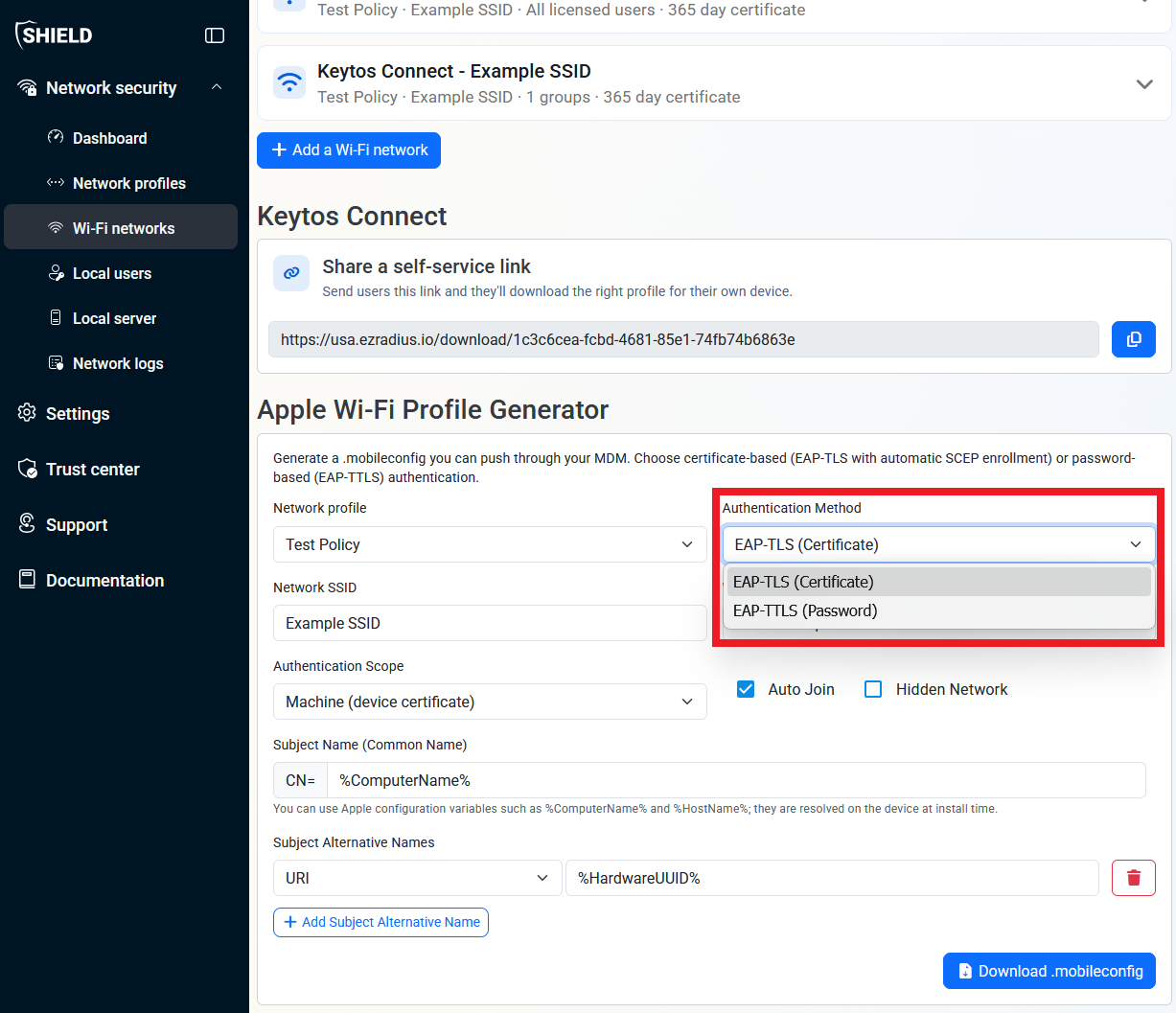
For Authentication Method, select EAP-TLS (Certificate).
-
For Network SSID enter the SSID of your network (This is case sensitive).
-
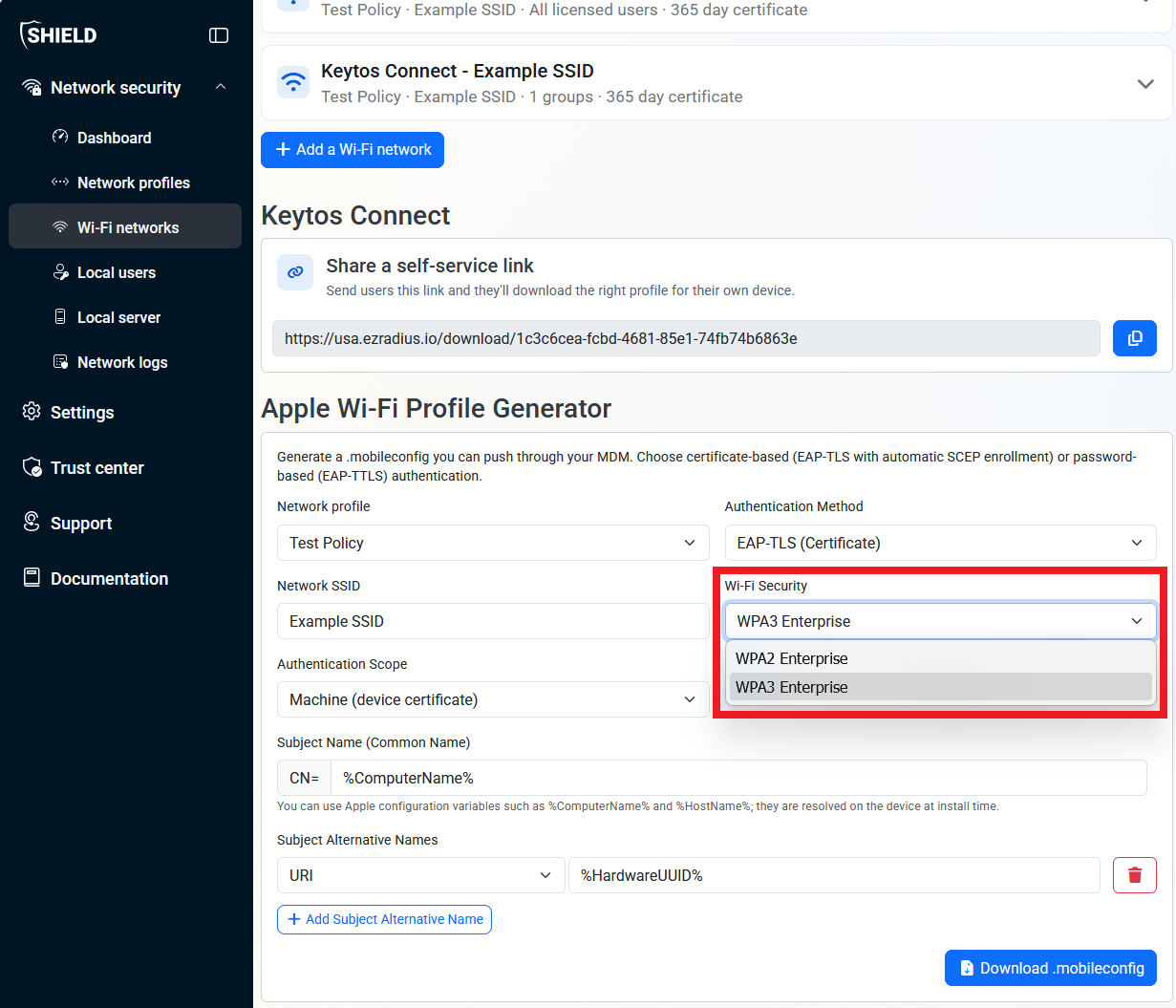
For Wi-Fi Security, select either WPA3 Enterprise or WPA2 Enterprise depending on how your network is configured.
-
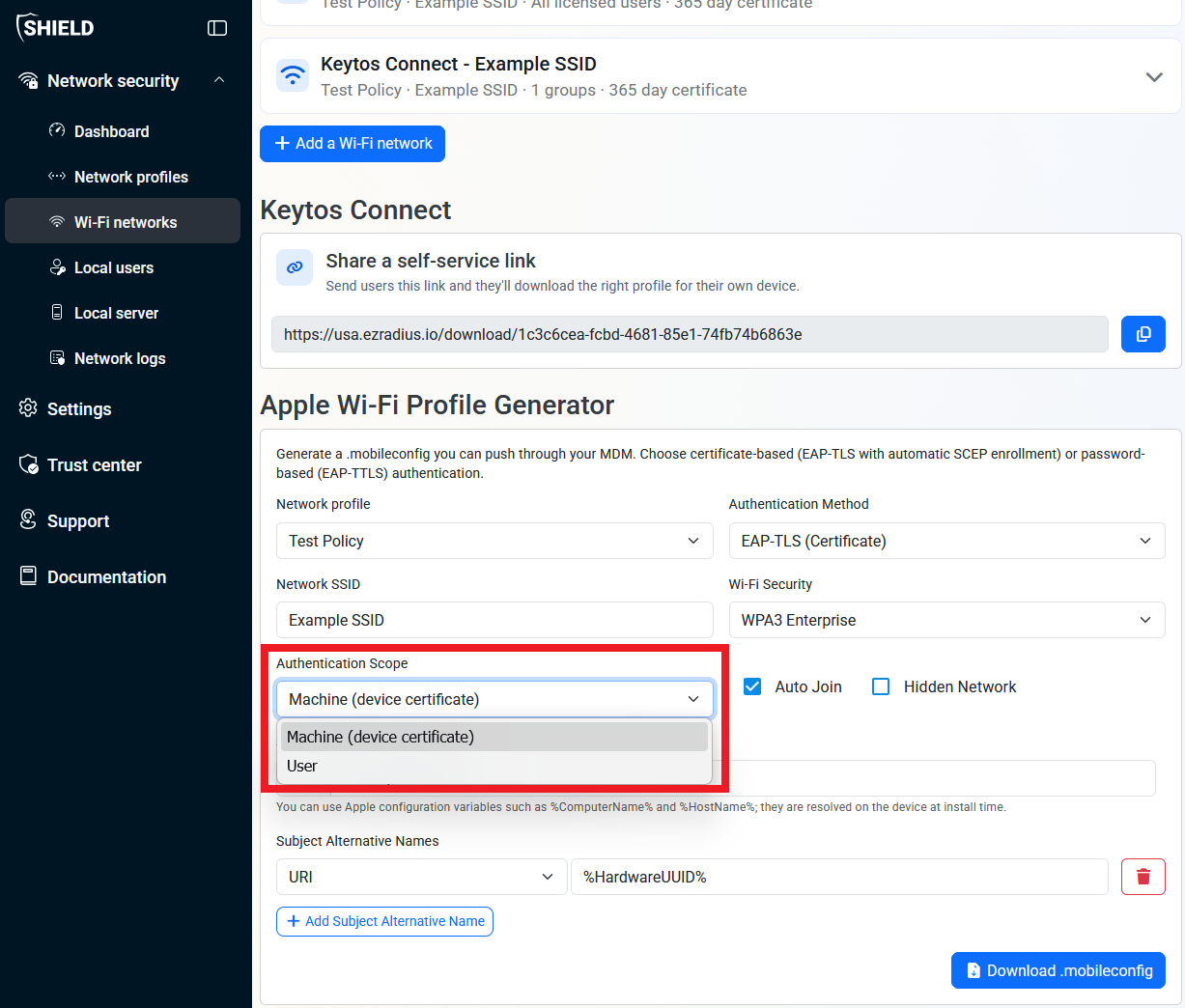
Select Machine (device certificate) to make your Apple Configuration Profile use device certificates or User for user certificates.
Make sure to choose the same auth type you set during onboardingWhen selecting device or user certificates, make sure you match the authentication type you set during the onboarding process. If you’re unsure, check your Network profiles page under Access Policies.
-
Check Auto Join if you would like devices to automatically join the network without prompting users.
-
Check Hidden Network only if your Wi-Fi access point does not broadcast its SSID.
-
Configure the Subject Name and any Subject Alternative Name values you need.
Variable Substitution %ComputerName%The Mac computer’s name, as set in Sharing (in System Settings > General for macOS 13 or later, or in System Preferences for macOS 12.0.1 or earlier). %HardwareUUID%The Mac computer’s unique identifier. %HostName%The Mac computer’s DNS name, such as mac1.betterbag.com. %LocalHostName%The Mac computer’s local network name, such as Mac1.local. %MACAddress%The Mac computer’s Ethernet (en0) MAC address. %SerialNumber%The Mac computer’s serial number. A good set of values to use would be:
- Subject:
CN=%ComputerName% - URI SAN:
%HardwareUUID% - DNS SAN:
%HostName%
- Subject:
-
Once you have configured everything, click Download .mobileconfig. This should download as a
.mobileconfig.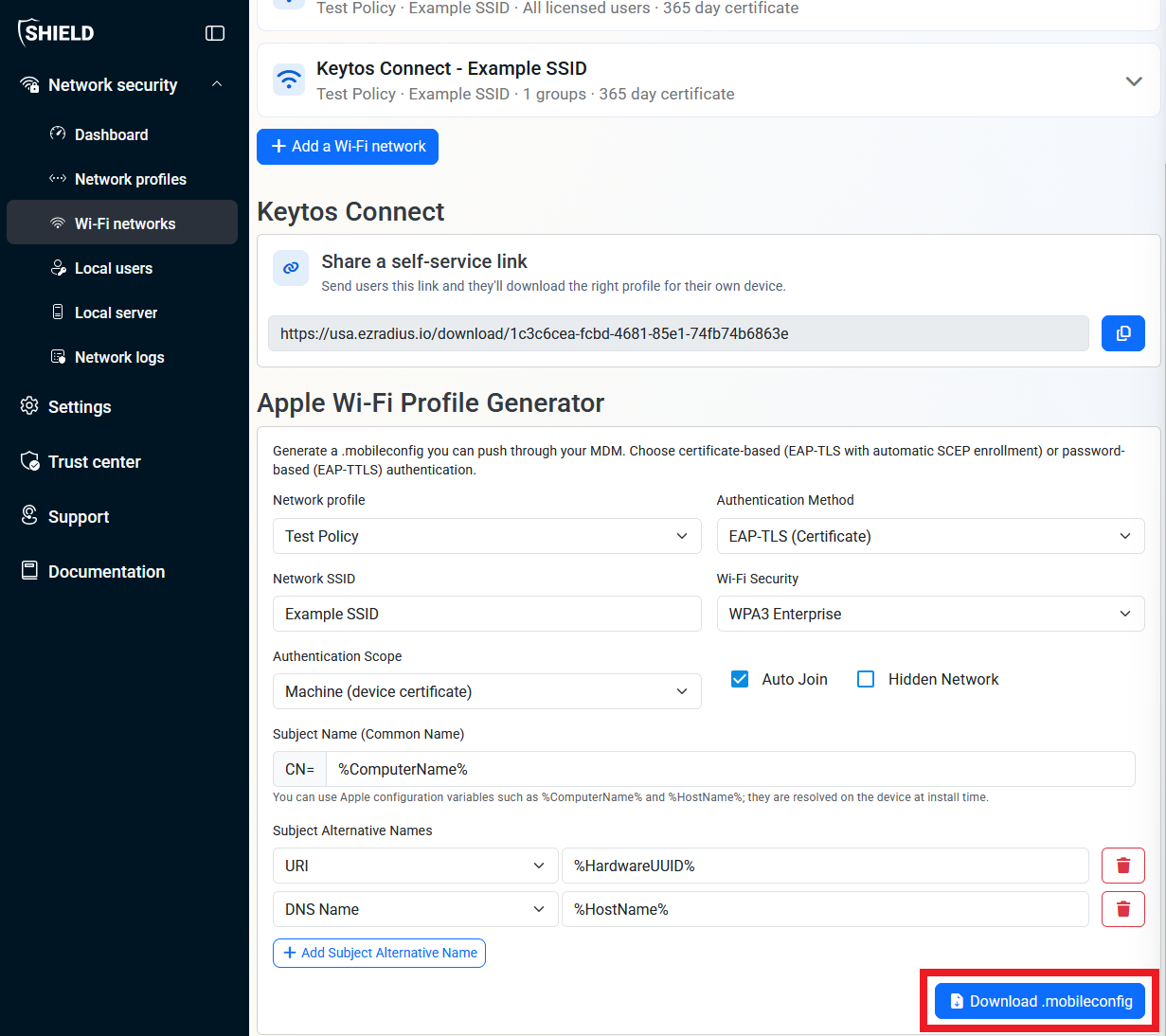
Done! You should now have an Apple Configuration Profile you can distribute to your SimpleMDM devices.
Step 2 - How To Distribute Your Apple Configuration Profiles to SimpleMDM Devices
Once you have created your .mobileconfig file, you will need to issue it to all your devices.
-
Open SimpleMDM in your browser.
-
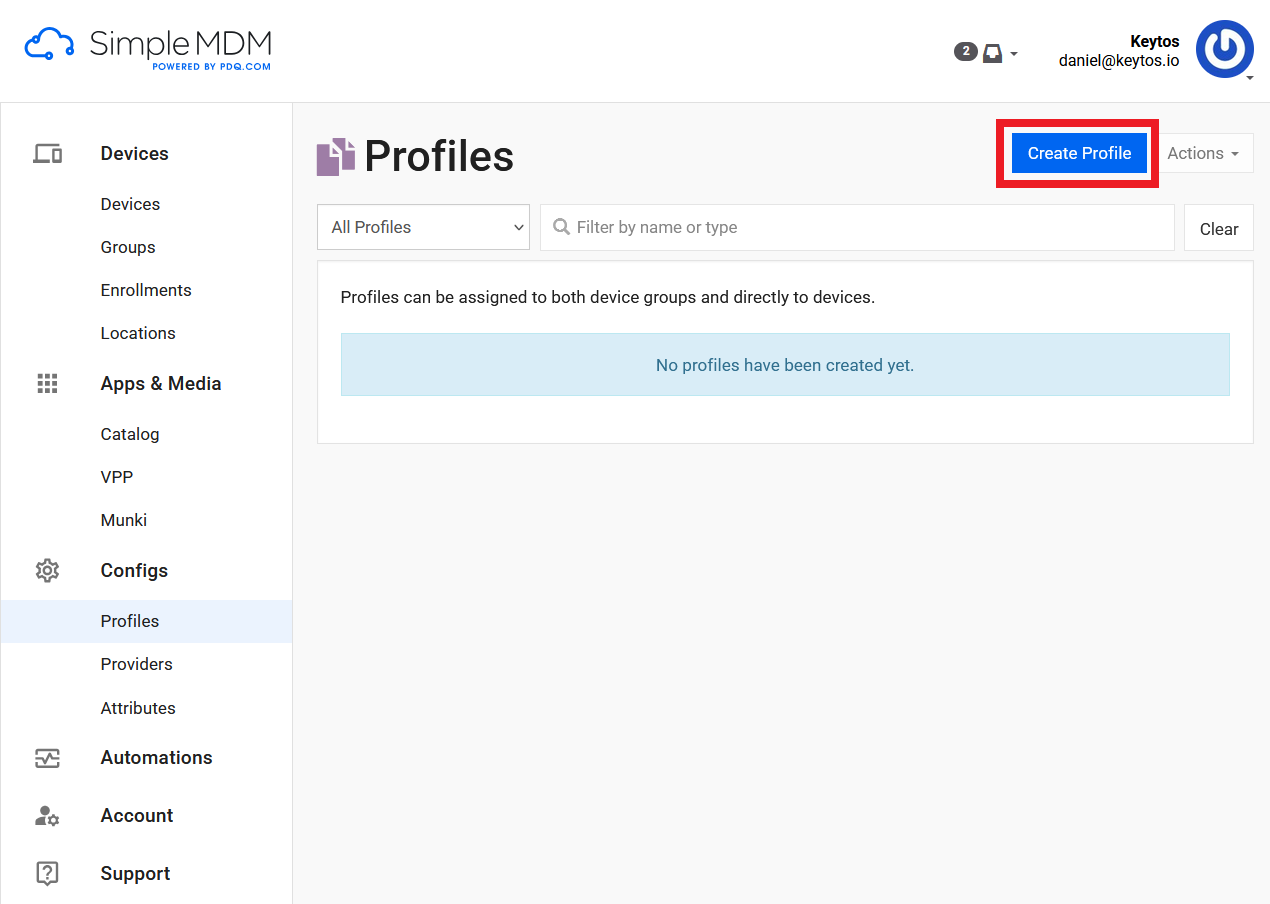
Navigate to Config → Profiles.
-
Click Create Profile.
-
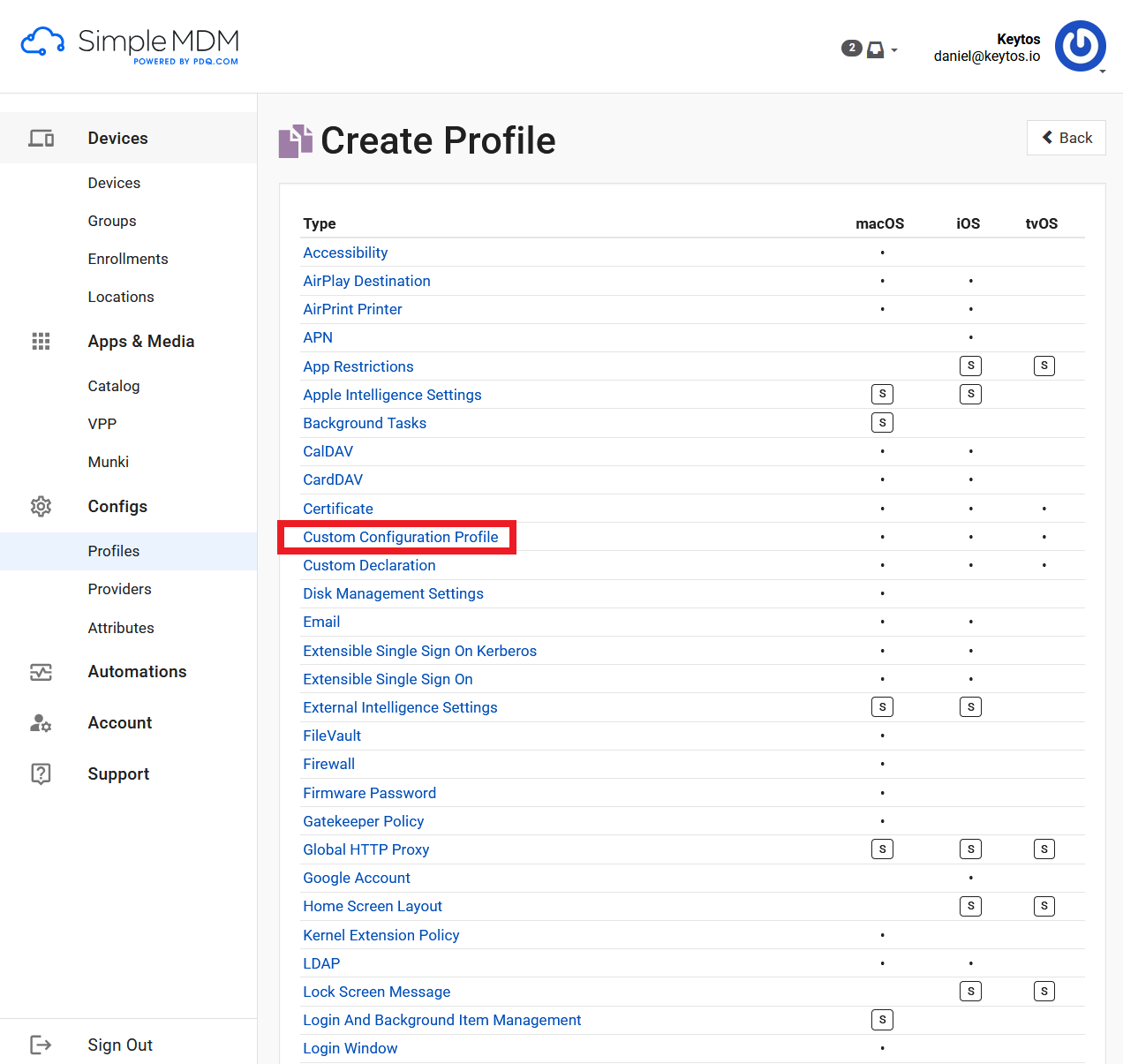
Select Custom Configuration Profile.
-
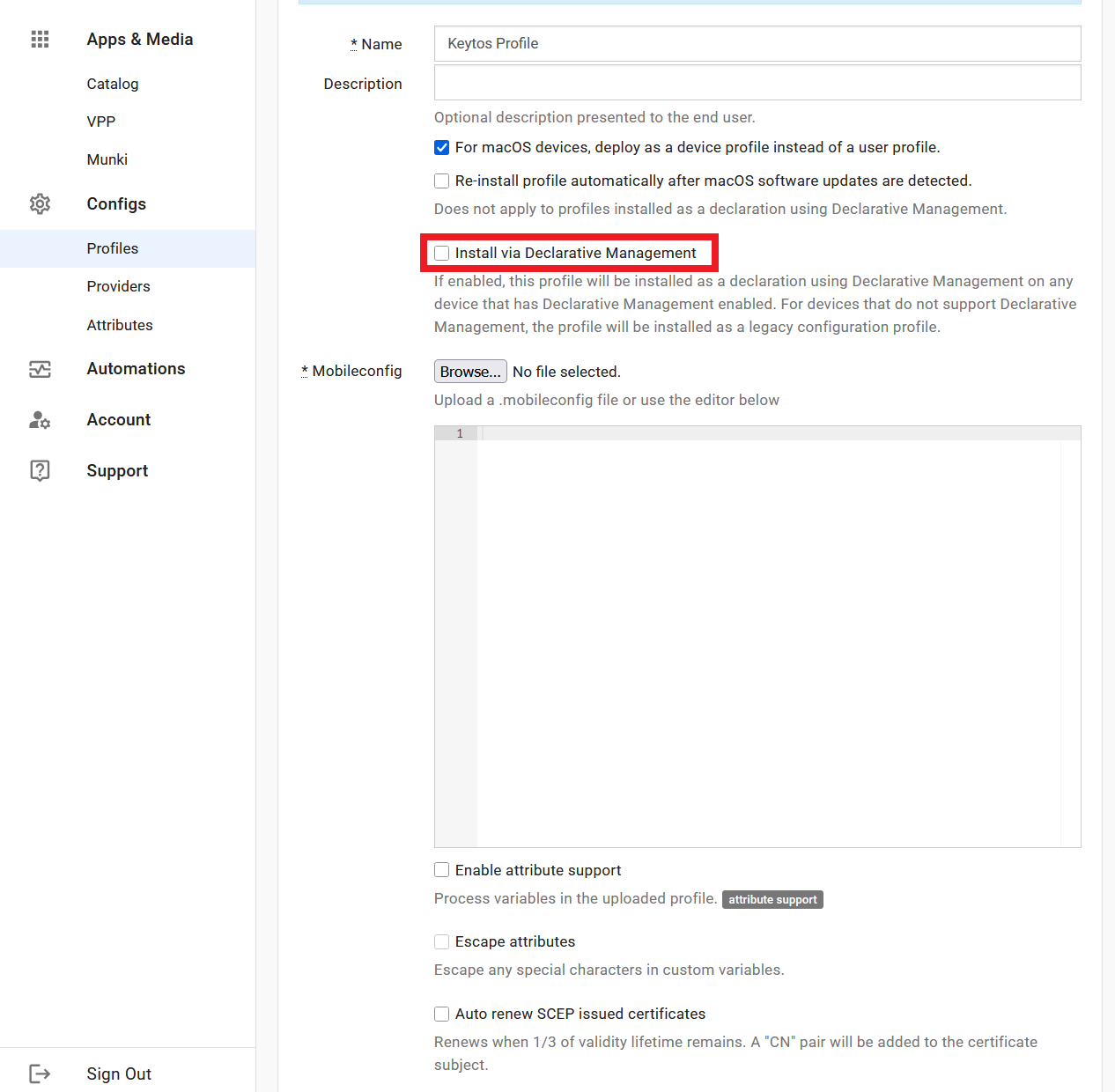
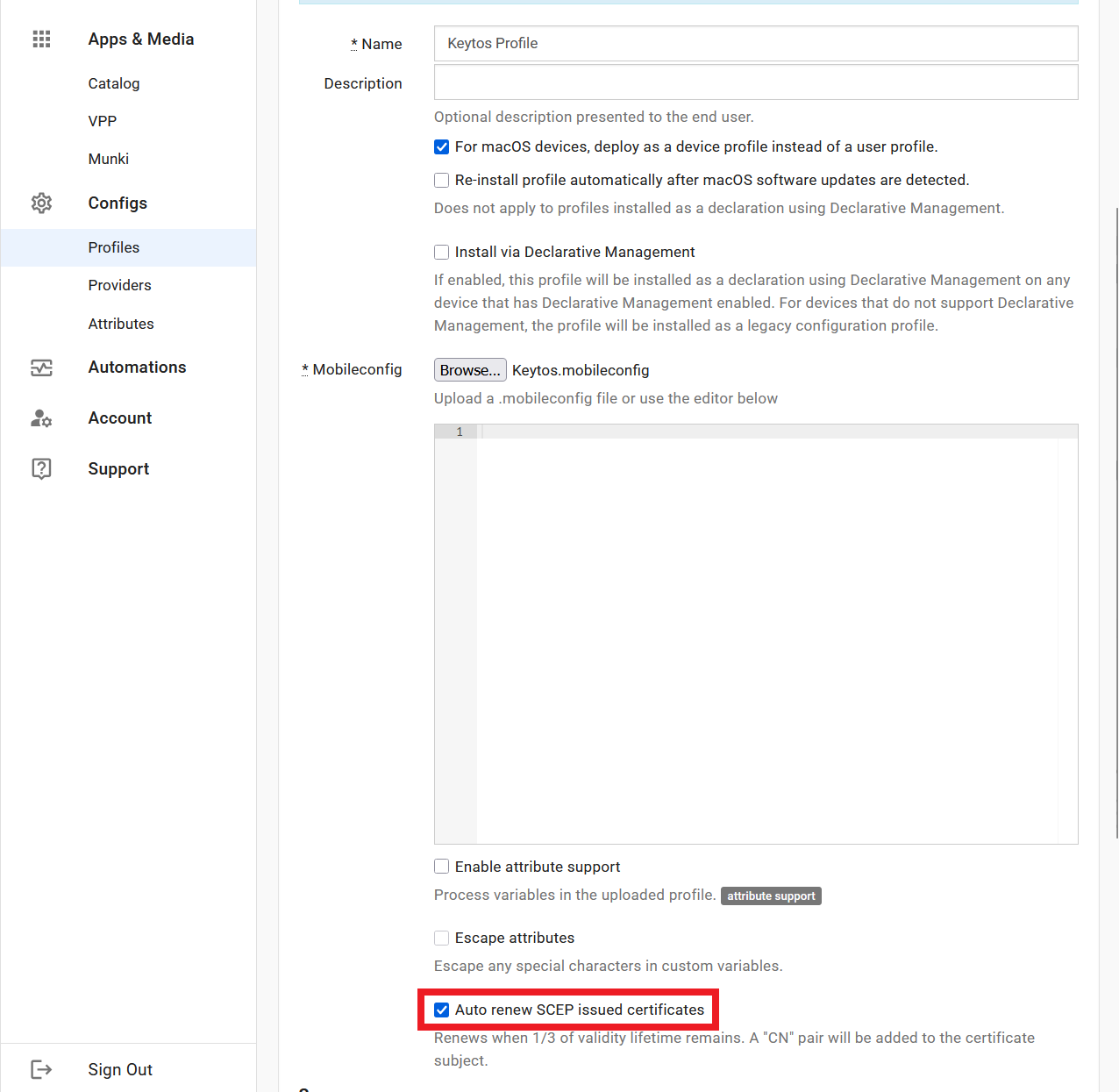
Name your profile.
-
Disable Install via Declarative Management.
-
Upload the
.mobileconfigyou just created. -
Enable Auto renew SCEP issued certificates.
-
Scroll to the bottom and click Save.
-
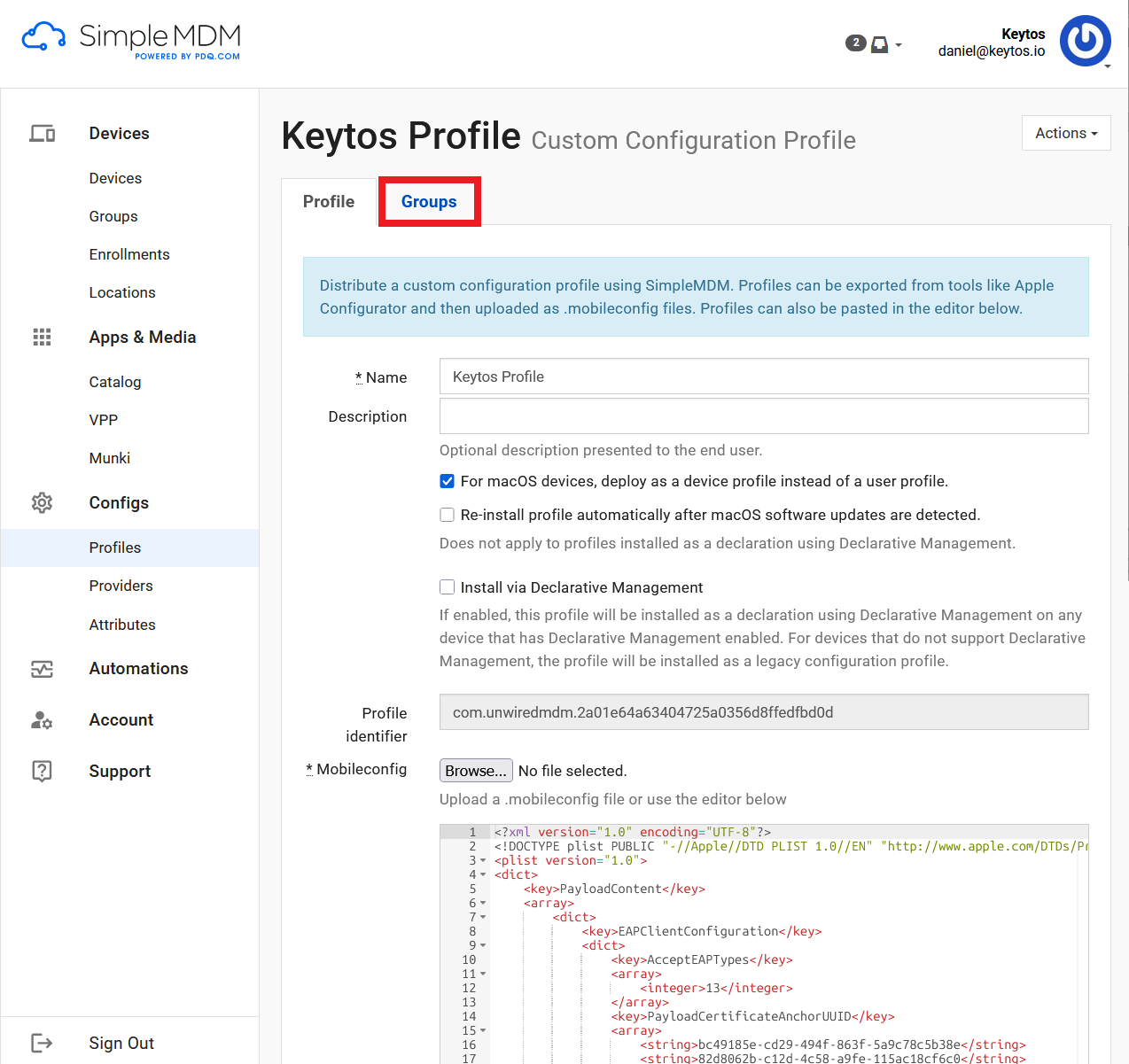
Click on the profile you just created.
-
Click on the Groups tab.
-
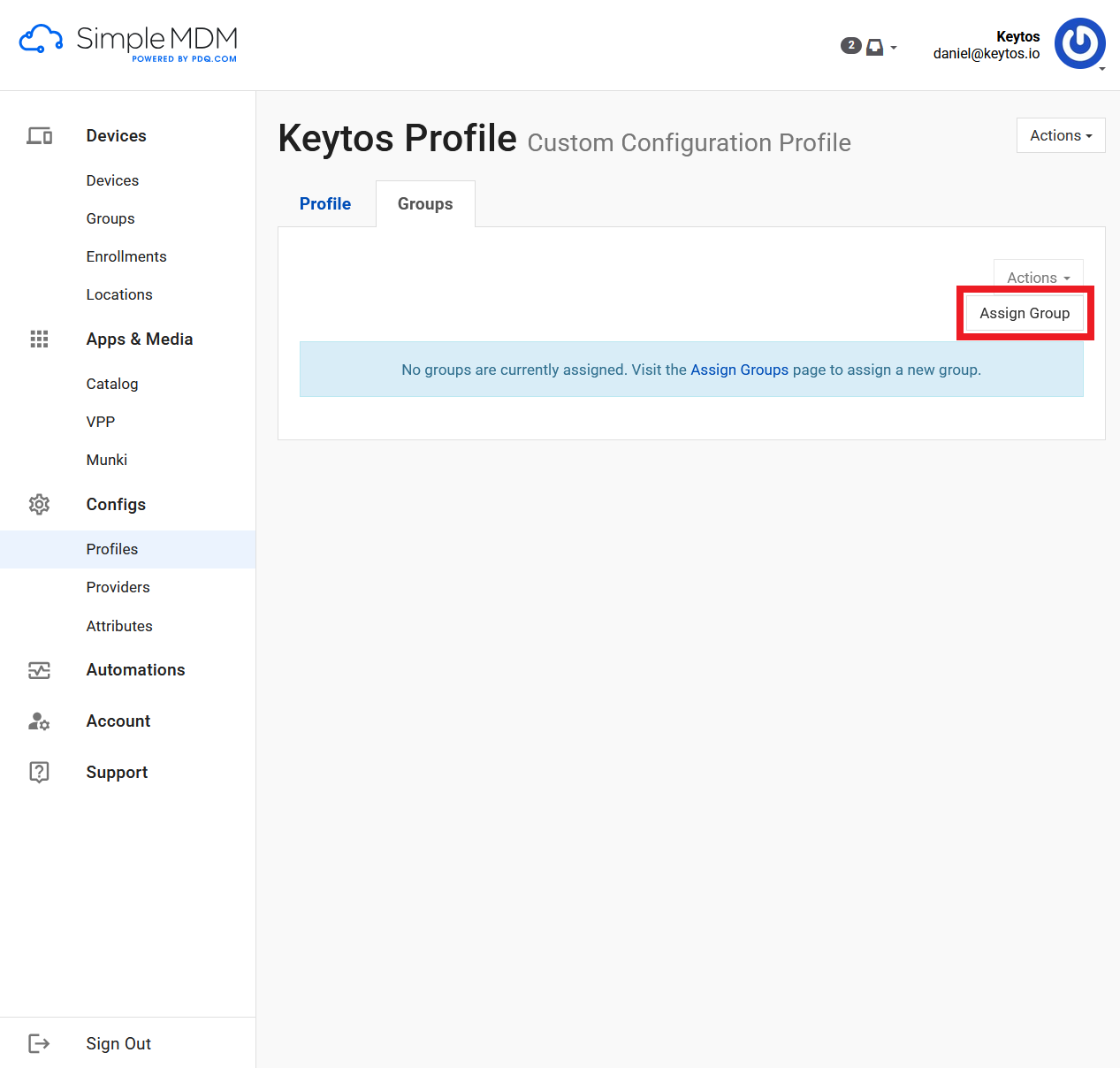
Click Assign Group.
-
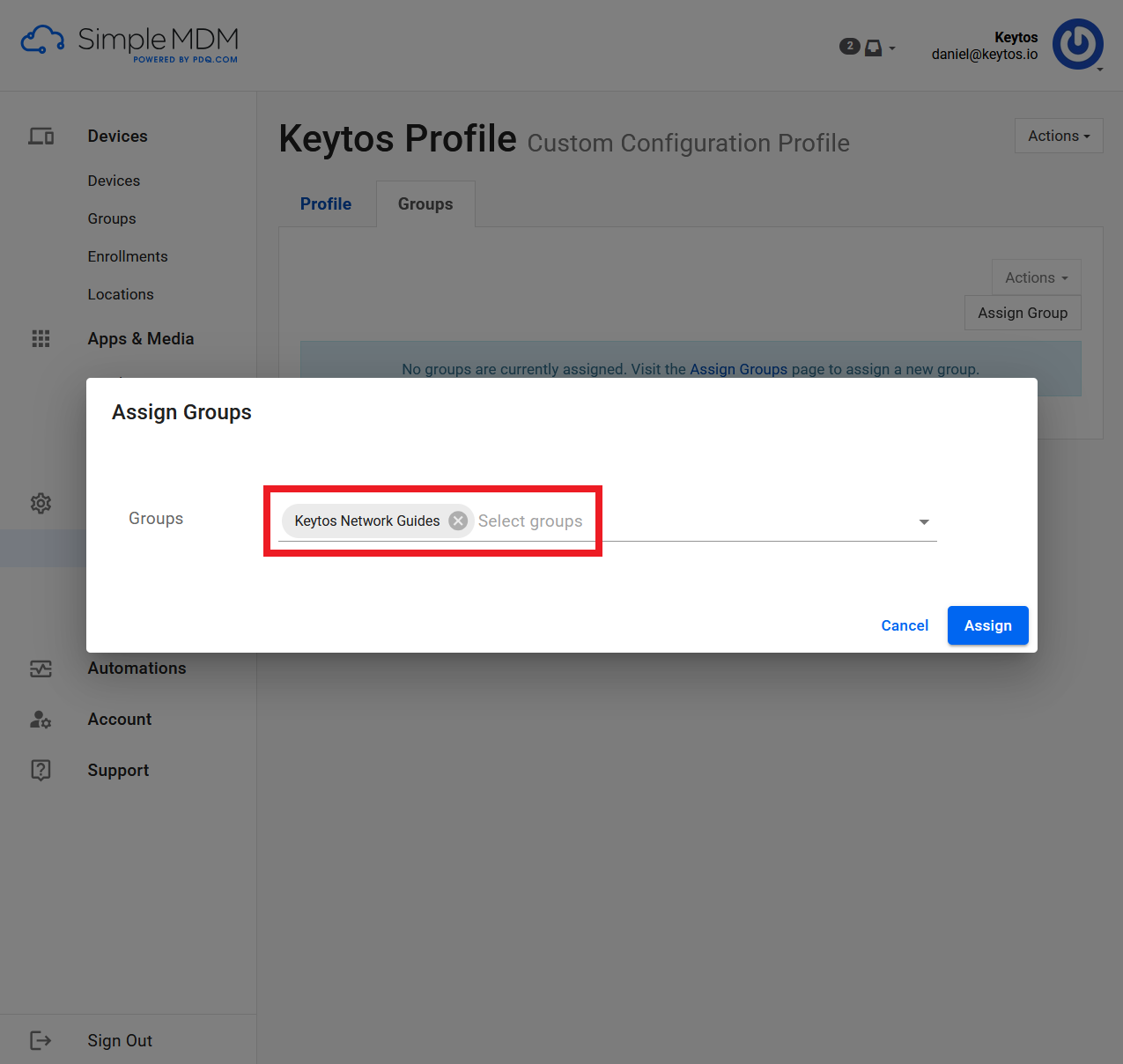
Select all the groups you want to assign this profile to.
-
Click Assign.
-
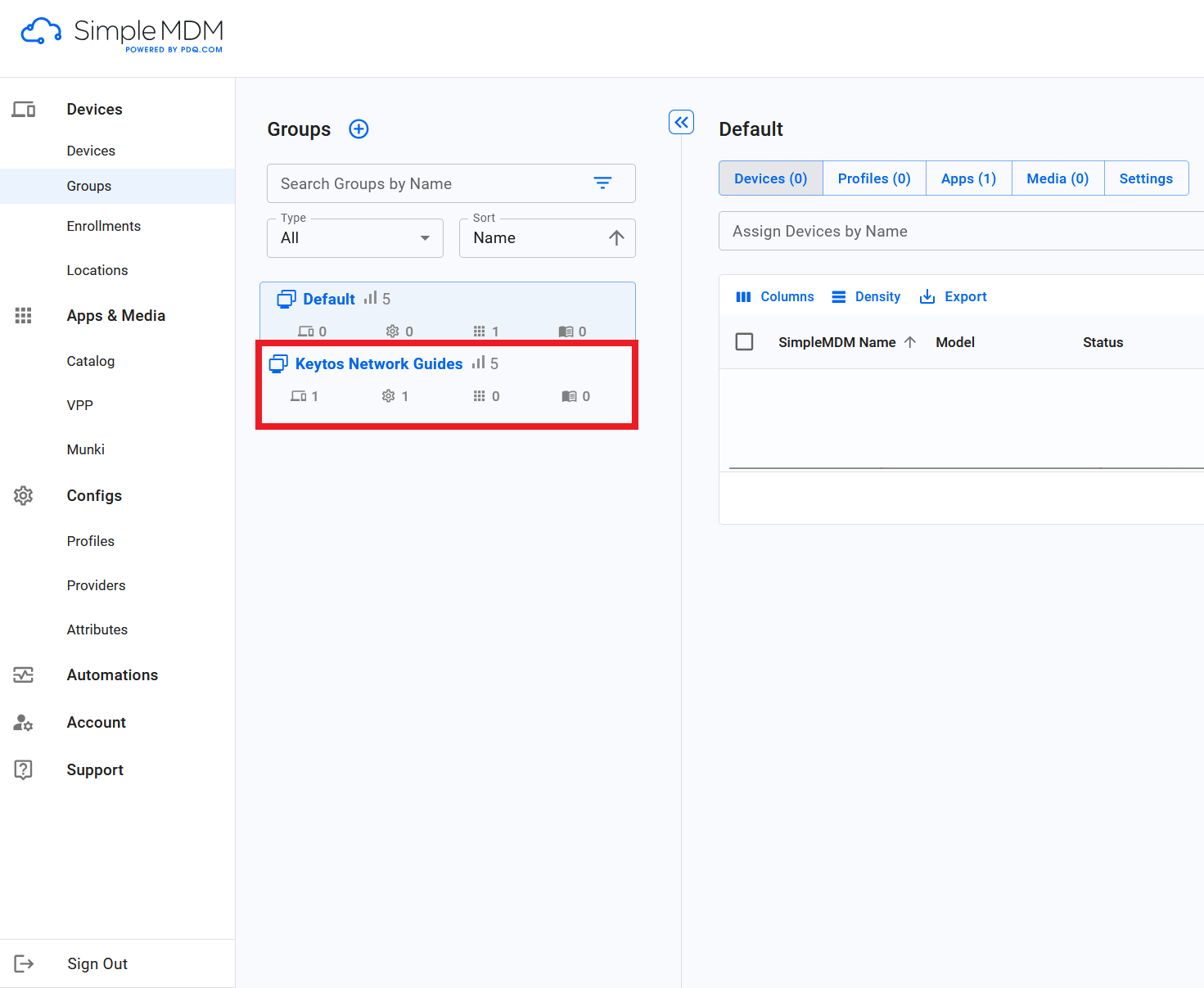
Navigate to Devices → Groups.
-
Select the group you assigned the profile to.
-
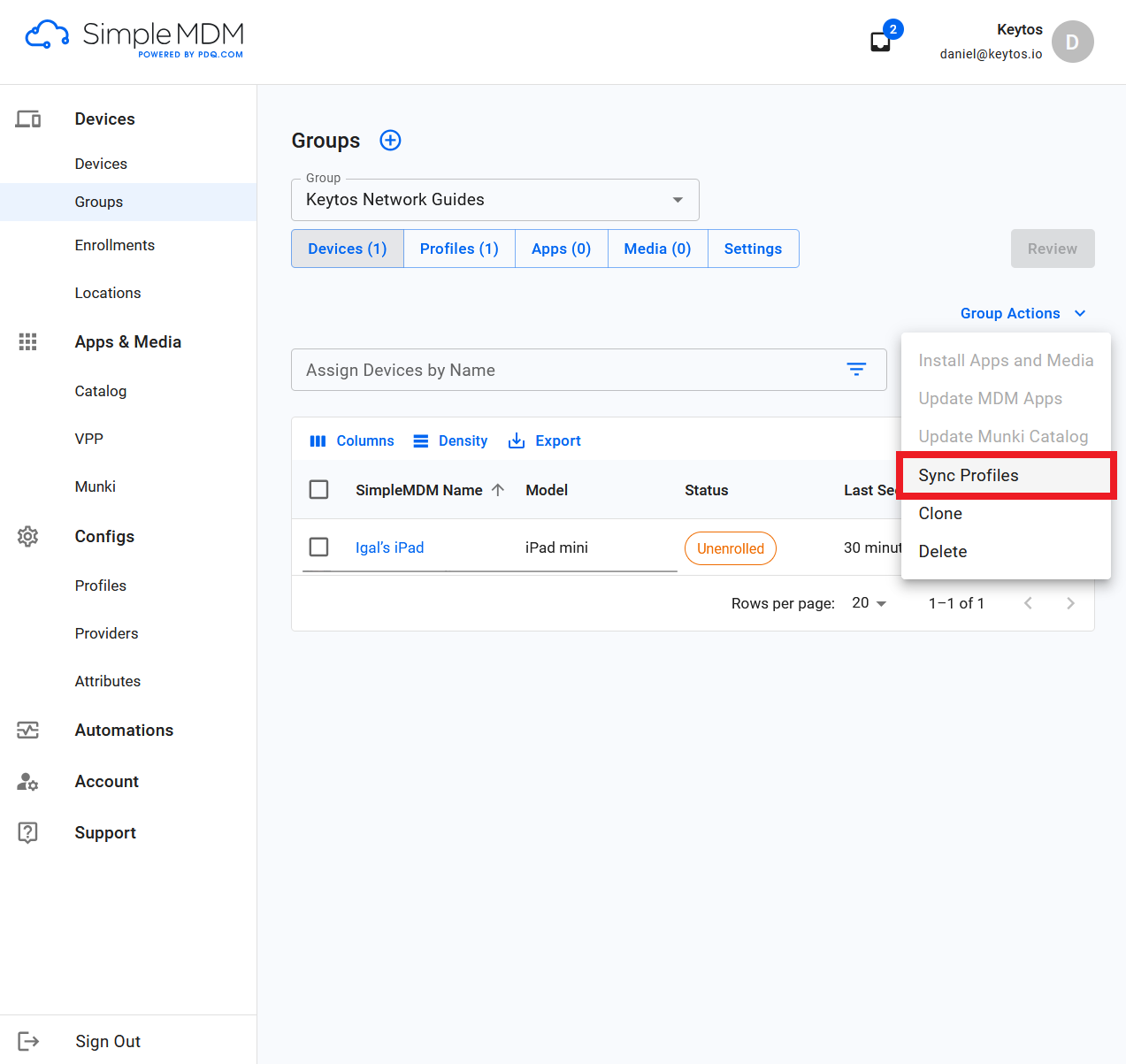
Click on Group Actions and select Sync Profiles.
-
Repeat for any additional groups.
-
Done!
How to Test the Certificate-Based Wi-Fi Authentication in your Apple Devices
Now that you have configured your SimpleMDM Wi-Fi profile to use Cloud RADIUS for authentication, the next step is to test the configuration on a managed macOS device. Follow these steps to test your Wi-Fi configuration:
-
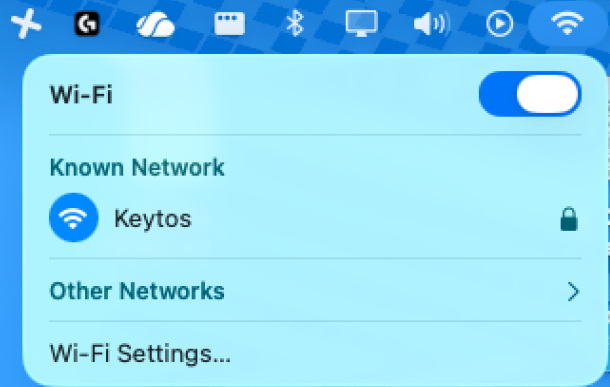
On a managed macOS device, click on the Wi-Fi icon in the menu bar and select the Wi-Fi network that you configured in your SimpleMDM Wi-Fi profile.
-
If your configuration is correct, the device should successfully connect to the Wi-Fi network.
-
If you are prompted for a certificate, this means your timeout settings might be incorrect in your network configuration, or your certificate has not been properly issued to the device. Check your network and certificate settings to resolve this issue.
How to Troubleshoot RADIUS Authentication for Keytos Shield
If you are unable to connect to your network, refer to our troubleshooting guide.
Shield RADIUS Troubleshooting Guide