













How-To: Issue ACME Device Certificates with Keytos Shield Cloud PKI
This guide covers ACME device attestation for managed devices. Keytos Shield does not support HTTP or DNS ACME for server SSL certificates at this time. To issue a certificate for a server or appliance, see how to create a generic server certificate.
Overview - How to Issue ACME Certificates to Managed Devices with Keytos Shield
The Automated Certificate Management Environment (ACME) protocol lets a managed device request its own certificate directly from Keytos Shield. Unlike static SCEP, which relies on a shared password, ACME device attestation lets Shield confirm that each certificate request comes from a real, managed device, and your MDM can bind the private key to the device hardware. Keytos Shield hosts the ACME service for you, so you can issue certificates for passwordless Wi-Fi and network authentication without running any servers.
This guide uses Jamf Pro to deliver the ACME configuration to Apple devices. Many popular MDM platforms that support ACME can be set up the same way using the ACME URL from Shield.
How Does ACME Certificate Issuance Work in Keytos Shield?
- You enable Jamf Pro in Keytos Shield, which prepares your certificate authority for ACME enrollment.
- Keytos Shield gives you an ACME URL for your certificate authority.
- You add that URL to an ACME Certificate payload in a Jamf Pro configuration profile.
- Each device in scope generates its own key, proves its identity to Shield through ACME device attestation, and receives its own certificate.
Prerequisites for Issuing ACME Certificates with Keytos Shield
Before you begin, make sure you have completed these prerequisites:
- The Keytos Entra ID applications are registered in your tenant.
- You have signed up for a Keytos Shield Plan.
- You are a Subscription Owner or Network Administrator.
- You have completed the Keytos Shield Network Security onboarding.
- You have administrator access to Jamf Pro, with permission to create configuration profiles.
Step-by-Step Guide - How to Issue ACME Certificates with Keytos Shield
Step 1 - How to Enable Jamf Pro in Keytos Shield
Keytos Shield only shows enrollment details for the MDM platforms you tell it about. Saving your selection also updates your certificate authority to support the enrollment protocols your MDMs need.
-
Login to your Keytos Shield portal.
-
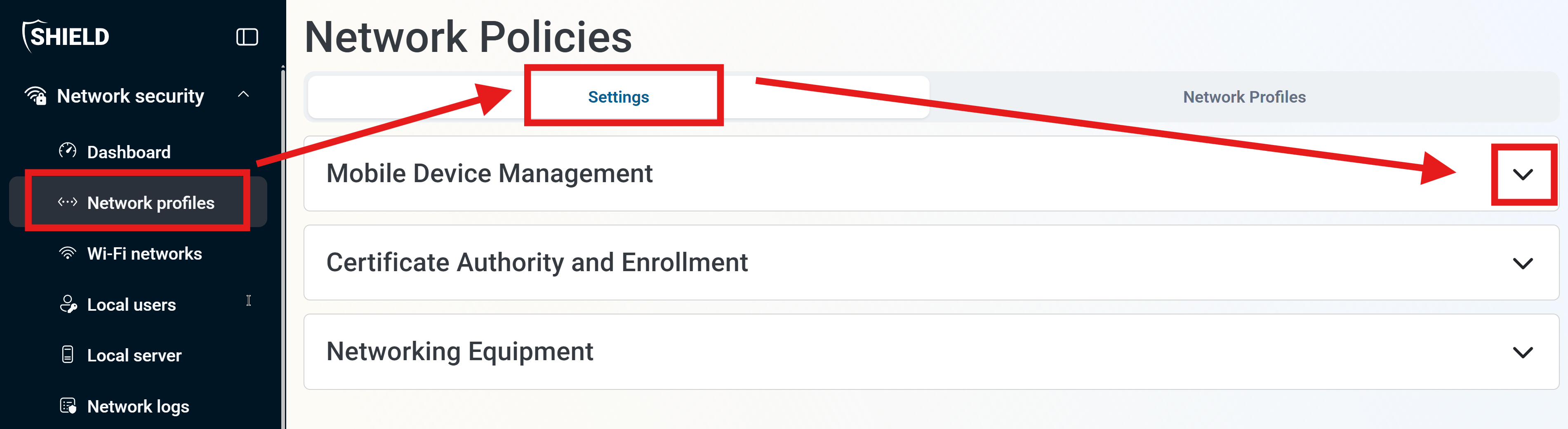
From the left-hand menu, select Network profiles.
-
From the top tabs, select Settings.
-
Expand Mobile Device Management.
-
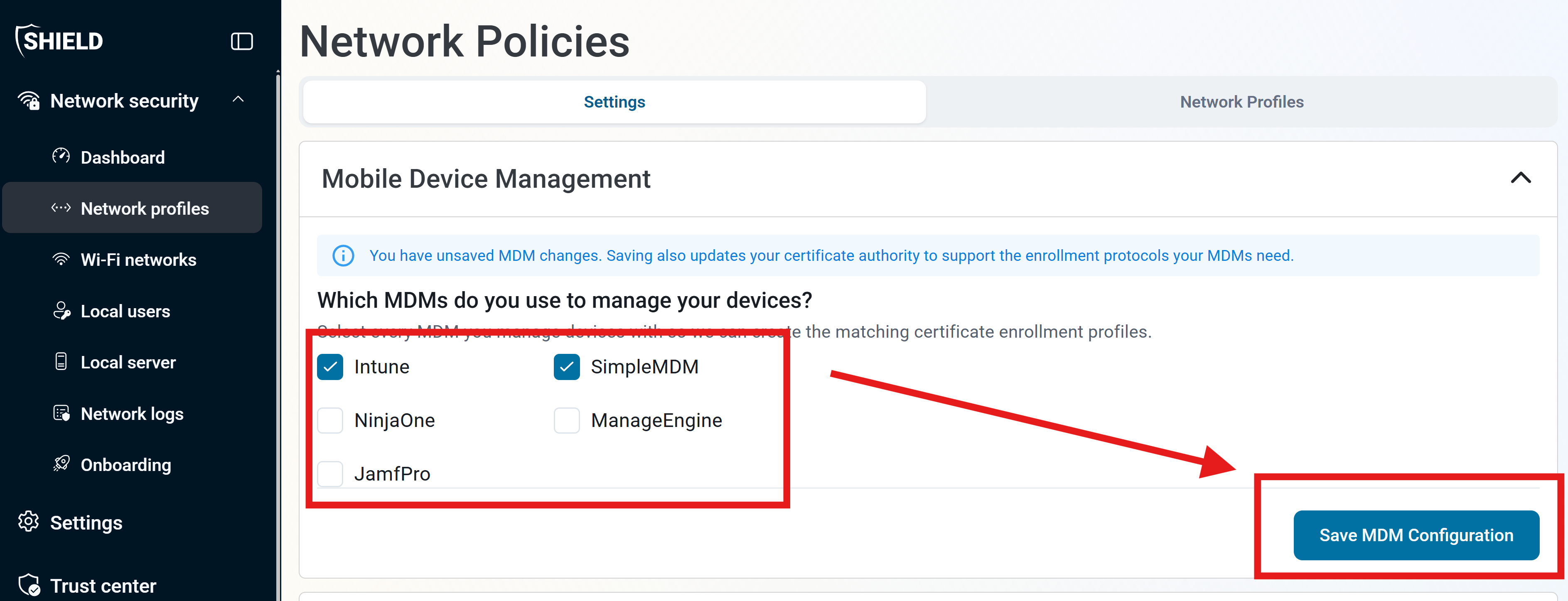
Select the MDM solution(s) you use within your environment, including Jamf Pro. You can select as many as applicable.
- Some MDM solutions may require additional configuration steps. Follow the specific instructions provided for each MDM solution to complete the integration.
-
Click Save MDM Configuration to apply your changes and enable the integration with the selected MDM solution(s).
Step 2 - How to Get Your Keytos Shield ACME URL
-
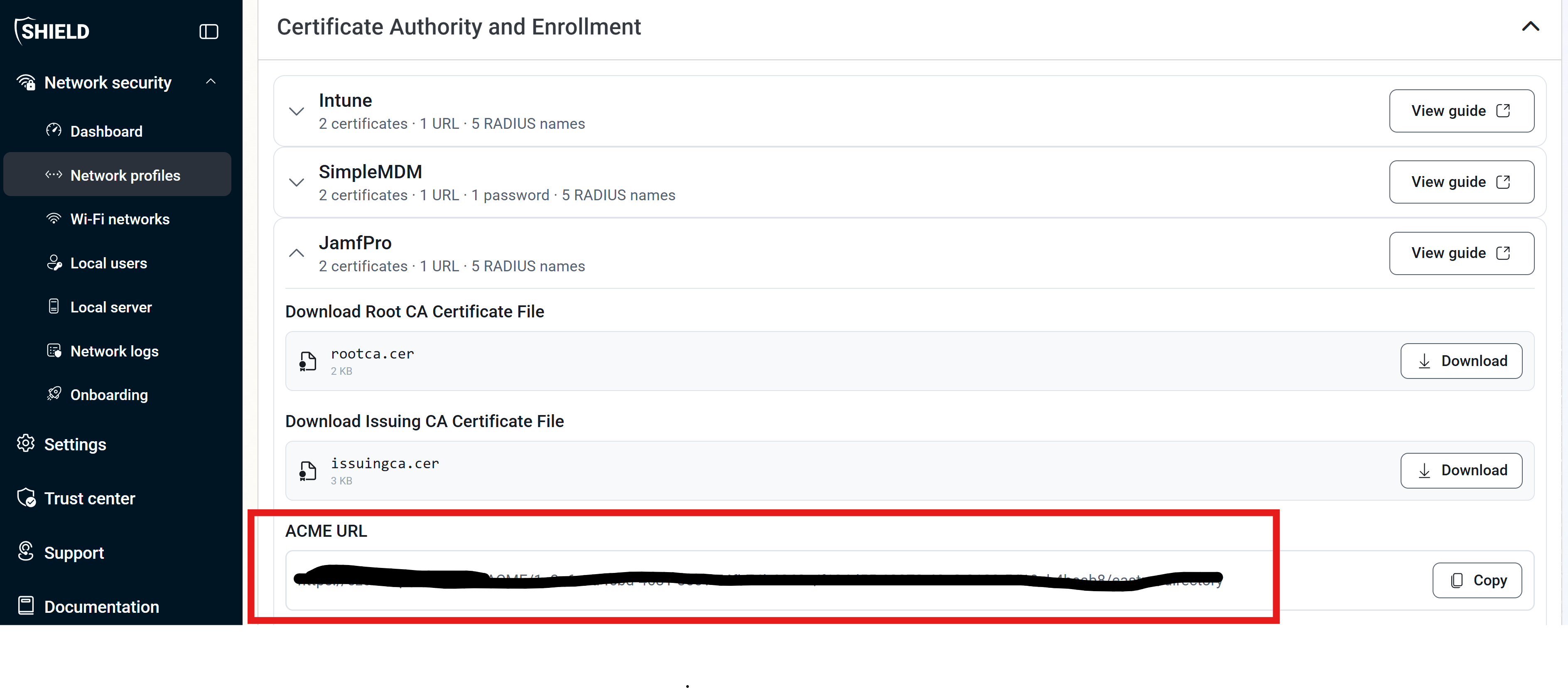
Back in your Keytos Shield portal, go to Network profiles > Settings and return to Certificate Authority and Enrollment.
-
Under the Jamf Pro section, locate your ACME URL value.
-
You’ll need this URL in the next section when configuring an ACME certificate in Jamf Pro.
Step 3 - How to Trust the Keytos Shield CA Certificates on Your Devices
For a device to trust the certificates Shield issues, and your Shield RADIUS servers, it must trust your Shield Root CA and Issuing CA certificates. Follow the Jamf Pro steps to download and push them:
Push Shield CA Certificates with Jamf ProStep 4 - How to Configure the ACME Certificate in Jamf Pro
-
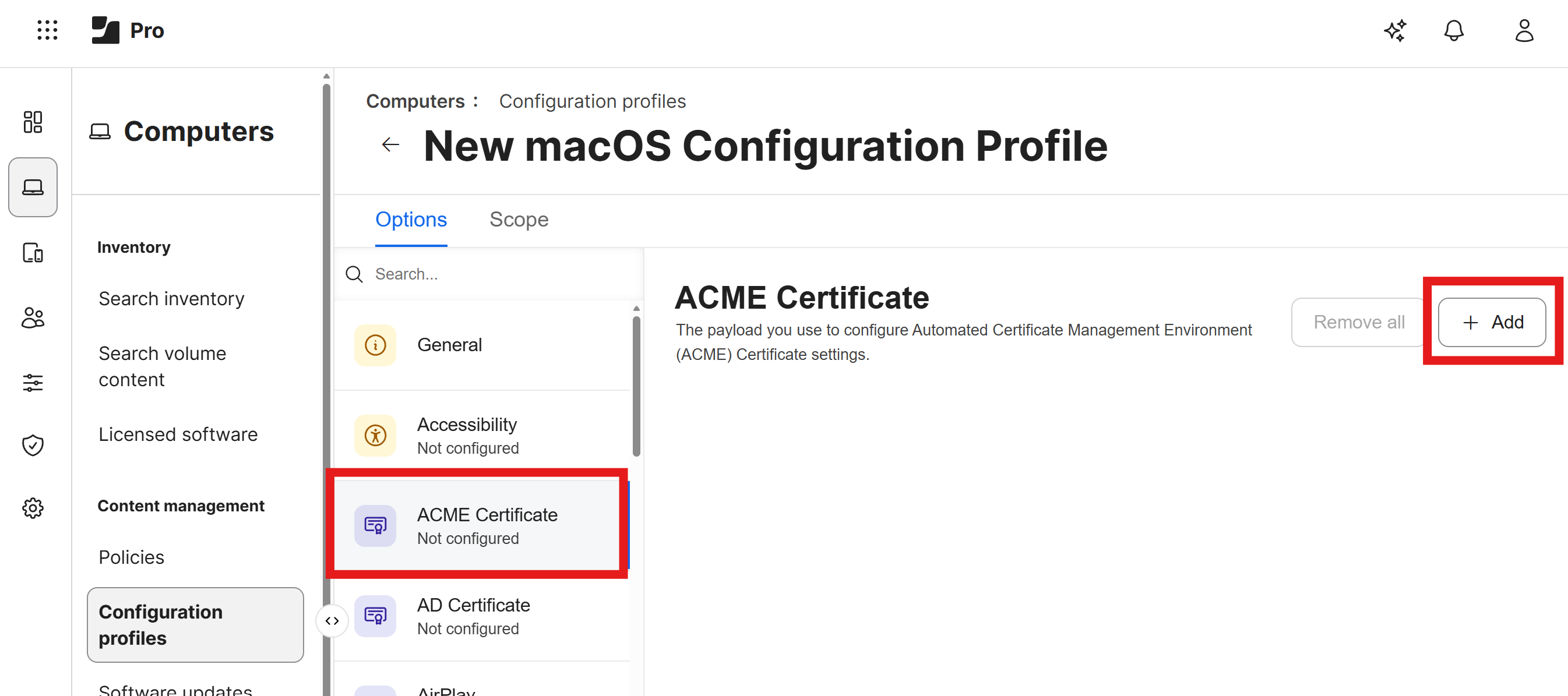
Navigate back to your Jamf Pro tab where you were configuring your Configuration Profile, and scroll up to the ACME Certificate section.
-
Click on the + Add button to add a new ACME certificate.
-
Enter the following information for your ACME certificate:
- ACME directory URL: Paste the ACME URL you copied from your Keytos Shield portal (labeled ACME Device Registration URL in EZCA and ACME URL in Keytos Shield).
- Client identifier: Set this to
$SERIALNUMBERto use the device’s serial number as the client identifier. - Key Size: Set this to 384 for a strong, elliptic curve key that is hardware bound. You can set this as needed based on your use case and device support.
- Key Type: Set this to ECSECPrimeRandom
- Hardware Bound: Set this to true so the device’s secure enclave is used to generate the key and store it securely on the device.
- Redistribute Profile: Specify the days from expiration that Jamf Pro should redistribute the profile to devices. We’ll set this to 15 days.
- Subject Name: Use the available variables and any static values you want to build the subject name for the certificate. You can see the full list of Jamf supported dynamic values here. For example, you could use
CN=$UDIDto set the Common Name of the certificate to the device’s unique device identifier orCN=$USERNAMEto set the Common Name of the certificate to the user or device’s username. - Subject Alt Name: Set the following recommended SAN values:
- RFC822Name:
$EMAILADDRESS(if issuing user certificates) - DNS*:
$HOSTNAME(if issuing device certificates)
- RFC822Name:
- Extended Key Usage:
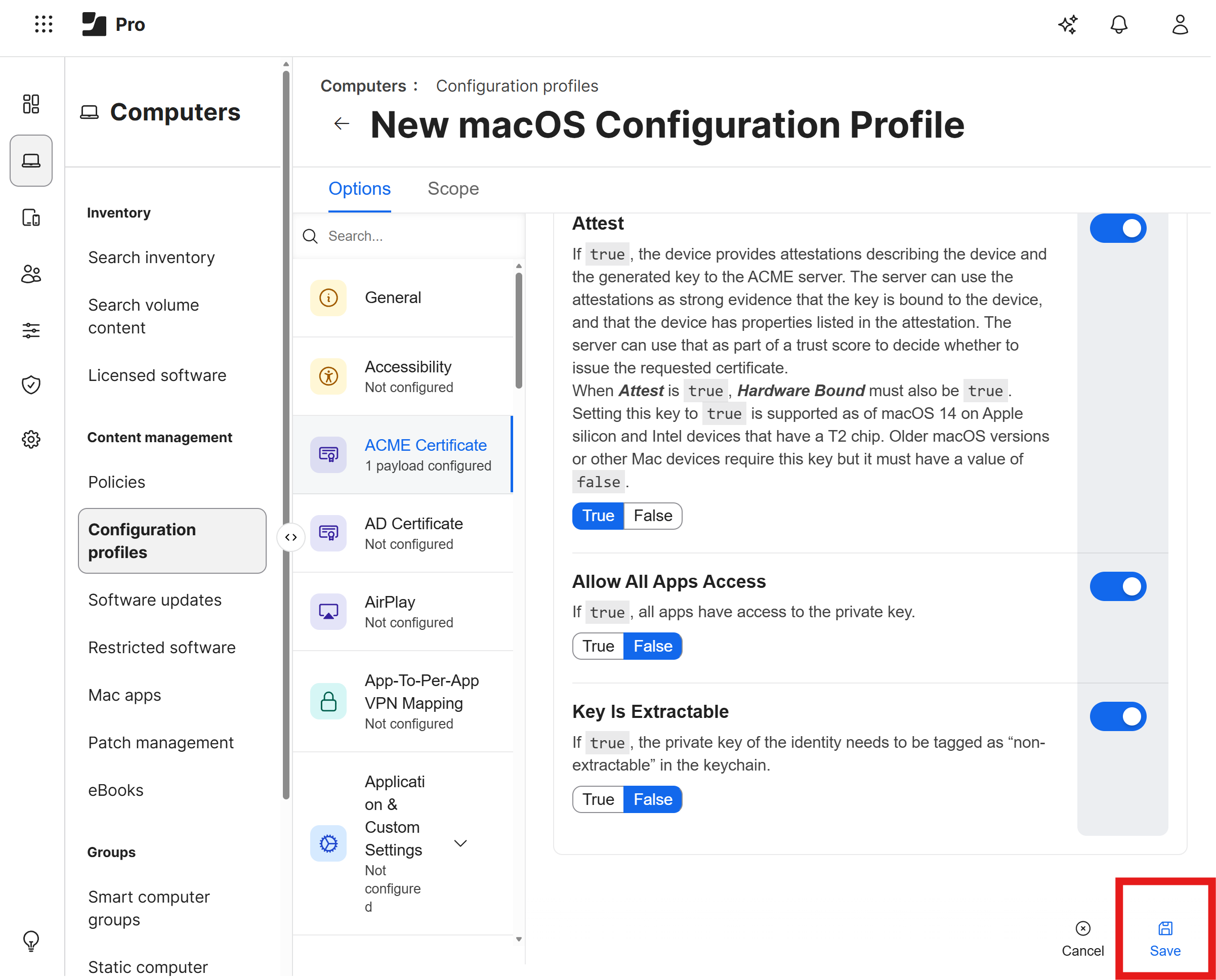
1.3.6.1.5.5.7.3.2for client authentication. You can add additional EKU values as needed for your use case. - Attest: We recommend setting this to True.
- Allow All Apps Access: Set this to false, unless you have specific 3rd party apps (VPNs) that require access to the certificate. If you are using the certificate for Jamf Pro and Apple’s built-in Wi-Fi or VPN, you do not need to check this box.
- Key Is Extractable: Set this to false to prevent the private key from being exportable from the device’s secure enclave.
-
Click Save to save your ACME certificate configuration.
Step 5 - How to Verify Your ACME Certificates Were Issued
After your devices receive the configuration profile, confirm in Keytos Shield that certificates are being issued.
- In your Keytos Shield portal, expand Network security and click Certificates. Each certificate that Shield issued appears in the list with its Thumbprint, Issuance Date, and Expiry Date.
- Click Certificate logs, choose a date range, and click Get Logs to see when each certificate was requested and by whom.
Your devices now have unique, hardware-bound certificates and can authenticate to your network. To see every certificate and its history, read how to view certificate logs.
Frequently Asked Questions (FAQ) About ACME Certificates in Keytos Shield
Does Keytos Shield Support Device ACME?
Yes. In addition to SCEP issuance, Keytos Shield supports device certificate issuance via device ACME. Many popular MDM platforms, such as Jamf Pro, support this as an alternative to static SCEP.
Does Keytos Shield Support HTTP or DNS ACME for Web Server Certificates?
Not at this time. Keytos Shield uses the ACME device attestation and challenge, which is not the same as HTTP or DNS ACME for server SSL certificates. To issue a certificate for a server, use one of our server certificate guides.
Should I Use ACME or SCEP for My Devices?
If your MDM supports ACME device attestation, we recommend ACME, because Shield verifies each device instead of relying on a shared password. If it does not, use SCEP.
How Do I Revoke an ACME Certificate?
Open the Certificates page in your Shield portal and click Revoke next to the certificate. See how to revoke certificates for the full steps.
Next Steps - How to Connect Your Devices to Your Network
Now that your devices have ACME certificates, you can push a Wi-Fi profile that uses them to authenticate to your network.
🚀 Push a Network Profile to macOS with Jamf Pro
View Certificate Logs