












How-To: View and Revoke Certificates in Keytos Shield
Overview - How to View and Revoke a Device or Network Certificate in Keytos Shield
When a laptop is lost, an employee leaves, or a private key may have been exposed, you should not have to wait for the certificate to expire. In Keytos Shield, you can view and revoke any certificate your network certificate authority issued from the Certificates page. Revoking adds the certificate to your certificate authority’s revocation list, so the device using it can no longer connect once your network picks up the change. This guide shows you how to find the right certificate and revoke it.
When Should I Revoke a Certificate?
Revoke a certificate whenever it should no longer be trusted to access your network, for example when:
- A device was lost or stolen.
- An employee or contractor leaves your organization.
- You suspect the certificate’s private key was copied or exposed.
- A device is retired or reassigned and you want to cut off its old identity.
Prerequisites for Viewing and Revoking Certificates in Keytos Shield
Before you begin, make sure you have completed these prerequisites:
- The Keytos Entra ID applications are registered in your tenant.
- You have signed up for a Keytos Shield Plan.
- You are a Subscription Owner or Network Administrator.
- You have completed the Keytos Shield Network Security onboarding.
Step-by-Step Guide - How to View and Revoke a Certificate in Keytos Shield
Step 1 - How to Open the Certificates Page
-
Log in to your Keytos Shield portal.
-
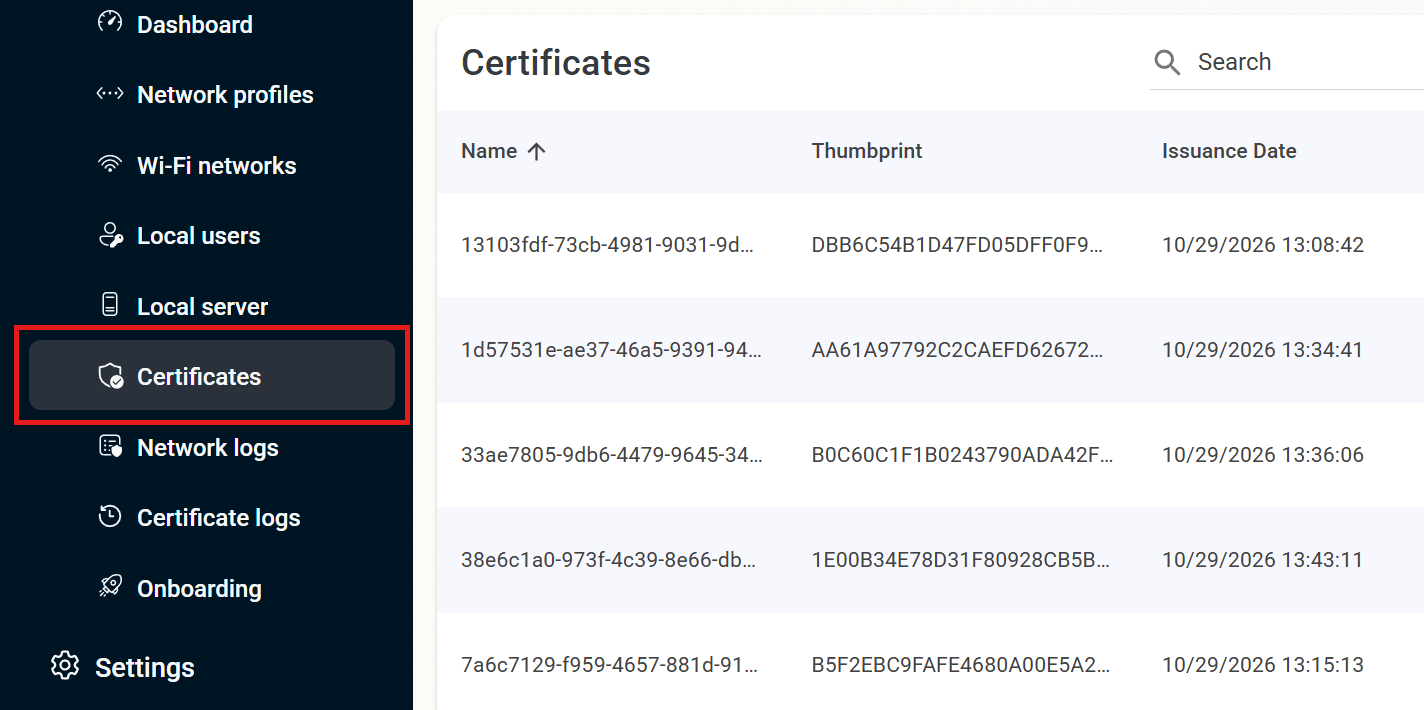
From the left-hand menu, expand Network security and click Certificates.
-
If you have more than one Shield subscription, make sure the right one is selected in the Subscription drop-down at the top of the page.
The page lists every certificate your network certificate authority issued, with its Name, Thumbprint, Issuance Date, and Expiry Date.
Step 2 - How to Find the Certificate You Want to Revoke
-
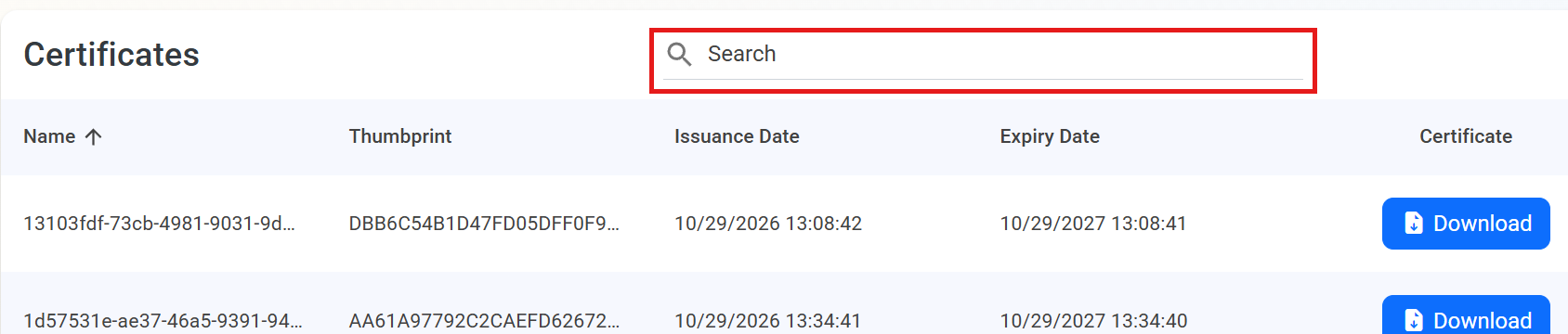
Type in the Search box to filter the list. You can also click a column header, such as Name, to sort the list by that column.
-
Confirm you have the right certificate by checking its Name, Thumbprint, and Issuance Date.
Open the certificate logs and search for the device name or username. The logs show the Thumbprint of every certificate issued to that device, which you can match on the Certificates page.
Step 3 - How to Revoke the Certificate
Keytos Shield warns that revoking a certificate cannot be undone. If you revoke a server certificate, such as the one your RADIUS server or local server uses, that server stops working. Double-check the Thumbprint before you continue, and consider clicking Download first if you want to keep a copy of the certificate.
-
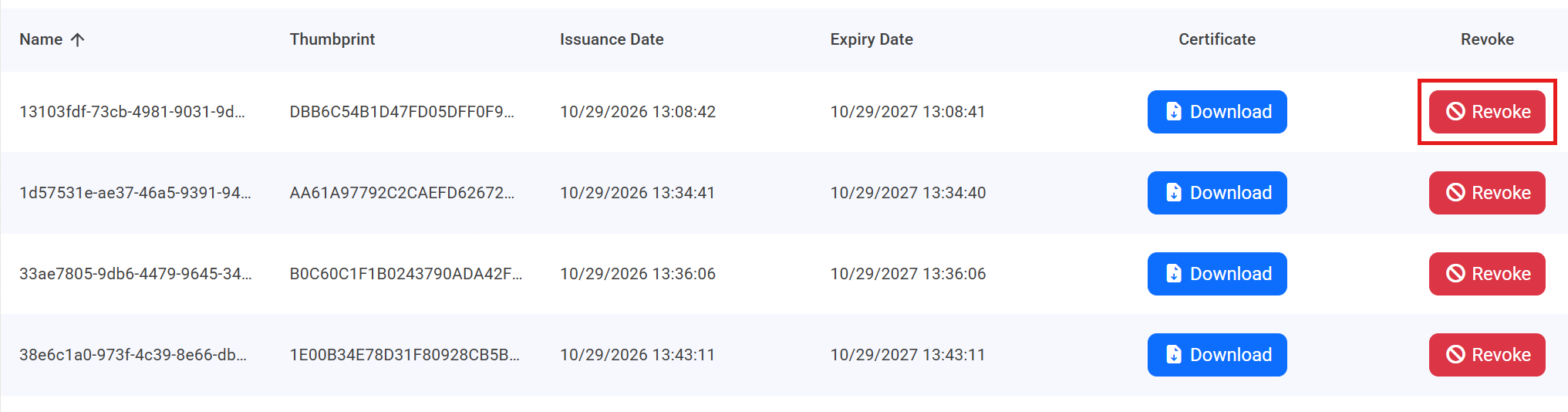
In the row for the certificate you want to revoke, click Revoke.
-
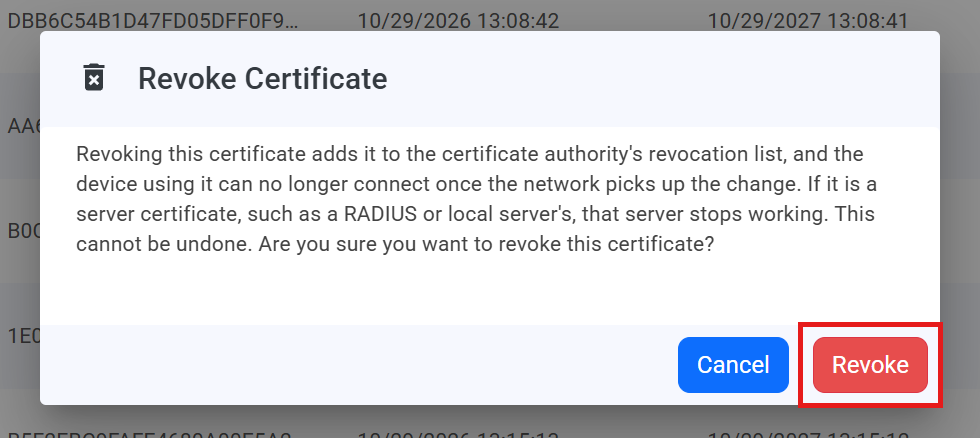
Read the warning in the Revoke Certificate dialog. It explains that the device using the certificate can no longer connect once the network picks up the change, and that the action cannot be undone.
-
Click Revoke to confirm, or Cancel to leave the certificate as it is.
-
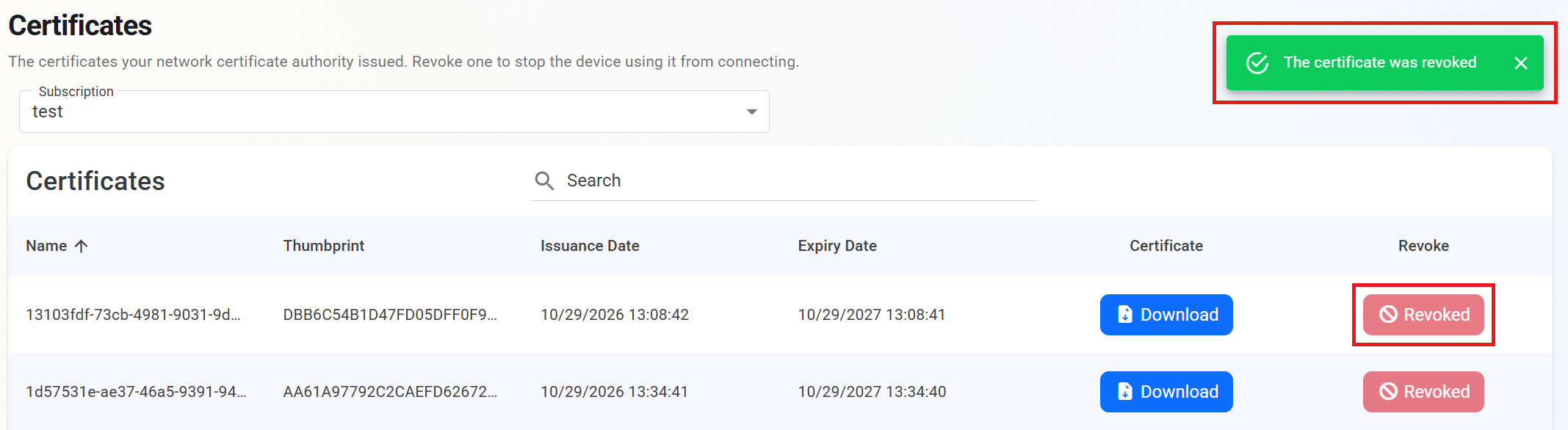
Shield shows The certificate was revoked, and the button in that row changes to a disabled Revoked button. The certificate stays in the list, marked as revoked.
Done! The certificate is on your certificate authority’s revocation list, and the device can no longer use it to connect to your network once your network picks up the change.
Step 4 - How to Confirm the Revocation in the Certificate Logs
Keytos Shield records every revocation in the certificate logs.
- From the left-hand menu, expand Network security and click Certificate logs.
- Choose a date range and click Get Logs.
- Type
Revokein the Search box. Each revocation shows Revoke in the Action column, and the Requester column shows who revoked the certificate.
For screenshots and a description of every column, see how to view certificate logs.
Step 5 - How to Issue a New Certificate to the Device (optional)
If the device should still be able to connect to your network, it needs a new certificate. Devices that get their certificates through your MDM can be issued a new one with the same process you used the first time:
Issue SCEP Certificates
Issue ACME Certificates
Frequently Asked Questions (FAQ) About Revoking Certificates in Keytos Shield
What Happens to a Device After I Revoke Its Certificate?
Keytos Shield adds the certificate to your certificate authority’s revocation list. The device using it can no longer connect once your network picks up the change, so it needs a new certificate before it can connect again.
Can I Undo a Revocation?
No. Keytos Shield warns that revoking a certificate cannot be undone. If the device should still connect to your network, issue it a new certificate instead.
Can I Revoke the Certificate My RADIUS Server or Local Server Uses?
Yes, but be careful. Keytos Shield warns that if you revoke a server certificate, such as a RADIUS or local server certificate, that server stops working.
Can I Download a Certificate Before I Revoke It?
Yes. Each row on the Certificates page has a Download button in the Certificate column. It saves the certificate as a .cer file named after the certificate’s thumbprint, in PEM (Base64 text) format.
Does Keytos Shield Log Certificate Revocations?
Yes. Revocations appear in the certificate logs with Revoke in the Action column, and the Requester column shows who revoked the certificate.
Where Can I See Every Certificate Keytos Shield Has Issued?
Use the Certificates page for the list of issued certificates, and the certificate logs for the history of certificate requests over any date range.
Next Steps - How to Monitor Your Certificates in Keytos Shield
Now that you know how to revoke a certificate, make a habit of reviewing which certificates your network has issued.
🚀 View Certificate Logs