












How-To: View Certificate Logs in Keytos Shield
Overview - How to View and Audit Issued Certificates in Keytos Shield
The Keytos Shield Certificate logs page is your audit trail for certificate issuance. It lists every certificate that the Shield network certificate authority issued to your devices, so you can answer questions such as which certificate a device is using, when it was issued, and how it was requested. This guide shows you how to open the logs, filter them, and understand every column.
Looking for who connected to your network instead of who received a certificate? See how to view network authentication and accounting logs.
Prerequisites for Viewing Certificate Logs in Keytos Shield
Before you begin, make sure you have completed these prerequisites:
- The Keytos Entra ID applications are registered in your tenant.
- You have signed up for a Keytos Shield Plan.
- You are a Subscription Owner or Network Administrator.
- You have completed the Keytos Shield Network Security onboarding.
Step-by-Step Guide - How to View Certificate Logs in Keytos Shield
Step 1 - How to Open the Certificate Logs Page
-
Log in to your Keytos Shield portal.
-
From the left-hand menu, expand Network security and click Certificate logs.
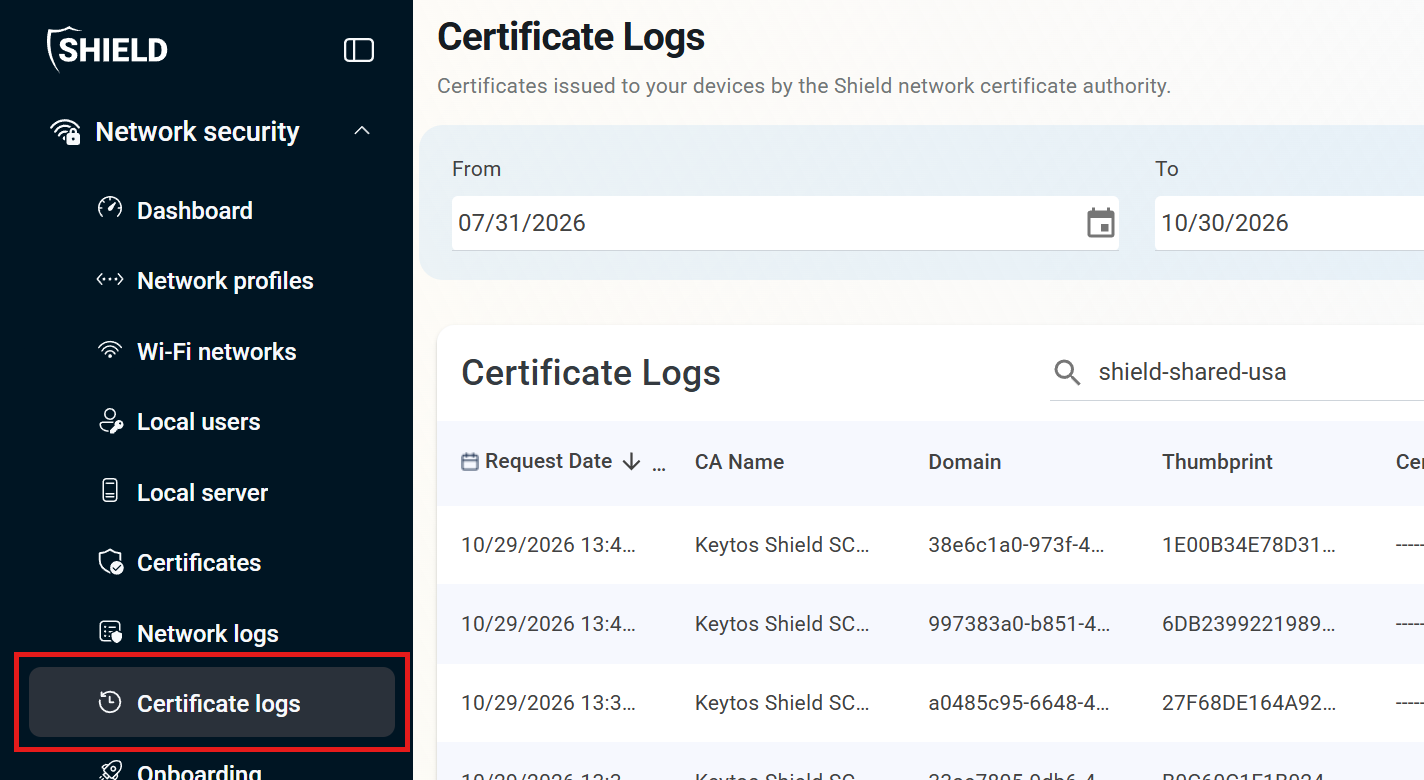
Step 2 - How to Choose the Date Range and Get the Logs
The page does not load any logs until you ask for them, so you always see exactly the time range you care about.
-
(optional) Change the From and To dates. Shield starts with a range of about three months, so extend it if you need to look further back.
-
Click Get Logs.

Step 3 - How to Search and Download the Certificate Logs
Once the logs load, they appear in a table below the date range.
-
(optional) Type in the Search box to filter the table. For example, enter a device name or a requester to find a specific certificate.
-
(optional) Use Rows per page and the page arrows at the bottom of the table to move through longer results.
-
(optional) Click Download to save the logs as a CSV file named
SSLCertificates_Audit_Logs.csv, so you can keep a record for your audit, open it in a spreadsheet, or share it with your security team.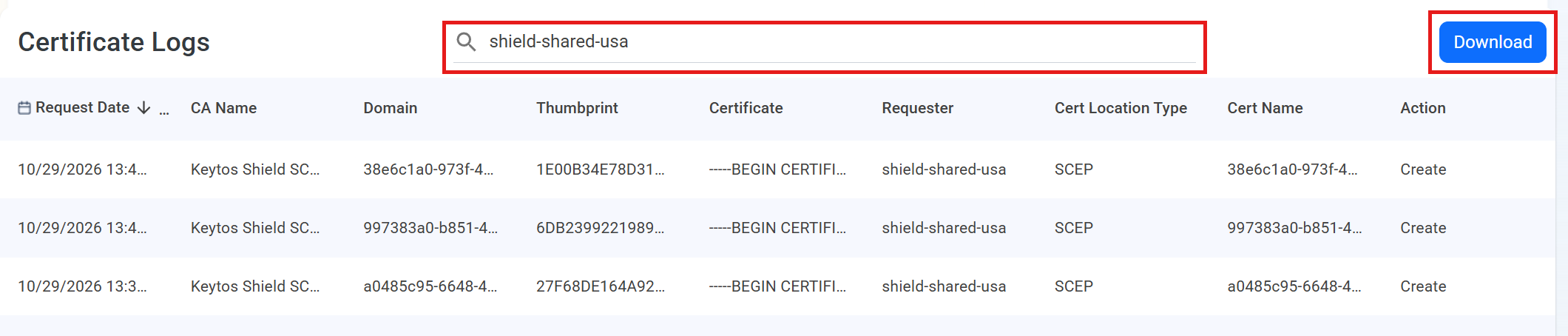
What Information is in the Keytos Shield Certificate Logs?
Each row in the table is one certificate request. The table has the following columns:
| Column | What it tells you |
|---|---|
| Request Date | When the certificate was requested and issued. |
| CA Name | The Shield certificate authority that issued the certificate, such as the Keytos Shield SCEP CA. |
| Domain | The name of the device or identity the certificate was issued for. |
| Thumbprint | The unique fingerprint of the certificate. Use it to find the same certificate on the Certificates page. |
| Certificate | The issued certificate in PEM format. |
| Requester | The identity that requested the certificate. For a Revoke action, this is the administrator who revoked the certificate. |
| Cert Location Type | How the certificate was requested, such as SCEP or Self-Service. |
| Cert Name | The name of the certificate. |
| Action | What happened: Create when a certificate was issued, or Revoke when an administrator revoked it. |
What Does the Downloaded Certificate Log File Contain?
The Download button saves a CSV file with one row per log entry. The columns are TenantID, CAID, DateRequested, Domain, DomainID, Thumbprint, TemplateID, CertificatePEM, SubID, Requester, CAFriendlyName, CertLocationType, CertLocation, CertNameAtLocation, and Action. The CertificatePEM column contains the full issued certificate.
How to See Which Certificates Were Revoked
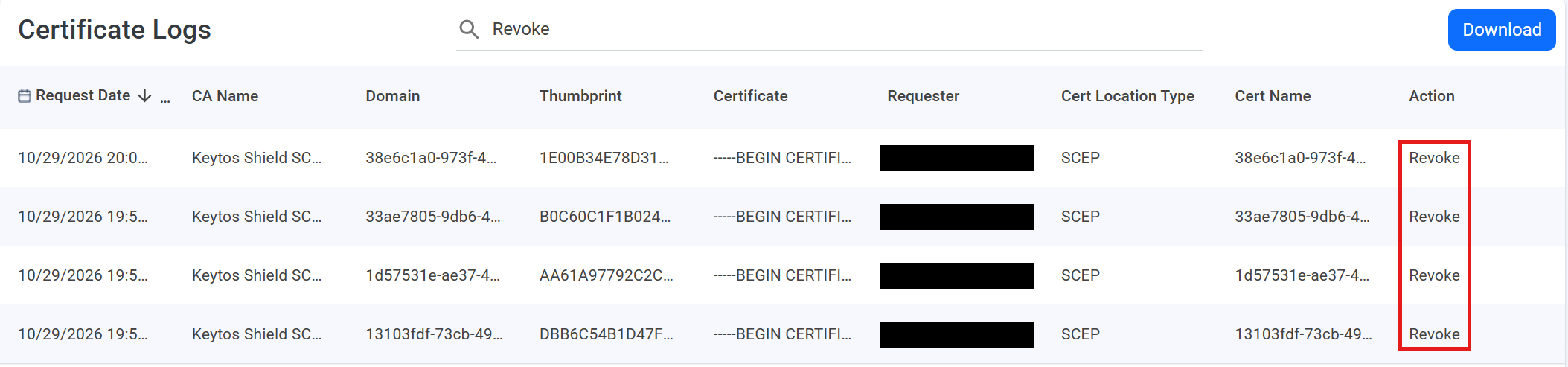
Keytos Shield records revocations in the same logs as issued certificates. To list them:
- Click Get Logs for a range that covers when you revoked the certificate.
- Type
Revokein the Search box. - Look at the Action column. Revoked certificates show Revoke, and the Requester column shows who revoked each one.
Need to revoke a certificate? See how to revoke certificates.
How to Find the Certificate for a Specific Device or User
When someone reports a problem connecting to your network, the logs help you find the certificate behind it quickly:
- Open Certificate logs and click Get Logs for a range that covers when the device enrolled.
- Search for the device name or username.
- Check the Request Date to confirm the certificate was issued, and note the Thumbprint.
- Open the Certificates page to see the certificate’s expiry date, or to revoke it if the device should no longer connect.
Next Steps - How to Issue or Revoke Certificates in Keytos Shield
Now that you can see which certificates Shield has issued, you can issue certificates to more devices or revoke the ones you no longer trust.