
















How to Sign Into macOS Using Your Passwordless Security Key
Why Use a Passwordless Security Key for macOS Sign-In?
It’s easy to use your EZCMS Security Key or Smart Card to sign into your macOS device. This allows you to securely access your device without a password, and it provides a convenient and fast way to log in. By using a passwordless security key, you can enhance your device’s security while simplifying the sign-in process.
How To Set Up Your macOS Device for Passwordless Security Key Sign-In - Step-by-Step Guide
Prerequisites for macOS Sign-In with a Security Key
Before you can sign into your macOS device using a passwordless security key, ensure you have the following:
- A Security Key or Smart Card enrolled with your identity via EZCMS
- A macOS device running macOS 10.15 (Catalina) or later
Step 1: How to Pair a PIV Smart Card or Security Key in macOS
The first step is to pair your PIV Smart Card or Security Key with your macOS device. Follow these steps:
-
Insert your Security Key or Smart Card into the USB port of your macOS device or Smart Card reader.
-
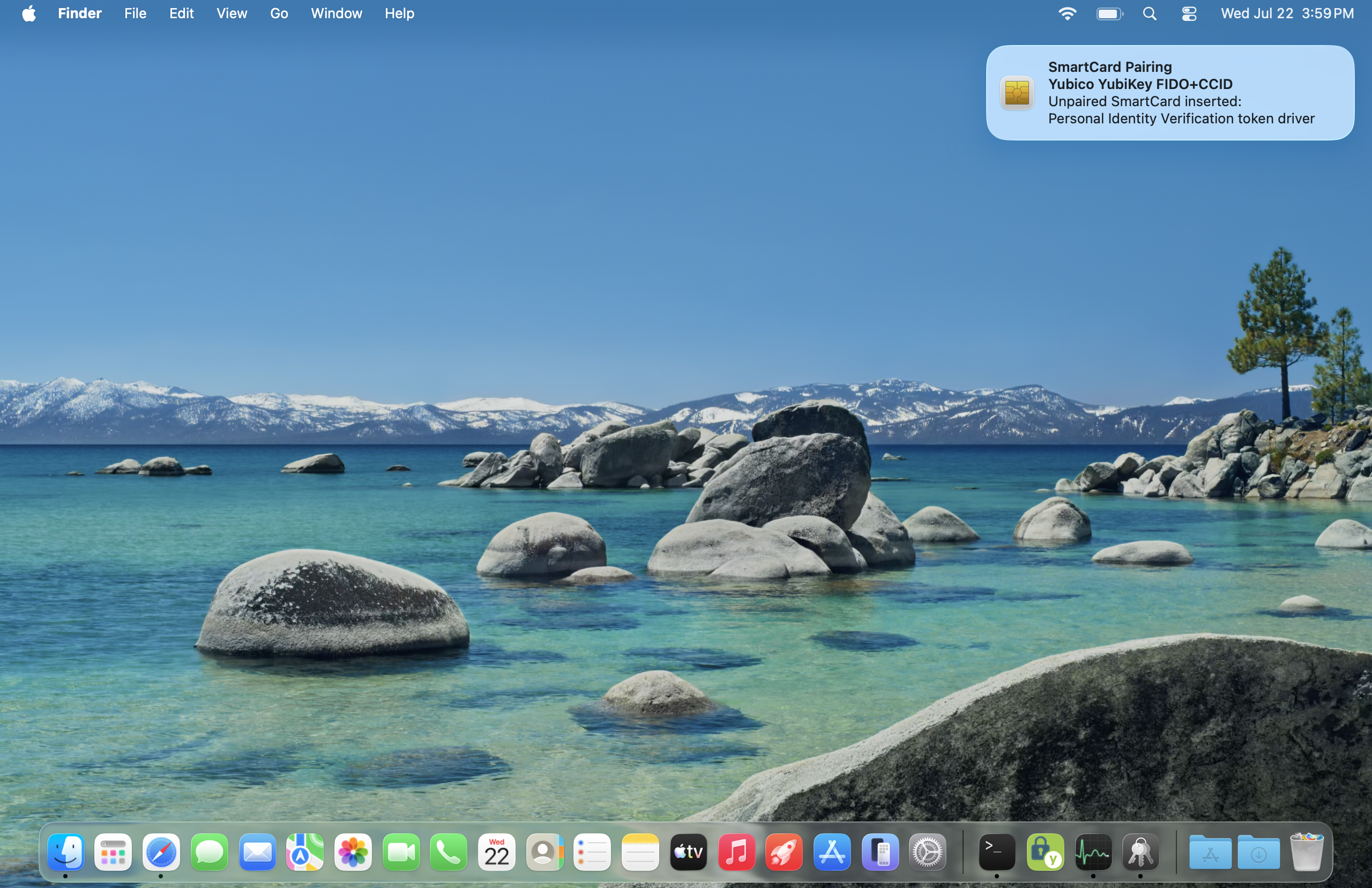
A notification will appear prompting you to pair the device. Click on it to open the pairing dialog.
-
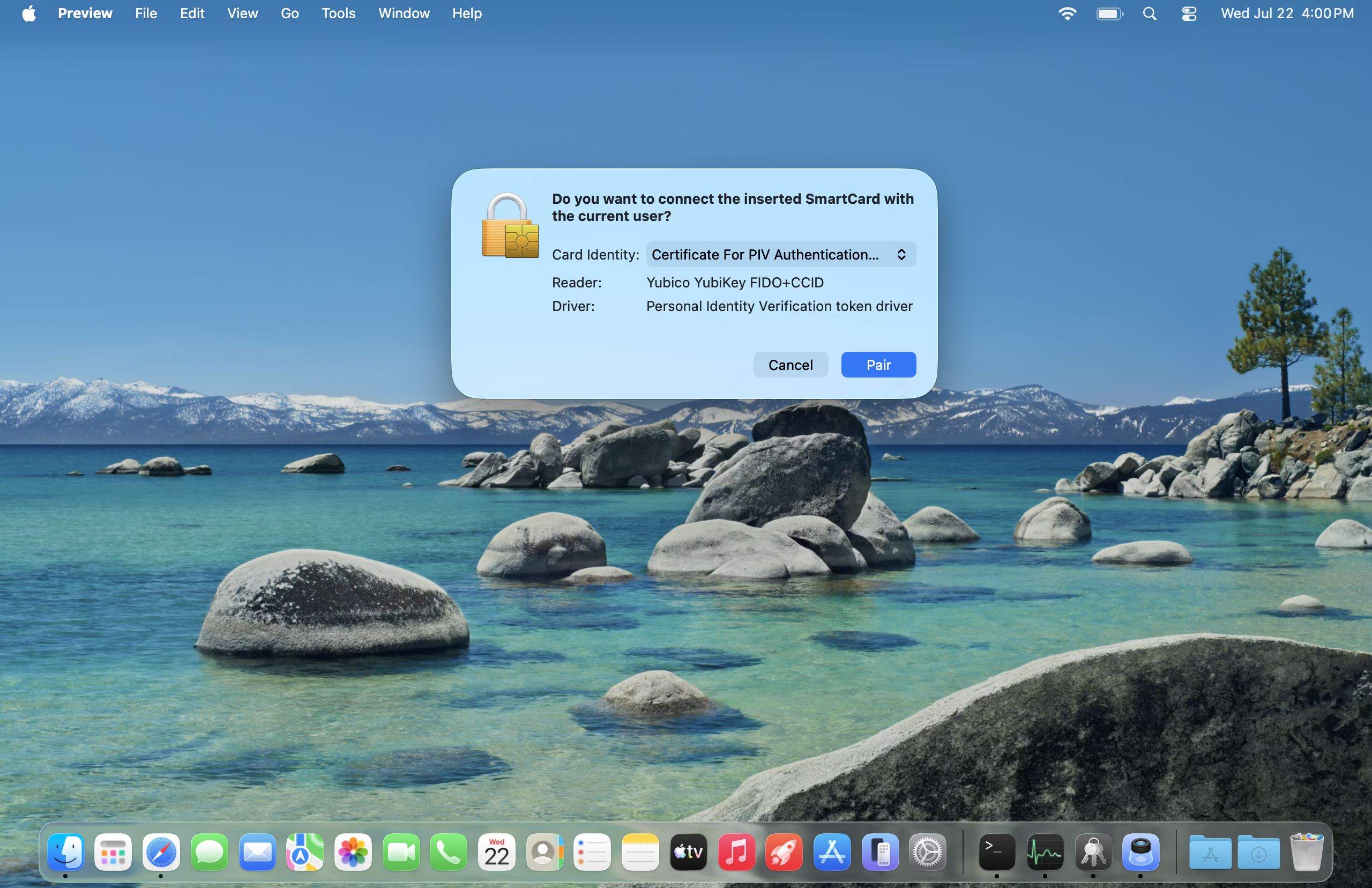
A window will appear. Drop down Card Identity and make sure it’s set to your Security Key or Smart Card identity. Click Pair to continue.
-
Done! Your Security Key or Smart Card is now paired with your macOS local account. You can now use it to sign in to your macOS device.
Step 2: How to Sign Into macOS Using Your Security Key
Once your Security Key or Smart Card is paired with your macOS device, you can use it to sign in. Follow these steps:
- On the macOS login screen, select your user account.
- Insert your Security Key or Smart Card into the USB port of your macOS device or Smart Card reader.
- The Password field will be replaced with a prompt to use your Security Key or Smart Card. Follow the on-screen instructions to authenticate using your Security Key or Smart Card.
- Make sure to tap your Security Key or enter your PIN if prompted. Once authenticated, you will be logged into your macOS device.
How to Troubleshoot macOS Sign-In Issues with Your Security Key or Smart Card
If you encounter any issues while trying to sign into your macOS device using your Security Key or Smart Card, try one of the following troubleshooting steps. Also refer to Apple’s Advanced Smart Card Documentation for additional guidance.
I Didn’t See the Notification to Pair My Security Key or Smart Card
If you didn’t see the notification to pair your Security Key or Smart Card, try the following:
-
Make sure the SmartCard Pairing app is enabled for notifications in your macOS settings. You can check this by going to System Preferences > Notifications and ensuring that the SmartCard Pairing app is allowed to send notifications.
-
Ensure that your Security Key or Smart Card is properly inserted into the USB port of your macOS device or Smart Card reader. Try reinserting it if necessary.
-
Check that your macOS device can see the Security Key or Smart Card. You can do this by going to Terminal and running:
sudo security list-smartcards -
Check if your device is managed by another Mobile Device Management (MDM) solution that may be blocking the pairing process. If so, contact your IT administrator for assistance.
-
Try manually pairing your Security Key or Smart Card by going to Terminal and running:
# Get Smart Card hash
sc_auth identities

# Pair Smart Card with macOS via hash
sc_auth pair -h HASH -u USERNAME

# Confirm that the Smart Card is paired with your macOS device
sc_auth list
I Want to Unpair My Security Key or Smart Card
If you want to unpair your Security Key or Smart Card from your macOS device, follow these steps:
-
Open Terminal on your macOS device.
-
Run the following command to list all paired Smart Cards:
sudo sc_auth unpair -u USERNAME