









How-To: Let Your MSP Manage Your EZCA Cloud PKI Subscription
Overview - How to Let Your MSP Manage Your Cloud PKI in EZCA
Working with a Managed Service Provider (MSP) or a Keytos partner to run your PKI? You can let them manage your EZCA Cloud PKI subscription from the Keytos Partner Portal by marking the subscription as MSP managed and adding your MSP’s ID. Your MSP signs in with accounts from their own organization, so you don’t need to invite them as guests in your Entra ID tenant or add them as PKI Admins. You stay in control, and you can remove their access at any time from your subscription settings.
This guide covers what your MSP can access, how to turn on MSP management for your EZCA subscription, and how to turn it off.
What Can My MSP Do When They Manage My EZCA Subscription?
When you mark a subscription as MSP managed, your MSP gets admin permissions to that subscription’s Certificate Authorities through the Keytos Partner Portal. They see the following sections:
| Partner Portal Section | What Your MSP Can Do |
|---|---|
| Dashboard | View your PKI at a glance, including registered domains, active, revoked, and expiring certificates, your CAs by status and key type, your certificates by creation type, and CA auto-renewal. |
| Certificate Authorities | Open View Details to update a CA’s lifecycle and auto-renewal settings, notification emails, CRL settings, and IP address restrictions, download the CA certificate, and renew the CA. Open View Requirements to update the CA’s issuance policy, request certificates as an administrator, and view or rotate the SCEP challenge password of SCEP CAs. Open View Active Certificates to download or revoke issued certificates. Delete CAs. |
| Pending Requests | Review the requests to add or delete domains on your CAs that are waiting for approval. |
| Audit Logs | Search your Certificate Logs and CA Change Logs for a date range. |
What Stays in Your Control?
Your subscription Settings page is not part of the Keytos Partner Portal. Only your PKI Admins can use it to:
- Turn MSP management on or off, or change the MSP ID.
- Add or remove PKI Admins.
- Export your audit logs to a SIEM from Advanced Settings.
- Update your payment information, transfer CAs to another subscription, or cancel the subscription.
The Keytos Partner Portal also doesn’t include the My Domains, My Certificates, or User Certificates pages. You manage these aspects directly in your EZCA portal.
Your MSP gets admin permissions to every CA in a subscription you mark as MSP managed. That includes changing CA settings and issuance policies, issuing and revoking certificates, viewing and rotating SCEP challenge passwords, and deleting CAs. If you have CAs that your MSP should not touch, keep them in a separate EZCA subscription that is not MSP managed, or transfer them to one.
Prerequisites for Letting Your MSP Manage Your EZCA Subscription
- You have created an EZCA subscription in your organization’s Entra ID tenant.
- You are a PKI Admin of the subscription.
- Your MSP has registered your organization as a customer in the Keytos Partner Portal, using your Entra ID tenant ID.
- You have your MSP’s ID. See the next section for what it looks like.
How to Find Your MSP’s ID (MSP ID) for EZCA
Your MSP ID is the Microsoft Entra ID tenant ID of your MSP’s organization, which is the tenant they use to sign in to the Keytos Partner Portal. It’s a GUID that looks like aaaabbbb-0000-cccc-1111-dddd2222eeee. Ask your MSP to send it to you, and double-check it before you save it. It is not your MSP’s company name or their Microsoft partner ID.
Your MSP also needs your tenant ID to add your organization as a customer in the Keytos Partner Portal. Your subscription only shows up for your MSP when the tenant ID they registered matches the tenant your EZCA subscription was created in. If you don’t know your tenant ID, follow Microsoft’s guide to finding your Microsoft Entra tenant ID.
Step-by-Step Guide - How to Let Your MSP Manage Your EZCA Subscription
Step 1: How to Open Your EZCA Subscription Settings
-
Go to your EZCA portal, such as portal.ezca.io, and sign in with an account that is a PKI Admin of the subscription. (If you use a regional or private instance of EZCA, go to that portal instead.)
-
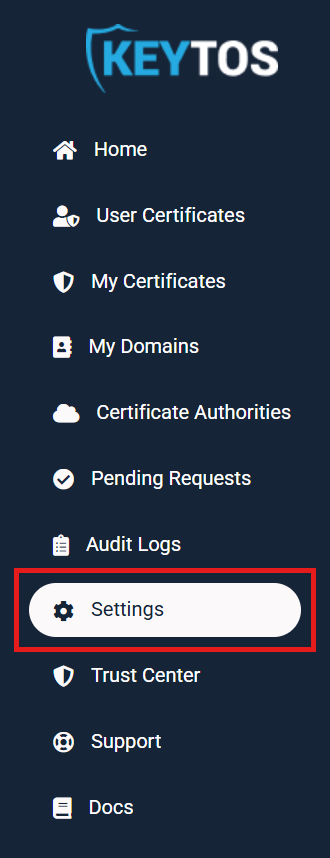
From the left-hand menu, click Settings.
Step 2: How to Mark Your EZCA Subscription as MSP Managed
The Settings page shows an Edit subscription name Subscription section for each EZCA subscription you manage. Make sure you update the subscription you want your MSP to manage.
-
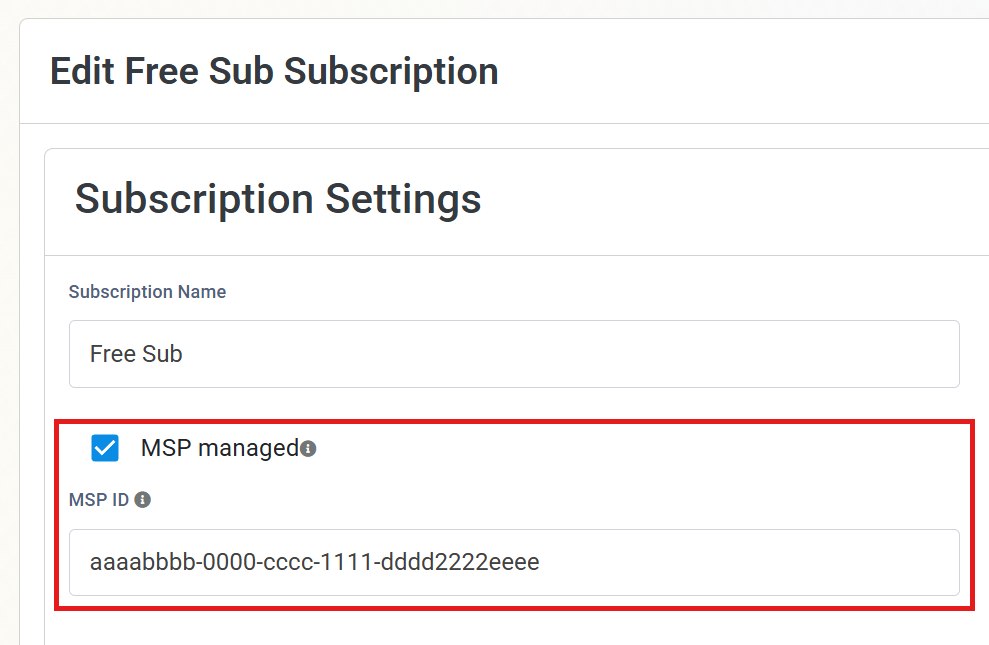
Under Subscription Settings, check MSP managed.
-
In the MSP ID field that appears, enter your MSP’s ID.
-
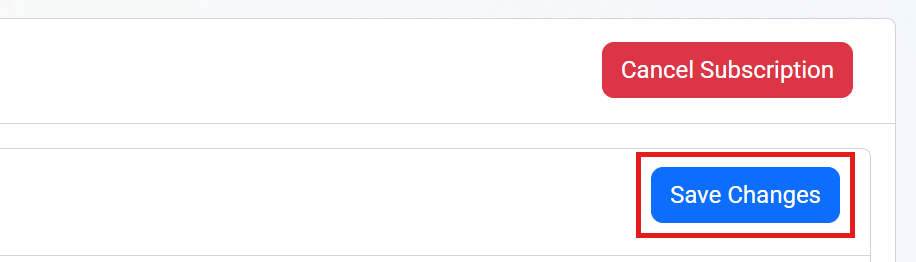
Click Save Changes in the top right of the Subscription Settings section.
Done! Your MSP can now select this subscription from the Manage Customers page of the Keytos Partner Portal. Repeat these steps for each EZCA subscription you want your MSP to manage.
How to Remove Your MSP’s Access to Your EZCA Subscription
You can stop your MSP from managing your EZCA subscription at any time, for example when you change providers or bring management back in-house.
- Go to your EZCA portal and sign in with an account that has the PKI Admin role on the subscription.
- From the left-hand menu, click Settings.
- In the subscription your MSP manages, uncheck MSP managed. The MSP ID field is hidden once the box is unchecked.
- Click Save Changes.
Once you save, the subscription is no longer shared with your MSP through the Keytos Partner Portal. If you are switching to a new MSP, you can instead replace the value in MSP ID with your new MSP’s tenant ID and click Save Changes.
Frequently Asked Questions (FAQ) About MSP-Managed EZCA Subscriptions
Does My MSP Need an Account in My Entra ID Tenant?
No. Your MSP signs in to the Keytos Partner Portal with accounts from their own organization. You don’t need to invite them as guest users or add them to your PKI Admins list.
Will My MSP See All of My EZCA Subscriptions?
No. Your MSP only sees the subscriptions you mark as MSP managed with their tenant ID. Any other EZCA subscriptions in your tenant stay hidden from them.
Is the MSP ID the Same as My MSP’s Partner ID?
No. The MSP ID is your MSP’s own Entra Tenant ID, a GUID such as aaaabbbb-0000-cccc-1111-dddd2222eeee. If you enter a company name, partner ID, or another tenant’s ID, the subscription won’t show up for your MSP.
I Am an MSP. Where Do I Manage My Customers’ Subscriptions?
Partners manage their customers’ subscriptions from the Manage Customers page of the Keytos Partner Portal. Follow our partner guide on how to manage your customers’ EZCA and EZRADIUS subscriptions, or apply to become a Keytos partner.
Next Steps - How to Monitor the Changes Your MSP Makes to Your PKI
Now that your MSP can manage your Certificate Authorities, we recommend exporting your EZCA audit logs to your SIEM. This gives your security team a record of every CA change and certificate your MSP issues or revokes, in the tools you already use.
🚀 Export EZCA Audit Logs to Your SIEMEnjoying EZCA? Leave Us a Review!
We hope you’re enjoying using EZCA to secure your organization with a cloud PKI! If you have a moment, we would greatly appreciate it if you could leave us a review on G2. Your feedback helps other IT professionals discover EZCA and helps us continue to improve our service. Thank you for your support!