












How-To: Let Your MSP Manage Your EZRADIUS Cloud RADIUS Subscription
Overview - How to Let Your MSP Manage Your Cloud RADIUS in EZRADIUS
Working with a Managed Service Provider (MSP) or a Keytos partner to run your Wi-Fi, wired, or VPN authentication? You can let them manage your EZRADIUS Cloud RADIUS subscription from the Keytos Partner Portal by marking the subscription as MSP managed and adding your MSP’s ID. Your MSP signs in with accounts from their own organization, so you don’t need to invite them as guests in your Entra ID tenant or add them as Owners or Network Administrators. You stay in control, and you can remove their access at any time from your subscription settings.
This guide covers what your MSP can access, how to turn on MSP management for your EZRADIUS subscription, and how to turn it off.
What Can My MSP Do When They Manage My EZRADIUS Subscription?
When you mark your subscription as MSP managed, your MSP gets admin permissions to your RADIUS configuration through the Keytos Partner Portal. They see the following sections:
| Partner Portal Section | What Your MSP Can Do |
|---|---|
| Home | View your RADIUS authentication overview, including authentication events, success rate, rejected authentications, top reject reasons, your busiest NAS clients, and the identities with the most failures. |
| Policies | Download your RadSec CA certificate, see your RADIUS server IP addresses, and create, update, and delete your RADIUS network policies (shown as Network Profiles in the portal). This includes access policies, trusted certificate authorities, server certificates, and allowed IP addresses, along with their shared secrets. |
| Local Users | Add and delete local RADIUS users, update their passwords, and get their passwords (unless the user manages their own password and you don’t allow admins to retrieve it). Add, bulk upload, or download the MAC addresses used for MAC Authentication Bypass (MAB). |
| Wi-Fi Profiles | Create, update, and delete your self-service Wi-Fi profiles, assign them to your users and groups, and notify your users to install them. |
| Local Server | Set up, update, and delete your local RADIUS servers, check their health, and re-download their settings. |
| Audit Logs | Search your Authentication Logs and Accounting Logs for a date range. |
What Stays in Your Control?
Your subscription Settings page is not part of the Keytos Partner Portal. Only your subscription Owners can use it to:
- Turn MSP management on or off, or change the MSP ID.
- Add or remove Owners, Network Administrators, and Log Readers.
- Export your logs to a SIEM and change the local user self-service settings.
- Update your payment information or delete the subscription.
Your MSP gets admin permissions to the RADIUS policies, users, Wi-Fi profiles, and local servers in a subscription you mark as MSP managed. That includes deleting network policies, viewing shared secrets and local user passwords, and sending Wi-Fi profiles to your users. A mistake in a network policy can block devices from connecting to your network, so only share subscriptions with an MSP you trust to manage your network access.
Prerequisites for Letting Your MSP Manage Your EZRADIUS Subscription
- You have created an EZRADIUS subscription in your organization’s Entra ID tenant.
- You are an Owner of the subscription.
- Your MSP has registered your organization as a customer in the Keytos Partner Portal, using your Entra ID tenant ID (this is different from the MSP ID).
- You have your MSP’s ID. See the next section for what it looks like.
How to Find Your MSP’s ID (MSP ID) for EZRADIUS
Your MSP ID is the Microsoft Entra ID tenant ID of your MSP’s organization, which is the tenant they use to sign in to the Keytos Partner Portal. It’s a GUID that looks like aaaabbbb-0000-cccc-1111-dddd2222eeee. Ask your MSP to send it to you, and double-check it before you save it. It is not your MSP’s company name or their Microsoft partner ID.
Your MSP also needs your tenant ID to add your organization as a customer in the Keytos Partner Portal. Your subscription only shows up for your MSP when the tenant ID they registered matches the tenant your EZRADIUS subscription was created in. If you don’t know your tenant ID, follow Microsoft’s guide to finding your Microsoft Entra tenant ID.
Step-by-Step Guide - How to Let Your MSP Manage Your EZRADIUS Subscription
Step 1: How to Open Your EZRADIUS Subscription Settings
-
Go to your EZRADIUS portal, such as usa.ezradius.io, and sign in with an account that is an Owner of the subscription. (Not sure which instance you use? Go to portal.ezradius.io to find it.)
-
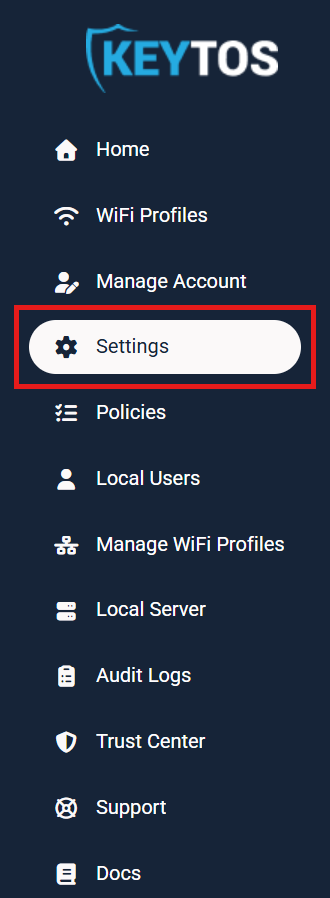
From the left-hand menu, click Settings.
Step 2: How to Mark Your EZRADIUS Subscription as MSP Managed
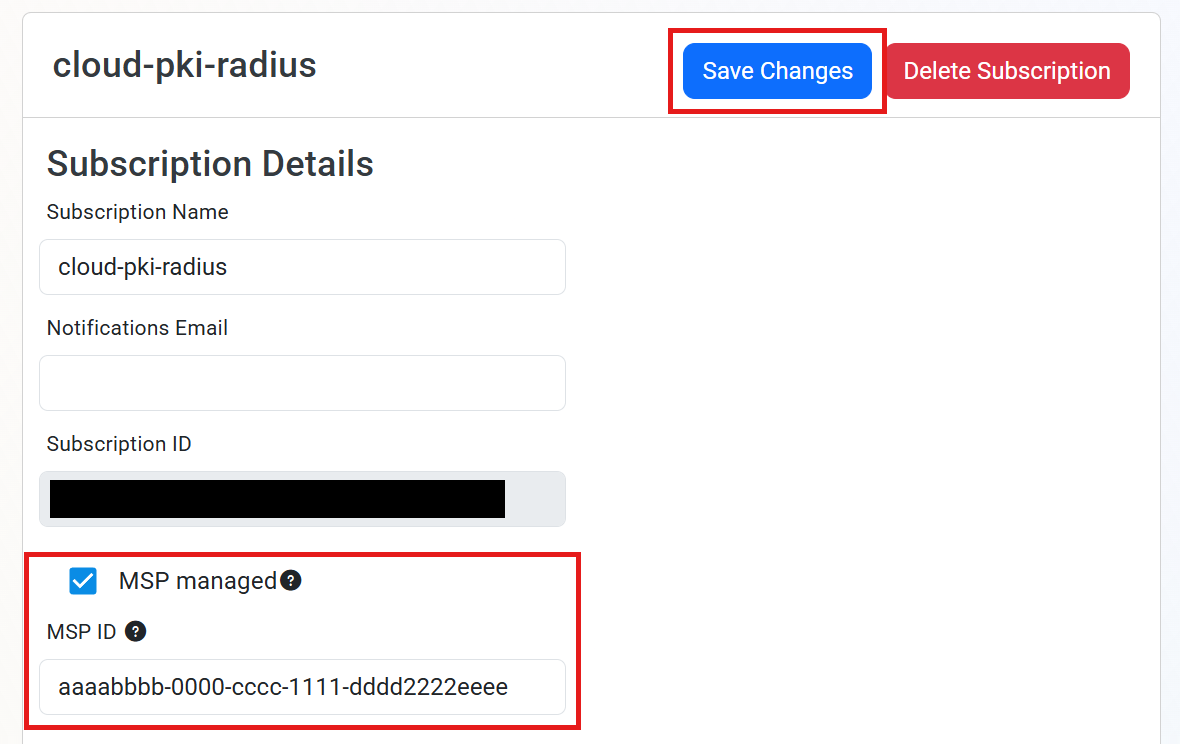
The Subscription Details section at the top of the Settings page holds the MSP setting for your EZRADIUS subscription.
-
Under Subscription Details, check MSP managed.
-
In the MSP ID field that appears, enter your MSP’s ID.
-
Click Save Changes at the top of the page.
Done! Your MSP can now select this subscription from the Manage Customers page of the Keytos Partner Portal. If you have more than one EZRADIUS subscription, repeat these steps for each one you want your MSP to manage.
How to Remove Your MSP’s Access to Your EZRADIUS Subscription
You can stop your MSP from managing your EZRADIUS subscription at any time, for example when you change providers or bring management back in-house.
- Go to your EZRADIUS portal and sign in with an account that has the Owner role on the subscription.
- From the left-hand menu, click Settings.
- In the subscription your MSP manages, uncheck MSP managed. The MSP ID field is hidden once the box is unchecked.
- Click Save Changes.
Once you save, the subscription is no longer shared with your MSP through the Keytos Partner Portal. If you are switching to a new MSP, you can instead replace the value in MSP ID with your new MSP’s tenant ID and click Save Changes.
Frequently Asked Questions (FAQ) About MSP-Managed EZRADIUS Subscriptions
Does My MSP Need an Account in My Entra ID Tenant?
No. Your MSP signs in to the Keytos Partner Portal with accounts from their own organization. You don’t need to invite them as guest users or add them as Owners, Network Administrators, or Log Readers.
How Does My MSP Assign Wi-Fi Profiles to My Users and Groups?
The Keytos Partner Portal can’t search your Entra ID directory. When your MSP assigns a Wi-Fi profile to specific users or groups, they will ask you for the object ID of each user or group. You can find the object ID on the user’s or group’s Overview page in the Microsoft Entra admin center.
Is the MSP ID the Same as My MSP’s Partner ID?
No. The MSP ID is your MSP’s own Entra Tenant ID, a GUID such as aaaabbbb-0000-cccc-1111-dddd2222eeee. If you enter a company name, partner ID, or another tenant’s ID, the subscription won’t show up for your MSP.
I Am an MSP. Where Do I Manage My Customers’ Subscriptions?
Partners manage their customers’ subscriptions from the Manage Customers page of the Keytos Partner Portal. Follow our partner guide on how to manage your customers’ EZCA and EZRADIUS subscriptions, or apply to become a Keytos partner.
Next Steps - How to Monitor the Changes Your MSP Makes to Your Network
Now that your MSP can manage your RADIUS configuration, we recommend sending your EZRADIUS logs to your SIEM. This gives your security team a record of authentication activity on your network in the tools you already use, so you can spot problems quickly after your MSP changes a policy.
🚀 Send EZRADIUS Logs to Your SIEMEnjoying EZRADIUS? Leave Us a Review!
We hope you’re enjoying using EZRADIUS to secure your network with Cloud RADIUS! If you have a moment, we would greatly appreciate it if you could leave us a review on G2. Your feedback helps other IT professionals discover EZRADIUS and helps us continue to improve our service. Thank you for your support!