











How-To: Request a New Security Key with Keytos Connect
Overview - How Do I Get a Security Key from My Organization?
To request a key in Keytos Connect, you must be signed in with your work or school account. If you don’t have a security key yet, or you’re locked out and need a replacement, contact your workplace or school’s IT team. They can securely issue a key for you.
If your organization uses Keytos Shield, you can ask your IT team for a security key, such as a YubiKey, right from Keytos Connect. Request one when you’re new, when you’ve lost your key, or when your key stops working. Your IT team reviews the request, and then ships the key to you or has it ready for you to pick up at the office.
Before You Begin
- Install Keytos Connect on your computer. You can find the download links on the Keytos Connect overview page.
- Open Keytos Connect and sign in with your work or school account.
Step-by-Step Guide - How to Request a New Security Key in Keytos Connect
Step 1 - How to Start a New Security Key Request
-
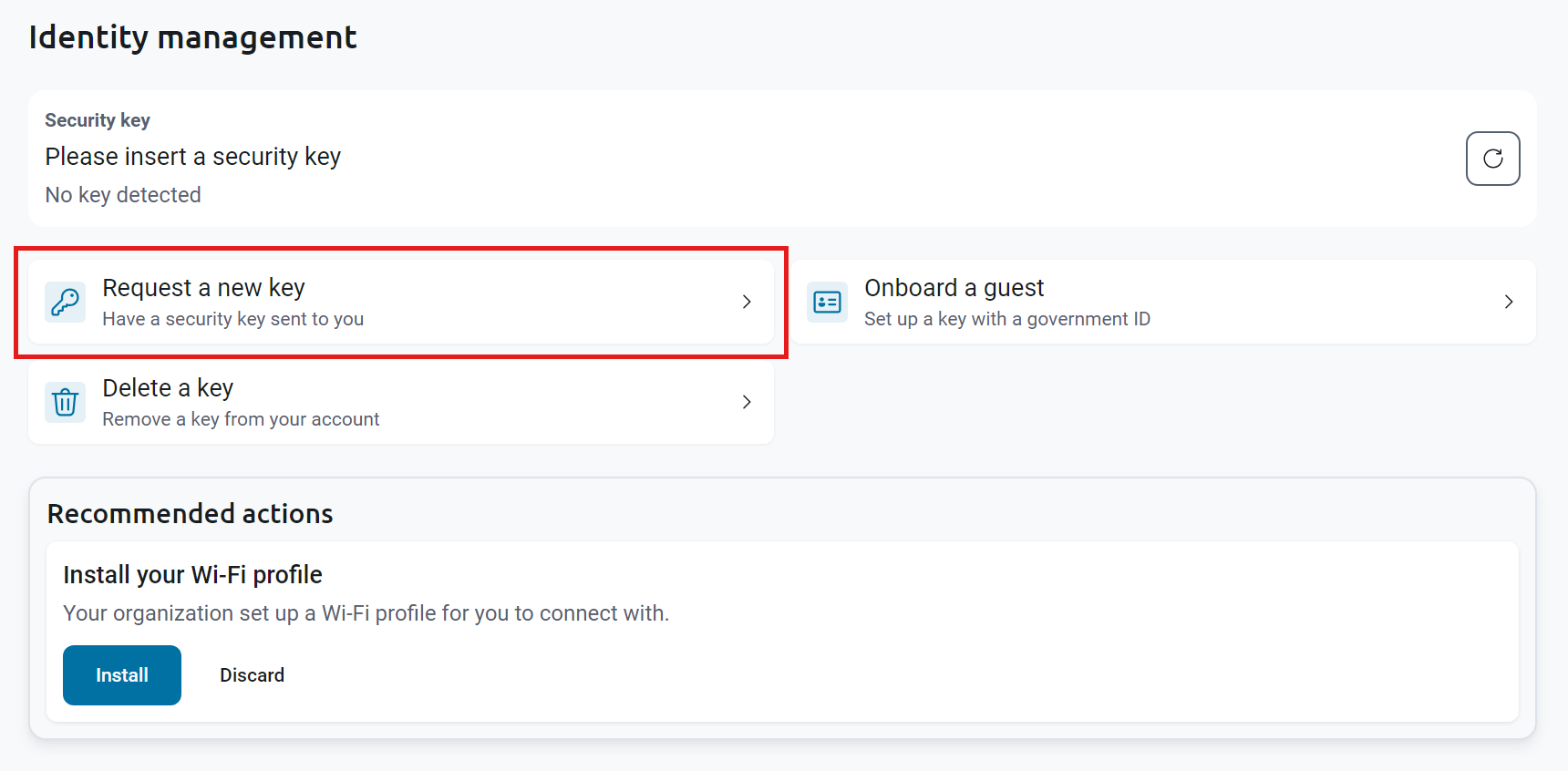
On the Identity management page, click Request a new key.
Step 2 - How to Choose Where to Receive Your Security Key
-
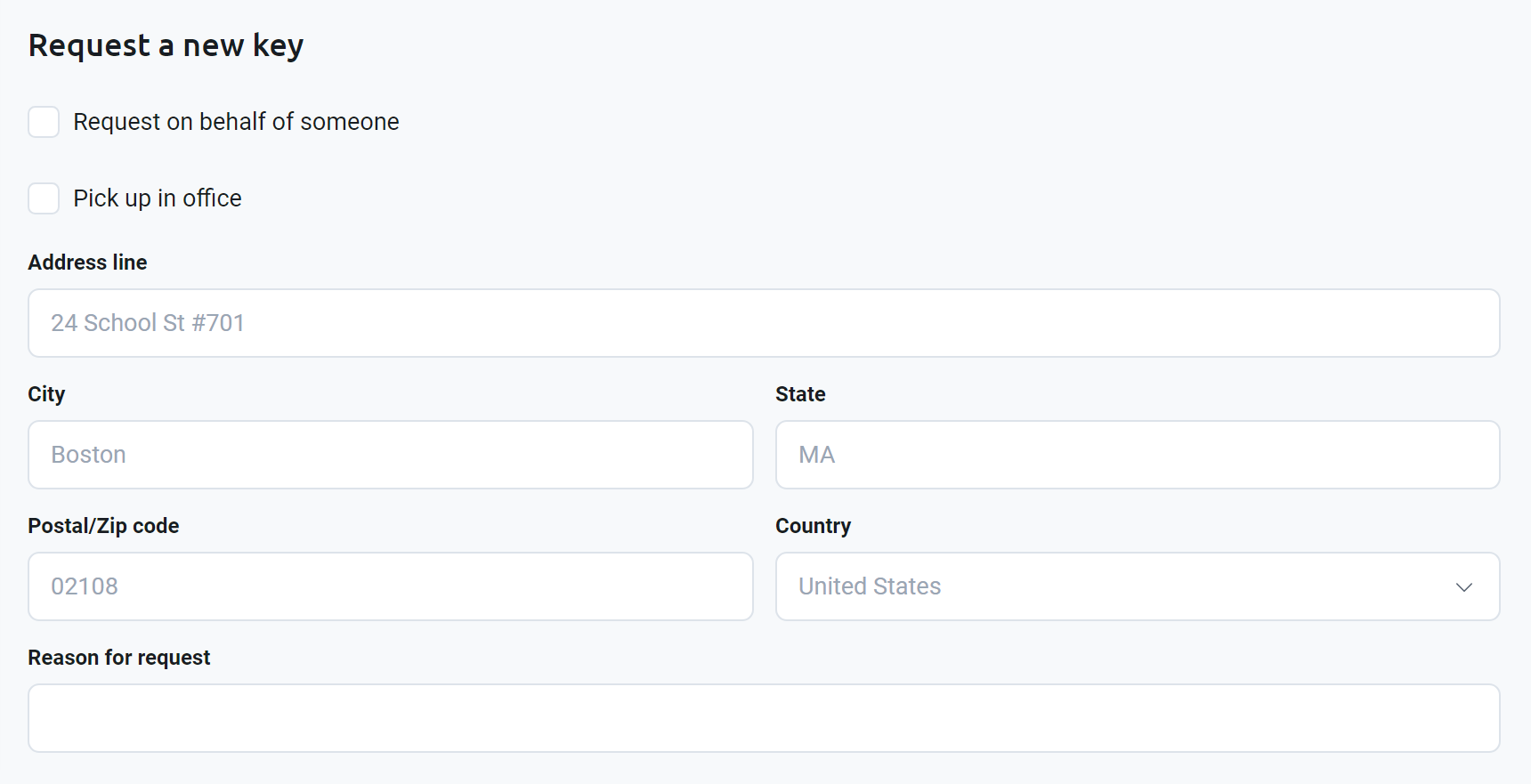
Choose how you want to receive your security key:
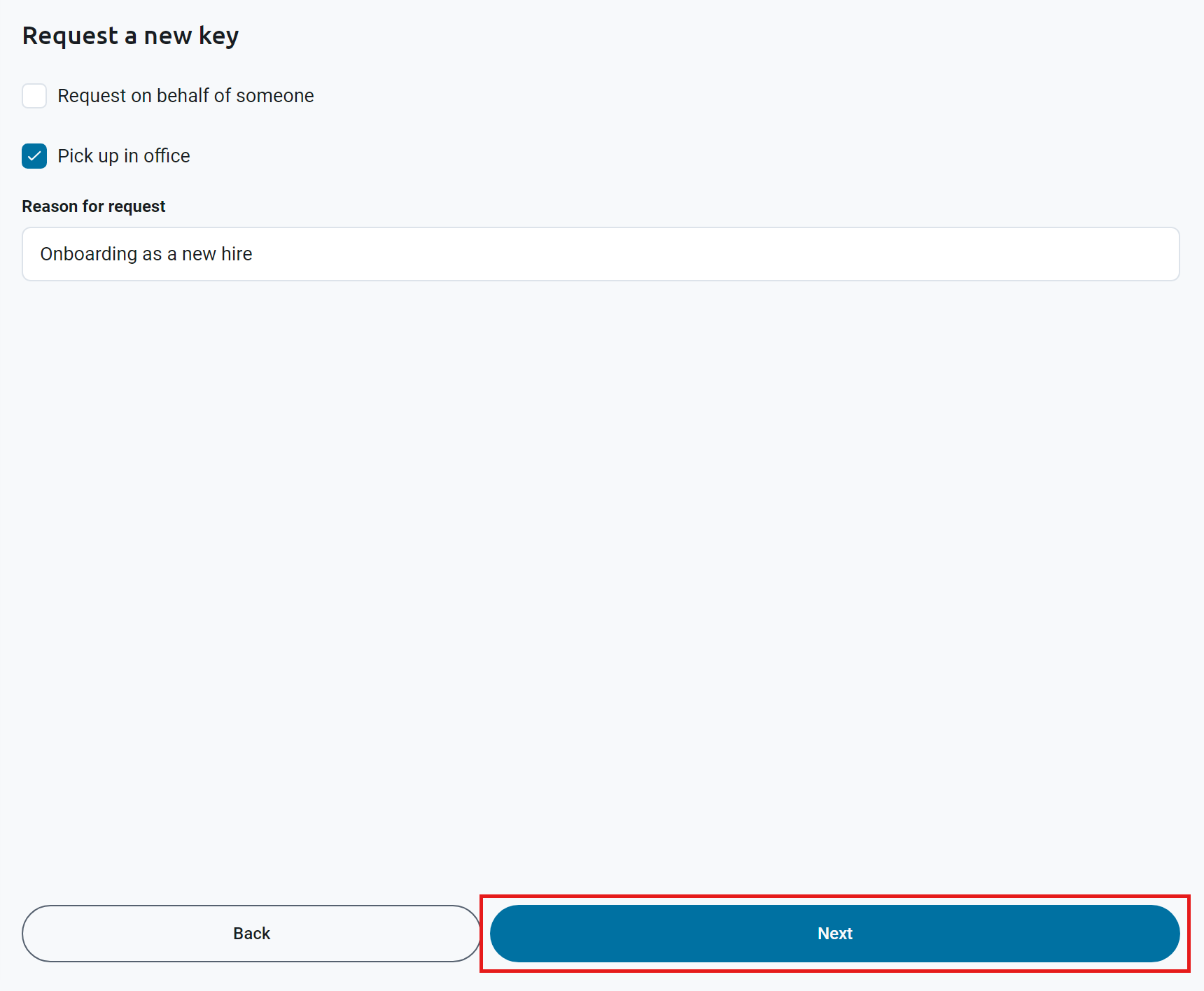
- Pick up at the office: Check Pick up in office. You don’t need to enter an address.
- Have it shipped: Leave Pick up in office unchecked, and enter your Address line, City, State, Postal/Zip code, and Country.
-
If you’re requesting a key for someone else, check Request on behalf of someone.
-
In Reason for request, briefly explain why you need a key, for example “Onboarding as a new hire” or “Replacing a lost key”. This helps your IT team review the request.
-
Click Next.
Step 3 - How to Choose Your Security Key Model
-
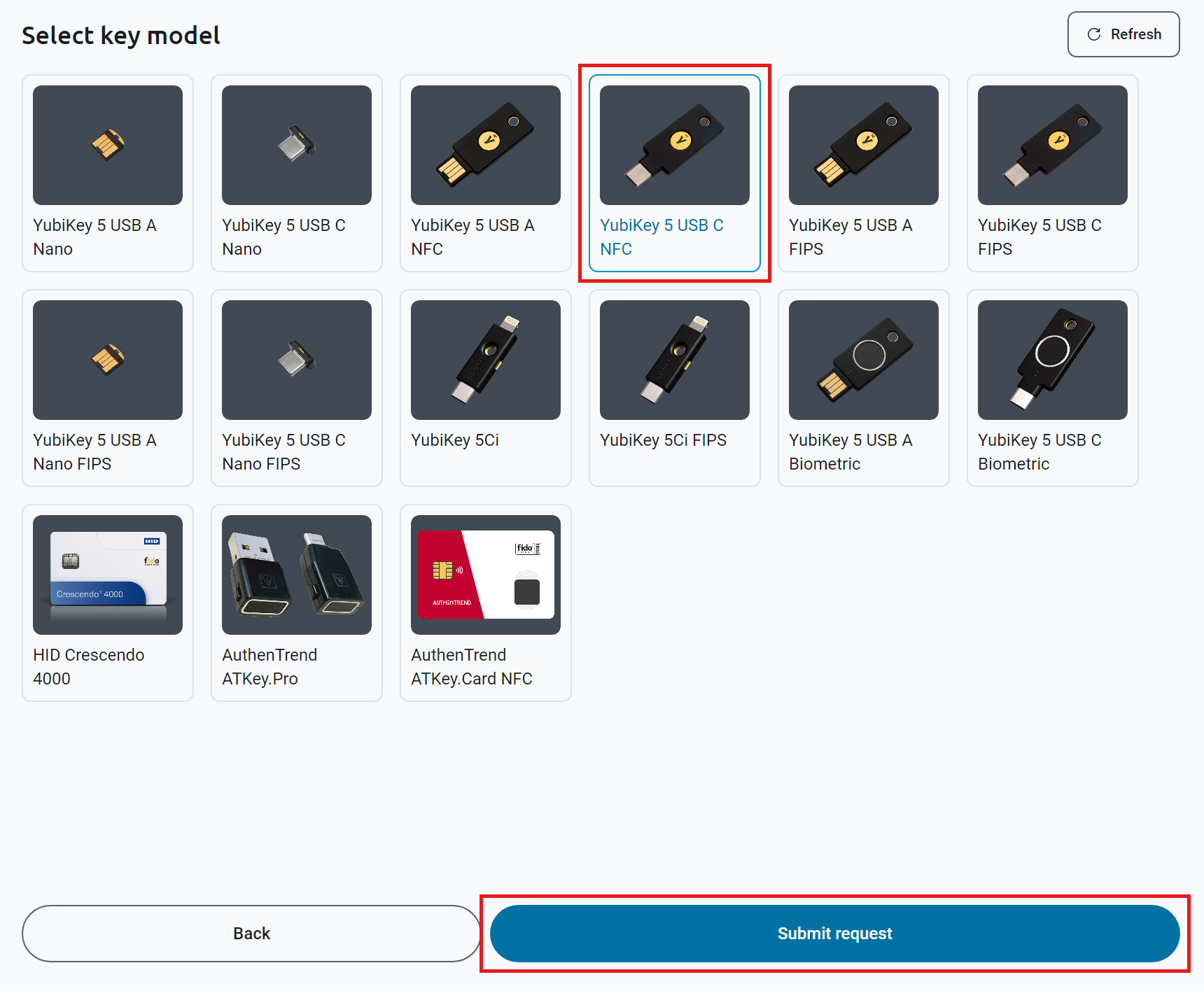
Under Select key model, click the security key you want. Your organization chooses which models you can request. If you’re not sure which one to pick, ask your IT team, or pick one that fits your computer’s ports, for example a USB-C key for a computer with only USB-C ports.
-
Click Submit request.
Step 4 - How to Check the Status of Your Request
After you submit your request, Keytos Connect returns to the Identity management page, and Request a new key shows Pending while your IT team works on it.
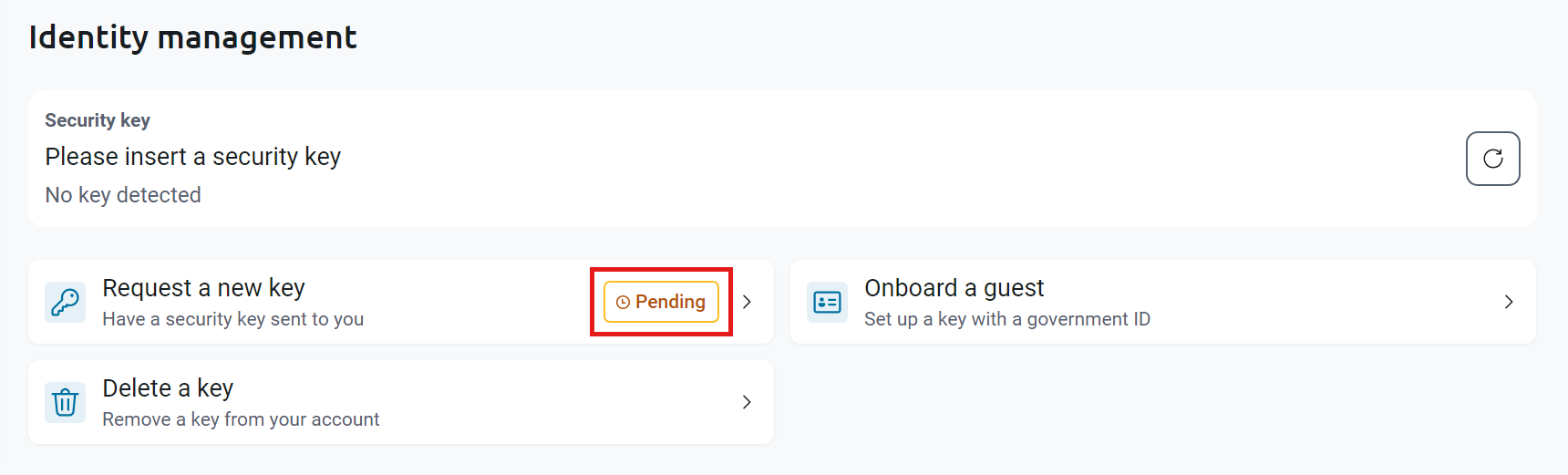
Your IT team then approves the request, assigns you a security key, and either ships it to you or lets you know it’s ready to pick up.
Are you an administrator? See how to review and fulfill security key requests in Keytos Shield.