














Connect to Work or School Wi-Fi on Android with Keytos Connect
Connect to Work or School Wi-Fi on Android with Keytos Connect
If your workplace or school allows personal and bring-your-own-devices (BYOD) to connect to their Wi-Fi network, Keytos Connect simplifies the process and makes it as easy as just a few clicks to get connected.
Simply download Keytos Connect for Android, sign in, and you’ll be up and running in no time. Keytos Connect will automatically detect the Wi-Fi network and configure your device to connect securely without the need for any manual configuration.
How to Connect to Work or School Wi-Fi on Android with Keytos Connect - Step-by-Step Guide
The following steps will walk you through how to use the Keytos Connect application for Android and connect to your workplace or school Wi-Fi network:
Step 1: How to Install and Sign In to Keytos Connect
If you haven’t already, install Keytos Connect on your Android device and sign in with your work or school account.
Step 2: How to Install Your Wi-Fi Profiles on Android
Once you’re signed in to Keytos Connect, you can install your available Wi-Fi profiles.
-
Open Keytos Connect and sign in.
-
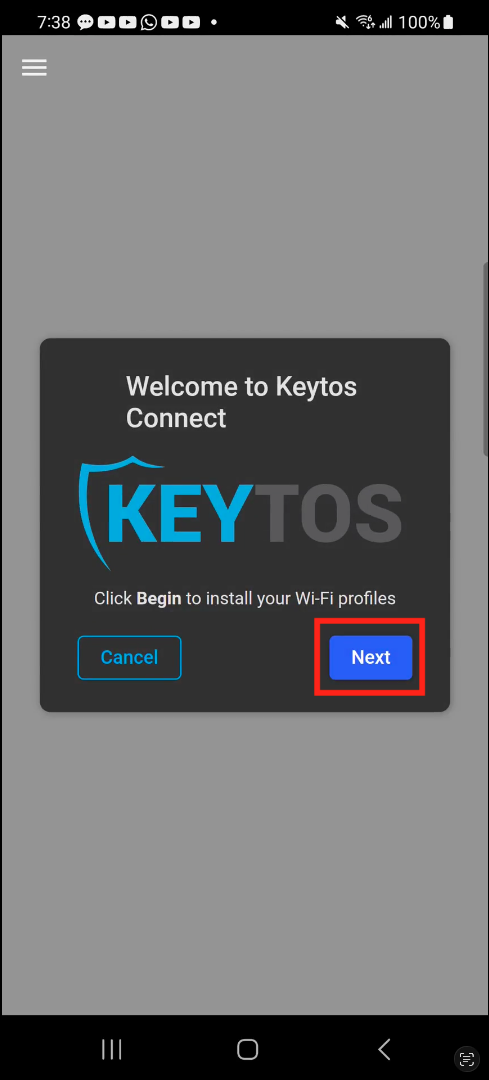
The first time you sign in, Keytos Connect begins the Wi-Fi profile installation. Click Begin to start the installation process. If it doesn’t start, look for Install your Wi-Fi profile under Recommended actions on the Identity management page, and click Install.
-
Keytos Connect will guide you through the process of installing the Wi-Fi profiles containing the certificates and Wi-Fi configuration required to connect.
-
After granting the permission to suggest Wi-Fi networks, the application will install all your available Wi-Fi profiles and return you to the dashboard.
Step 3: How to Connect to Your Workplace or School Wi-Fi on Android
Now that you have installed your Wi-Fi profile(s), you can connect to your workplace or school Wi-Fi. If your Wi-Fi network is configured to auto-connect, you should automatically connect to the network. If the network is not configured to connect automatically, you can:
- Open Settings and navigate to Connections > Wi-Fi.
- Refresh the Wi-Fi page. You may have to wait up to 15 seconds for the Wi-Fi network to appear.
- Find the Wi-Fi network provided by your workplace or school and click to connect.
- Done! You should now be connected to your workplace or school Wi-Fi network.
How to Troubleshoot a Failed Wi-Fi Connection on Android After Configuring Keytos Connect
Having trouble signing in? See how to troubleshoot signing in to Keytos Connect.
Failed to Install Wi-Fi Profiles Using Keytos Connect on Android
If Keytos Connect failed to install the Wi-Fi profile during initial onboarding start by verifying the following:
- Make sure your device isn’t managed by another Mobile Device Management (MDM) platform such as Microsoft Intune. If both try to apply the same certificates or Wi-Fi profile they can conflict and cause unexpected results.
- Make sure you accept the Suggested Wi-Fi Network permission. If you dismissed or denied the permission prompt, you can enable it in your device settings under Settings > Apps > Keytos Connect > Permissions > Suggested Wi-Fi Network.
If you’ve verified the above steps and still cannot complete the Wi-Fi profile installation, consult your workplace or school’s IT team.
Failed to Connect to Wi-Fi Network on Android
If you’ve successfully installed your workplace or school’s Wi-Fi profiles and cannot connect to the Wi-Fi network, verify the following:
- Make sure Wi-Fi is enabled on your device.
- Make sure you’re connecting to the correct Wi-Fi profile and SSID. The Keytos Connect homepage will show you which networks are configured on your device.
- Try removing and reinstalling the Wi-Fi profile.
If you’ve verified the above steps and still cannot connect to Wi-Fi, consult your workplace or school’s IT team.
How To Uninstall a Wi-Fi Profile in Keytos Connect on Android
If you no longer need to connect to your workplace or school Wi-Fi or need to attempt a reinstallation, follow these steps:
How To Remove a Wi-Fi Profile in the Keytos Connect Application
To uninstall a Wi-Fi profile in the Keytos Connect application:
- Open the Keytos Connect application.
- Click the three-dots icon (⁝) next to the Wi-Fi profile name that you want to remove.
- Select Remove Profile to delete your Wi-Fi profile.
- Keytos Connect will automatically delete all the previously installed certificates and network profile.