












How-To: Unblock Your Security Key with Keytos Connect
Overview - Why is My Security Key Blocked?
Your security key is blocked when:
- You just received it. When your IT team sets up a key for you before shipping it, the key arrives blocked so that you can choose your own PIN.
- You entered the wrong PIN too many times. The key locks itself to protect your account.
Keytos Connect shows a Blocked badge on your security key when this happens. To use your key again, you prove who you are, and then you set a new PIN. You can prove who you are in one of two ways, depending on what your organization allows:
- Entra ID: Sign in with your work or school account, request an unblock, and wait for your admin to approve it.
- Government ID: Verify your identity with a government-issued ID and your phone, and enter a PUK code from your admin. Use this if you can’t sign in with your work or school account, for example when your key arrived pre-loaded.
Before You Begin
- Install Keytos Connect on your computer. You can find the download links on the Keytos Connect overview page.
- Plug your security key into your computer.
- If you’re using a government ID, have your ID, a smartphone with a camera, and the PUK code from your IT team ready.
Step-by-Step Guide - How to Unblock Your Security Key in Keytos Connect
Use the tabs below to follow the steps for how you’re verifying your identity.
Step 1 - How to Request an Unblock
-
Open Keytos Connect and sign in with your work or school account.
-
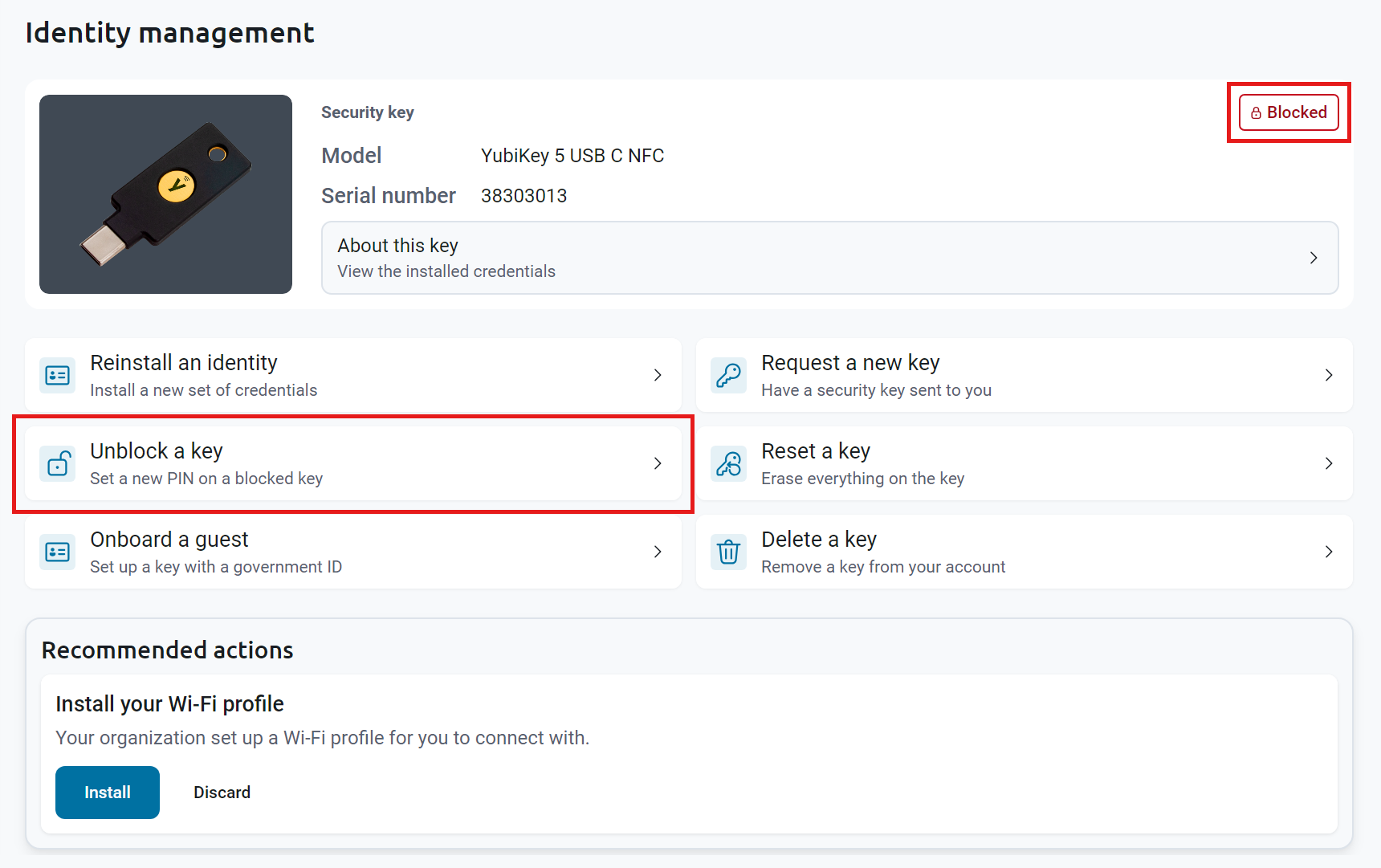
On the Identity management page, check that your security key shows Blocked, and then click Unblock a key.
-
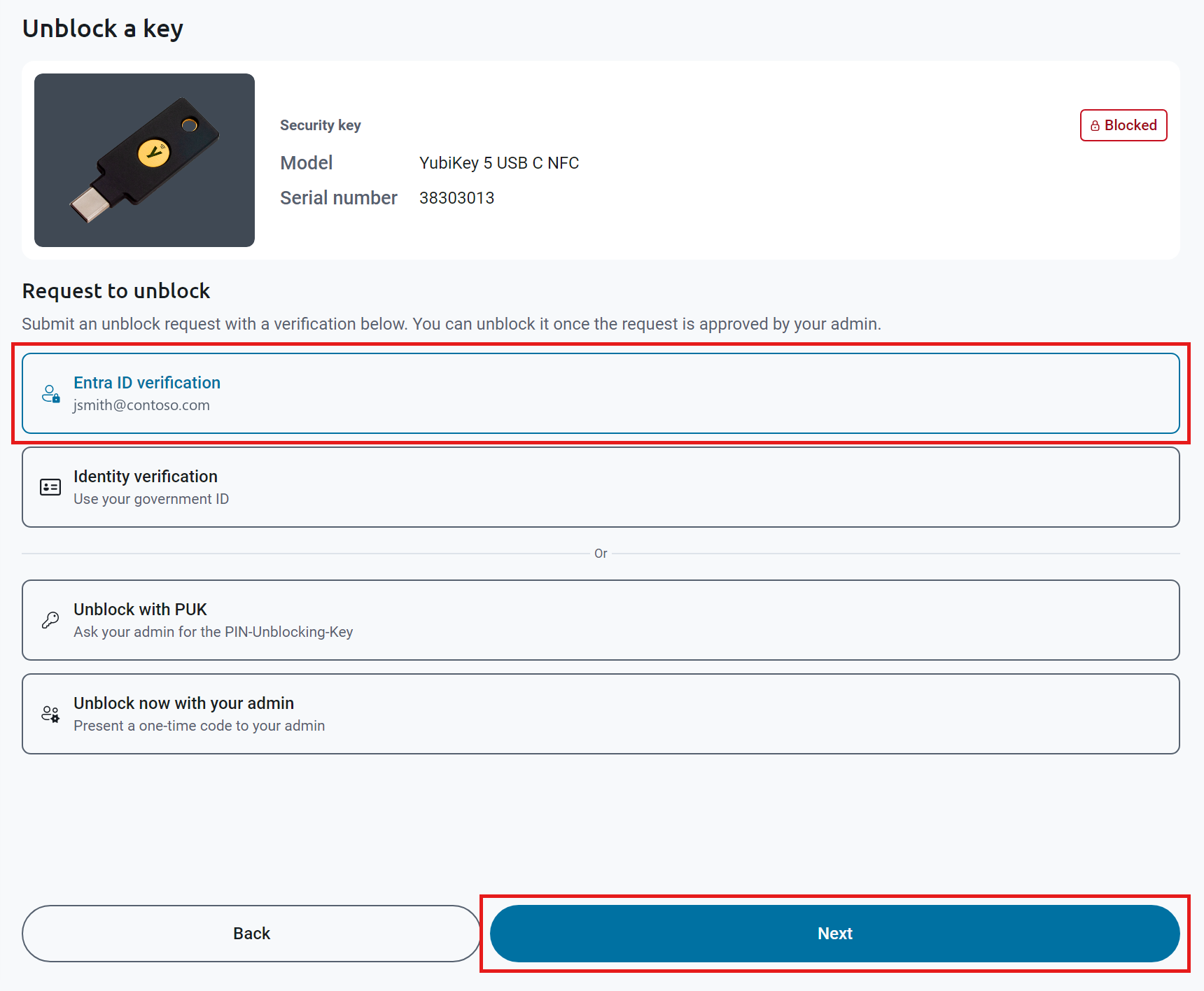
Under Request to unblock, select Entra ID verification, and then click Next.
-
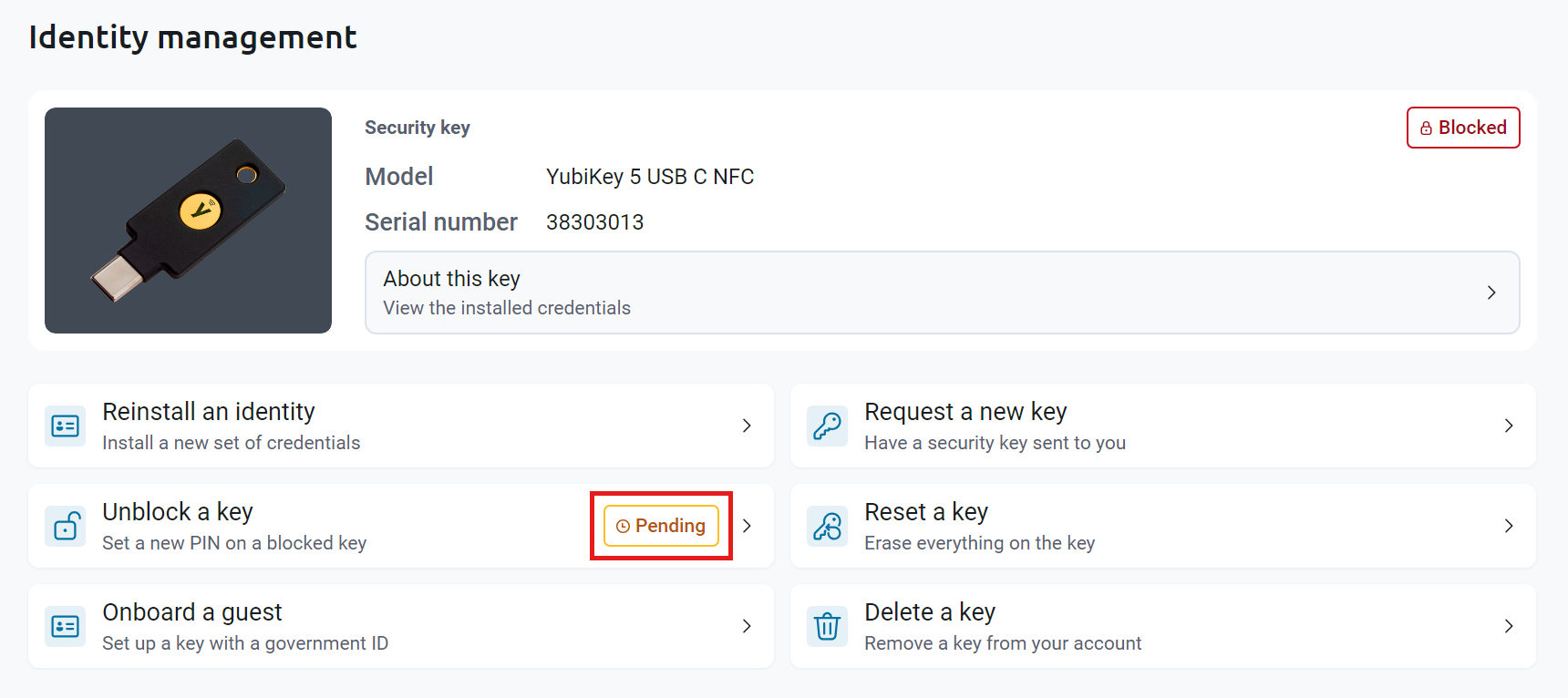
Keytos Connect sends your request to your admin, and Unblock a key shows Pending while you wait.
Step 2 - How to Set a New PIN After Your Request is Approved
-
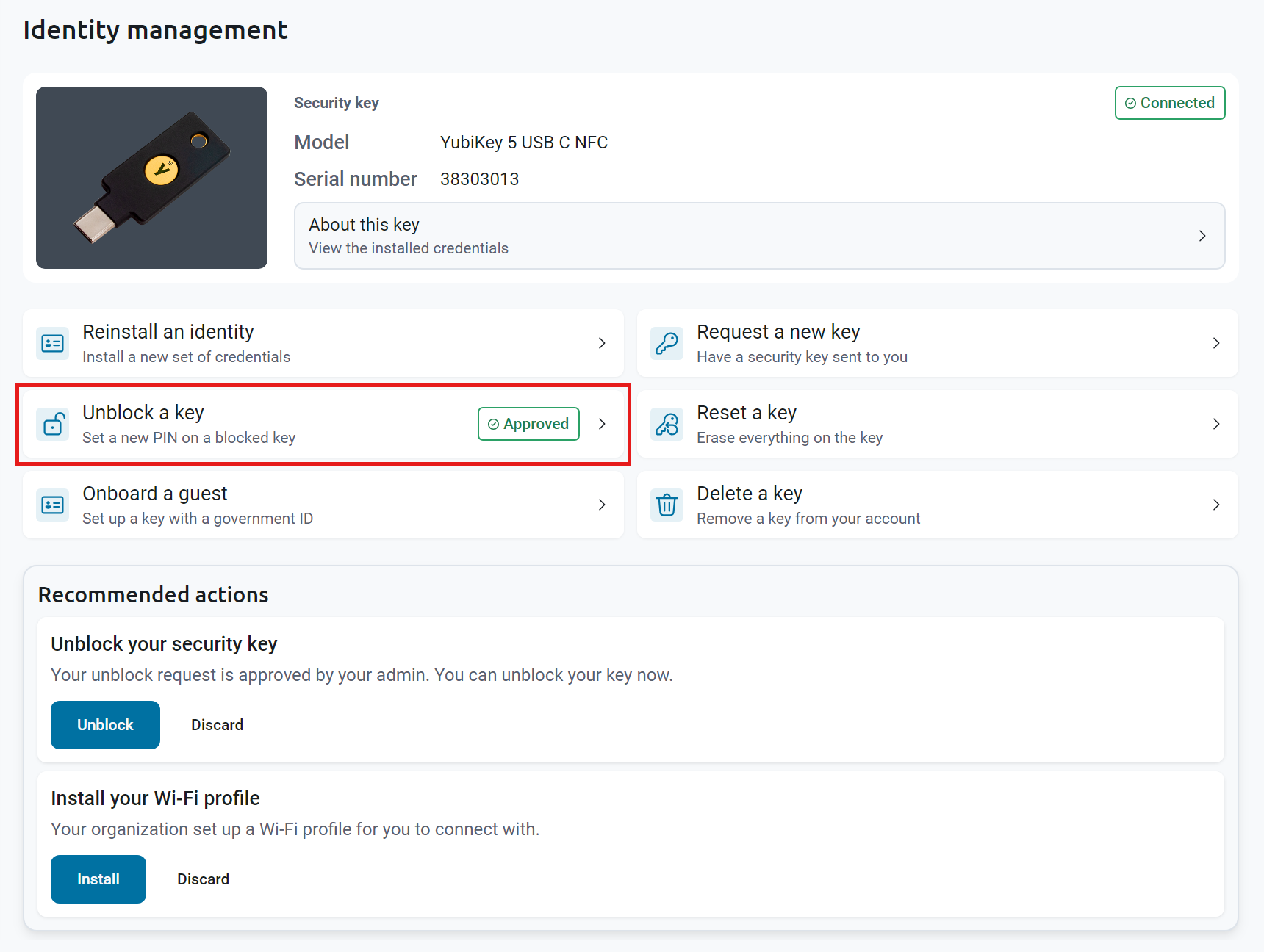
When your admin approves your request, Unblock a key shows Approved. Click Unblock a key.
-
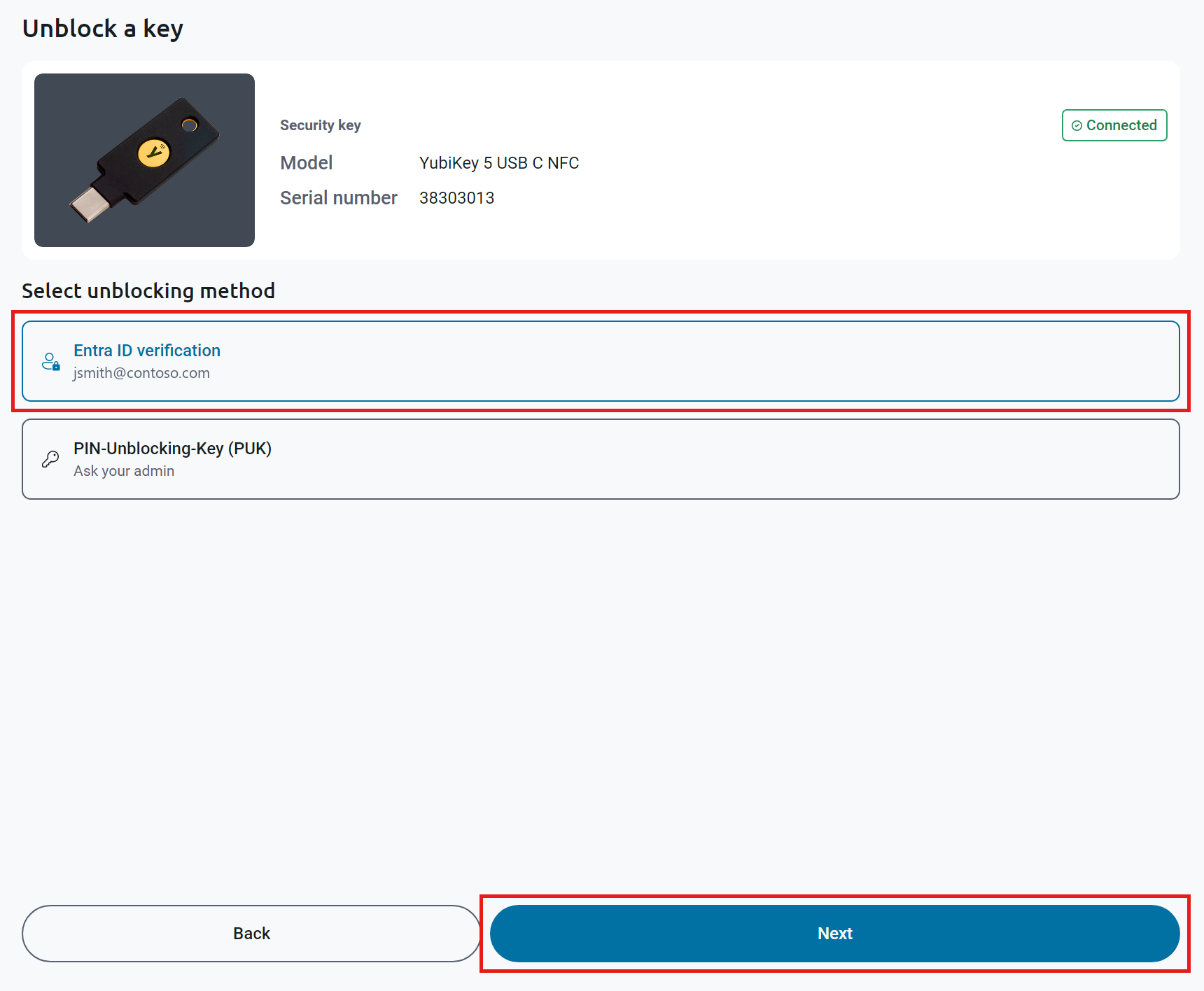
Under Select unblocking method, select Entra ID verification, and then click Next.
-
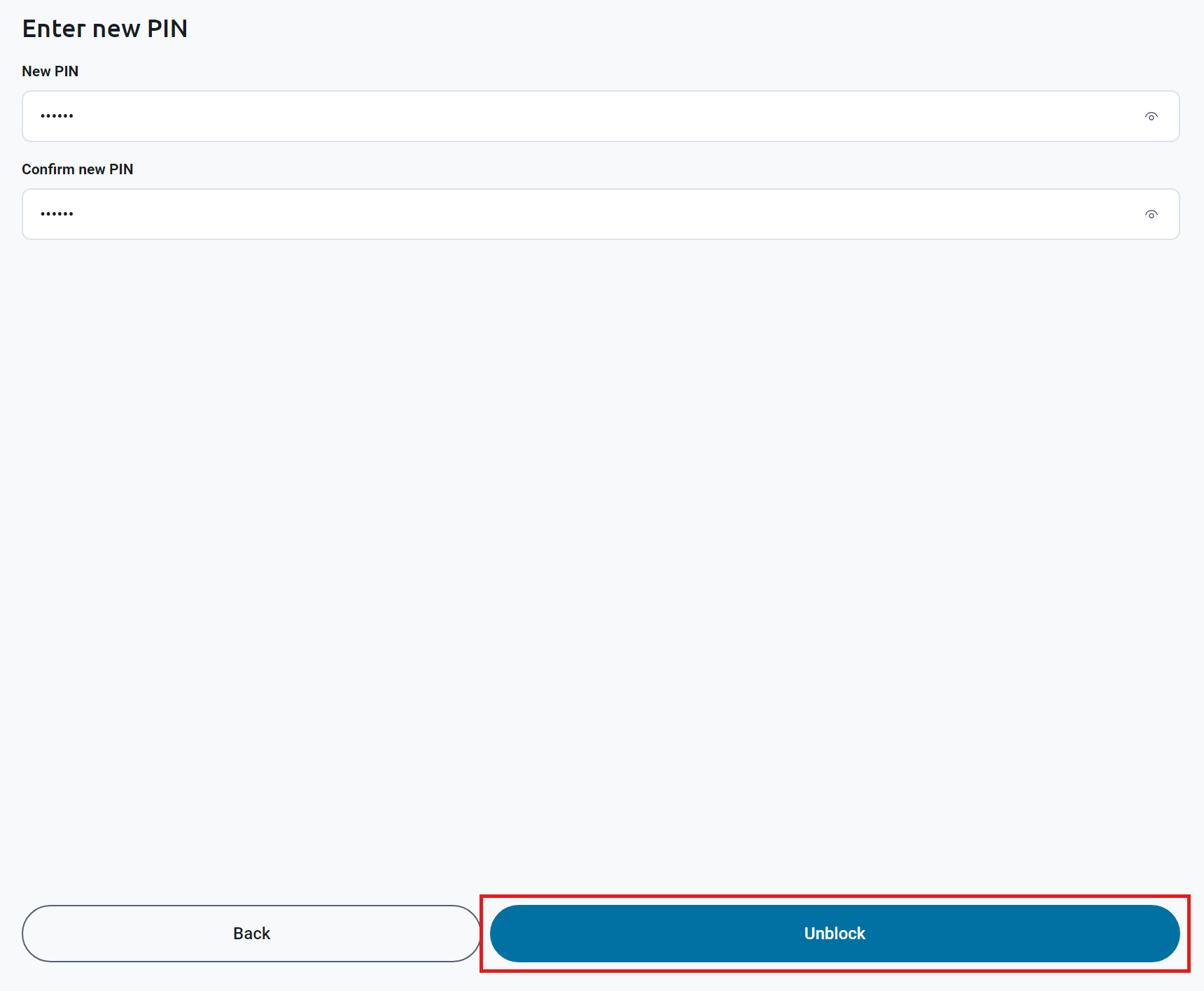
Enter your new PIN in New PIN and Confirm new PIN, and then click Unblock. Your PIN must be at least 6 characters, and your organization may require it to include certain types of characters.
-
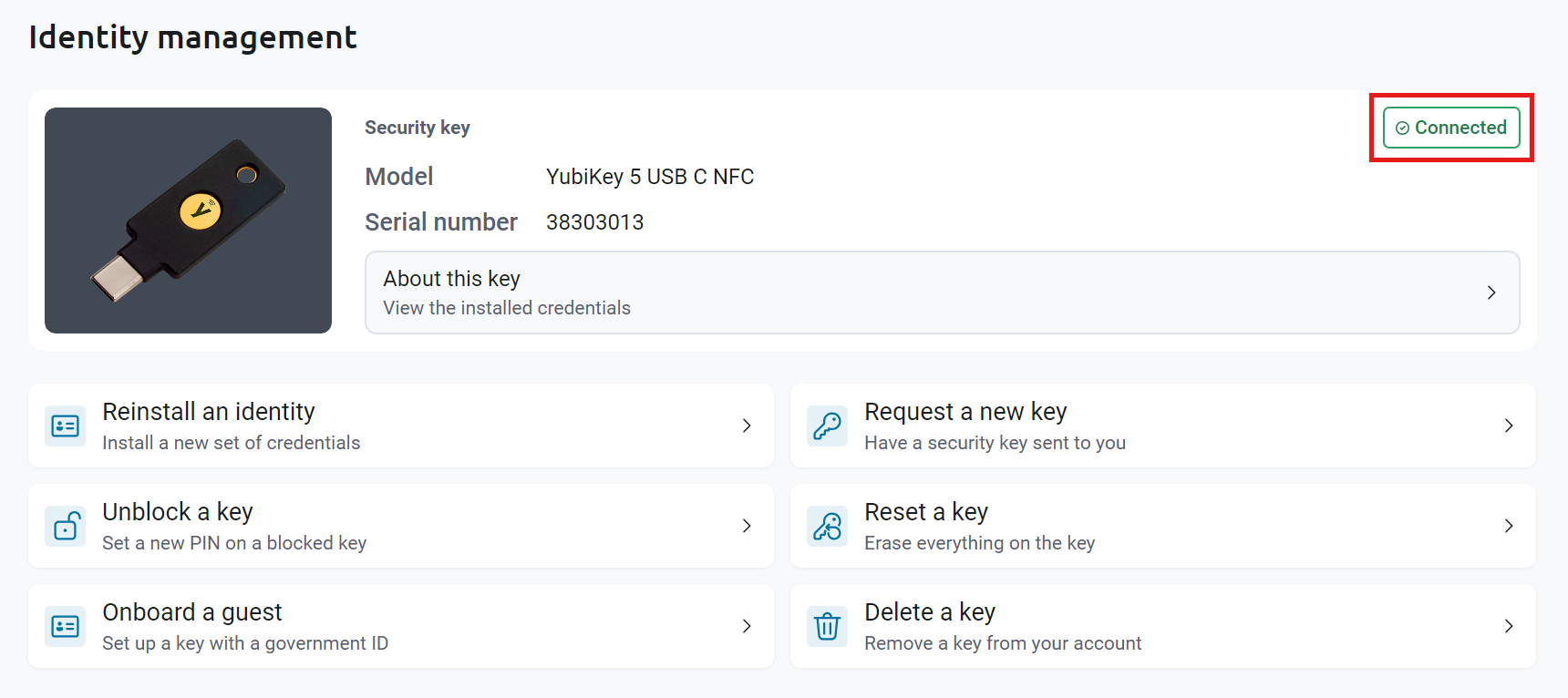
Keytos Connect returns to the Identity management page, and your security key shows Connected.
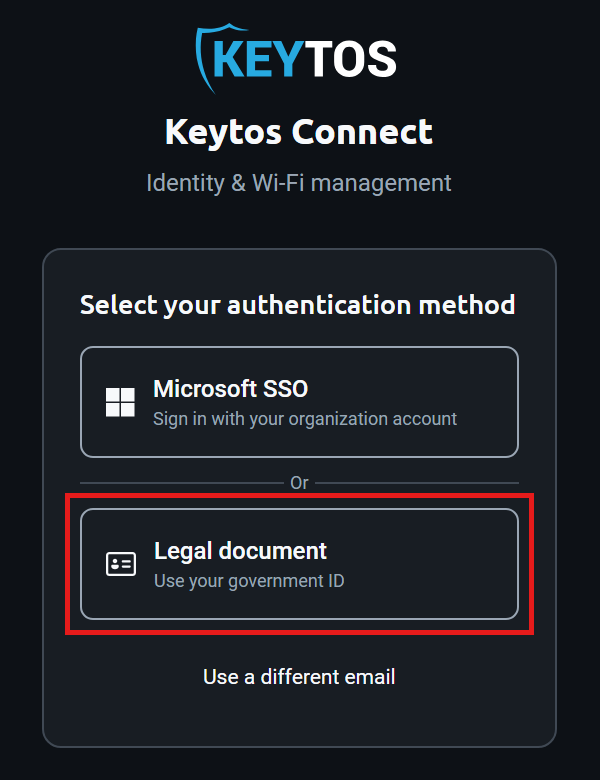
If you don’t see Legal document when you sign in, your IT team hasn’t turned on government ID verification for your organization. Contact your IT team for help.
How to Choose Government ID Verification
-
Open Keytos Connect, enter your work or school email under Enter your email to begin, and click Begin.
-
Under Select your authentication method, click Legal document.
How to Verify Your Identity with Your Phone
-
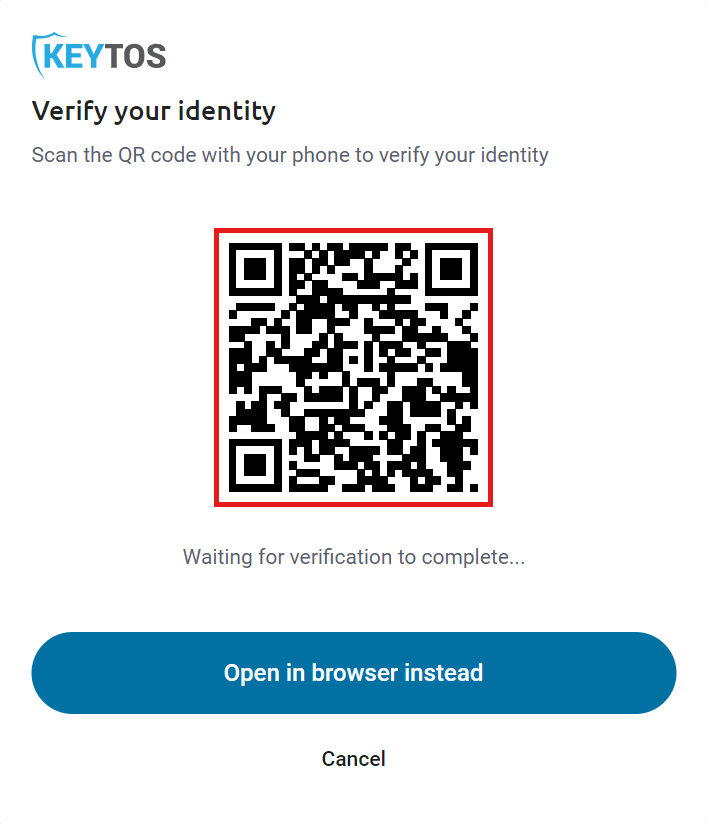
Keytos Connect shows a QR code. Scan it with your phone’s camera to open the identity verification page on your phone. To verify on this computer instead, click Open in browser instead.
-
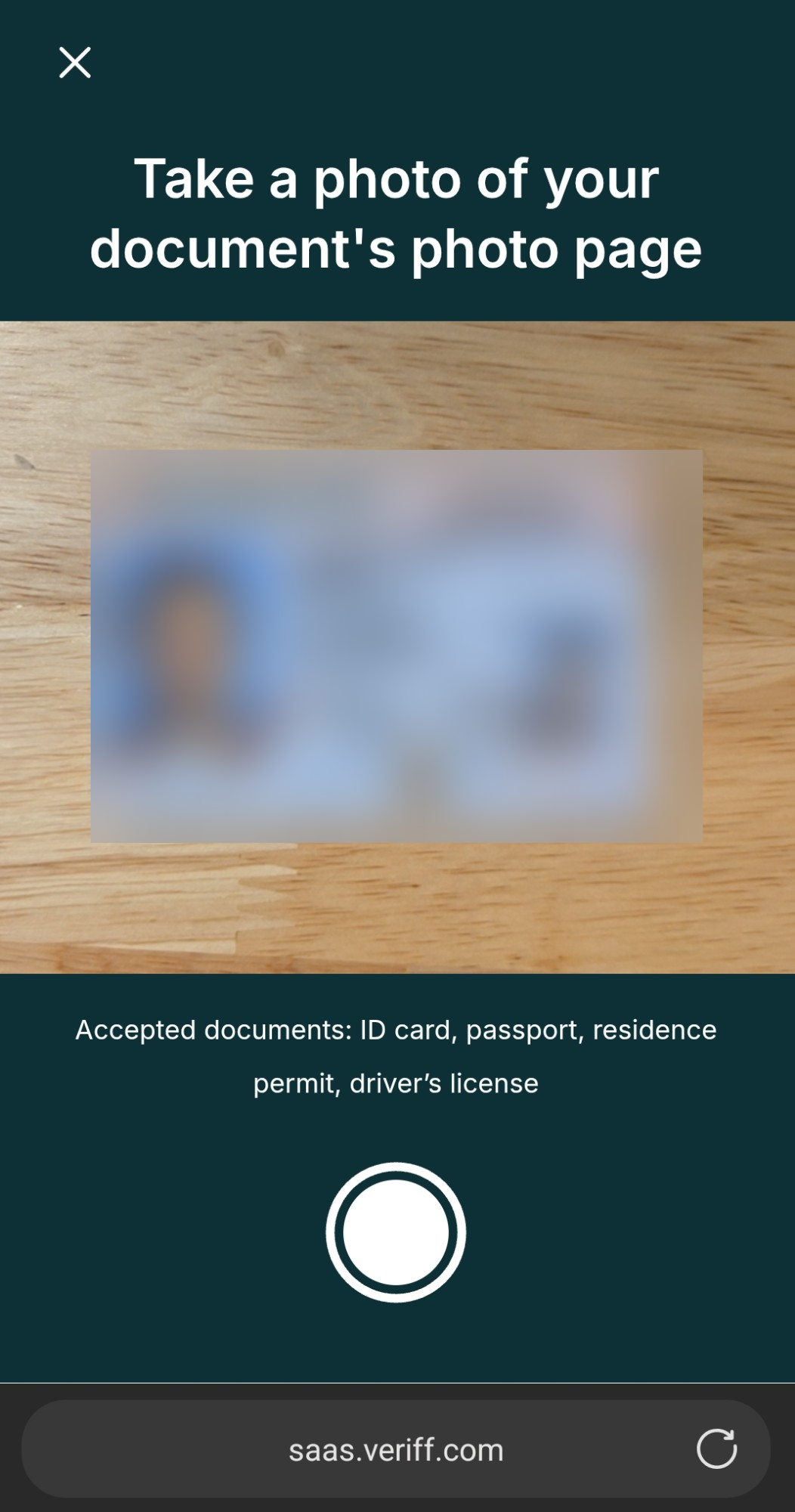
On your phone, follow the prompts on the Veriff identity verification page. When asked to Take a photo of your document’s photo page, place your ID on a flat surface and take a photo. Accepted documents are an ID card, passport, residence permit, or driver’s license.
-
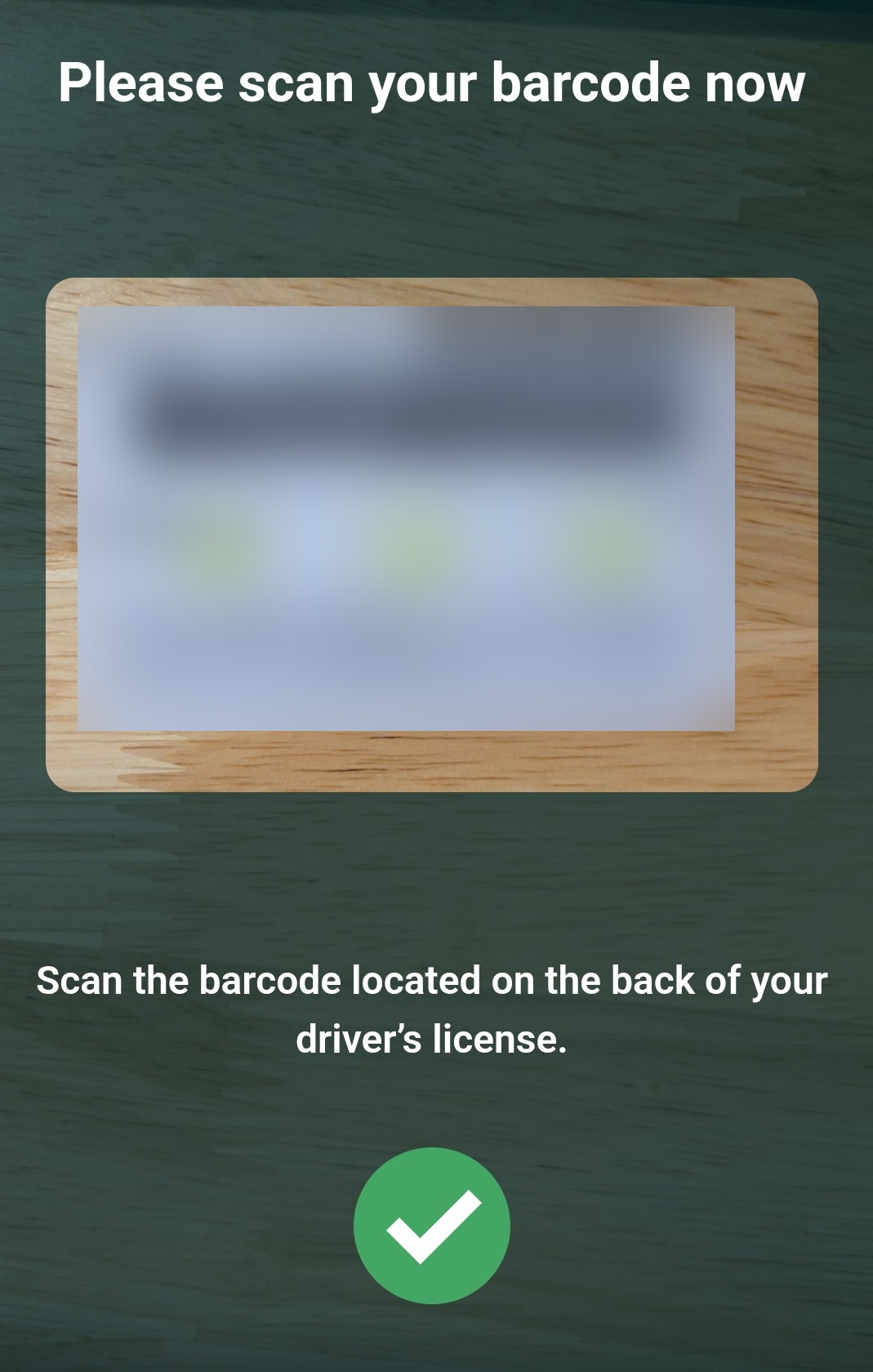
If you’re using a driver’s license, you’re asked to scan the barcode located on the back of your driver’s license. Turn your license over and hold the barcode in the frame until you see a green check mark.
-
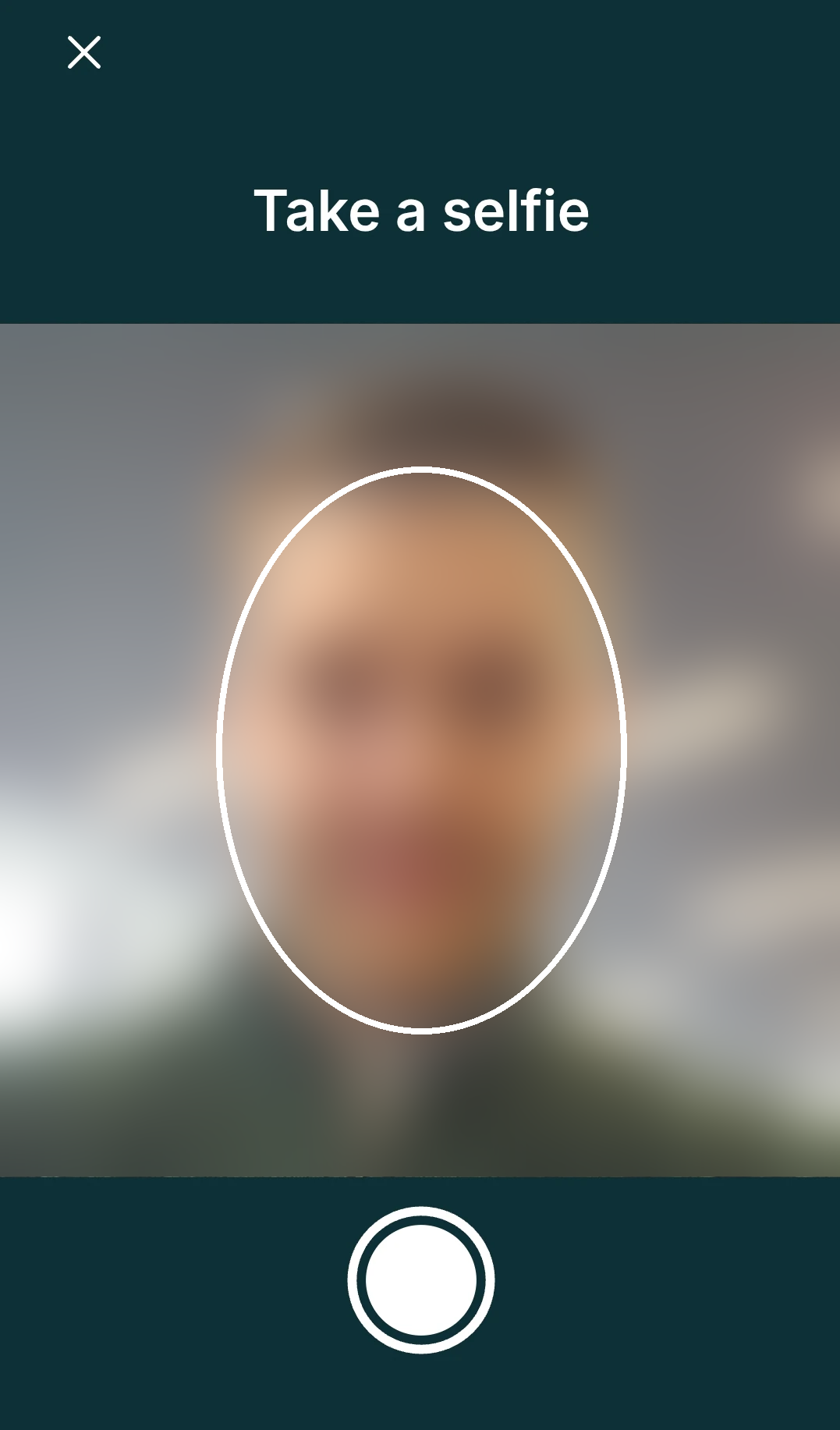
When asked to Take a selfie, hold your phone at eye level, center your face in the oval, and tap the shutter button. Veriff compares your selfie with the photo on your ID.
-
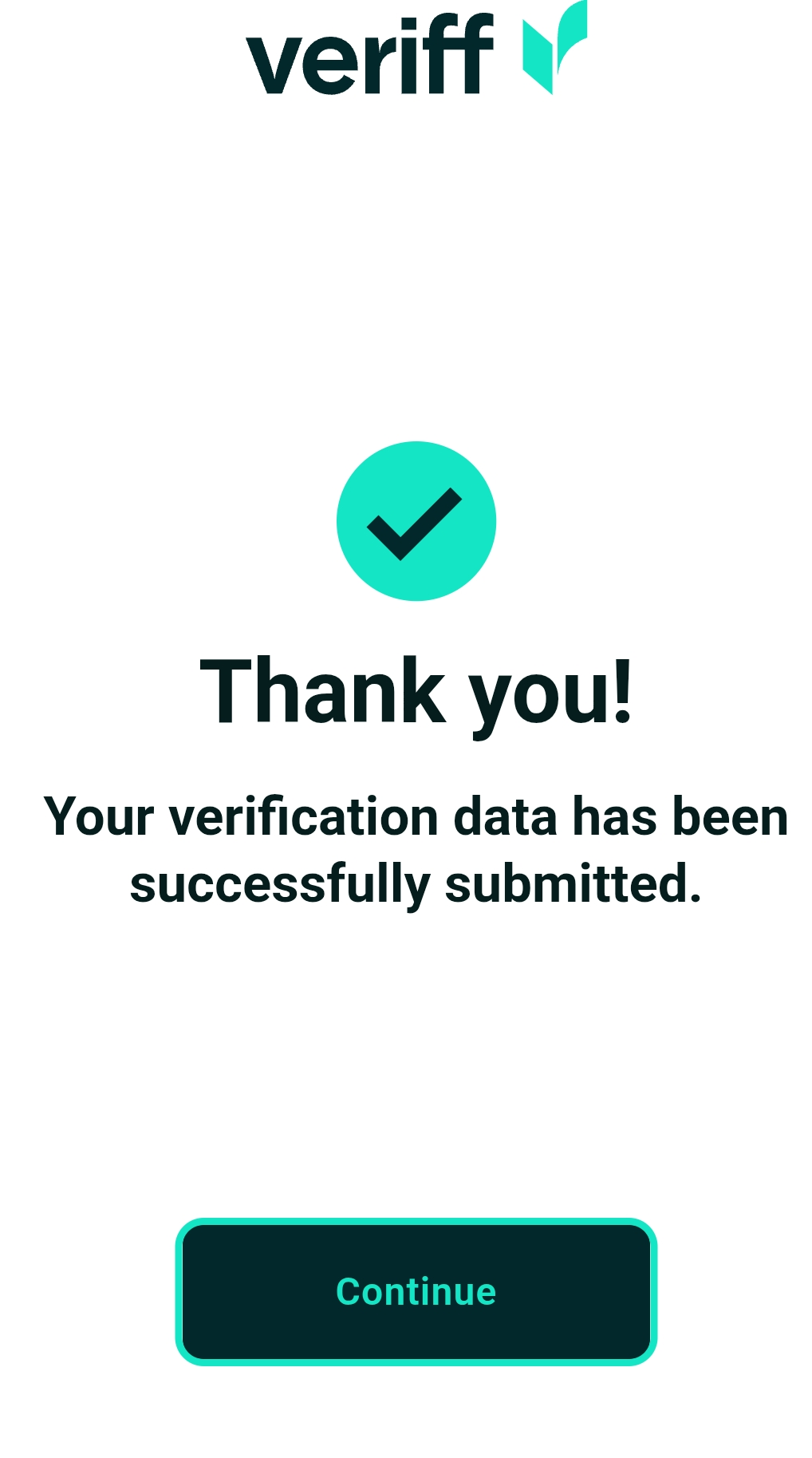
Complete any other prompts. When you see Thank you!, your verification data has been submitted. Tap Continue.
How to Choose to Unblock Your Pre-Loaded Key
-
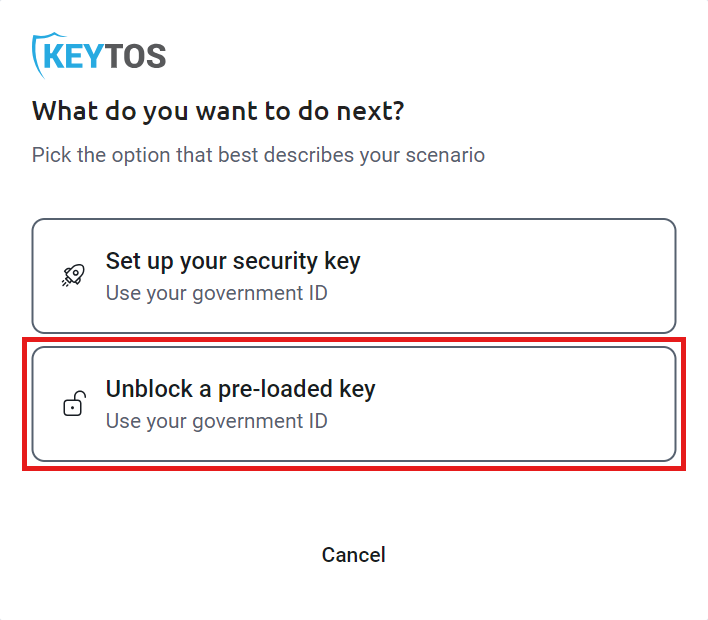
Back in Keytos Connect, under What do you want to do next?, click Unblock a pre-loaded key.
How to Connect Your Security Key
-
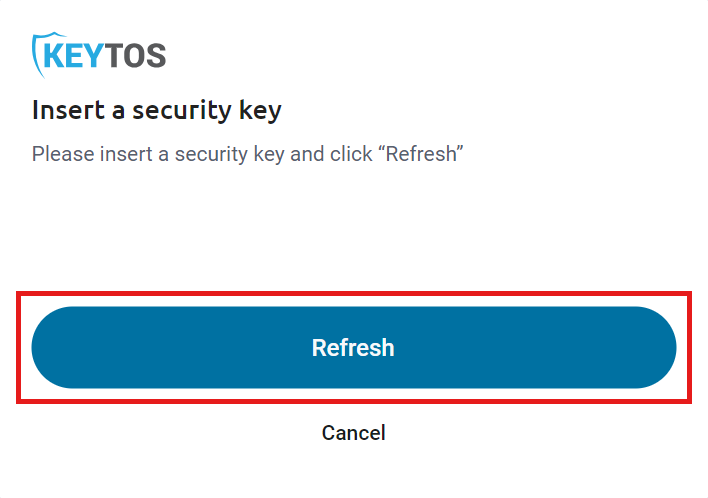
If you see Insert a security key, plug your security key into your computer, and click Refresh.
-
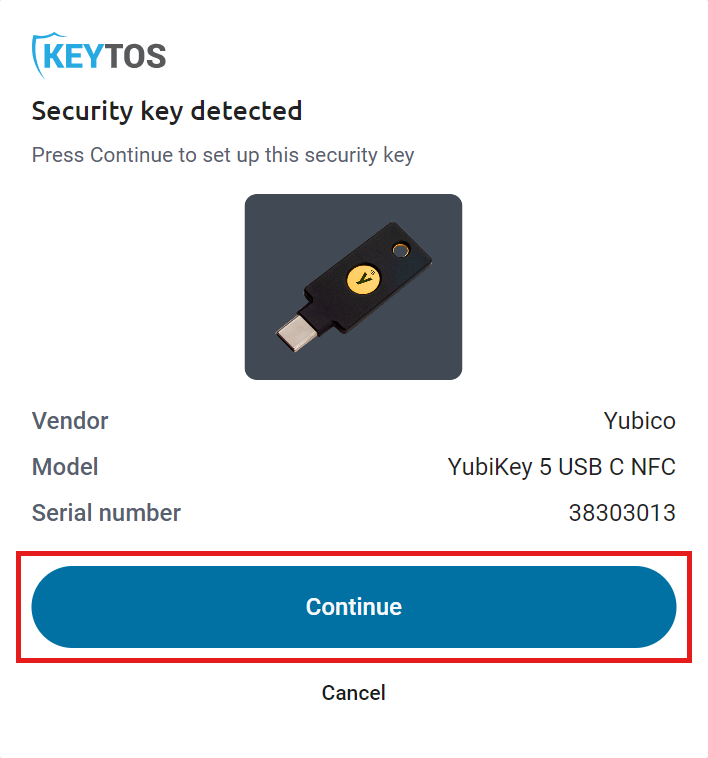
Under Security key detected, check that the Vendor, Model, and Serial number match the key you plugged in, and click Continue.
How to Unblock Your Key with a PUK Code
-
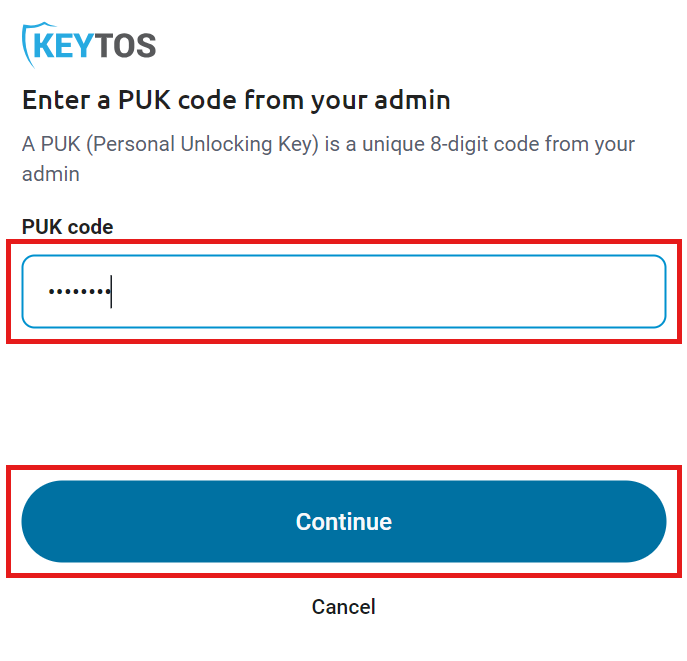
Under Enter a PUK code from your admin, enter the 8-digit PUK code your IT team gave you, and click Continue. A PUK (Personal Unlocking Key) is a unique code for your security key. If you don’t have one, contact your IT team.
-
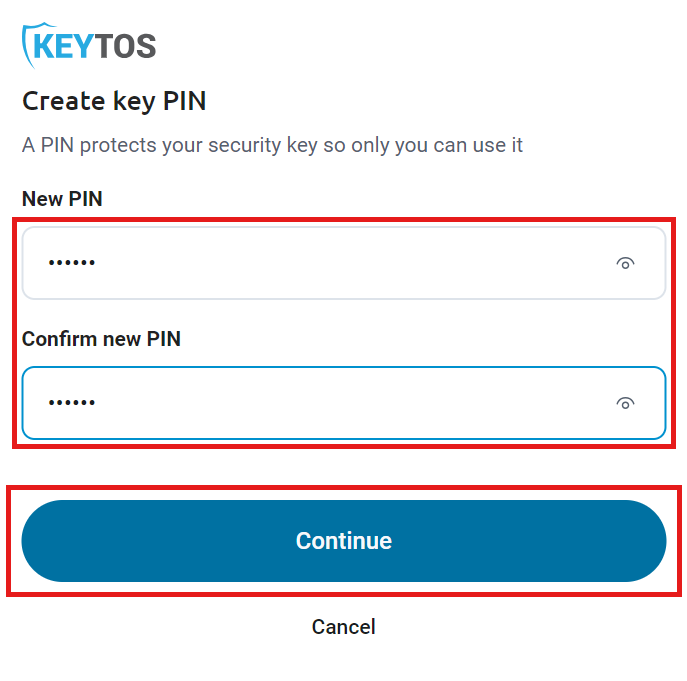
Under Create key PIN, enter your new PIN in New PIN and Confirm new PIN, and click Continue. Your PIN protects your security key so only you can use it.
Done! Your security key is ready to use with your new PIN.
Are you an administrator? See how to approve security key unblock requests and get a user’s PUK in Keytos Shield.