












How-To: Get Started with Keytos Connect
Overview - What is Keytos Connect?
Keytos Connect is the app your workplace or school uses to get you connected securely. Depending on what your organization has set up, you can use it to:
- Connect to Wi-Fi: Install your workplace or school Wi-Fi profiles so your device connects without a shared password.
- Manage your security key: Request a security key, such as a YubiKey, unblock it, and see what’s on it.
This guide shows you how to install Keytos Connect and sign in. Once you’re signed in, follow the guide for what you want to do next.
Step-by-Step Guide - How to Get Started with Keytos Connect
Step 1 - How to Download and Install Keytos Connect
Select your device’s operating system to see how to install Keytos Connect.
Download the installer that matches your PC, and then open it to install Keytos Connect:
- x64 Keytos Connect Installer: For most Windows PCs.
- arm64 Keytos Connect Installer: For Snapdragon, Surface Pro X, and other ARM64 devices.
Prefer the command line? You can also install Keytos Connect with the Windows Package Manager (WinGet) by running this command in a terminal:
winget install Keytos.KeytosConnect
To open Keytos Connect, open the Start Menu, type “Keytos Connect”, and select the Keytos Connect app.
The easiest way to install Keytos Connect on macOS is from the Apple App Store. You’ll automatically get the latest releases and features.

You can also download the Keytos Connect installer for macOS directly from our site.
Keytos Connect for Linux is a .deb package for Debian-based distributions, such as Ubuntu, Debian, and Linux Mint. If your computer runs a different distribution, such as Fedora or Arch Linux, check with your IT team before you install it.
-
Download the Keytos Connect installer for Linux (
KeytosConnect.deb). -
Open a terminal in the folder where you downloaded the file, and install it with this command:
sudo apt install ./KeytosConnect.debYou can also open the downloaded file in your distribution’s software installer, such as Ubuntu’s App Center.
-
Open Keytos Connect from your applications menu.
Install Keytos Connect on your iPhone or iPad from the Apple App Store. You’ll automatically get the latest releases and features.

Install Keytos Connect on your Android device from the Google Play Store. You’ll automatically get the latest releases and features.

Step 2 - How to Sign In to Keytos Connect
-
Open Keytos Connect.
-
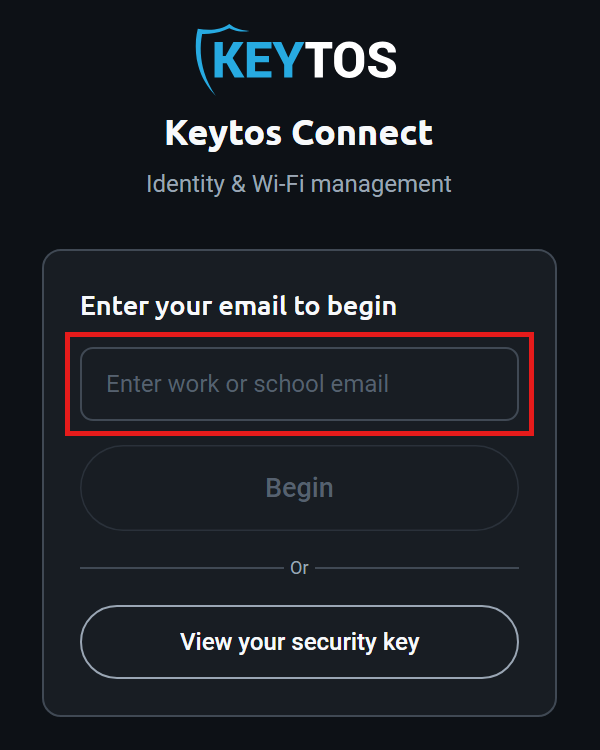
Under Enter your email to begin, enter the email address your workplace or school gave you, and then click Begin.
-
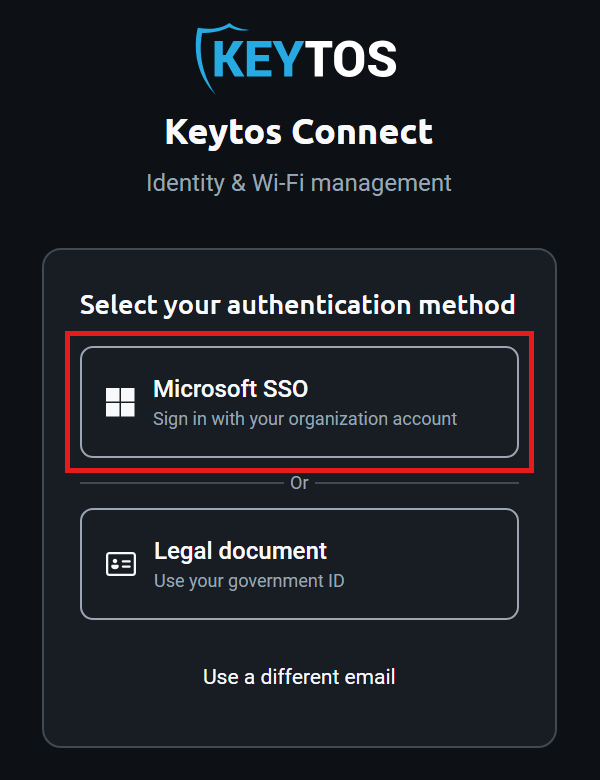
Under Select your authentication method, click Microsoft SSO and complete the sign-in in the browser window that opens. If your organization set it up, you may also see Legal document to verify your identity with a government ID.
-
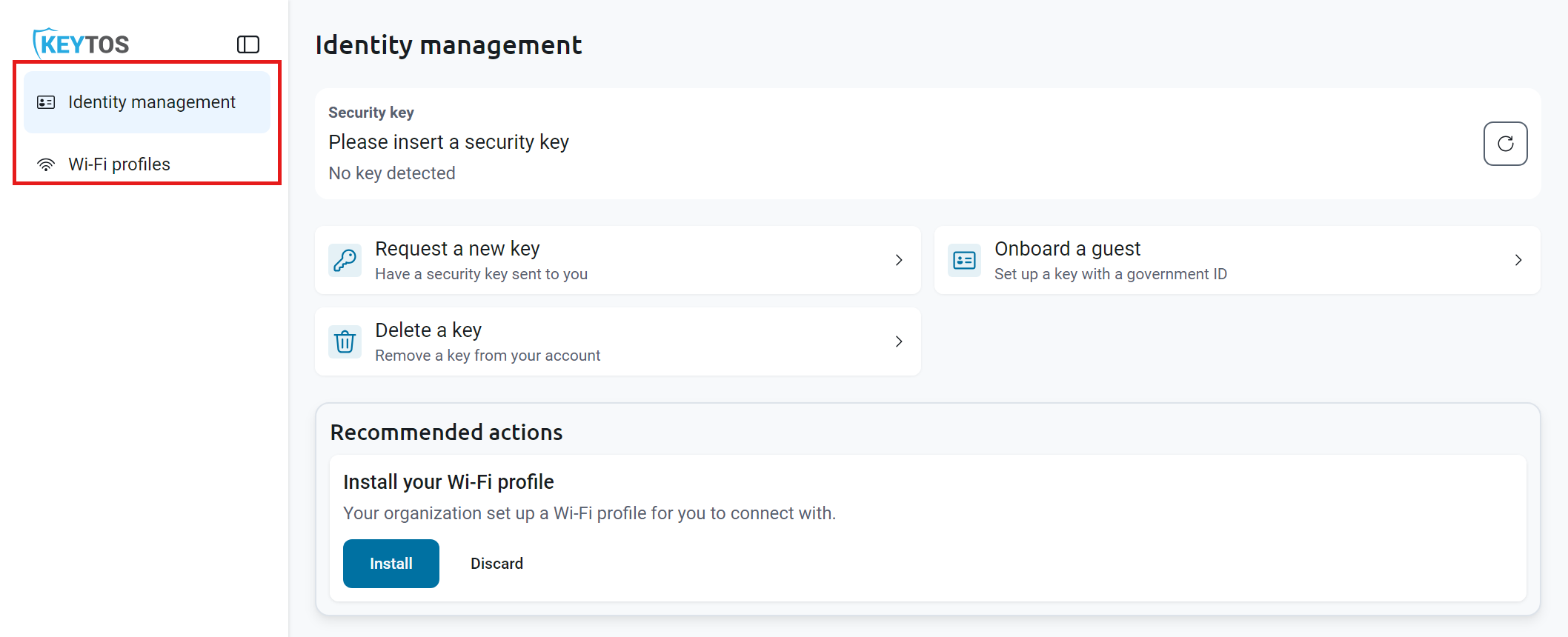
After you sign in, Keytos Connect opens to your default page. Use the menu on the left to switch between Identity management and Wi-Fi profiles.
Step 3 - What to Do Next in Keytos Connect
| I want to… | Guide |
|---|---|
| Connect to my workplace or school Wi-Fi | Install your Wi-Fi profiles |
| Request, unblock, or view my security key | Manage your security key |
What Can My Workplace or School See or Do On My Device?
Keytos Connect is designed to be a lightweight application with the minimum amount of permissions required to install network profiles and connect to Wi-Fi.
Things Keytos Connect CAN Do On Your Device
Keytos Connect and your workplace or school can do the following on your device once it is installed and you are signed in:
- Install trusted certificates on your device which allow it to securely communicate with your workplace or school Wi-Fi.
- Install and renew a user certificate for your work or school account into your personal certificate store which is used to sign you into your work or school Wi-Fi.
- Install a Wi-Fi profile on your device for your workplace or school Wi-Fi networks, which tells your device which certificates to use when establishing a secure connection.
- Send notifications if you need to sign in again or take any other manual actions.
Things Keytos Connect CANNOT Do On Your Device
Keytos Connect and your workplace or school cannot do the following on your device once Keytos Connect is installed:
- View your files and folders.
- Install other applications.
- View your screen.
- Track your on-device network activity or browsing history (although they may implement network tracking outside of Keytos Connect. Consult with your IT team for any questions).
- Make any changes to your browsers or other applications on your device.
How to Troubleshoot Signing In to Keytos Connect
If you’re unable to sign in to Keytos Connect, start by checking the following:
- Make sure you’re connected to the internet, such as a guest Wi-Fi network or your phone’s cellular connection or hotspot.
- On a computer, clicking Microsoft SSO opens a web browser. Make sure it isn’t hidden behind another window or on another screen.
- Make sure you used your workplace or school email address and account. Personal accounts won’t work.
- If your IT team requires it, make sure you completed multifactor authentication.
If you’ve checked all of the above and still can’t sign in, contact your workplace or school’s IT team. They need to set up Keytos Connect on their end and make sure your account can use it.