
















How-To: Configure FIDO2 Passkeys in Entra ID for Keytos Shield
Overview - Why Configure FIDO2 Passkeys in Entra ID for Keytos Shield?
When you use passkey (FIDO2) credentials, Keytos Shield registers a FIDO2 passkey on each user’s security key and adds it to their Entra ID account. Users can only sign in with that passkey if the Passkey (FIDO2) authentication method is turned on for them in Entra ID.
Prerequisites for Configuring FIDO2 Passkeys in Entra ID
- You have completed Keytos Shield identity security onboarding, with Passkey (FIDO2) selected as a credential type in your enrollment and recovery settings.
- You have an Entra ID role that can manage authentication methods, such as Authentication Policy Administrator or Global Administrator.
Step-by-Step Guide - How to Turn On FIDO2 Passkeys in Entra ID
Step 1 - How to Enable the Passkey (FIDO2) Authentication Method
Make sure every user who onboards with Keytos Shield is included, for example by targeting the same Entra ID groups you allowed to enroll security keys in Shield.
-
Navigate to the Entra ID Admin Center and sign in with an account that can manage authentication methods, such as an Authentication Policy Administrator or Global Administrator.
-
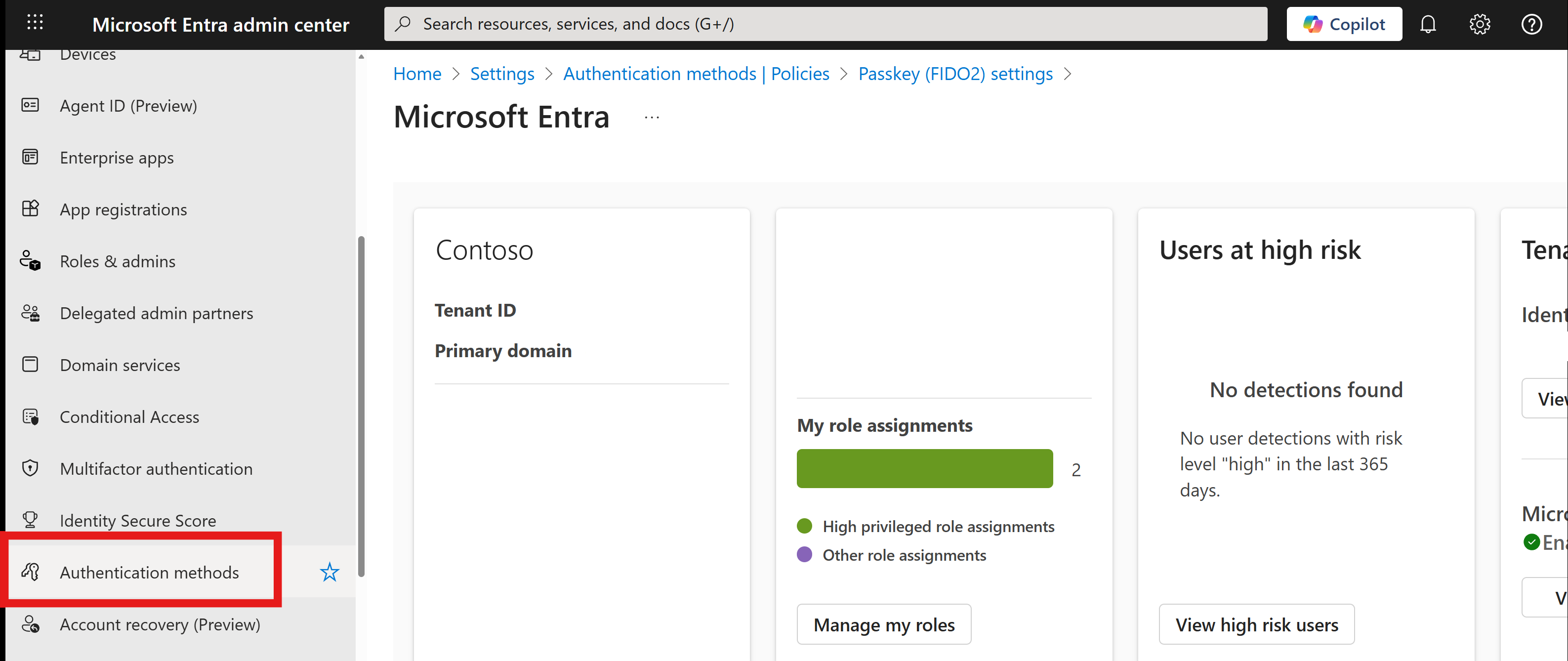
From the left-hand menu, select Authentication methods (direct link).
-
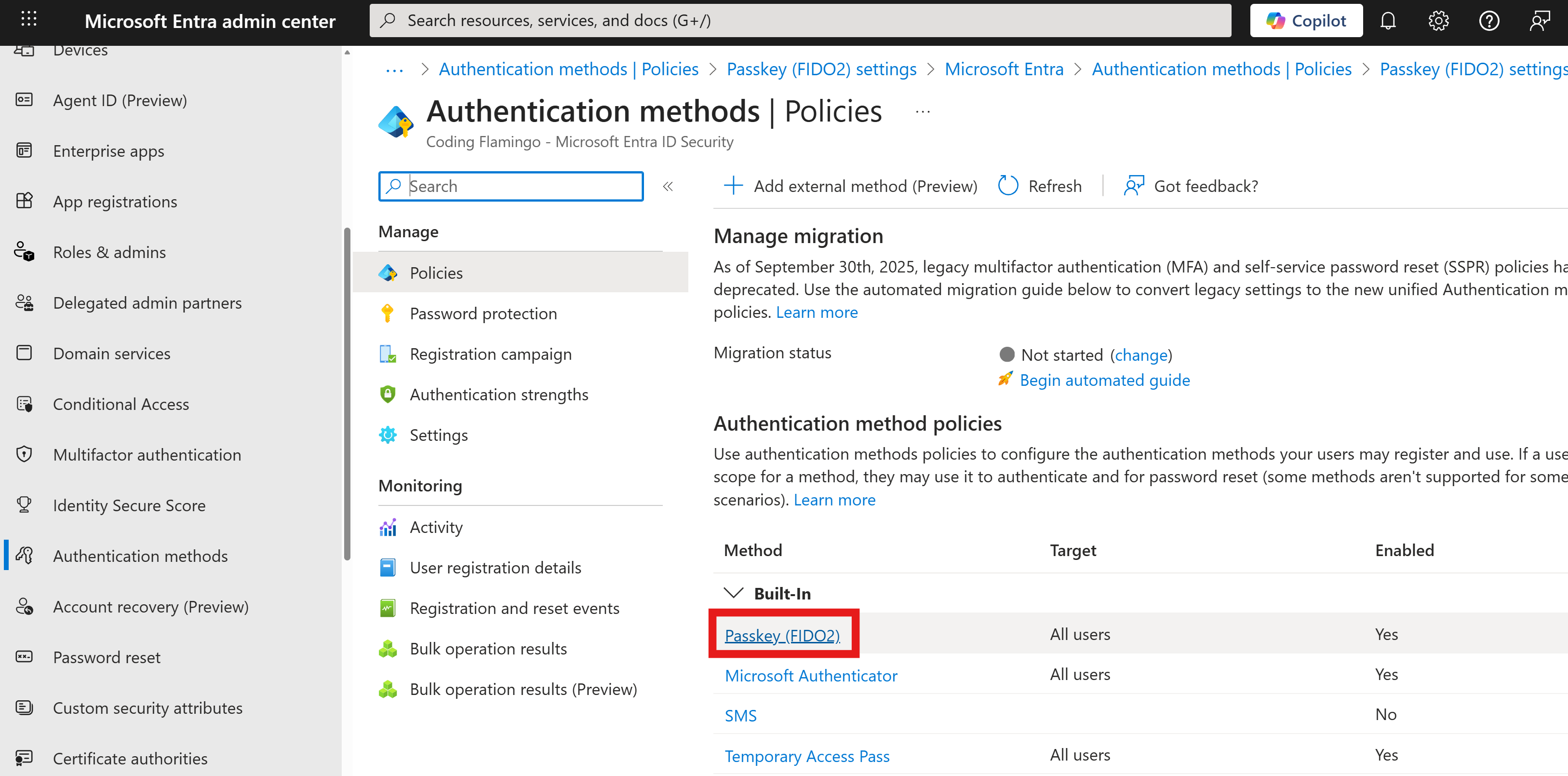
Under Authentication method policies, select Passkey (FIDO2).
-
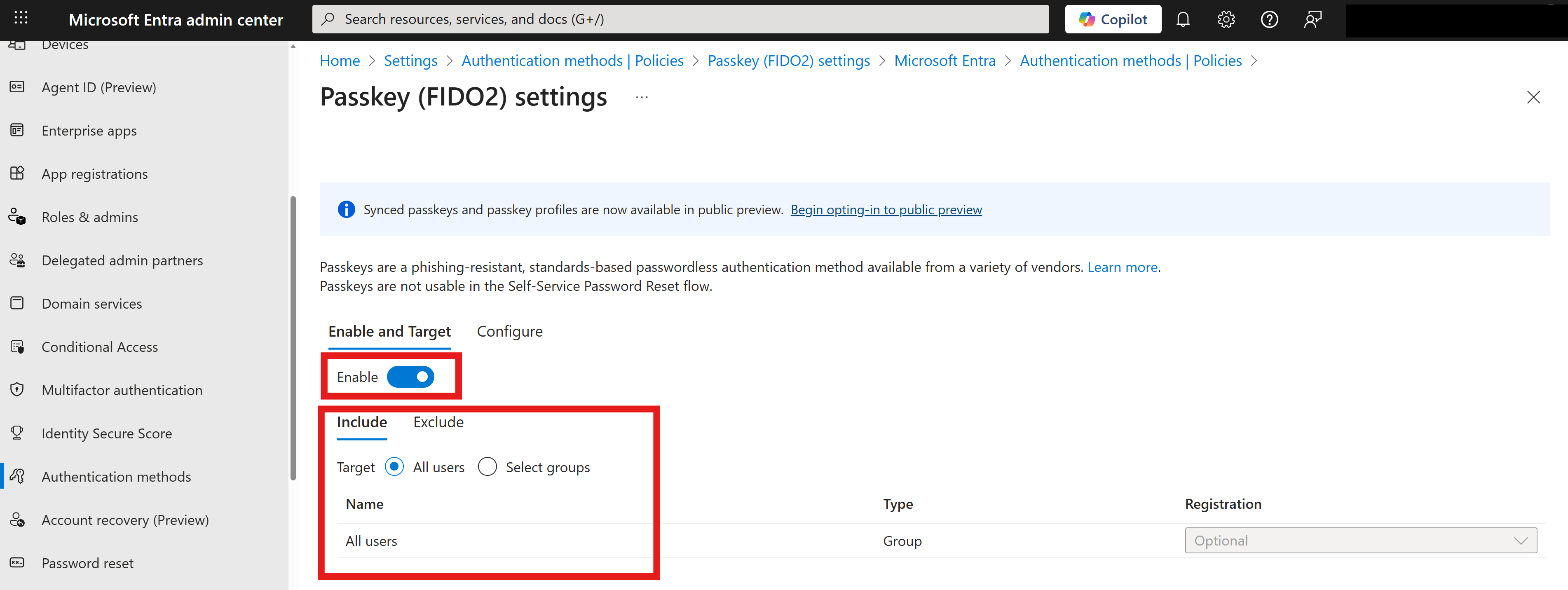
Make sure the Enable toggle is on.
-
Set your Include and Exclude settings as desired to control which users can use FIDO2 security keys for authentication.
-
Click Save to apply the changes.
If you turn on Enforce key restrictions on the Configure tab, add the AAGUIDs of every security key model you allow in your Keytos Shield smart card settings. Otherwise, Entra ID blocks passkeys on those keys.
Done! Users can now sign in to Entra ID with the FIDO2 passkey on their security key. For more options, see Microsoft’s documentation on enabling passkeys (FIDO2).