












How-To: Approve Security Key Unblock Requests in Keytos Shield
Overview - What are Security Key Unblock Requests?
A user’s security key is blocked when it’s newly bootstrapped, or when the user enters the wrong PIN too many times. To use the key again, the user requests an unblock in Keytos Connect. After you approve the request, the user sets a new PIN on their key.
Prerequisites for Approving Unblock Requests
- You have completed Keytos Shield identity security onboarding.
- You have the Owner or Identity Administrator role on your Keytos Shield subscription, so you can see Admin access in Keytos Connect.
- Allow administrators to unblock user security keys is set to Yes, and you are a credential manager. See the unblock options in your enrollment and recovery settings.
Step-by-Step Guide - How to Approve an Unblock Request in Keytos Connect
Step 1 - How to Open Unblock Requests
-
Open Keytos Connect and sign in with your administrator account.
-
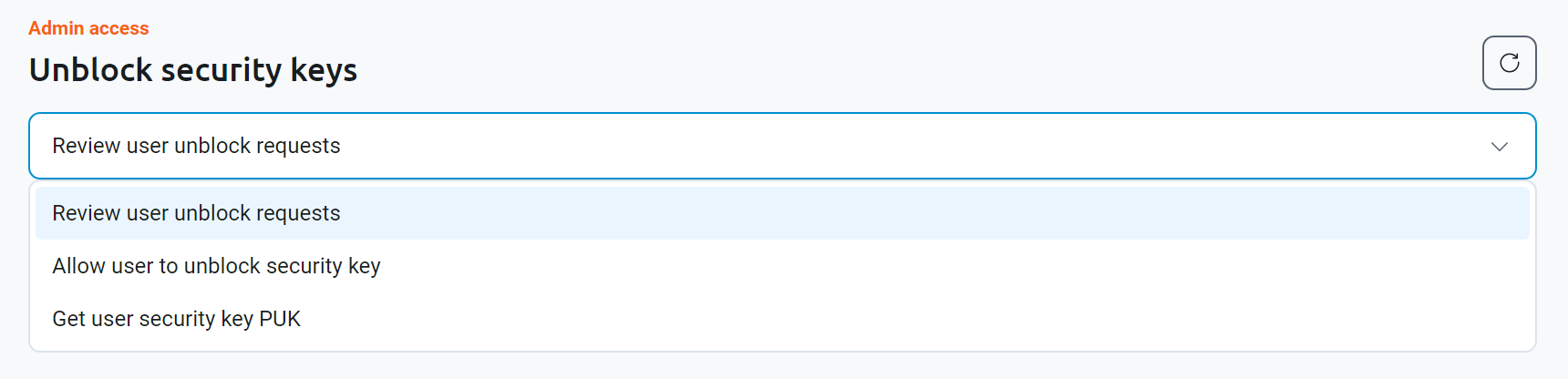
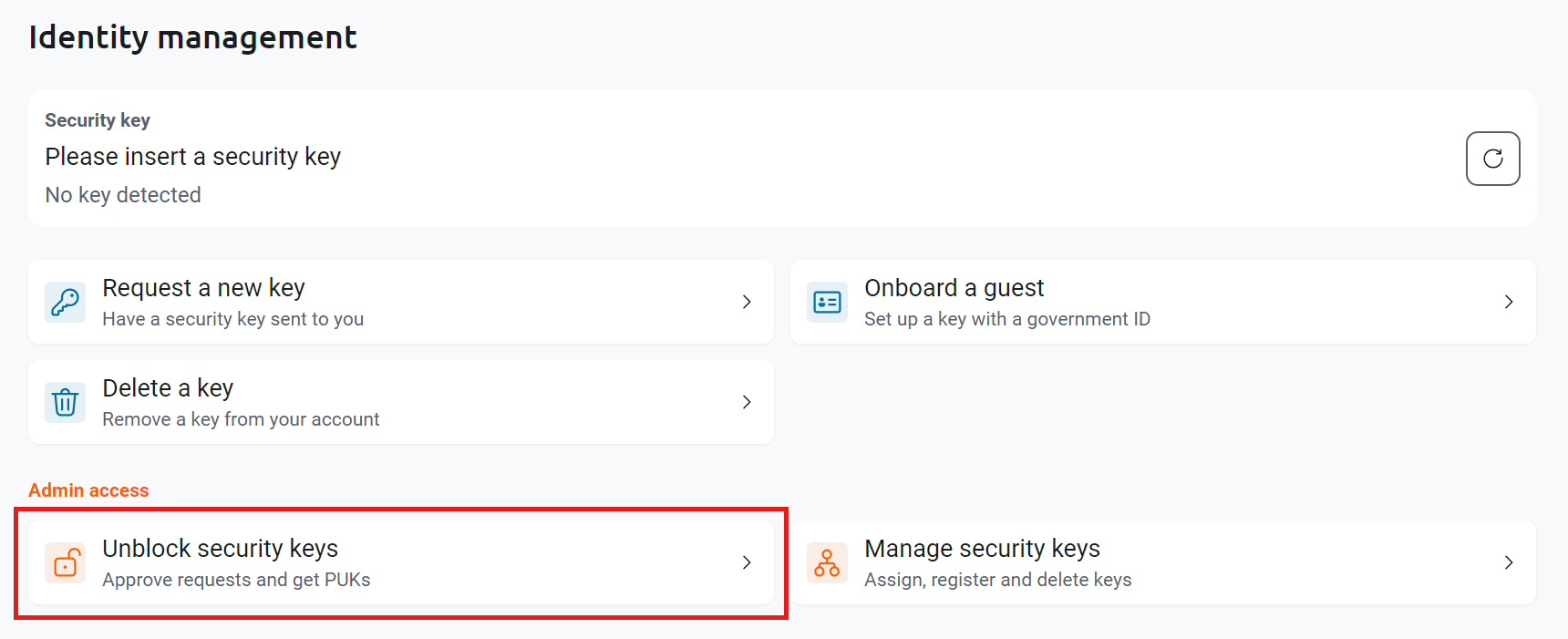
On the Identity management page, under Admin access, click Unblock security keys.
Step 2 - How to Review and Approve the Request
-
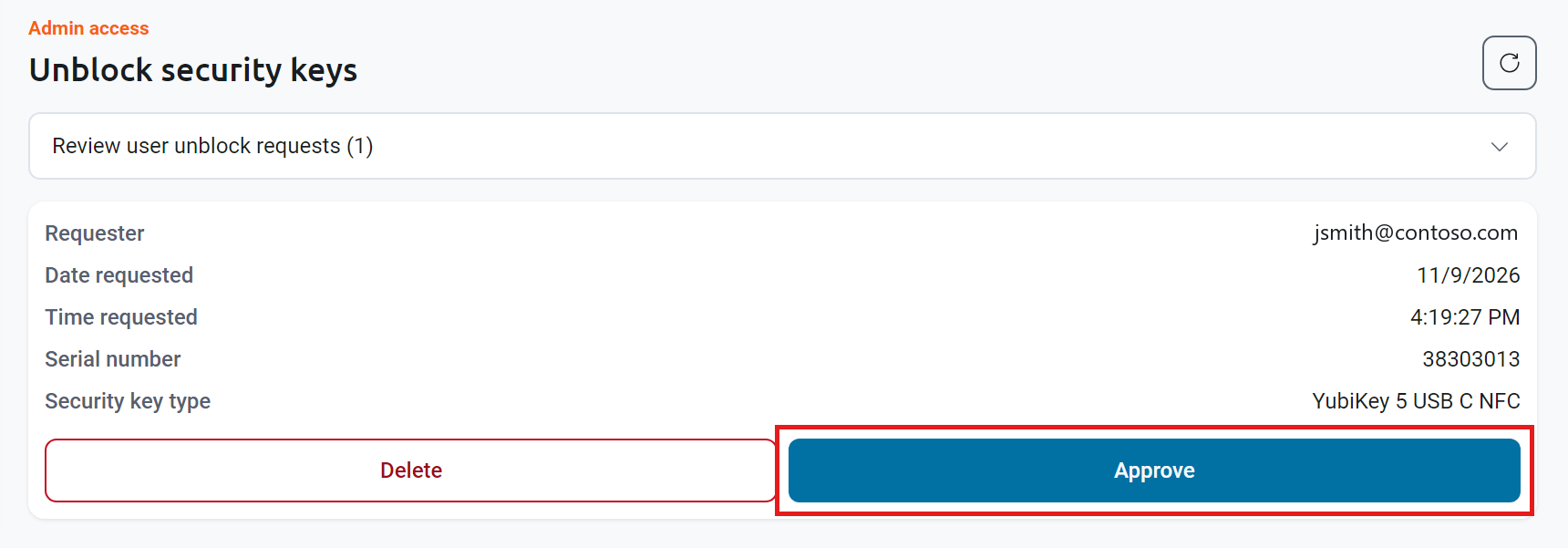
Keep Review user unblock requests selected in the drop-down. The number next to it shows how many requests are waiting.
-
Review the request’s Requester, Date requested, Time requested, Serial number, and Security key type. If you weren’t expecting the request, confirm it with the user before you approve it.
-
Click Approve. To reject the request instead, click Delete.
-
The request disappears from the list. When there are no more requests, the page shows No unblock requests pending.

The user now sees Approved on Unblock a key in their Keytos Connect, and can set a new PIN on their security key.
Other Ways to Unblock a User’s Security Key
The drop-down on the Unblock security keys page also has these options:
- Allow user to unblock security key: Let a user unblock their key without waiting for a request.
- Get user security key PUK: Get the PIN-Unblocking-Key (PUK) for a user’s key, which the user enters with the Unblock with PUK option.