










How-To: Manage Identity Settings in Keytos Shield
Overview - What are Keytos Shield Identity Settings?
Identity settings control how your users get, use, and recover their phishing-resistant security keys. You choose most of these settings during identity security onboarding, and you can review and change all of them at any time from the Identity settings page in your Shield portal.
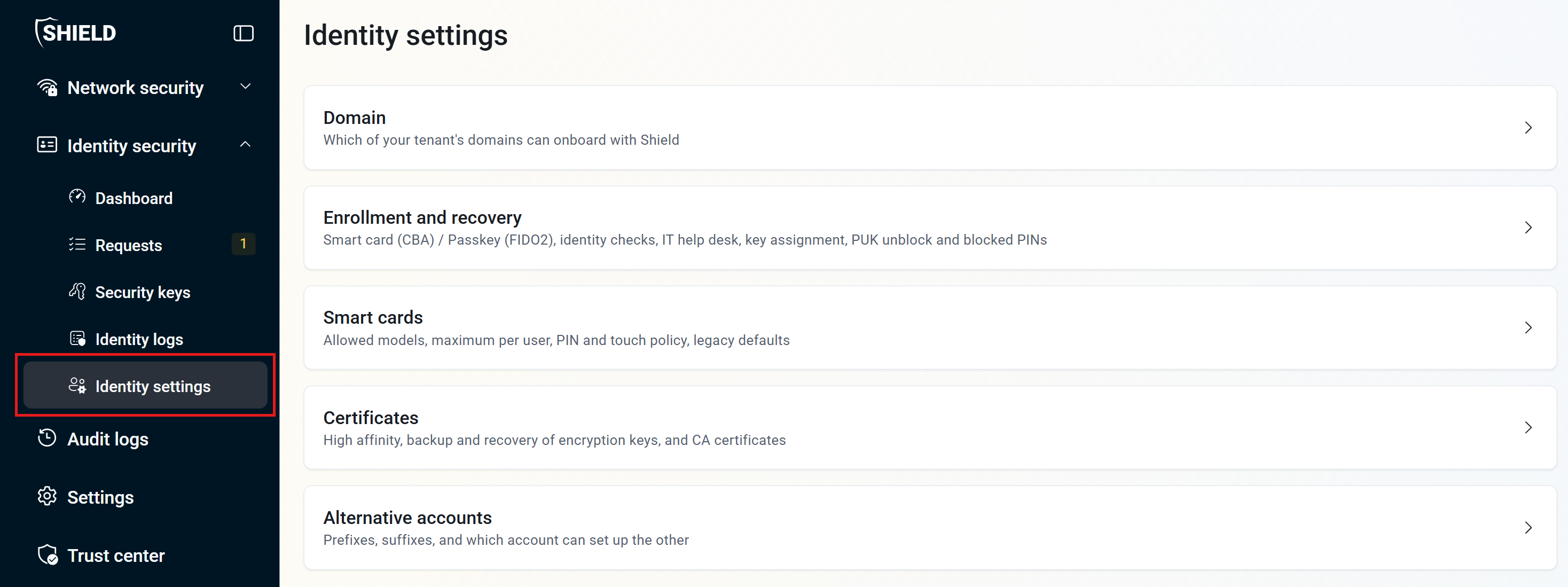
What Can I Configure in Keytos Shield Identity Settings?
Pick the setting that matches what you are trying to do:
| I want to… | Guide |
|---|---|
| Choose which of my Entra ID domains can onboard to Shield | How to configure onboarding domains |
| Choose smart card (CBA) or passkey (FIDO2) credentials, how users prove their identity, and how keys are unblocked | How to configure enrollment and recovery |
| Choose which security key models users can request, and set touch and PIN policies | How to configure smart card settings |
| Turn on Entra CBA high affinity, back up encryption keys, or download my CA certificates | How to configure certificate settings |
| Let administrators use the same security key for their admin account | How to configure alternative accounts |
Who Can Change Keytos Shield Identity Settings?
You need the Owner or Identity Administrator role on your Keytos Shield subscription to change identity settings. See how to manage access to Keytos Shield to assign these roles.
How Do I Save Changes to Identity Settings?
Each identity settings page has its own Save changes button at the top right. Your changes are not applied until you click it. If you try to leave a page with unsaved changes, Shield asks whether you want to Save and leave or Discard changes.