







How-To: Configure Alternative Admin Accounts in Keytos Shield
Overview - What are Alternative Accounts in Keytos Shield?
Many organizations give administrators a second account, such as adm_jsmith@contoso.com, to keep privileged access separate from everyday work. In Keytos Shield, these are called alternative accounts. Instead of treating them as unrelated users, Shield links each alternative account to the user’s primary account by a naming pattern, so administrators can get phishing-resistant credentials for both accounts.
You can add as many alternative account patterns as you need, for example one for domain admins and another for break-glass accounts.
Prerequisites for Configuring Alternative Accounts
- You have completed Keytos Shield identity security onboarding.
- You have the Owner or Identity Administrator role on your Keytos Shield subscription.
- The domains your primary and alternative accounts use are allowed to onboard with Shield.
Step-by-Step Guide - How to Add an Alternative Account in Keytos Shield
Step 1 - How to Open the Alternative Account Settings
-
Open the Keytos Shield global portal in your browser (US Government Portal) and open your region-specific Shield endpoint under Existing subscriptions.
-
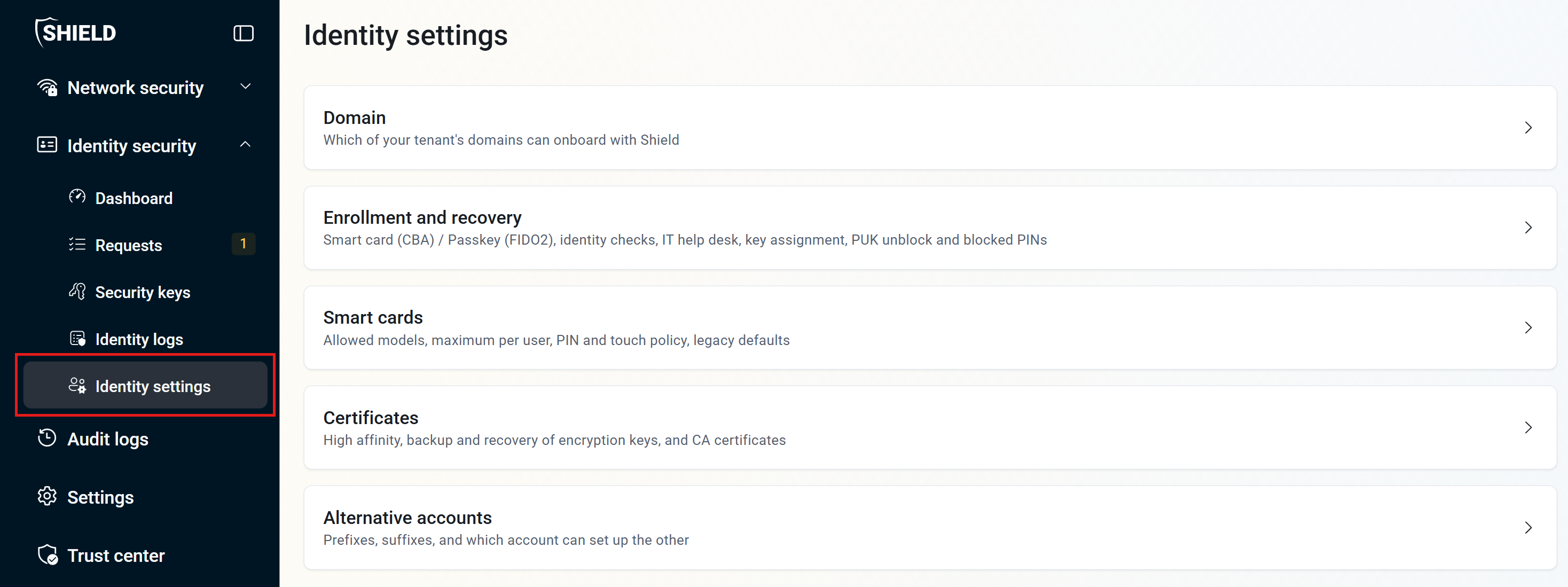
From the left-hand menu, expand Identity security and click Identity settings.
-
Click Alternative accounts.
Step 2 - How to Configure a New Alternative Account
-
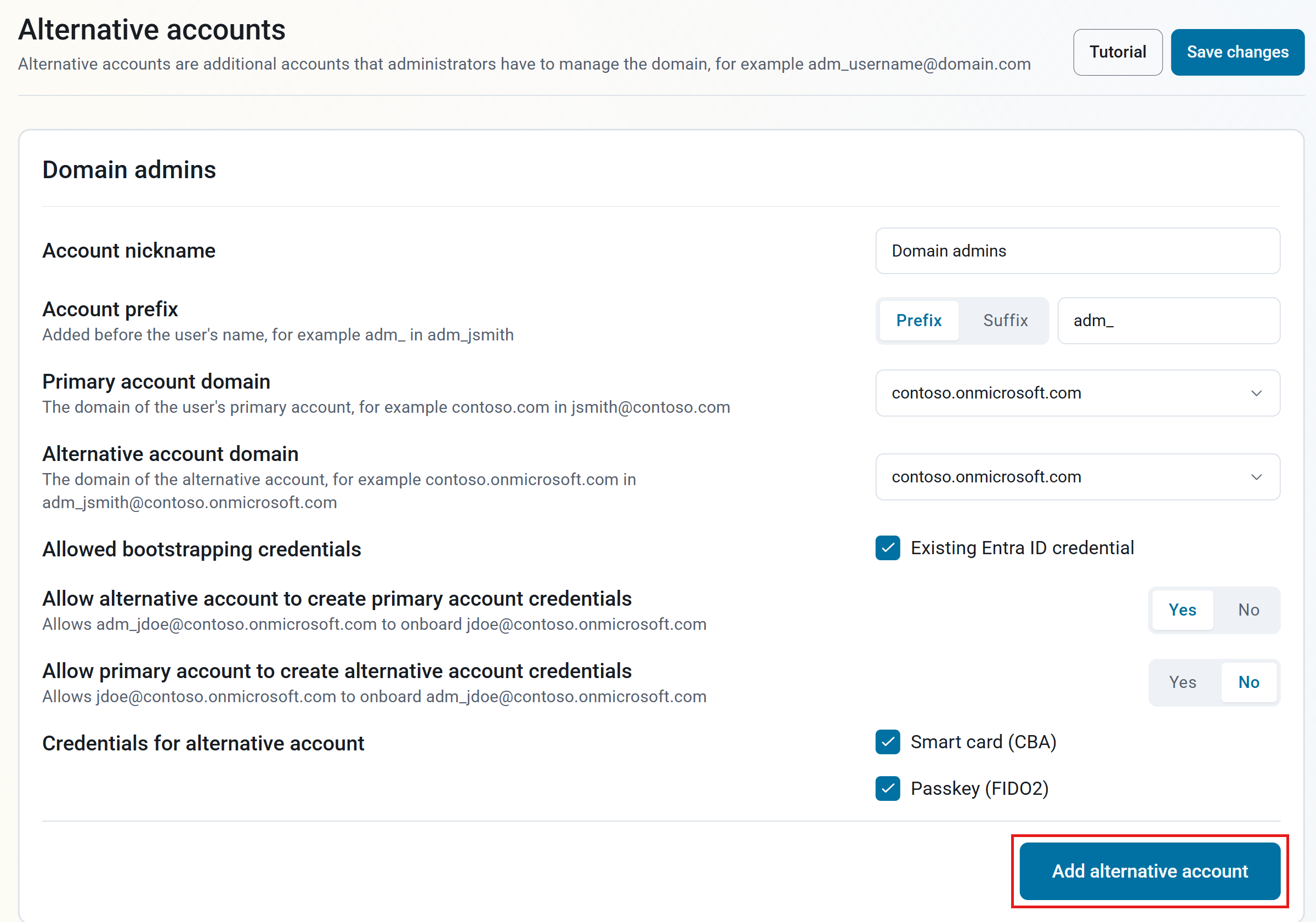
Under New alternative account, enter an Account nickname that describes this group of accounts, for example “Domain admins”.
-
For Account prefix, select Prefix or Suffix, and enter the text your alternative accounts add to the user’s name:
- Prefix: Added before the user’s name, for example
adm_inadm_jsmith. - Suffix: Added after the user’s name, for example
-admininjsmith-admin.
- Prefix: Added before the user’s name, for example
-
For Primary account domain, select the domain of the user’s primary account, for example
contoso.cominjsmith@contoso.com. -
For Alternative account domain, select the domain of the alternative account, for example
contoso.onmicrosoft.cominadm_jsmith@contoso.onmicrosoft.com. -
Under Allowed bootstrapping credentials, keep Existing Entra ID credential checked.
-
Choose which account can set up credentials for the other. The description under each option shows an example using your prefix and domains.
- Allow alternative account to create primary account credentials: Select Yes to let a user signed in with their alternative account onboard their primary account.
- Allow primary account to create alternative account credentials: Select Yes to let a user signed in with their primary account onboard their alternative account.
-
Under Credentials for alternative account, choose which credentials Shield creates for the alternative account: Smart card (CBA), Passkey (FIDO2), or both.
-
Click Add alternative account.
-
Click Save changes at the top right of the page.
Done! Users who have an account matching this pattern can now set up phishing-resistant credentials for both of their accounts.