













How-To: Configure Smart Card Certificate Settings in Keytos Shield
Overview - What are Keytos Shield Certificate Settings?
When you use smart card (CBA) credentials, Keytos Shield issues certificates to your users’ security keys from your cloud PKI. The Certificates settings control how those certificates are registered in Entra ID, whether encryption keys are backed up, and give you the CA certificates that Entra ID needs to trust them.
Prerequisites for Configuring Certificate Settings
- You have completed Keytos Shield identity security onboarding.
- You have the Owner or Identity Administrator role on your Keytos Shield subscription.
Step-by-Step Guide - How to Configure Certificate Settings in Keytos Shield
Step 1 - How to Open the Certificate Settings
-
Open the Keytos Shield global portal in your browser (US Government Portal) and open your region-specific Shield endpoint under Existing subscriptions.
-
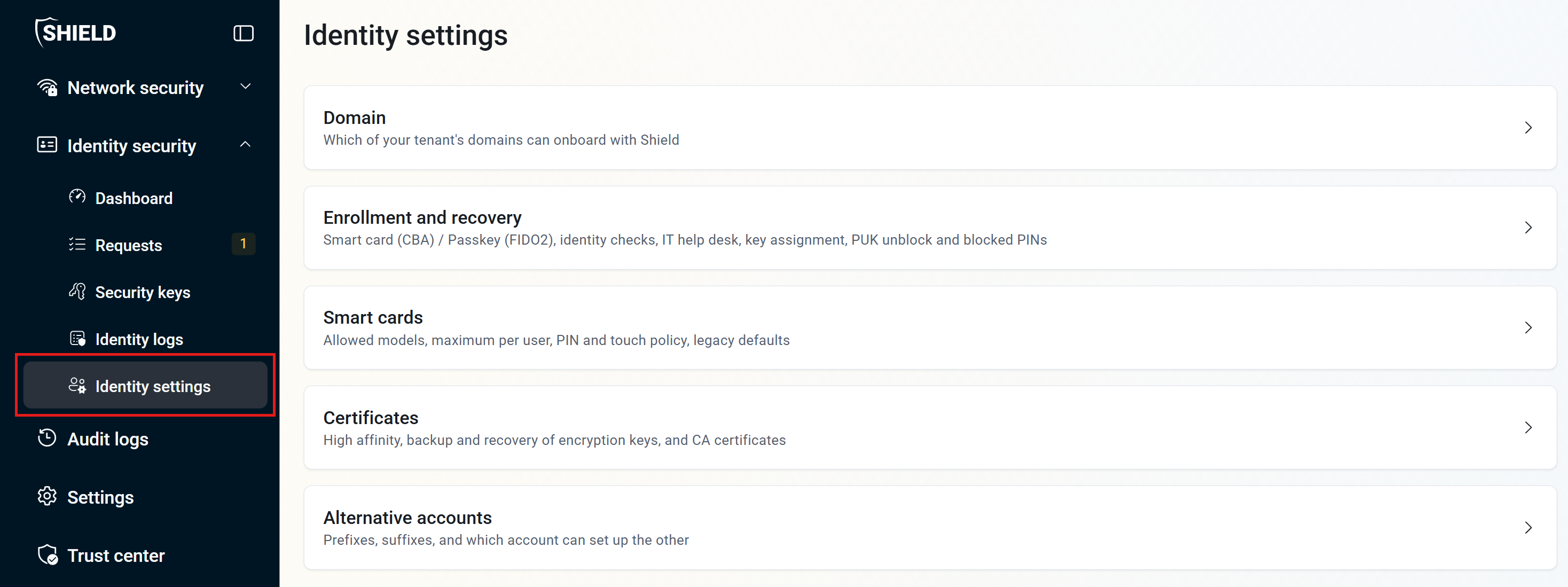
From the left-hand menu, expand Identity security and click Identity settings.
-
Click Certificates.
Step 2 - How to Configure Entra CBA High Affinity and Encryption Key Backup
-
For Entra CBA high affinity, select Yes if your Entra ID certificate-based authentication policy uses high affinity bindings. Shield then saves each user’s smart card certificate to their user object in Entra ID, so you don’t have to add each certificate manually. Read our blog post to learn whether you should enable high affinity for your smart cards.
-
For Backup and recovery of encryption keys, we recommend keeping this set to Yes. Shield backs up the encryption key so that if a user loses their security key, they can register a new one and get a certificate with the same encryption key, without losing access to their encrypted data.
- This is the encryption key in the 9D slot, used for email encryption and macOS Keychain encryption. It is not the authentication key in the 9A slot.

-
Click Save changes at the top right of the page.
Step 3 - How to Download Your Shield CA Certificates for Entra ID
For users to sign in with their smart card certificates, Entra ID must trust the Certificate Authorities that issued them.
-
Under Trust your smart card certificates, click Download next to Download root CA certificate file to download
rootca.cer. -
Click Download next to Download issuing CA certificate file to download
issuingca.cer.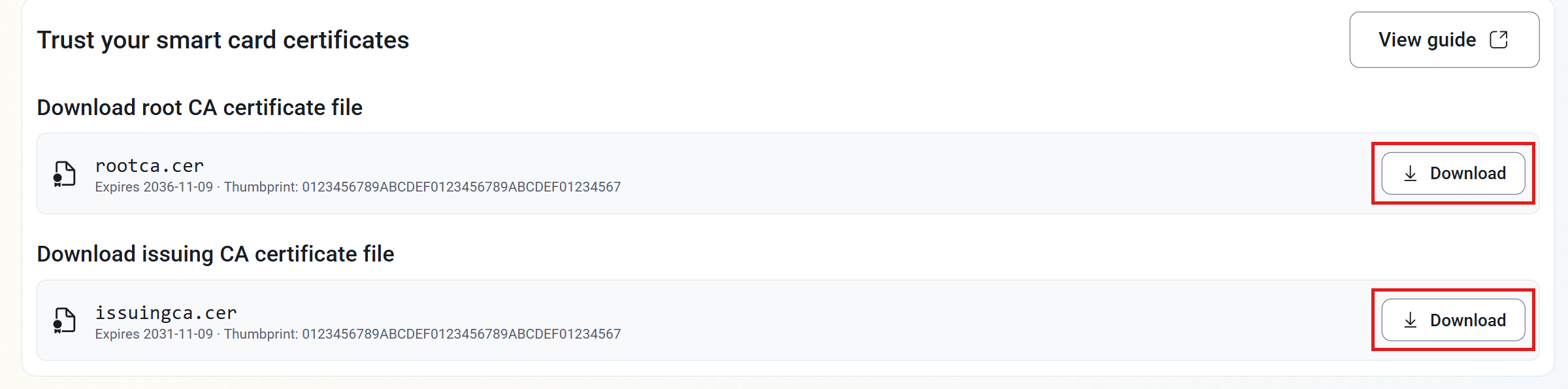
Next, add both certificates to Entra ID’s trust store and turn on certificate-based authentication. See how to configure Entra ID certificate-based authentication (CBA) for Keytos Shield.