










How-To: Review and Fulfill Security Key Requests in Keytos Shield
Overview - What are Security Key Requests in Keytos Shield?
When a user needs a new security key, for example because they just joined or lost their old key, they request one in Keytos Connect. Each request includes the key model they asked for, where they want to receive it, and why they need it. Once the request is approved, your team assigns a key from your security key inventory and gets it to the user.
Want to set up the key before it ships? Your IT help desk can bootstrap the user’s security key with their identity, so it arrives ready to use.
You can fulfill requests in two places:
- Keytos Connect (recommended): Plug the security key into your computer, and Keytos Connect reads its model and serial number for you, so you can check you have the right model before you assign it.
- The Shield portal: Type the key’s serial number on the Requests page. The portal doesn’t check that the key matches the requested model.
Each request has one of these statuses in the Shield portal:
| Status | What it means |
|---|---|
| Needs key | The request is approved and waiting for a security key to be assigned. |
| Assigned | A security key was assigned to the user, and the request is fulfilled. |
| Denied | The request was denied. |
| Deleted | The request was deleted. |
The number next to Requests in the left-hand menu of the Shield portal shows how many requests still need a key.
When an administrator requests a security key, the request skips the approval step. It goes straight to Approved requests in Keytos Connect and shows the Needs key status in the Shield portal.
The security key models users can request, and the countries or regions you ship to, are set in your smart card settings.
Prerequisites for Managing Security Key Requests
- You have completed Keytos Shield identity security onboarding.
- You have the Owner or Identity Administrator role on your Keytos Shield subscription.
- You have registered security keys in your inventory to assign to users.
- To fulfill requests in Keytos Connect, you have installed Keytos Connect on your computer. You can download it from Download the client at the bottom of the Shield portal’s left-hand menu.
Step-by-Step Guide - How to Fulfill a Security Key Request in Keytos Shield
Use the tabs below to fulfill a request in Keytos Connect or in the Shield portal.
How to Open Security Key Requests in Keytos Connect
-
Open Keytos Connect and sign in with your administrator account.
-
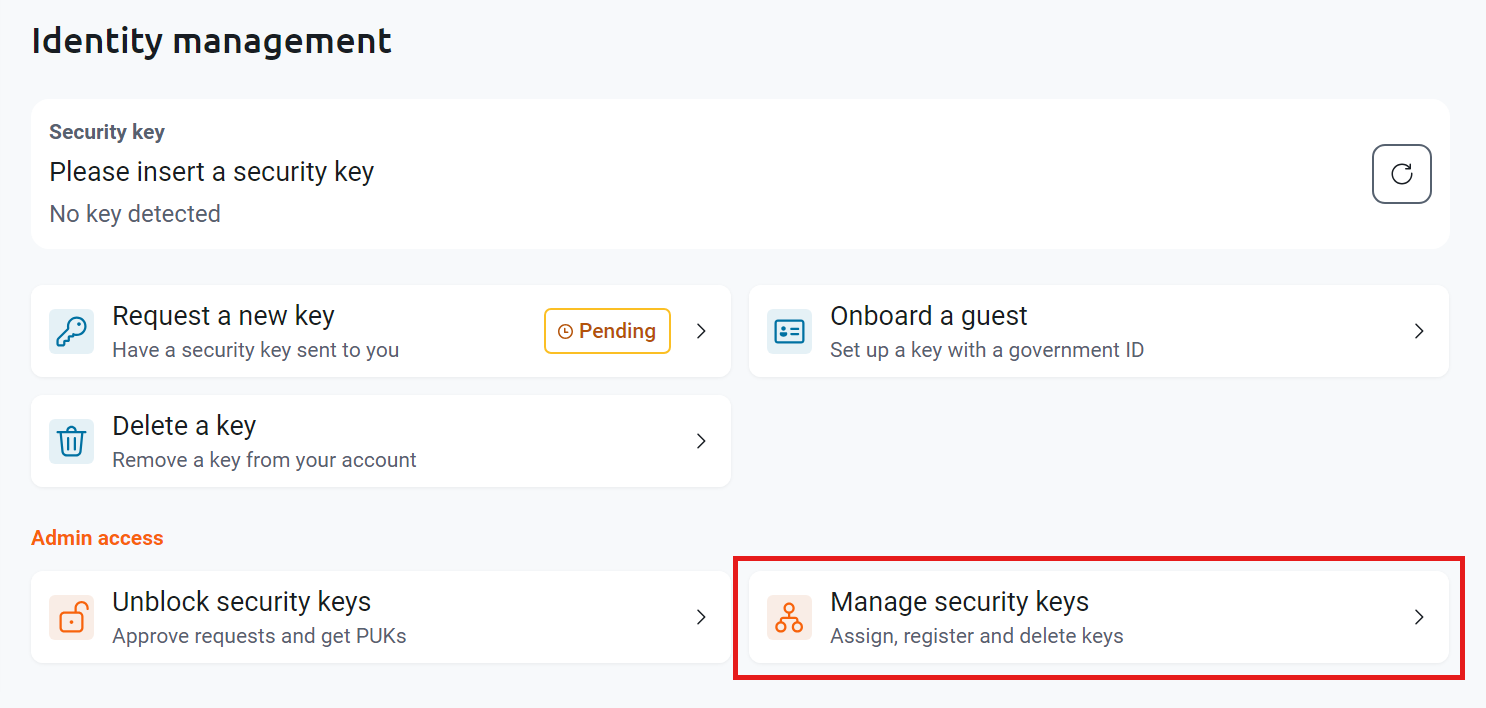
On the Identity management page, under Admin access, click Manage security keys.
-
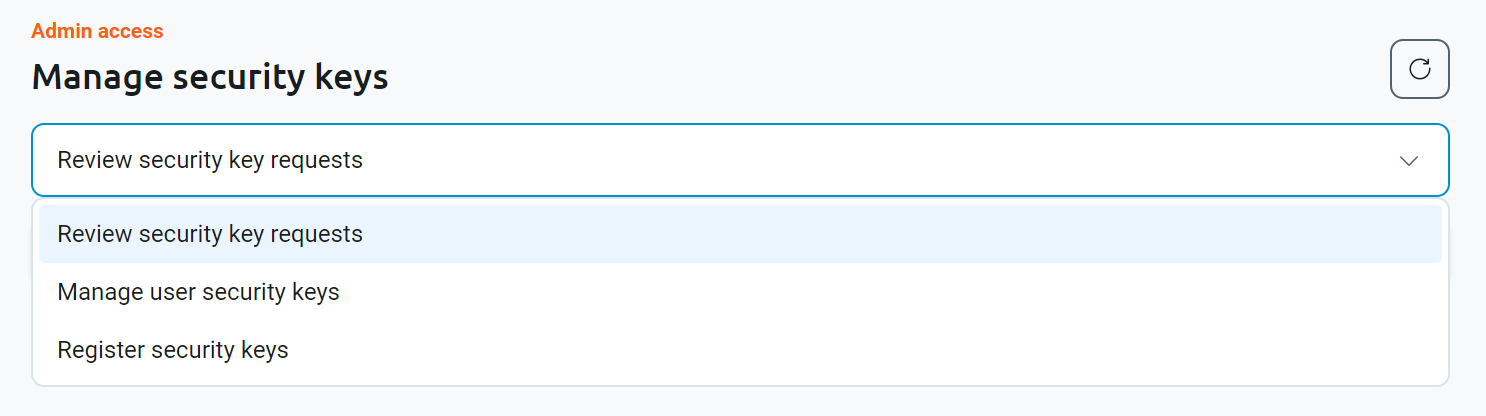
Keep Review security key requests selected in the drop-down. From this drop-down you can also Manage user security keys or Register security keys.
How to Assign a Security Key in Keytos Connect
-
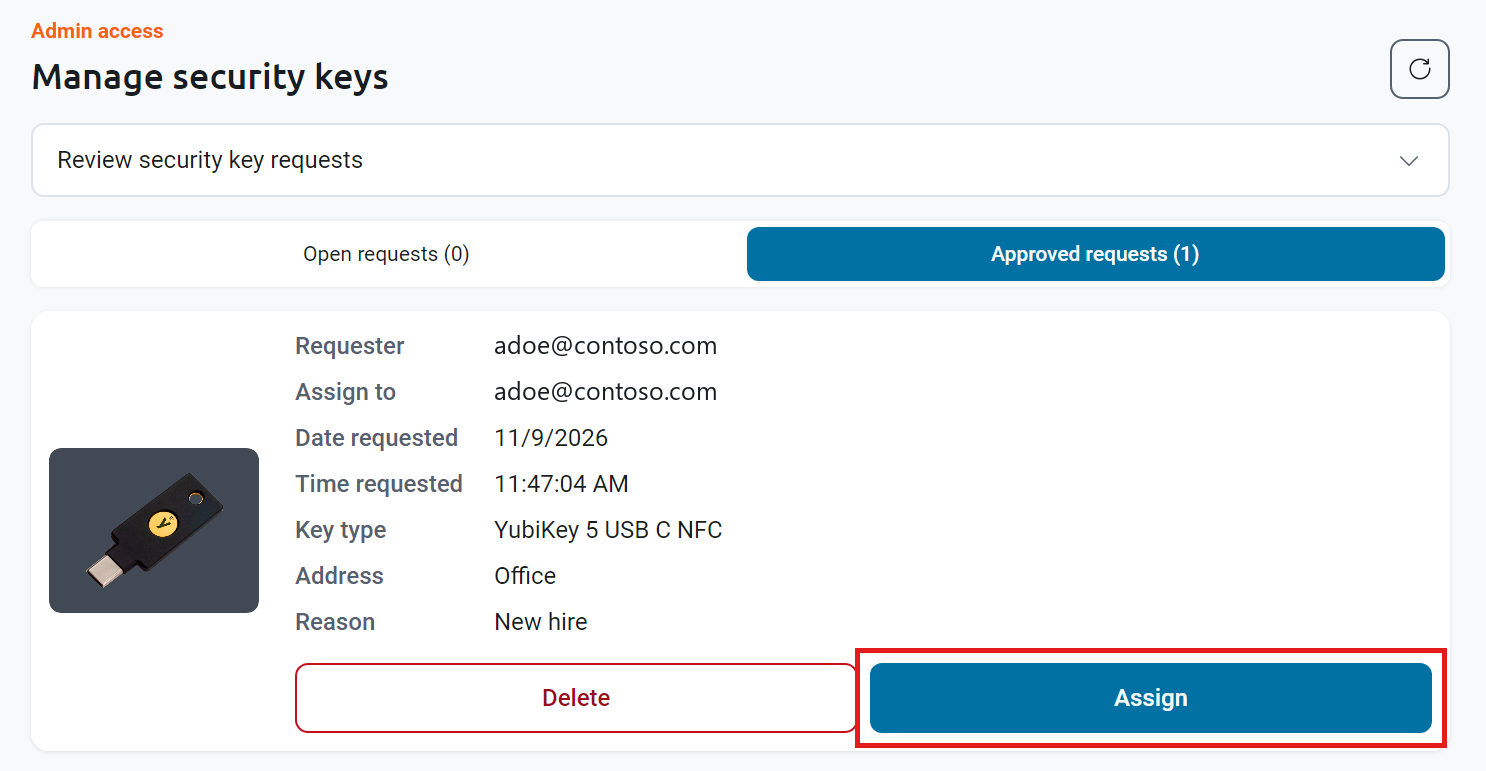
Click Approved requests to see the requests that are waiting for a key. Requests that still need approval are under Open requests.
-
Review the request’s Requester, Assign to, Key type, Address, and Reason, and then click Assign.
-
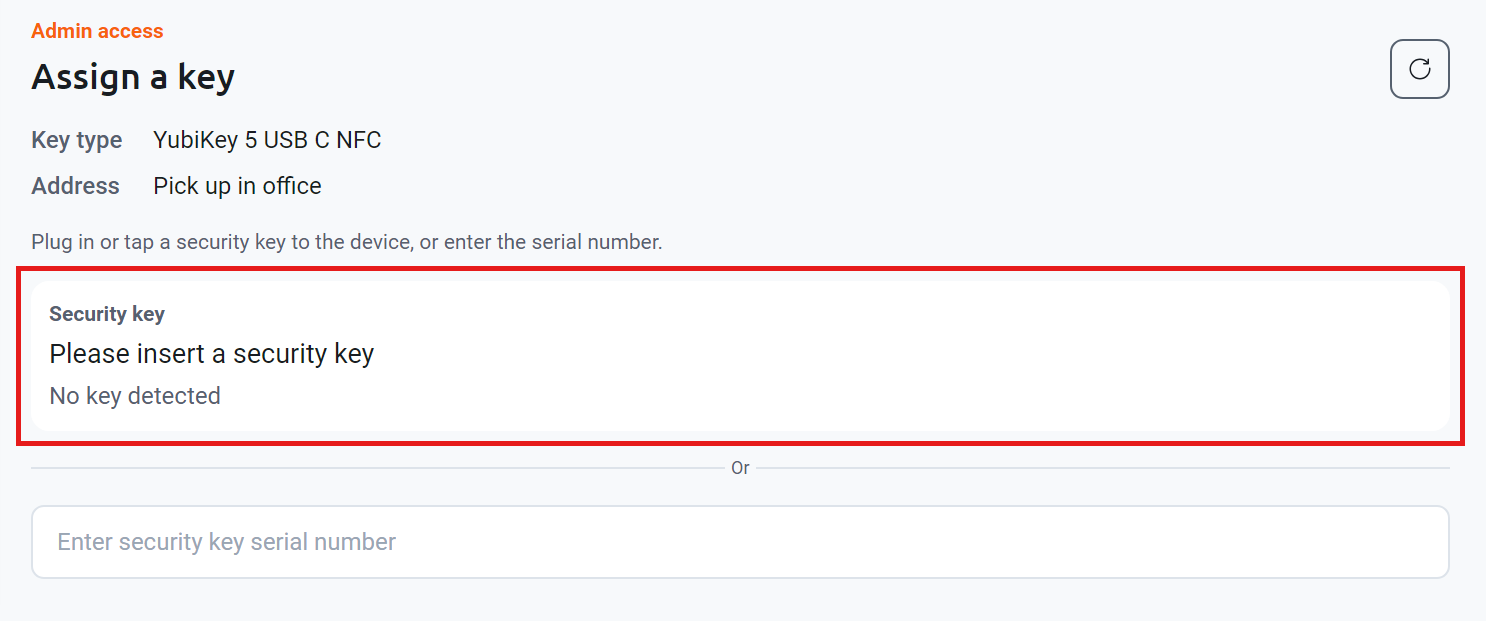
On the Assign a key page, plug in or tap a security key of the requested Key type. You can also type the key’s serial number in the Enter security key serial number box instead.
-
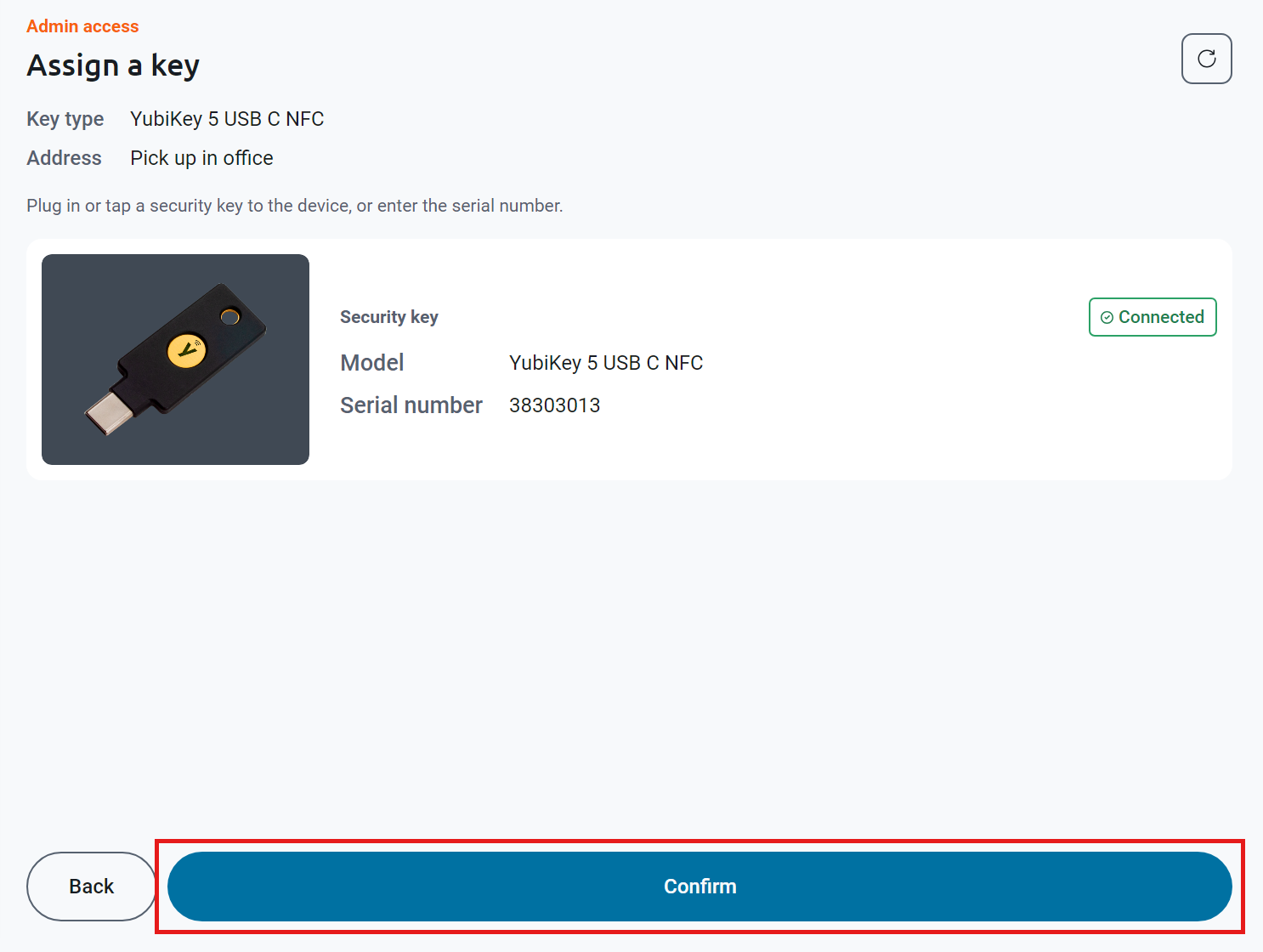
Check that Keytos Connect shows the key as Connected, and that its Model matches the requested Key type. Then click Confirm.
-
Keytos Connect confirms that the security key is assigned. Ship the key to the address on the request, or make it available for pickup in the office, and then click Done.

How to Find Requests That Need a Security Key
-
Open the Keytos Shield global portal in your browser (US Government Portal) and open your region-specific Shield endpoint under Existing subscriptions.
-
From the left-hand menu, expand Identity security and click Requests.
-
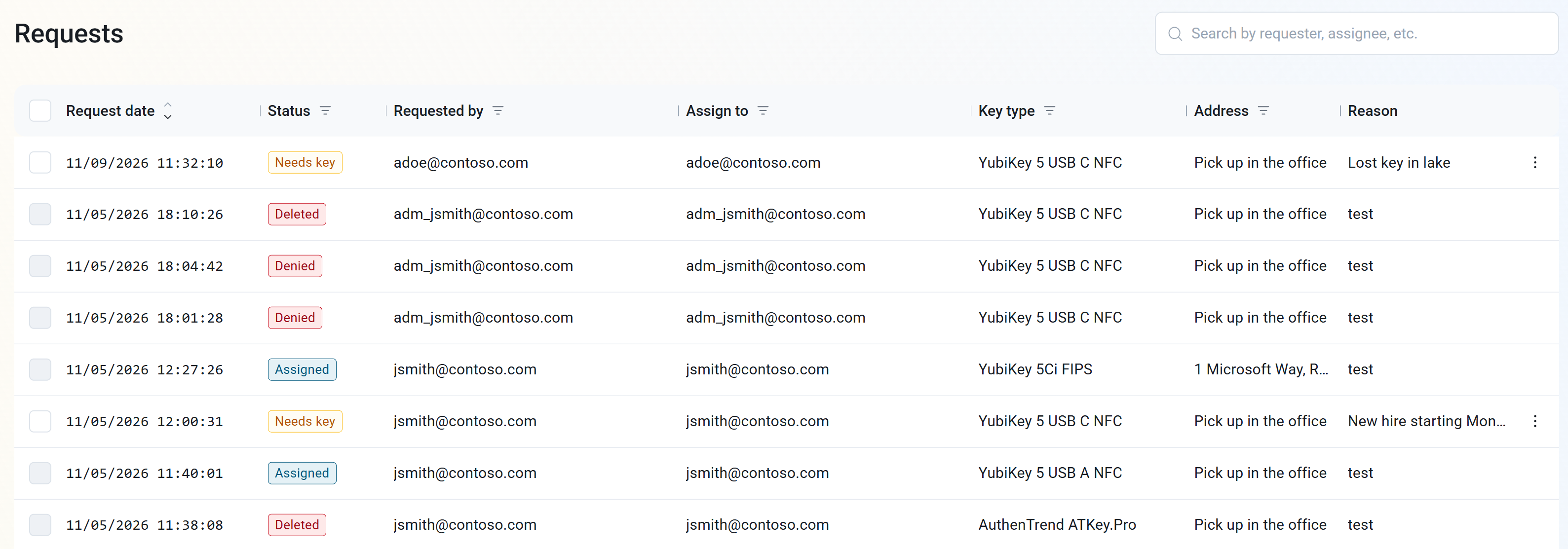
Find the requests with the Needs key status. You can click the filter icon next to Status and select Needs key, or type a user’s name in the Search by requester, assignee, etc. box.
-
Review each request’s details:
- Requested by and Assign to: The user who made the request and the user who will receive the key. These are usually the same user.
- Key type: The security key model the user requested.
- Address: Where the user wants to receive their key, either a shipping address or Pick up in the office.
- Reason: Why the user needs a new key.
How to Assign a Security Key in the Shield Portal
-
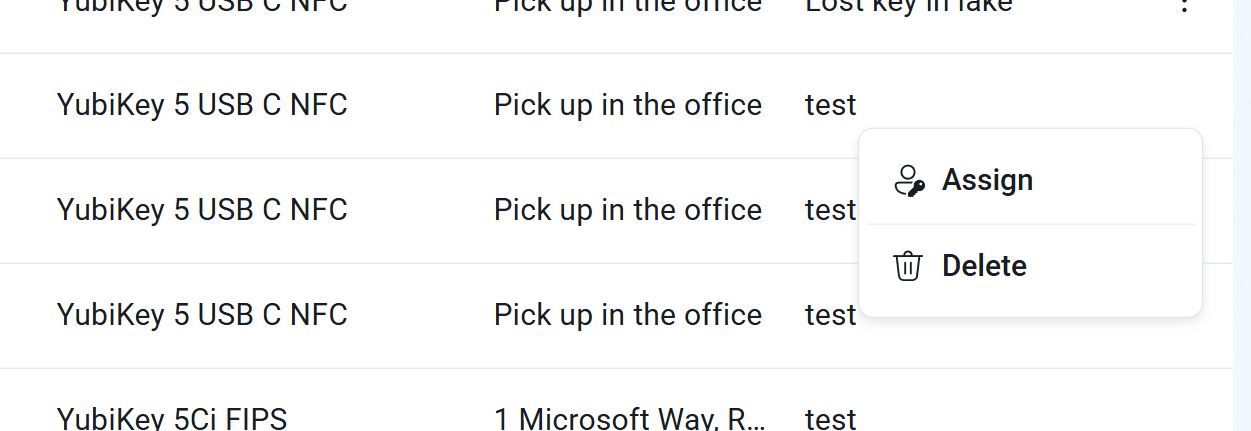
Click the ⋮ actions menu at the end of the request’s row and click Assign.
-
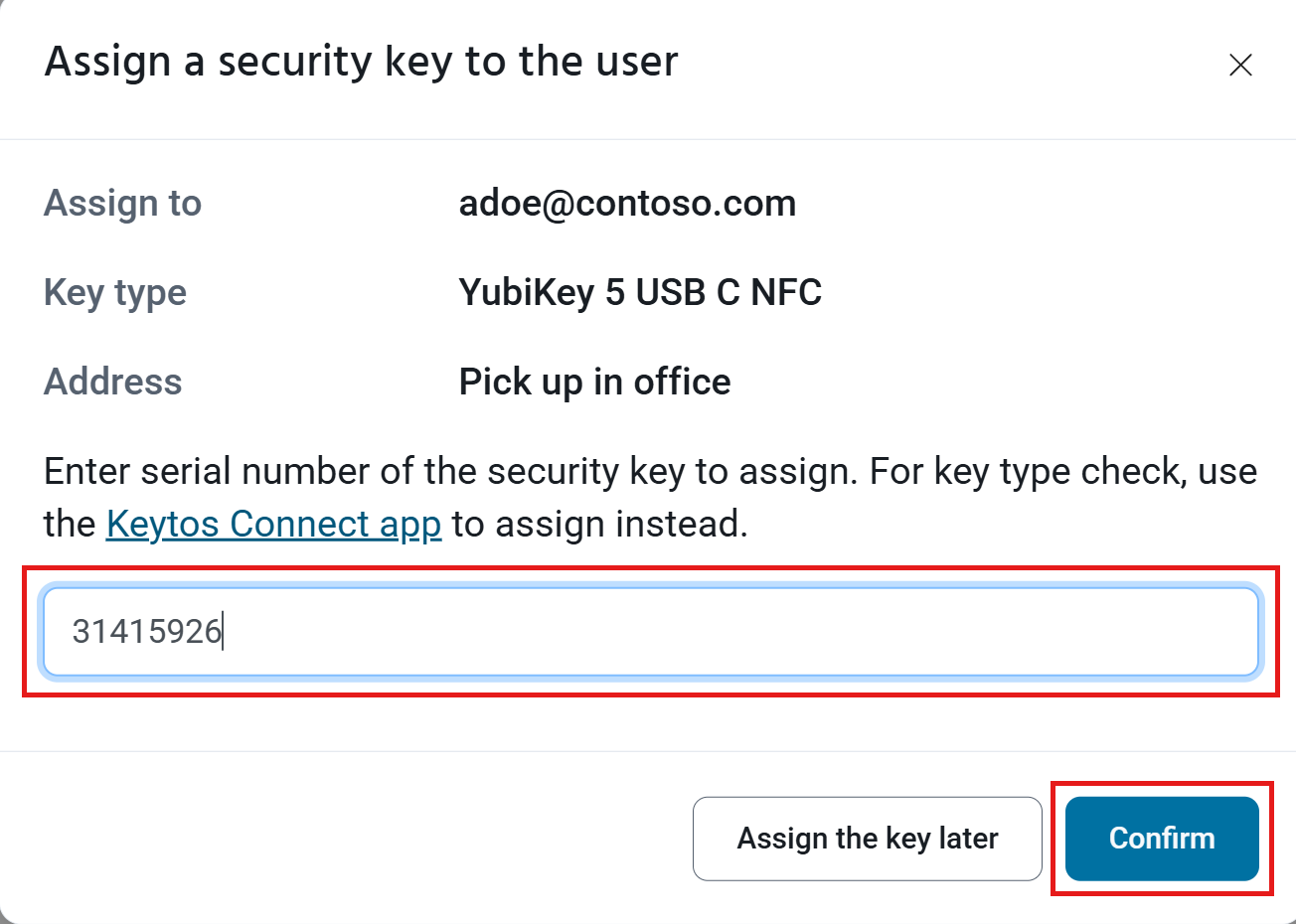
In the Assign a security key to the user dialog, confirm the Assign to, Key type, and Address details.
-
Get a security key of the requested Key type from your inventory, and enter its serial number. The portal doesn’t check that the serial number matches the requested key type, so double-check the model before you continue.
-
Click Confirm to assign the key. If you don’t have the key in hand yet, click Assign the key later to close the dialog. The request keeps the Needs key status so you can come back to it.
-
Ship the security key to the address on the request, or let the user know it’s ready to pick up.
How to Delete a Request You Won’t Fulfill (optional)
If a request was made by mistake or is a duplicate, you can delete it:
- In Keytos Connect: On the request, click Delete.
- In the Shield portal: Click the ⋮ actions menu at the end of the request’s row and click Delete. Deleted requests stay in the list with the Deleted status.