













Connect to Work or School Wi-Fi on macOS with Keytos Connect
Connect to Work or School Wi-Fi on macOS with Keytos Connect
If your workplace or school allows personal and bring-your-own-devices (BYOD) to connect to their Wi-Fi network, Keytos Connect simplifies the process and makes it as easy as just a few clicks to get connected.
Simply download Keytos Connect for macOS, sign in, and you’ll be up and running in no time. Keytos Connect will automatically detect the Wi-Fi network and configure your device to connect securely without the need for any manual configuration.
How to Connect to Work or School Wi-Fi on macOS with Keytos Connect - Step-by-Step Guide
The following steps will walk you through how to use the Keytos Connect application for macOS and connect to your workplace or school Wi-Fi network:
Step 1: How to Install and Sign In to Keytos Connect
If you haven’t already, install Keytos Connect on your macOS device and sign in with your work or school account.
Step 2: How to Install Your Wi-Fi Profiles on macOS
Once you’re signed in to Keytos Connect, you can install your available Wi-Fi profiles.
-
Open Keytos Connect and sign in.
-
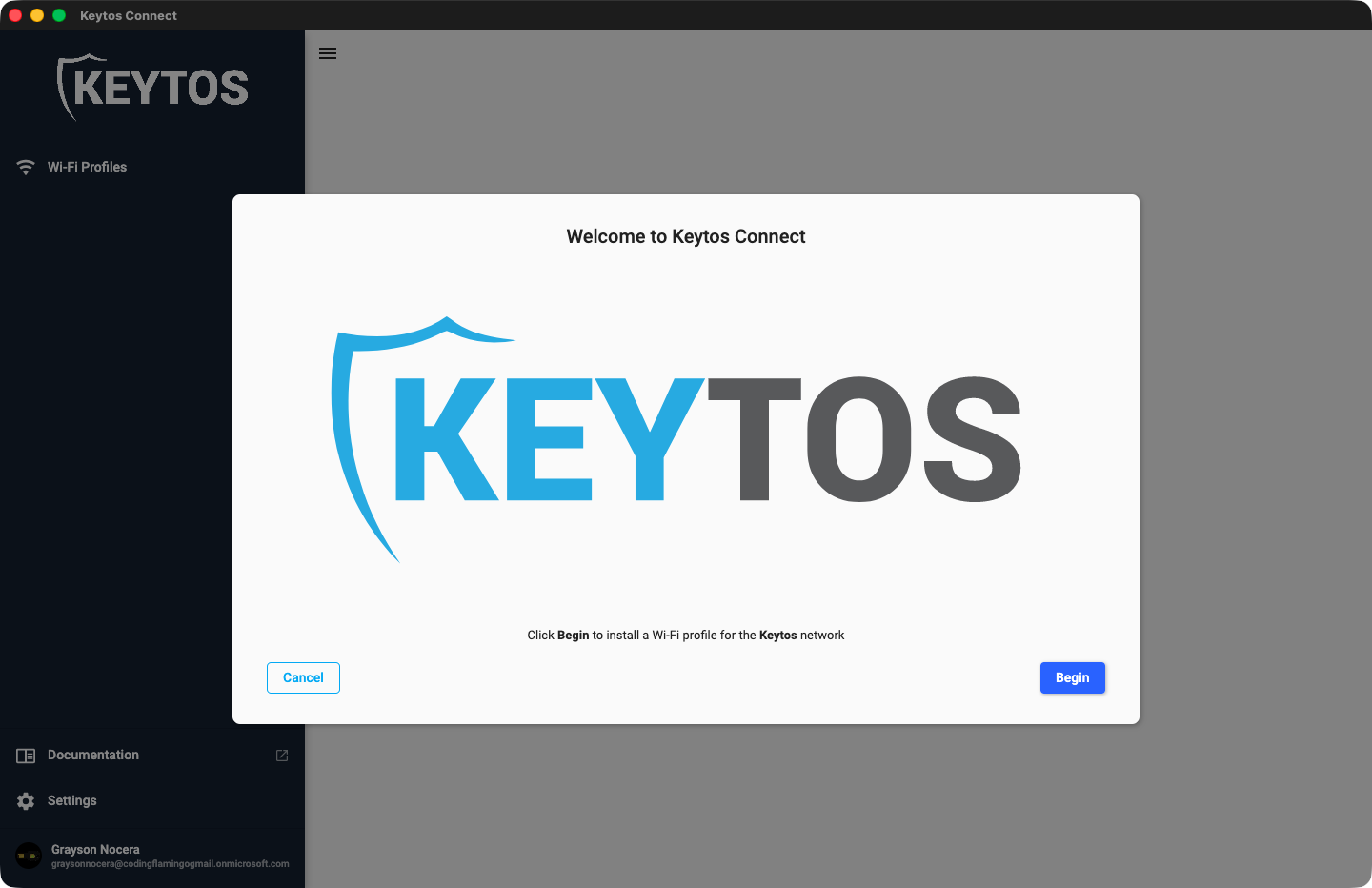
The first time you sign in, Keytos Connect begins the Wi-Fi profile installation. Click Begin to start the installation process. If it doesn’t start, look for Install your Wi-Fi profile under Recommended actions on the Identity management page, and click Install.
-
Keytos Connect will guide you through the process of installing an Apple Management Profile containing the certificates and Wi-Fi configuration required to connect.
-
When prompted, open System Settings and click Profile Downloaded.
-
Open the Keytos Connect profile being installed and click Install.
-
Return to the Keytos Connect application and click Next.
-
If your workplace or school has multiple Wi-Fi networks Keytos Connect will guide you through the installation process again. If it’s just the one network, you will be returned to the Keytos Connect home screen.
Step 3: How to Connect to Your Workplace or School Wi-Fi on macOS
Now that you have installed your Wi-Fi profile(s), you can connect to your workplace or school Wi-Fi. If your Wi-Fi network is configured to auto-connect, you should automatically connect to the network. If the network is not configured to connect automatically, you can:
- In your macOS menu bar, select the Wi-Fi icon to view available networks.
- Select your workplace or school’s Wi-Fi network to begin a connection.
- You should connect within 5-10 seconds.
- Done! You are now connected to your workplace or school Wi-Fi.
How to Troubleshoot a Failed Wi-Fi Connection on macOS After Configuring Keytos Connect
Having trouble signing in? See how to troubleshoot signing in to Keytos Connect.
Failed to Install Wi-Fi Profiles Using Keytos Connect on macOS
If Keytos Connect failed to install the Wi-Fi profile during initial onboarding start by verifying the following:
- Make sure you are a local administrator on your device. Standard, non-administrator accounts won’t be able to install the Apple Management Profile to communicate with your workplace or school Wi-Fi.
- Make sure your device isn’t managed by another Mobile Device Management (MDM) platform such as Microsoft Intune or Jamf. If both try to apply the same certificates or Wi-Fi profile they can conflict and cause unexpected results.
- Make sure you accept the management profile installation. If it timed out or was dismissed you can restart the installation process from the Keytos Connect home screen.
If you’ve verified the above steps and still cannot complete the Wi-Fi profile installation, consult your workplace or school’s IT team.
Failed to Connect to Wi-Fi Network on macOS
If you’ve successfully installed your workplace or school’s Wi-Fi profiles and cannot connect to the Wi-Fi network, verify the following:
- Make sure Wi-Fi is enabled on your device.
- Make sure you’re connecting to the correct Wi-Fi profile and SSID. The Keytos Connect homepage will show you which networks are configured on your device.
- Try removing and reinstalling the Wi-Fi profile.
- Make sure you complete the Profile installation process in your Settings app after Keytos Connect begins the installation process.
If you’ve verified the above steps and still cannot connect to Wi-Fi, consult your workplace or school’s IT team.
Still Being Prompted For Your Username and Password When Connecting To Wi-Fi
After installing your Wi-Fi profile, you should automatically connect to your workplace or school Wi-Fi network without being prompted for your username and password. If you are still being prompted for your username and password, please re-open the Keytos Connect application and re-install your Wi-Fi profile. If you continue to receive this error message, please consult your workplace or school’s IT team.
Make sure you complete the Profile installation process in your Settings app. Keytos Connect requires you to open Settings and review and approve the profile installation. If you do not complete this step, your Wi-Fi profile will not be installed and you will not be able to connect to your workplace or school Wi-Fi network.
How To Uninstall a Wi-Fi Profile in Keytos Connect on macOS
If you no longer need to connect to your workplace or school Wi-Fi or need to attempt a reinstallation, follow these steps:
How To Remove a Wi-Fi Profile in the Keytos Connect Application
To uninstall a Wi-Fi profile in the Keytos Connect application:
- Open the Keytos Connect application.
- Click the three-dots icon (⁝) next to the Wi-Fi profile name that you want to remove.
- Select Remove Profile to delete your Wi-Fi profile.
- Keytos Connect will automatically delete all the previously installed certificates and network profile.
How to Manually Remove a Keytos Connect Wi-Fi Profile in macOS
If you’re unable to access the Keytos Connect application and you want to remove and clean up a previous network connection on macOS, follow these steps:
- Open System Settings and select General from the left-hand menu.
- Scroll down and select Device Management Profiles.
- Select your Keytos Connect management profile.
- Click Remove to delete the profile.