










How-To: View Identity Logs in Keytos Shield
Overview - What are Keytos Shield Identity Logs?
The Keytos Shield Identity logs page is your audit trail for identity security. It records activity across your users’ security keys, from the first key request through certificate issuance, passkey creation, and recovery. Use it to answer questions such as who requested a key, when a user’s key was unblocked, or whether a user completed ID verification.
What Can I See in Keytos Shield Identity Logs?
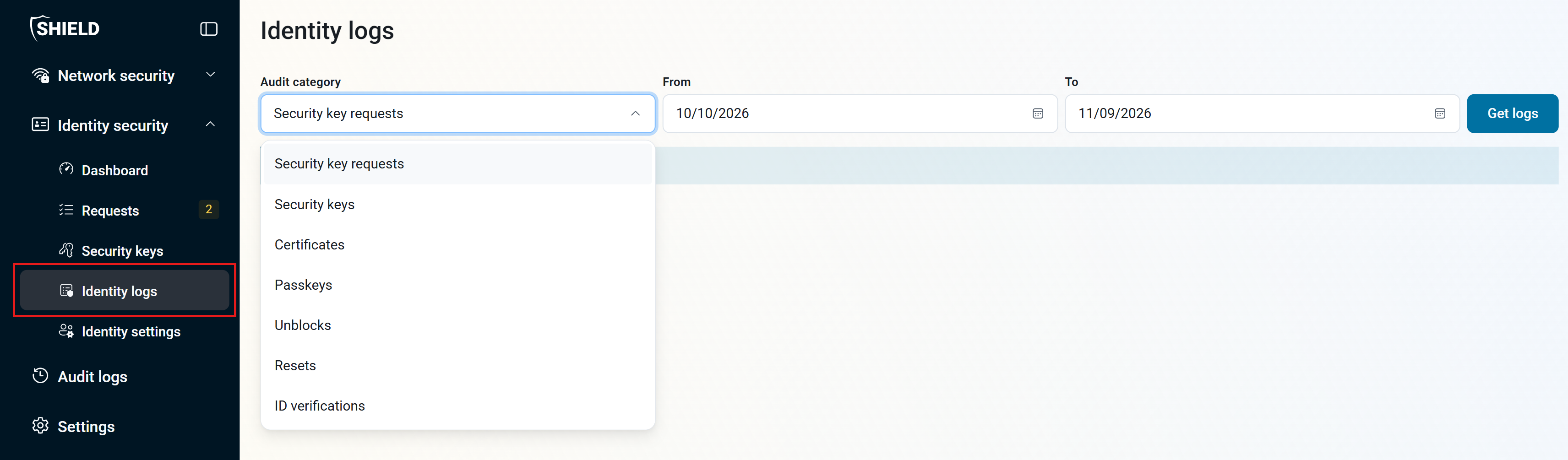
Identity logs are grouped into audit categories. You view one category at a time:
| Audit category | What it covers |
|---|---|
| Security key requests | Activity on users’ requests for new security keys. See how to fulfill security key requests. |
| Security keys | Activity on the security keys in your inventory. See how to manage your security key inventory. |
| Certificates | Activity on the smart card (CBA) certificates on users’ security keys. |
| Passkeys | Activity on the FIDO2 passkeys on users’ security keys. |
| Unblocks | Activity on unblocking security keys after too many wrong PIN attempts. See unblock options. |
| Resets | Activity on resetting security keys. |
| ID verifications | Activity on users verifying their identity with a government ID and face recognition. |
Looking for changes administrators made to your Shield subscription and settings instead? Use Audit logs in the Shield portal’s left-hand menu, or export your Shield audit logs to a SIEM platform.
Prerequisites for Viewing Identity Logs in Keytos Shield
- You have completed Keytos Shield identity security onboarding.
- You have the Owner, Identity Administrator, or Identity Log Reader role on your Keytos Shield subscription.
Step-by-Step Guide - How to View Identity Logs in Keytos Shield
Step 1 - How to Open the Identity Logs Page
- Open the Keytos Shield global portal in your browser (US Government Portal) and open your region-specific Shield endpoint under Existing subscriptions.
- From the left-hand menu, expand Identity security and click Identity logs.
Step 2 - How to Choose a Category and Date Range
-
Open the Audit category drop-down and select the category you want to review, for example Security key requests or ID verifications.
-
In From and To, choose the date range you want to see. By default, the page shows the last 30 days.
-
Click Get logs to load the logs for that category and date range.
-
To review a different category or time period, change the Audit category or dates and click Get logs again.
Next Steps - How to Export Your Keytos Shield Logs
To keep your audit logs alongside the rest of your security data, set up alerts, or retain them longer, export your Keytos Shield audit logs to a SIEM platform such as Microsoft Sentinel.