
















How-To: Configure Smart Card and Security Key Settings in Keytos Shield
Overview - What are Keytos Shield Smart Card Settings?
The Smart cards settings control which security key models your users can request and how those keys protect their credentials. This includes how often users must touch their key, when they must enter their PIN, and how strong that PIN must be. We recommend keeping the defaults unless you have a specific compliance requirement, because they give you the strongest phishing-resistant protection.
Prerequisites for Configuring Smart Card Settings
- You have completed Keytos Shield identity security onboarding.
- You have the Owner or Identity Administrator role on your Keytos Shield subscription.
Step-by-Step Guide - How to Configure Smart Card Settings in Keytos Shield
Step 1 - How to Open the Smart Card Settings
-
Open the Keytos Shield global portal in your browser (US Government Portal) and open your region-specific Shield endpoint under Existing subscriptions.
-
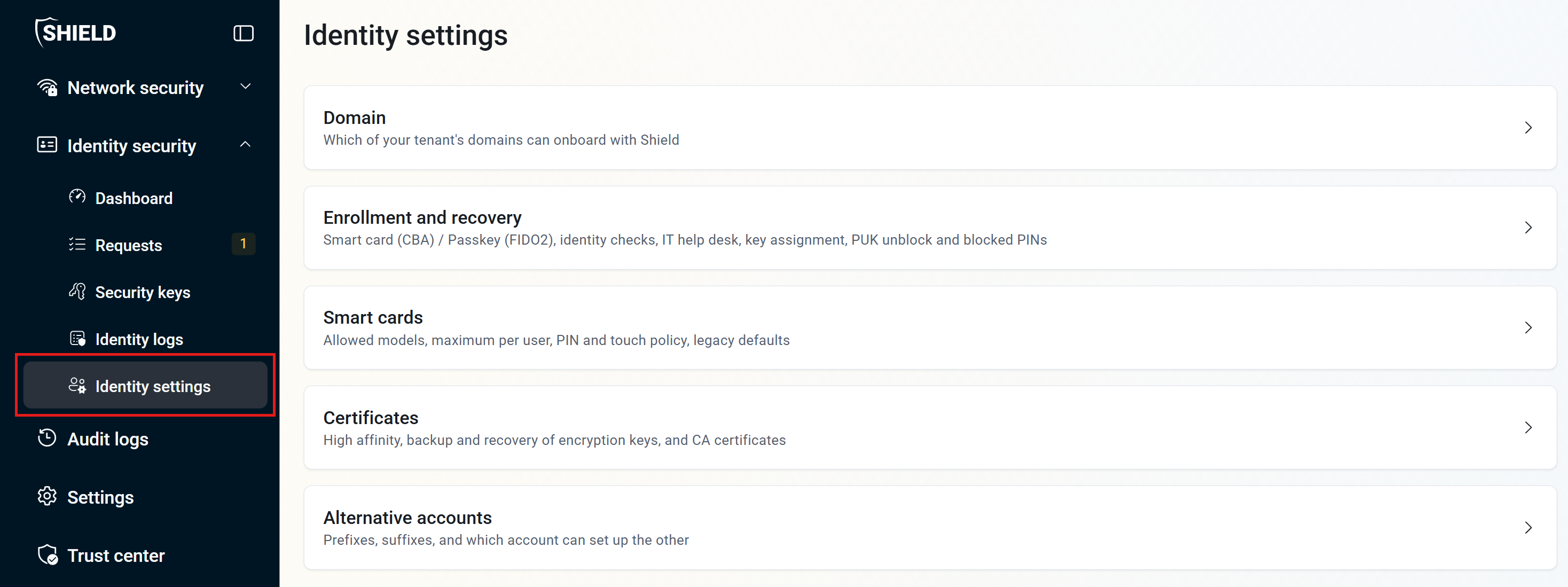
From the left-hand menu, expand Identity security and click Identity settings.
-
Click Smart cards.
Step 2 - How to Choose Which Security Keys Users Can Request
-
For What types of security keys can users request?, open the drop-down and select the security key models you want to allow. All key types includes every supported AuthenTrend, HID Crescendo, and YubiKey 5 series model. At least one must be selected.

-
For What countries/regions do you ship to?, select a country or region and click Add to limit where users can have security keys shipped. Keep All countries if you ship security keys anywhere.

-
For Maximum number of security keys allowed per user, select a number from 1 to 8. We recommend allowing at least 2, so users can keep a backup security key in case their main key is lost.

Step 3 - How to Set the Smart Card Touch Policy
The touch policy controls when a user must physically touch their security key to use its smart card certificate. Requiring a touch proves a person is present, so malware on the computer can’t silently use the key.
-
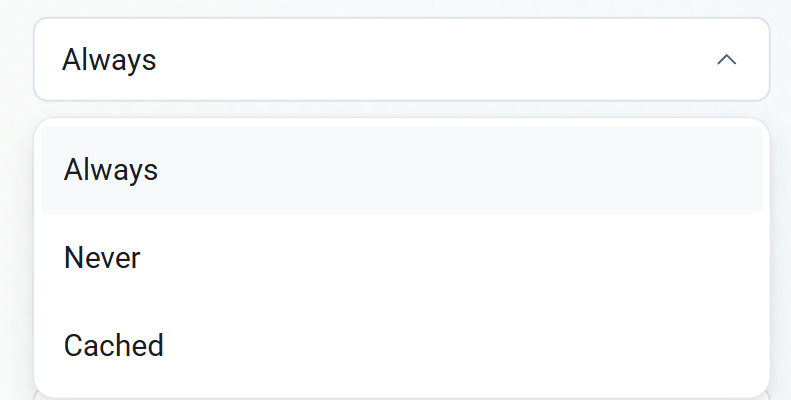
For Smart card touch policy, select one of these options:
- Always (recommended): Users touch their key every time the certificate is used.
- Cached: A touch is remembered for a few seconds, so back-to-back operations only need one touch.
- Never: Users never need to touch their key.
Step 4 - How to Set the PIN Protection Policy
-
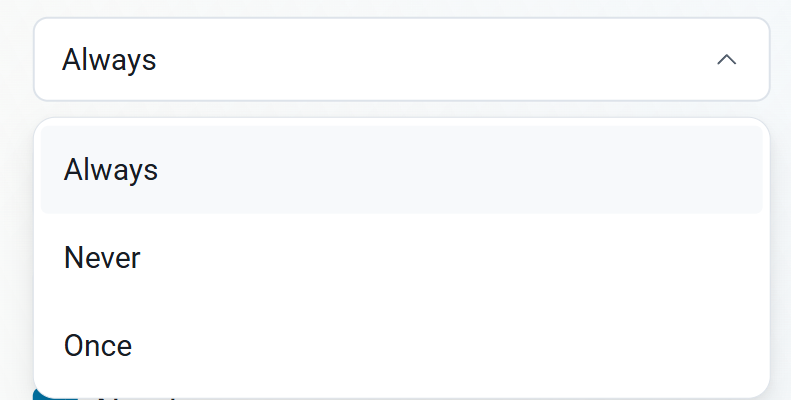
For PIN protection policy, select when users must enter their PIN to use the smart card certificate:
- Always (recommended): Users enter their PIN every time the certificate is used.
- Once: Users enter their PIN once, and it stays unlocked until the key is removed.
- Never: Users never need to enter a PIN. We don’t recommend this, because anyone who has the key can use it.
Step 5 - How to Set PIN Retries and PIN Complexity
-
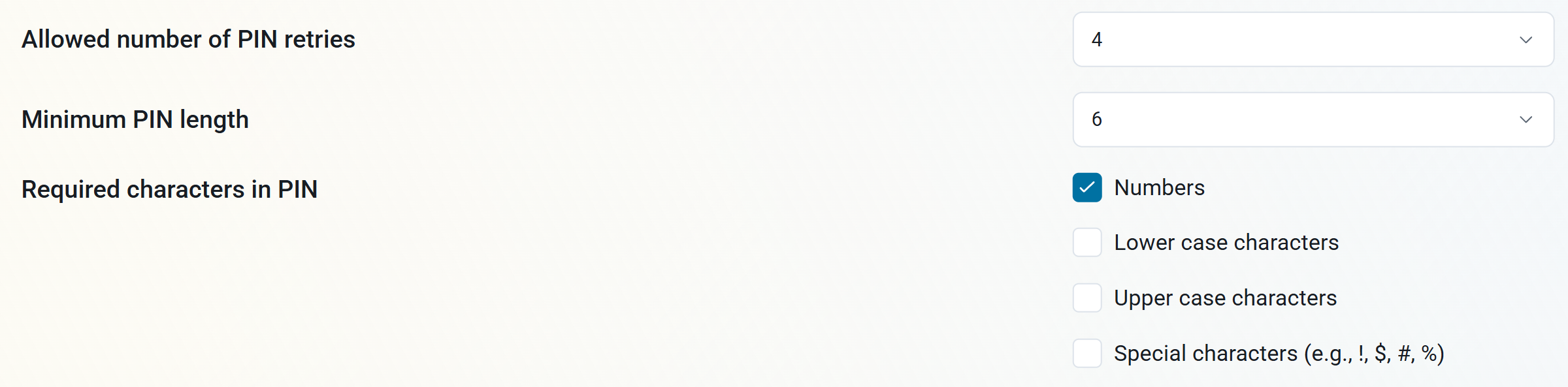
For Allowed number of PIN retries, select how many wrong PINs a user can enter before their security key is blocked. The default is 4. Blocked keys can be unblocked based on your enrollment and recovery settings.
-
For Minimum PIN length, select 6, 7, or 8 characters.
-
Under Required characters in PIN, check every type of character a PIN must include: Numbers, Lower case characters, Upper case characters, and Special characters.
-
Click Save changes at the top right of the page.
Done! Your smart card settings are saved.