














How to Troubleshoot Work or School Wi-Fi with Keytos Connect
Overview - Why Can’t My Computer Connect to Work or School Wi-Fi?
When your computer won’t join your workplace or school Wi-Fi, Windows rarely tells you why. Keytos Connect’s Diagnose Wi-Fi feature checks your Wi-Fi profile, your certificate, and your organization’s RADIUS server certificate, runs a test connection, and tells you in plain language what’s wrong and who can fix it.
Diagnose Wi-Fi works with two kinds of Wi-Fi profiles:
- Wi-Fi profiles installed by Keytos Connect: the profiles you install from the Wi-Fi profiles page. Most problems with these profiles are fixed by reinstalling the profile.
- Wi-Fi profiles from your organization’s device management (MDM): profiles pushed to your computer by Microsoft Intune, Group Policy, or another MDM platform. Keytos Connect can diagnose these too, and tells you what to ask your IT admin to change.
Prerequisites for Diagnosing Wi-Fi with Keytos Connect
- You’re on a Windows computer. Diagnose Wi-Fi isn’t available on macOS, Linux, iOS, iPadOS, or Android yet.
- You have installed Keytos Connect and signed in with your work or school account, using the latest version.
- The network signs in with a certificate or your work account, not a shared password. Networks with a shared password, such as your home Wi-Fi, can’t be diagnosed.
Step-by-Step Guide - How to Diagnose Wi-Fi Connection Problems with Keytos Connect
Step 1: How to Run Diagnose Wi-Fi in Keytos Connect
Diagnose Wi-Fi checks how a work or school Wi-Fi network is set up on a Windows computer, optionally runs a test connection, and explains in plain language why the computer can’t connect. It works for Wi-Fi profiles installed by Keytos Connect and for profiles pushed by Microsoft Intune, Group Policy, or another device management (MDM) platform. It never installs, changes, or removes a Wi-Fi profile.
Follow these steps on the computer that can’t connect:
-
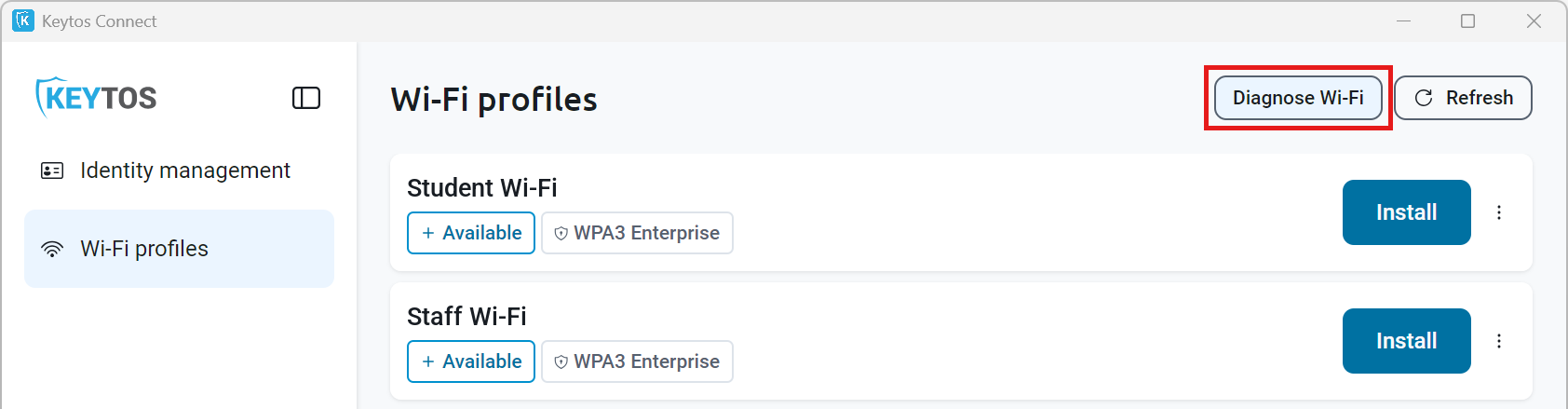
Open Keytos Connect and select Wi-Fi profiles from the left-hand menu.
-
Click Diagnose Wi-Fi at the top of the page. This button is there even when you have no Wi-Fi profiles installed or Wi-Fi is turned off.
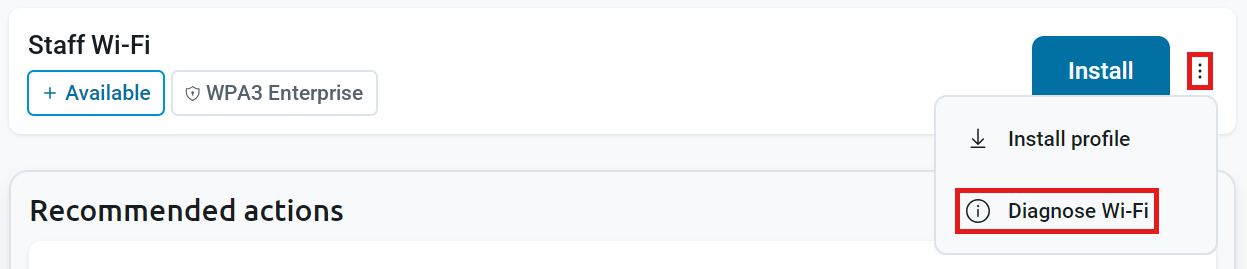
You can also click the three-dots icon (⁝) next to a Wi-Fi profile and select Diagnose Wi-Fi.
-
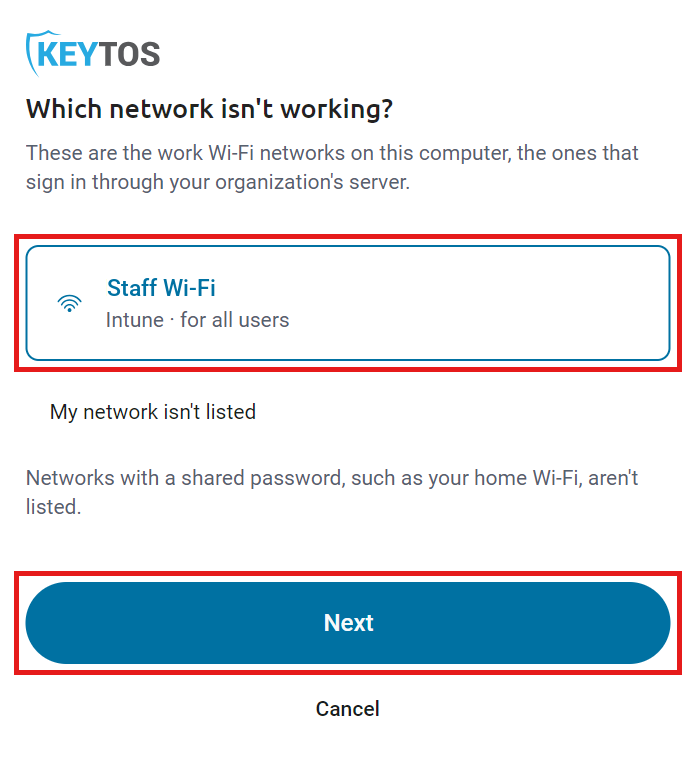
Under Which network isn’t working?, select the network you can’t connect to. Keytos Connect lists the work Wi-Fi networks on this computer that sign in through your organization’s server, along with who installed each profile (such as Keytos Connect, Intune, or Group Policy) and whether it’s installed for all users. Networks with a shared password, such as your home Wi-Fi, aren’t listed.
-
(If your network isn’t listed) Click My network isn’t listed. Keytos Connect then shows the work networks that are in range or assigned to you, but that have no Wi-Fi profile on this computer. Click Show the networks on this computer to go back to the first list.
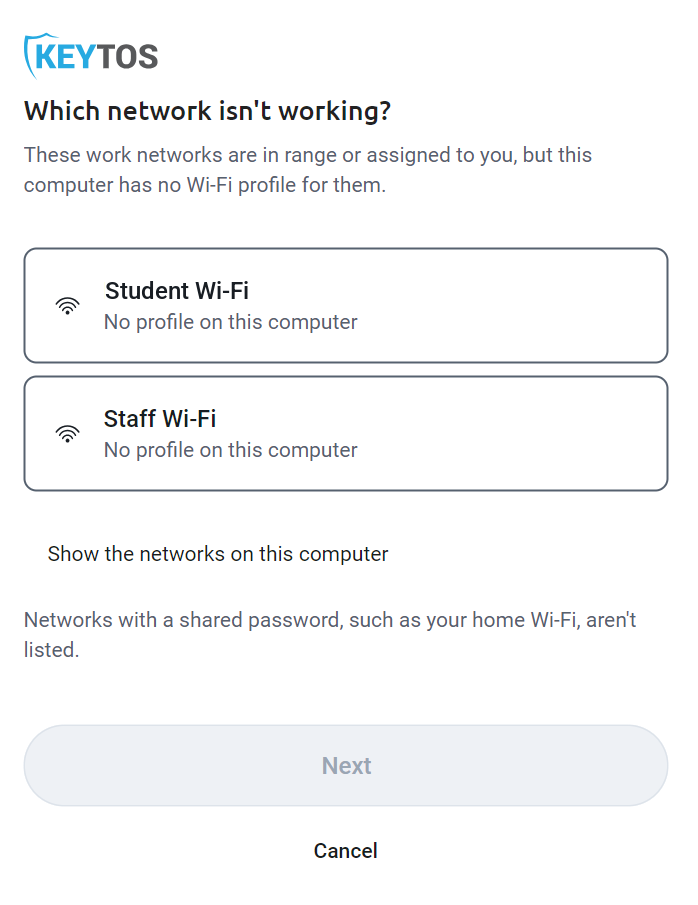
Don’t See the Networks in Range? On Windows 11, Keytos Connect can only see the networks in range when location access is on. Turn on Let desktop apps access your location in Settings > Privacy & security > Location, then run Diagnose Wi-Fi again.
-
Click Next.
-
Leave Include a test connection checked. We recommend keeping it checked, because many sign-in problems only show up during a real connection attempt, and the test shows exactly where Windows gets stuck. During the test, the computer is offline for up to 2 minutes, then Keytos Connect reconnects it to the network it was on.
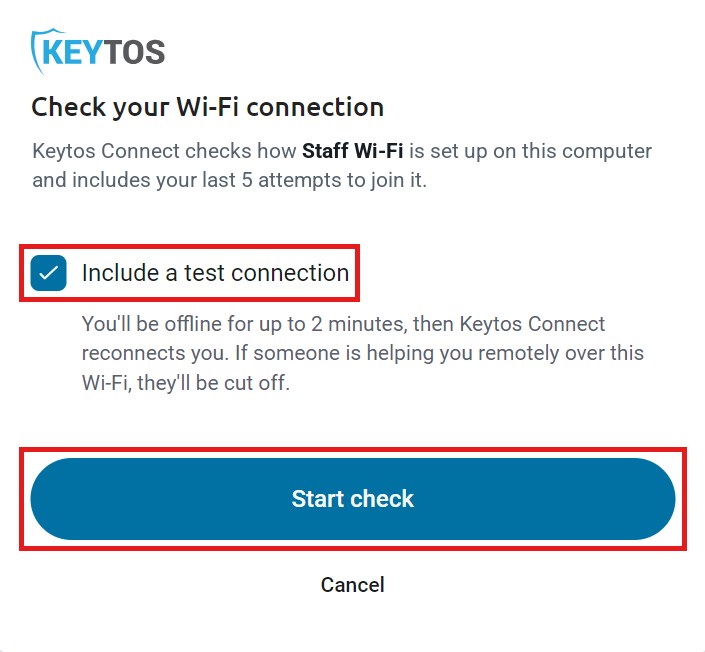
Helping Someone Remotely? The test connection disconnects the computer from Wi-Fi, so anyone helping remotely over that Wi-Fi is cut off until it reconnects. In a Remote Desktop session, the test connection isn’t available. The test also needs the computer to have a Wi-Fi profile for the network.
-
Click Start check.
-
Keep Keytos Connect open while it runs its checks. It shows which step it’s on, and the last step is the test connection. Click Stop if you need to cancel.
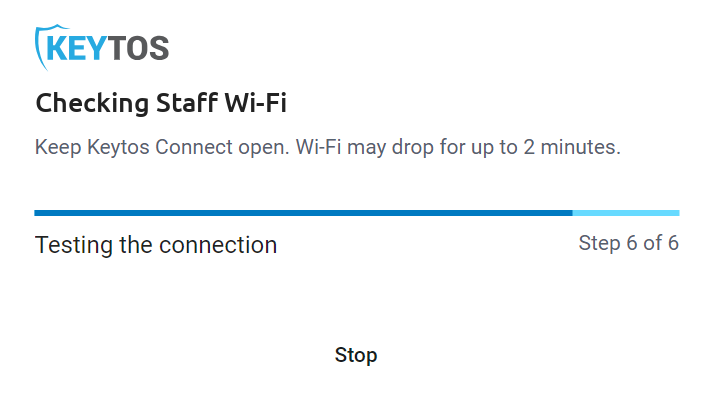
When the checks finish, Keytos Connect shows the Diagnostic report.
Step 2: How to Read Your Keytos Connect Diagnostic Report
The Diagnostic report puts the answer first. The top card shows the most important finding, with a status of Problem, Warning, or Passed and what to do next. If every check passed but you skipped the test connection, the report says No problems found on this computer, and we recommend running it again with Include a test connection checked.
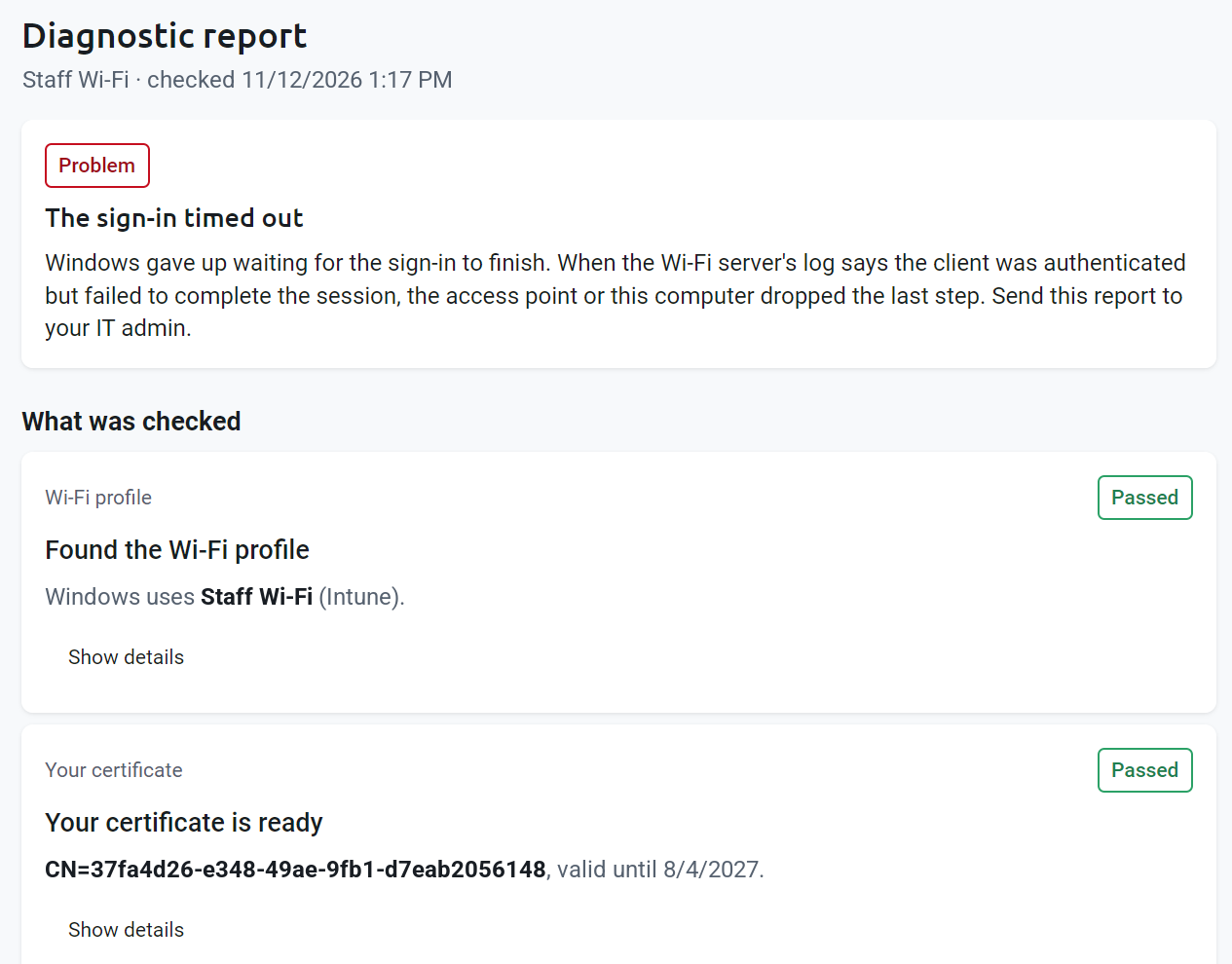
Below the answer, the report shows:
- What was checked: one card for each check, with its status and finding. Click Show details to see the values Keytos Connect found, such as the profile name, who installed it, the certificate’s issuer and expiration date, and the trusted root certificates.
- What Windows did during the test: every Windows Wi-Fi and sign-in event from the test connection, timed from the moment Windows started connecting. For example, a
Sign-in restarted: Onex Auth Timeoutabout 30 seconds afterSign-in startedmeans Windows waited 30 seconds for the sign-in to finish and gave up. - Your last attempts: up to the last 5 times this computer tried to join the network in the last 7 days, and how each one ended.
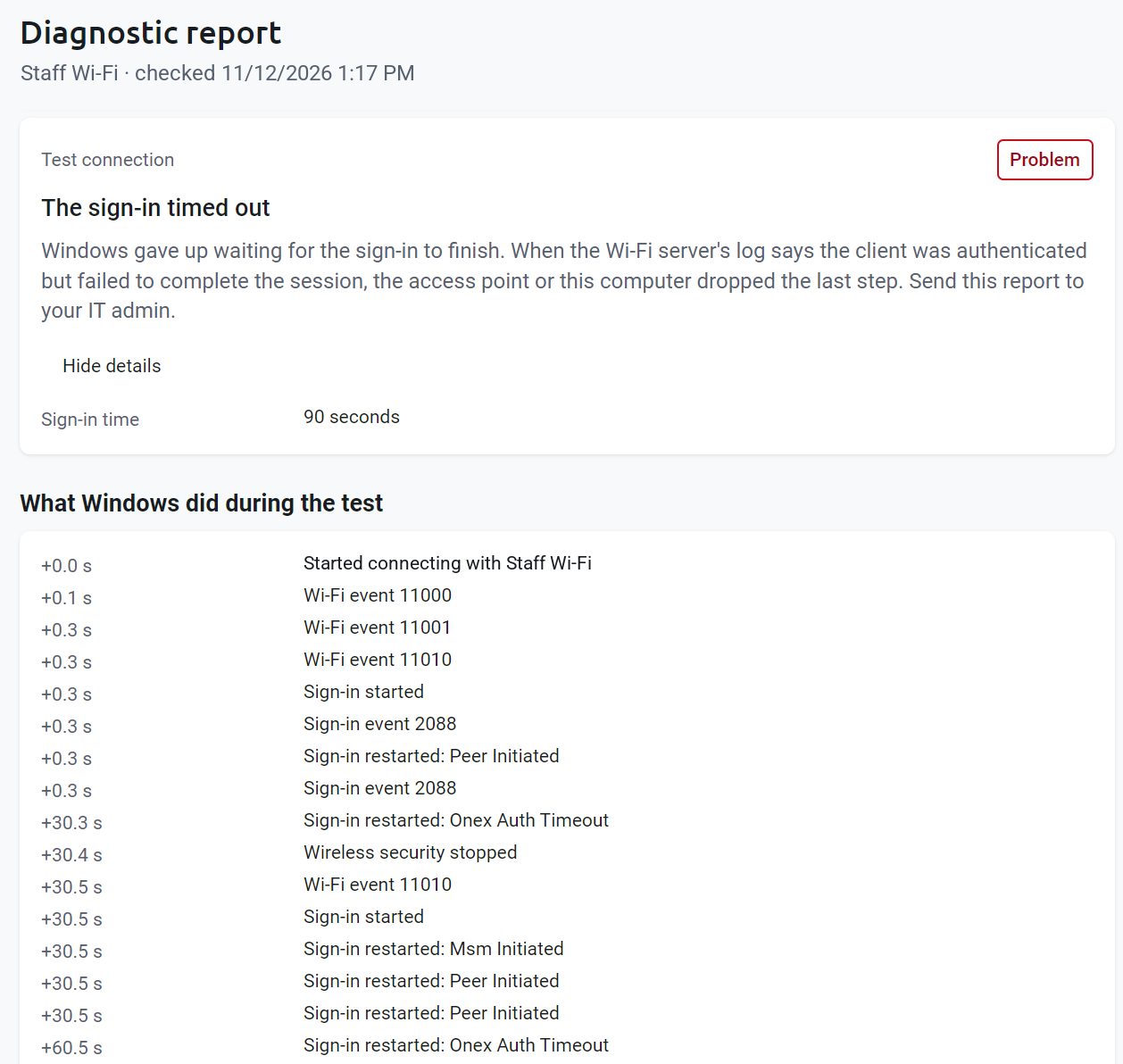
The report checks the following, in order:
| Check | What Keytos Connect looks at |
|---|---|
| Wi-Fi profile | Whether this computer has a Wi-Fi profile for the network, who installed it (Keytos Connect, Intune, Group Policy, Device management, or Source unknown), and whether a Keytos Connect profile still matches your organization’s current settings. |
| Your certificate | Whether this computer has a certificate the profile accepts, and whether it has expired, isn’t valid yet, was revoked, or has a private key Windows can’t open. |
| Root certificates | Whether the root certificate the profile trusts is installed where the profile looks for it. |
| Wi-Fi server’s certificate | Whether the profile trusts the certificate your organization’s RADIUS server presents, including its root certificate, certificate chain, validity dates, and server name. |
| Other profiles for this network | Whether more than one Wi-Fi profile exists for the same network name, such as one from Keytos Connect and one from Intune. |
| Test connection | What happened when Windows disconnected and connected to the network with its profile. |
These are the findings you’re most likely to see, and how to fix them. Who fixes a problem depends on who installed the Wi-Fi profile: Keytos Connect can fix its own profiles when you reinstall them, while a profile from Intune, Group Policy, or another MDM has to be fixed by your IT admin in that tool.
| Finding | What it means | How to fix it |
|---|---|---|
| This computer has no Wi-Fi profile for this network | Windows has nothing to connect with. | If your organization assigns the network to you in Keytos Connect, install it from the Wi-Fi profiles page. Otherwise, your IT admin needs to check that the MDM assigns the Wi-Fi profile to this computer. |
| The Wi-Fi profile trusts an old server certificate | Your organization changed the root certificate of its RADIUS server, and the Keytos Connect profile still trusts the old one. | Reinstall the profile from the Wi-Fi profiles page. |
| No certificate this network can use | There’s no valid certificate the profile accepts. If the profile signs in as the computer, the computer itself has no certificate. | Keytos Connect profile: reinstall it. MDM profile: your IT admin needs to check that the user or device certificate (for example, the SCEP profile) was issued to this computer. |
| Your certificate has expired or Your certificate has been revoked | The RADIUS server will refuse the certificate. | Keytos Connect profile: reinstall it to get a new certificate. MDM profile: your IT admin needs to issue a new certificate. |
| Your certificate isn’t valid yet | The certificate’s start date is in the future, which usually means the computer’s clock is wrong. | Check that the computer’s date, time, and time zone are right. |
| Windows can’t use your certificate’s private key | The certificate is installed, but Windows can’t open its private key to sign in. | Keytos Connect profile: reinstall it. MDM profile: your IT admin needs to issue the certificate again. |
| Several certificates could be used | Windows picks one of several valid certificates, and may pick one the RADIUS server doesn’t accept. | Your IT admin should limit the profile to the certificate authority that issues your Wi-Fi certificates. |
| The root certificate the profile trusts isn’t installed | Without it, Windows can’t trust the RADIUS server. | Keytos Connect profile: reinstall it. MDM profile: your IT admin needs to deploy the trusted root certificate profile to this computer. |
| The root certificate is only installed for you | The profile signs in as the computer, which only uses root certificates installed for the whole computer. | Your IT admin needs to deploy the root certificate to Local computer > Trusted Root Certification Authorities. |
| The profile doesn’t check the Wi-Fi server or The profile doesn’t name a trusted root certificate | The profile either connects to any server without checking it, or asks you to trust the server (or refuses it when prompts are off). | Your IT admin should turn on server validation and set the trusted root certificate in the Wi-Fi profile. |
| The profile doesn’t trust the Wi-Fi server’s root certificate or The Wi-Fi server’s root certificate isn’t installed | The RADIUS server’s certificate leads to a root the profile doesn’t trust, or the right root isn’t installed where the profile looks. | Keytos Connect profile: reinstall it. MDM profile: your IT admin needs to update the profile’s trusted root certificate and deploy it. |
| The profile doesn’t accept the Wi-Fi server’s name | The profile only connects to the server names it lists, and the RADIUS server’s certificate has a different name. | Your IT admin needs to add the server’s name to the profile’s trusted server names. |
| The Wi-Fi server’s certificate chain is incomplete | Windows can’t link the RADIUS server’s certificate to a root without a missing intermediate certificate. | Your IT admin needs to install the intermediate certificate named in the report on this computer. |
| This network doesn’t use your organization’s EZRADIUS server | None of the root certificates the profile trusts belong to your organization’s RADIUS server, so the profile may be set up for another server. | Your IT admin should check that the profile’s trusted root certificate is the one from your RADIUS server certificate. |
| Couldn’t get the Wi-Fi server’s details | Keytos Connect couldn’t reach your organization’s RADIUS service, or your sign-in needs renewing, so the server’s certificate wasn’t checked. | Connect to another network (such as a phone hotspot), sign in to Keytos Connect again, and run the check again. |
| Several profiles for this network | Windows can use any of the profiles listed, and may pick the wrong one. | Ask your IT admin which one to keep, and remove the others. |
| The sign-in timed out or Signing in again timed out | Windows gave up waiting for the sign-in to finish, often because the access point or the computer dropped the last step. | Send the report to your IT admin, who can compare it with the RADIUS authentication logs at the same time. |
| The Wi-Fi server refused your certificate | The RADIUS server received your certificate and rejected it. | Your IT admin can see the reason in the RADIUS authentication logs. |
| The network isn’t in range | The test connection couldn’t find the network. | Move closer to an access point for that network and run the check again. |
Step 3: How to Fix the Problem or Get Help From Your IT Admin
Now that you know what’s wrong, follow the advice in the report:
- If the report tells you to reinstall the profile, open Wi-Fi profiles, click the three-dots icon (⁝) next to the network, remove the profile, and then install it again. See how to install your Wi-Fi profiles on Windows.
- If the report tells you to ask your IT admin, send them a screenshot of the report, including Show details for the check with the problem and the What Windows did during the test timeline. Include the time you ran the check, so they can find the matching attempt in their RADIUS logs.
- Run Diagnose Wi-Fi again after each fix to confirm the problem is gone.
Frequently Asked Questions (FAQ) About Keytos Connect Diagnose Wi-Fi
Does Diagnose Wi-Fi Change My Wi-Fi Settings?
No. Diagnose Wi-Fi only reads your Wi-Fi profiles, certificates, and Windows Wi-Fi logs. It never installs, changes, or removes a Wi-Fi profile. The only thing it does to your connection is the optional test connection, which disconnects you for up to 2 minutes and then reconnects you to the network you were on.
Can I Diagnose a Wi-Fi Profile That Keytos Connect Didn’t Install?
Yes. Diagnose Wi-Fi checks work Wi-Fi profiles from Microsoft Intune, Group Policy, and other MDM platforms, and shows who installed each profile. Because Keytos Connect can’t change those profiles, the report tells you what your IT admin needs to fix in their device management tool.
Why Doesn’t My Network Show Up in Diagnose Wi-Fi?
Diagnose Wi-Fi only lists networks that sign in through your organization’s server (WPA2-Enterprise or WPA3-Enterprise). If your network has no profile on this computer, click My network isn’t listed to see the work networks in range or assigned to you. On Windows 11, turn on Let desktop apps access your location in Settings > Privacy & security > Location so Keytos Connect can see the networks in range.
Why Was the Test Connection Not Run?
The test connection is skipped when you uncheck Include a test connection, when you’re in a Remote Desktop session (the test would disconnect you), and when the computer has no Wi-Fi profile for the network.
Still Having Trouble Connecting to Wi-Fi?
If Diagnose Wi-Fi didn’t find the problem, or you’ve followed its advice and still can’t connect, contact your workplace or school’s IT team and send them your diagnostic report. IT admins can use the report alongside their EZRADIUS troubleshooting guide or Keytos Shield troubleshooting guide.