












How-To: Distribute Keytos Connect with Microsoft Intune
Overview - How to Deploy Keytos Connect to Your Managed Devices with Microsoft Intune
If your devices are enrolled in Microsoft Intune, you can push Keytos Connect to them as a managed app instead of asking every user to find and install it. Intune installs it silently, keeps it up to date, and reports which devices have it, so your users only need to open Keytos Connect and sign in.
This guide shows you how to add Keytos Connect to Intune for each platform and assign it to your users or devices.
Deploying to personal or BYOD devices that aren’t enrolled in Intune? Intune can only install apps on devices it manages. Share the Keytos Connect download links with those users instead.
If your devices are managed by Intune and you want them on your Wi-Fi, you don’t need Keytos Connect for that. Push a SCEP certificate profile and a Wi-Fi profile with Intune instead, so devices get their certificates and connect automatically, with no app and no user sign-in. Follow our guide for Keytos Shield or for EZRADIUS and EZCA.
Keytos Connect is the right choice for managed devices when your users need to manage their smart cards and security keys, such as a YubiKey. In that case, push Keytos Connect with the steps below.
Which Intune App Type Should I Use for Keytos Connect?
Keytos Connect ships through each platform’s app store, plus direct-download installers for Windows and macOS. Use the following Intune app type for each platform:
| Platform | Intune app type | Package | How it updates |
|---|---|---|---|
| Windows | Line-of-business app | KeytosConnect.msi |
You upload each new version to Intune |
| macOS | macOS volume purchase program app (recommended) or macOS app (DMG) | Mac App Store through Apple Business Manager, or KeytosConnect.dmg |
Automatically from the App Store, or you upload each new DMG |
| iOS and iPadOS | iOS volume purchase program app (recommended) or iOS store app | App Store through Apple Business Manager | Automatically from the App Store |
| Android | Managed Google Play app | Google Play (com.keytos.connect) |
Automatically from Google Play |
| Linux | Not supported by Intune | KeytosConnect.deb |
Share the download link with your users |
Prerequisites for Deploying Keytos Connect with Intune
- You have set up Keytos Connect for your organization, with either Keytos Shield or EZRADIUS and EZCA, including admin consent for the Keytos Connect application in Entra ID.
- You can sign in to the Microsoft Intune admin center with an account that has the Intune Administrator or Application Manager role.
- Your devices are enrolled in Intune.
- (macOS, iOS, and iPadOS) To use the recommended volume purchase program option, your Apple Business Manager or Apple School Manager location token is connected to Intune.
- (Android) Your Intune tenant is connected to Managed Google Play, and your devices are enrolled as Android Enterprise devices (personally owned work profile, corporate-owned work profile, or fully managed).
Step-by-Step Guide - How to Deploy Keytos Connect with Microsoft Intune
Select the platform you want to deploy Keytos Connect to. If you manage several platforms, repeat the steps for each one, since Intune treats each platform’s app as a separate app.
Step 1: How to Download the Keytos Connect MSI Installer for Intune
Download the Keytos Connect Windows installer that matches your devices:
- x64 Keytos Connect Installer (
KeytosConnect.msi): For most Windows PCs. - arm64 Keytos Connect Installer (
KeytosConnect-arm64.msi): For Snapdragon, Surface Pro X, and other ARM64 devices.
The installer is a per-machine MSI that supports silent installs, so it installs in the device context without any prompts for your users.
Add each installer as its own app in Intune, and assign the ARM64 app to a group that contains your ARM64 devices. Line-of-business apps don’t support requirement rules, so Intune can’t pick the right installer for you.
Step 2: How to Add Keytos Connect as a Windows Line-of-Business App in Intune
-
Sign in to the Microsoft Intune admin center.
-
From the left-hand menu, select Apps > All Apps, and then click Create.
-
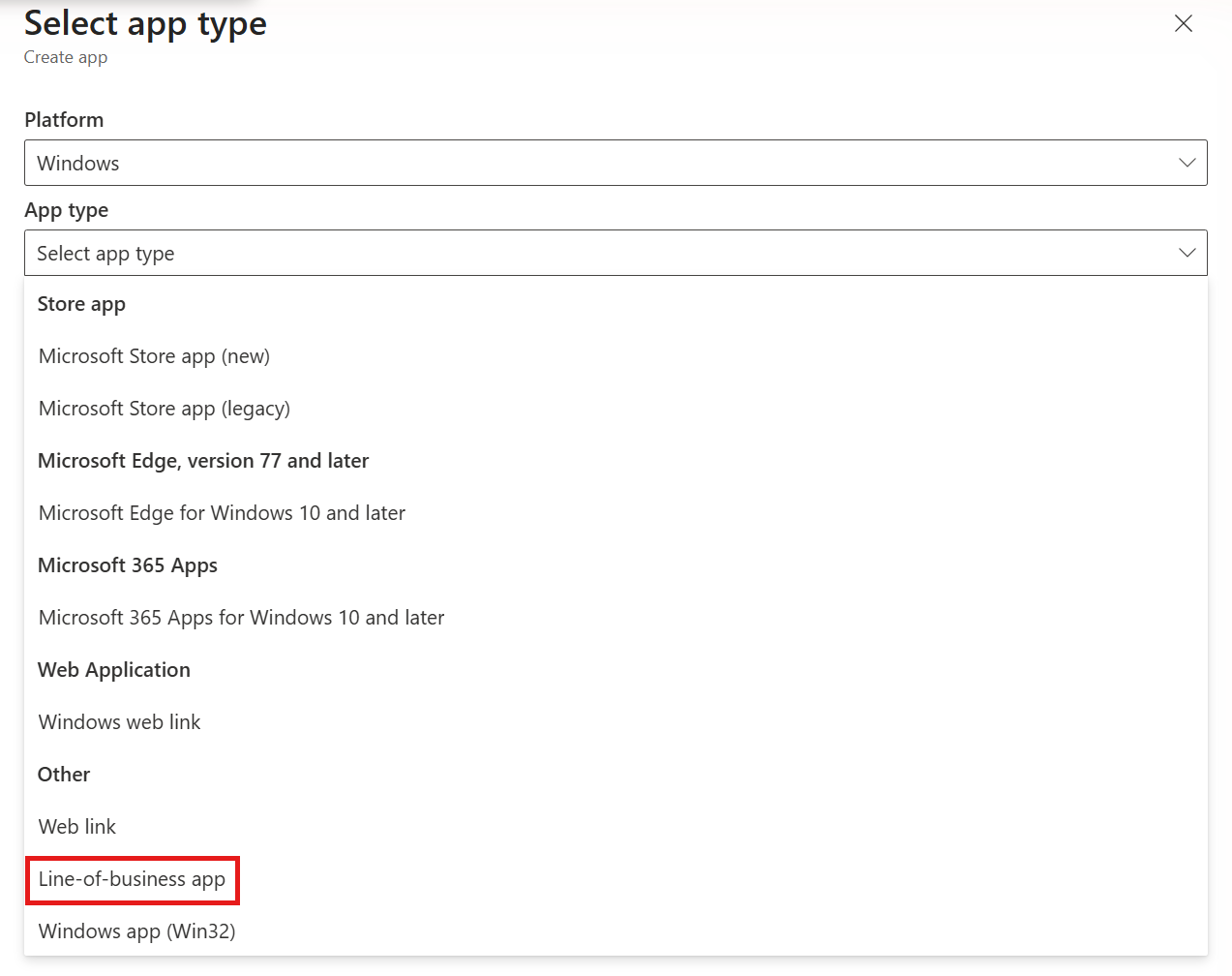
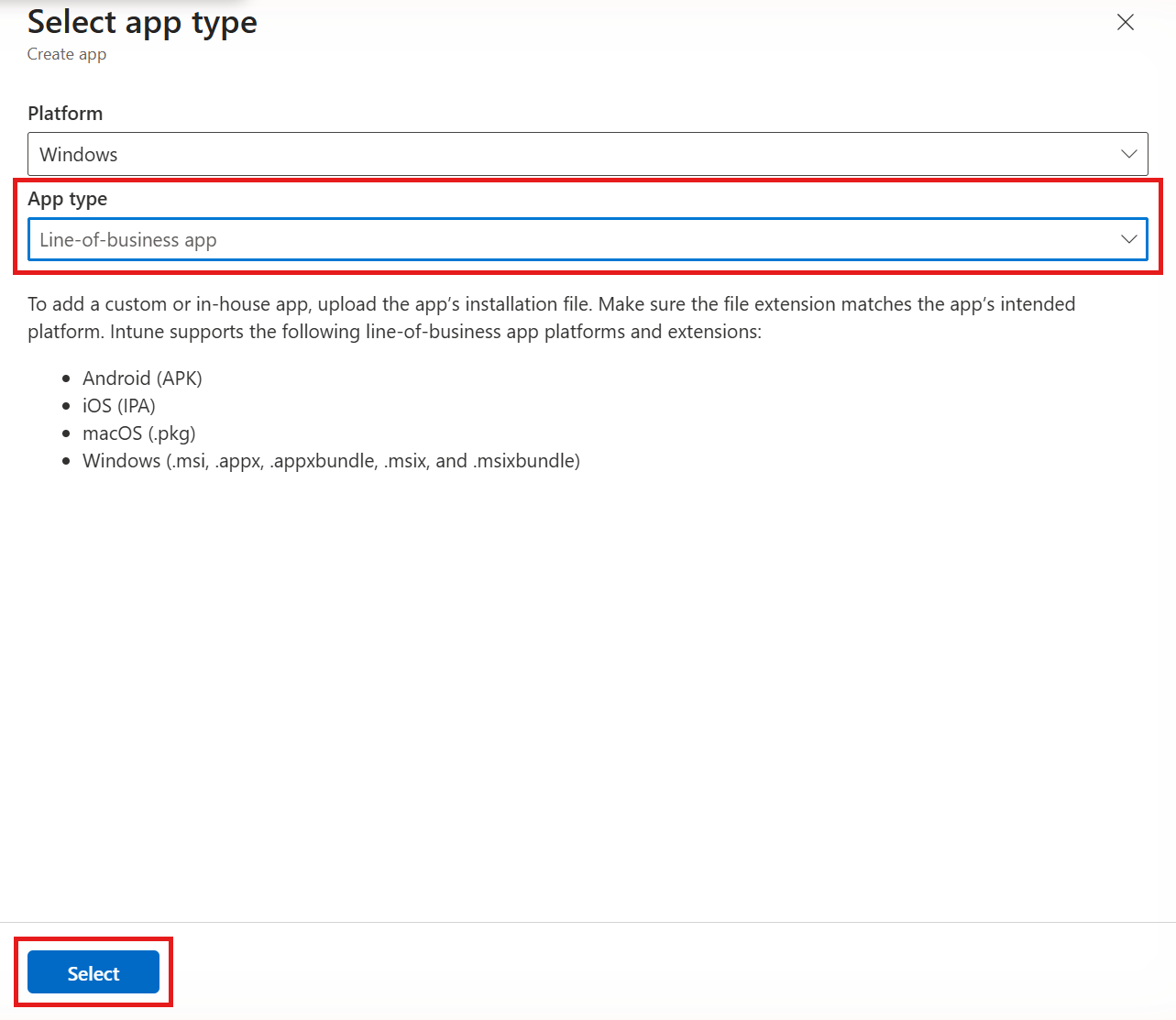
In the Select app type pane, set Platform to Windows. Then open the App type list and, under Other, select Line-of-business app.
-
Click Select.
-
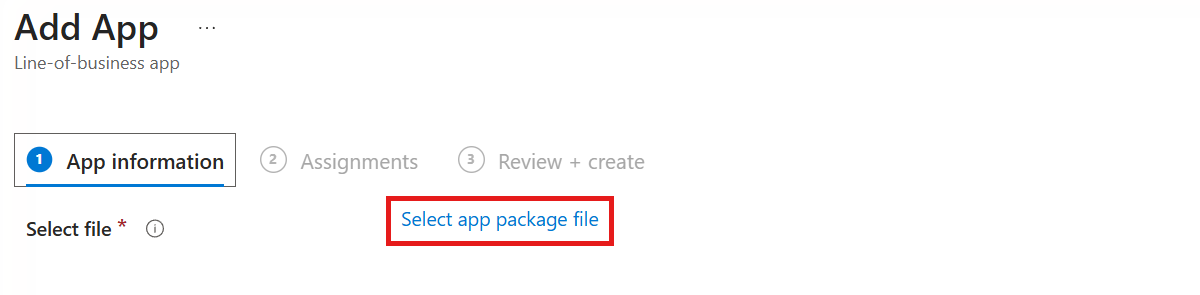
On the App information page, click Select app package file.
-
In the App package file pane, click the folder icon, select the
KeytosConnect.msifile you downloaded, and then click OK. Intune reads the app details from the MSI and shows Execution Context: Per-Machine.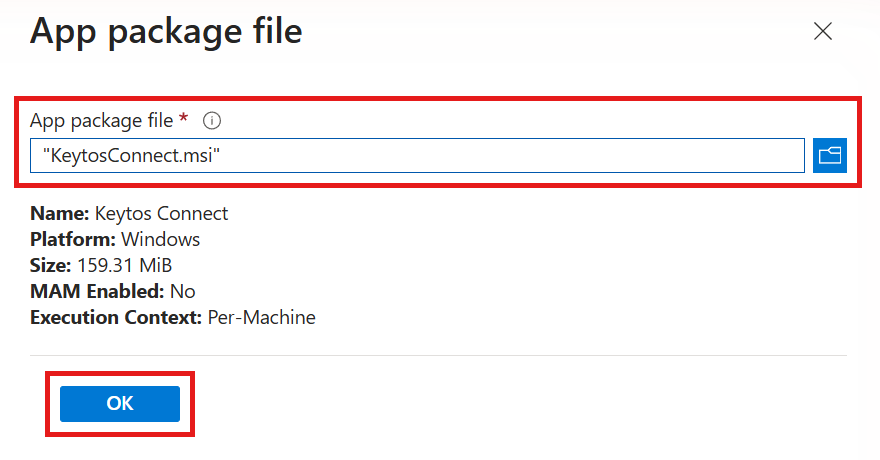
Step 3: How to Fill In the Keytos Connect App Information in Intune
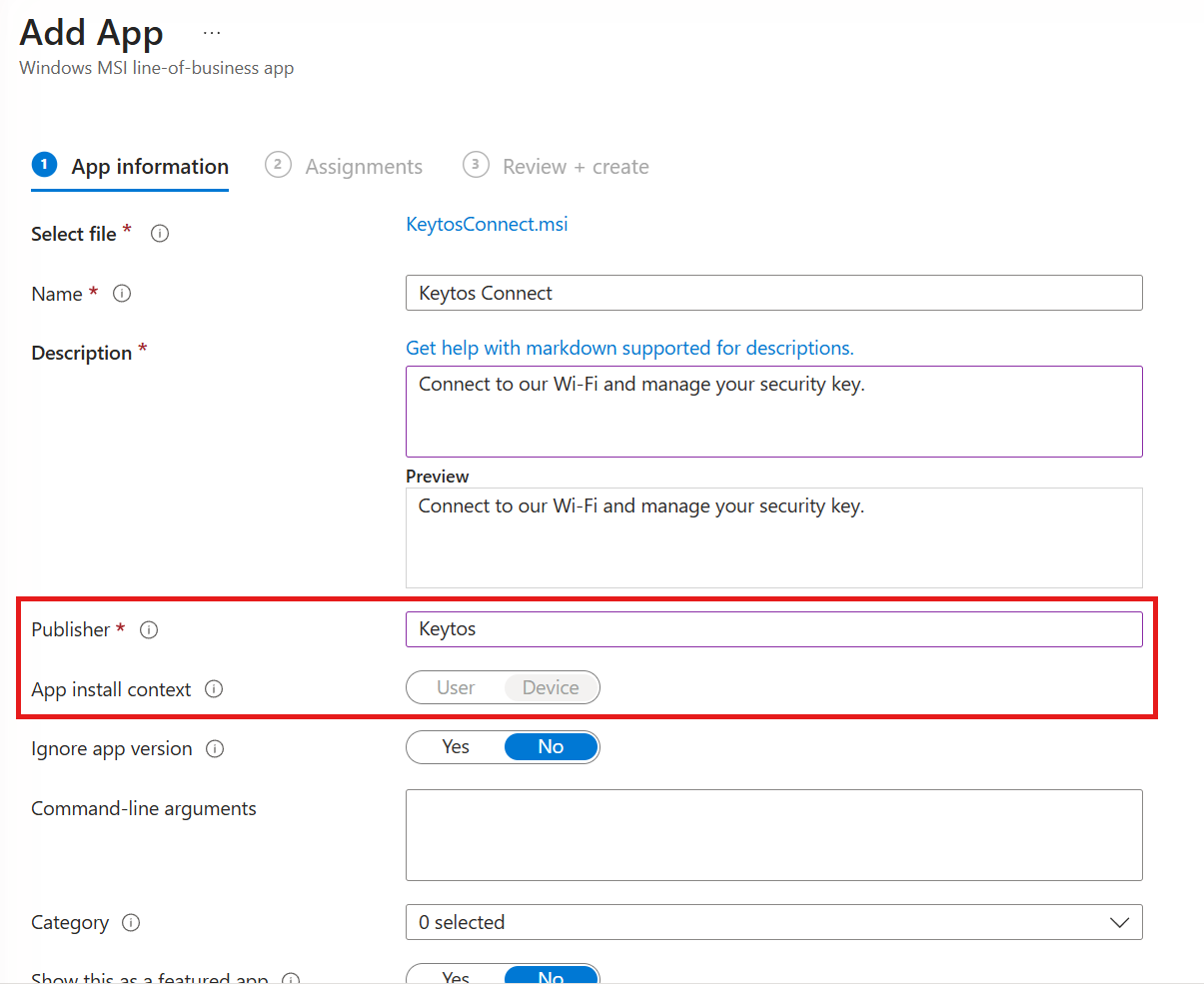
Intune fills in the name and install context from the MSI. Review them and fill in the rest:
-
Name: Keep Keytos Connect. This is the name your users see in the Company Portal.
-
Description: Replace the default with a short description your users will recognize, such as “Connect to our Wi-Fi and manage your security key.”
-
Publisher: Enter
Keytos. Intune leaves this required field empty for MSI files. -
App install context: Keep Device. The MSI installs per machine, so Intune selects this for you and you can’t change it.
-
Ignore app version: Keep No. You update Keytos Connect by uploading each new MSI to Intune (see how to update Keytos Connect in Intune).
-
Command-line arguments: Leave this empty. Intune already installs MSI files silently.
-
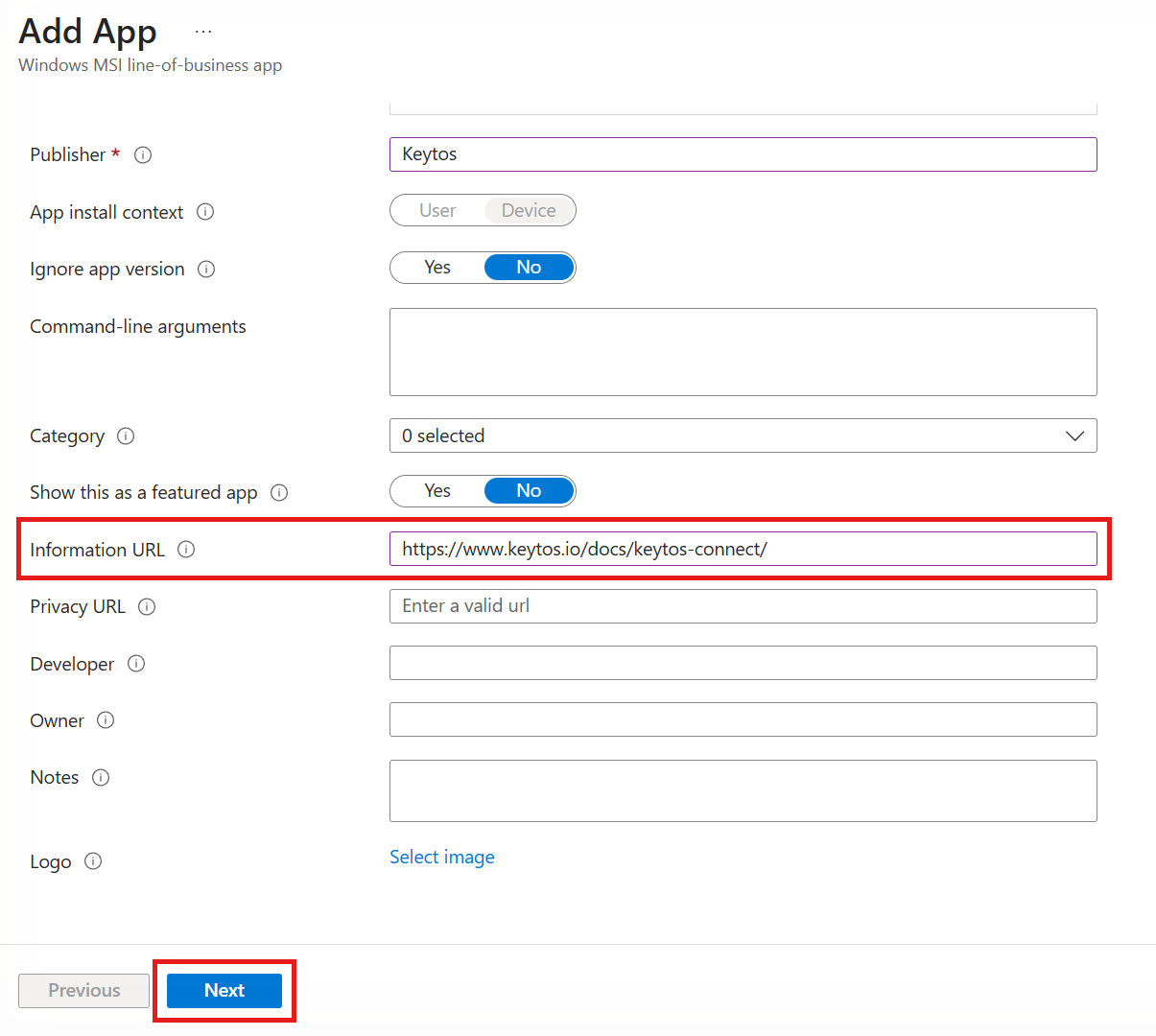
(optional) Category: Select a category your users browse in the Company Portal.
-
(optional) Information URL: Enter
https://www.keytos.io/docs/keytos-connect/, so your users can find our user guide from the Company Portal. -
(optional) Logo: Upload the Keytos Connect icon, so your users recognize the app in the Company Portal.
-
Click Next.
Step 4: How to Assign Keytos Connect to Your Windows Devices in Intune
-
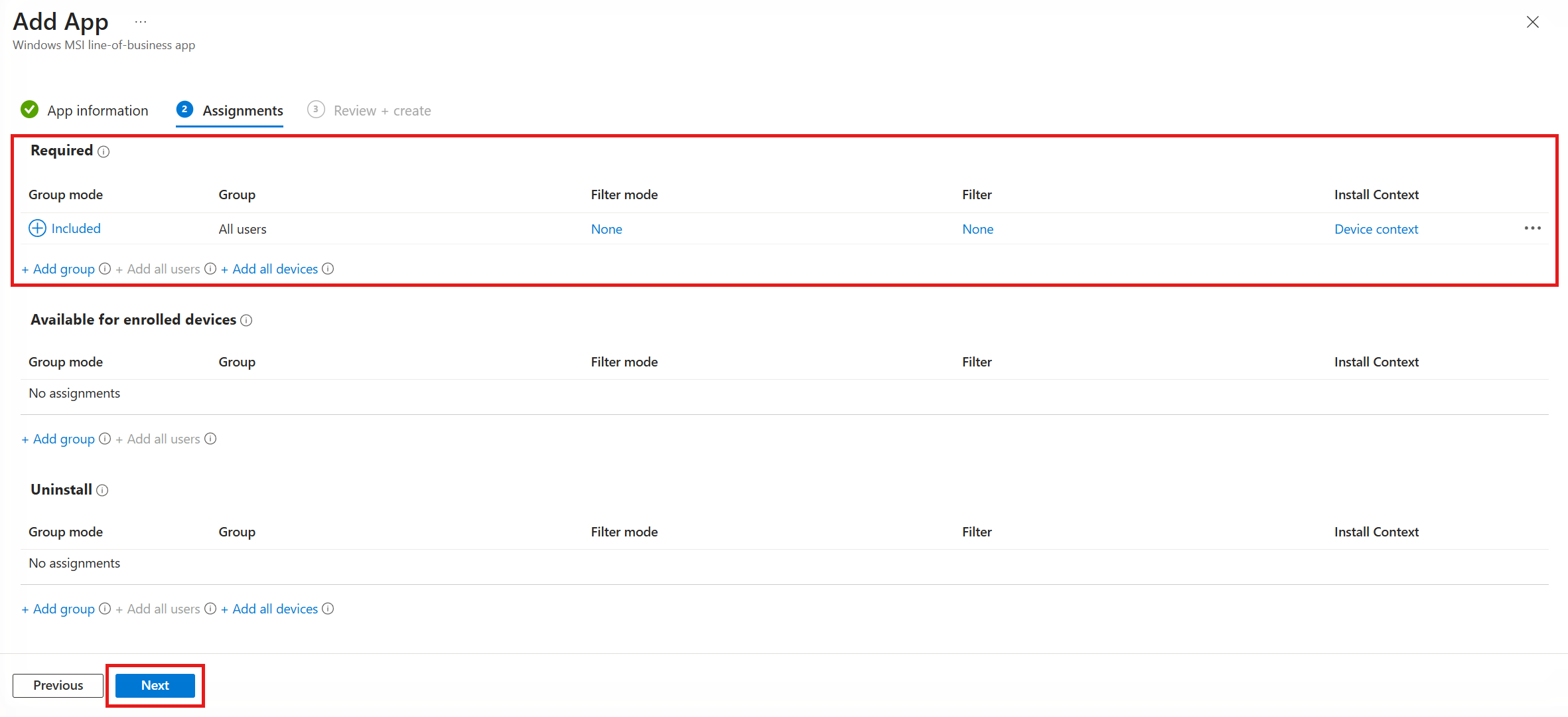
On the Assignments page, choose how you want to deploy Keytos Connect:
- Required (recommended): Intune installs Keytos Connect automatically. Under Required, click Add group and select the user or device groups that need Keytos Connect, or click Add all users or Add all devices. We recommend this for most organizations, so every device is ready before users need to connect.
- Available for enrolled devices: Users install Keytos Connect themselves from the Company Portal. This option only works for user groups.
-
Click Next.
-
On the Review + create page, check your settings, and then click Create.
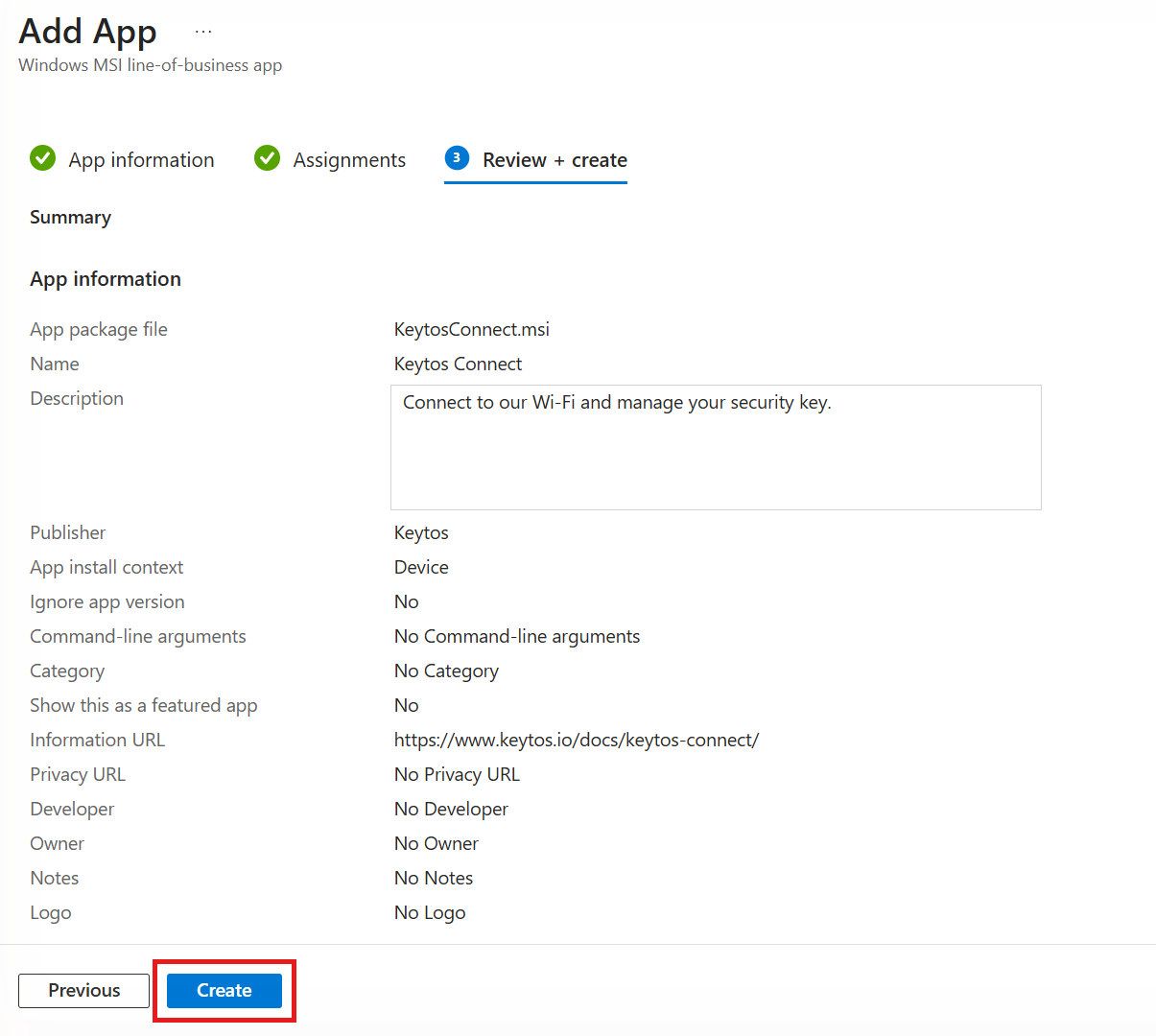
Done! Intune starts installing Keytos Connect the next time each device checks in. It can take a few minutes for the MSI to upload and for devices to pick it up.
Windows Autopilot doesn’t support installing line-of-business and Win32 apps in the same enrollment. If you install other Win32 apps during Autopilot, package KeytosConnect.msi as a Win32 app instead, so app installs don’t fail.
We recommend deploying Keytos Connect from the Mac App Store through Apple Business Manager or Apple School Manager. Intune installs it without an Apple Account on the device, and the App Store keeps it up to date. If you don’t use Apple Business Manager, use the DMG installer instead.
Step 1: How to Get Keytos Connect for macOS in Apple Business Manager
- Sign in to Apple Business Manager (or Apple School Manager) with an account that can manage content.
- Select Apps and Books, and search for Keytos Connect.
- Select Keytos Connect from Keytos LLC, choose the location that’s connected to Intune, enter the number of licenses you need, and then click Get. Keytos Connect is free, so there’s no cost for the licenses.
Step 2: How to Sync Your Apple VPP Token in Intune for macOS
- Sign in to the Microsoft Intune admin center.
- Select Tenant administration > Connectors and tokens > Apple VPP tokens.
- Select the token for the location where you got Keytos Connect, and then click Sync.
After the sync finishes, Keytos Connect appears in Apps > macOS as a volume purchase program app.
Step 3: How to Assign Keytos Connect to Your Mac Devices in Intune
- Select Apps > macOS, and then select Keytos Connect.
- Select Properties, and then click Edit next to Assignments.
- Choose how you want to deploy Keytos Connect:
- Required (recommended): Click Add group under Required and select the user or device groups that need Keytos Connect. Intune installs it automatically.
- Available for enrolled devices: Users install Keytos Connect themselves from the Company Portal. This option only works for user groups.
- Keep the License type set to Device. With device licensing, your users don’t need to sign in to the App Store with an Apple Account.
- Click Review + save, and then click Save.
How to Deploy the Keytos Connect DMG to macOS with Intune
If you don’t use Apple Business Manager, deploy the notarized Keytos Connect DMG instead. Your Macs need the Intune management agent for macOS, which Intune installs automatically when you assign a DMG app.
-
Download the Keytos Connect installer for macOS (
KeytosConnect.dmg). -
In the Microsoft Intune admin center, select Apps > All Apps, and then click Create.
-
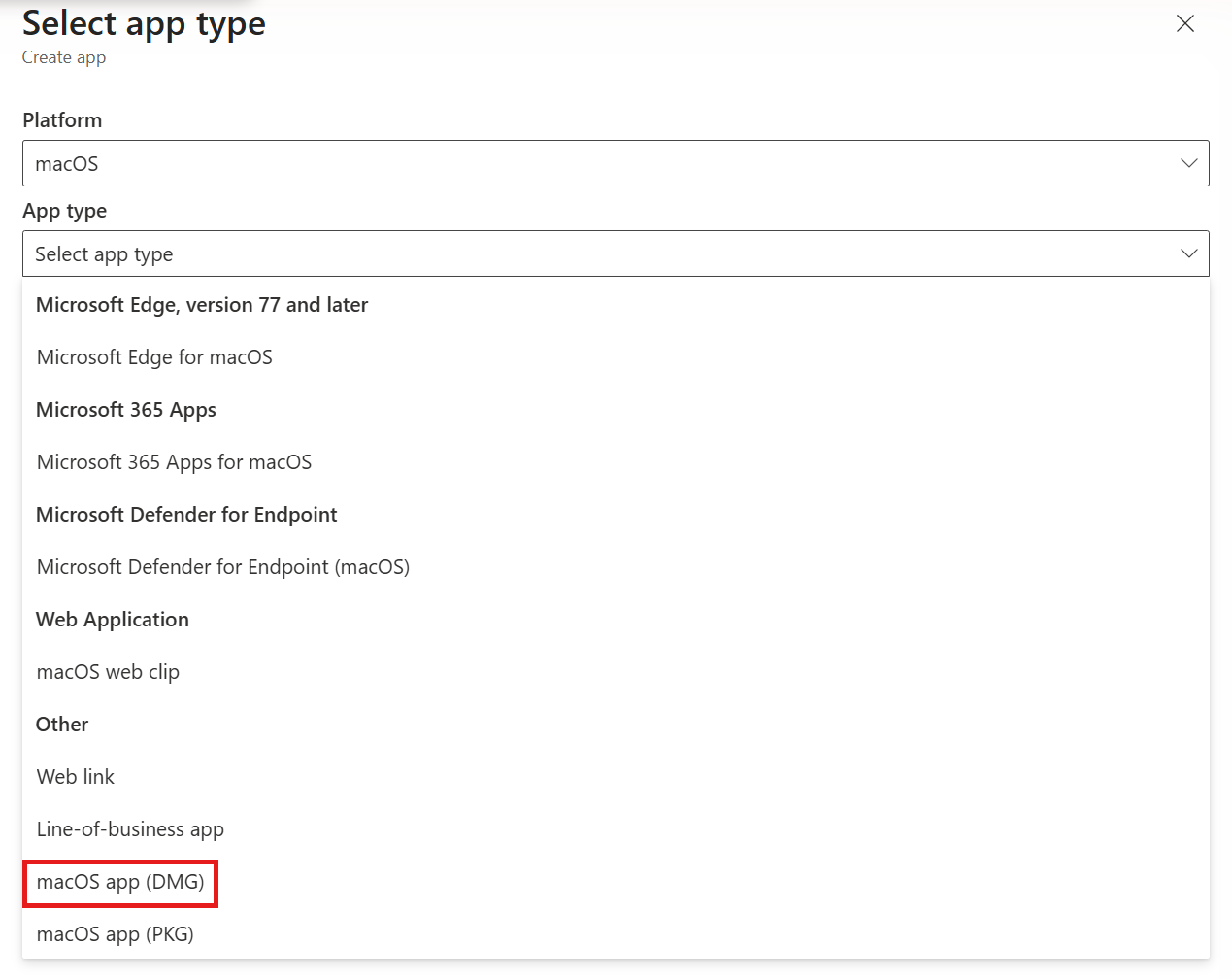
In the Select app type pane, set Platform to macOS. Then open the App type list, select macOS app (DMG) under Other, and click Select.
-
On the App information page, click Select app package file. In the App package file pane, click the folder icon, select
KeytosConnect.dmg, and then click OK.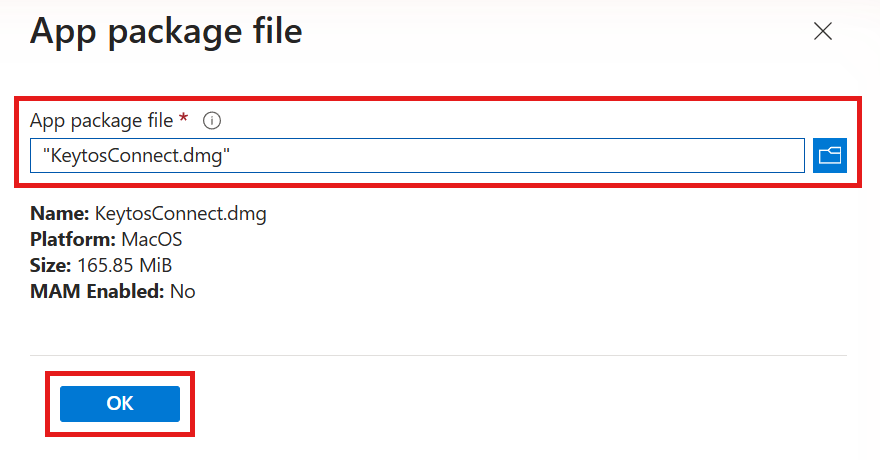
-
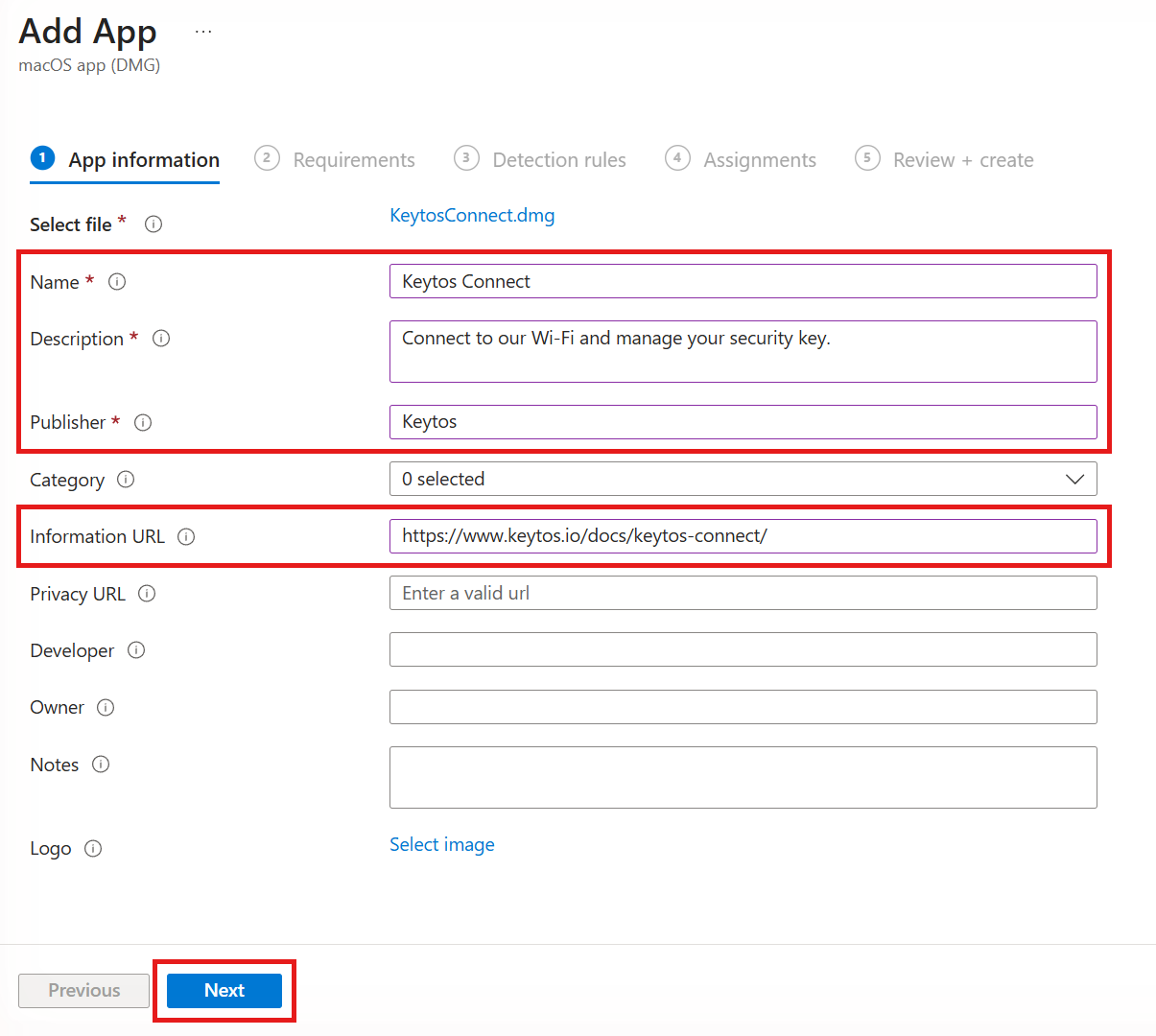
Fill in the App information page, and then click Next:
- Name: Intune fills in
KeytosConnect.dmg. Change it toKeytos Connect, which is the name your users see in the Company Portal. - Description: Enter a short description your users will recognize, such as “Connect to our Wi-Fi and manage your security key.”
- Publisher: Enter
Keytos. - (optional) Information URL: Enter
https://www.keytos.io/docs/keytos-connect/.
- Name: Intune fills in
-
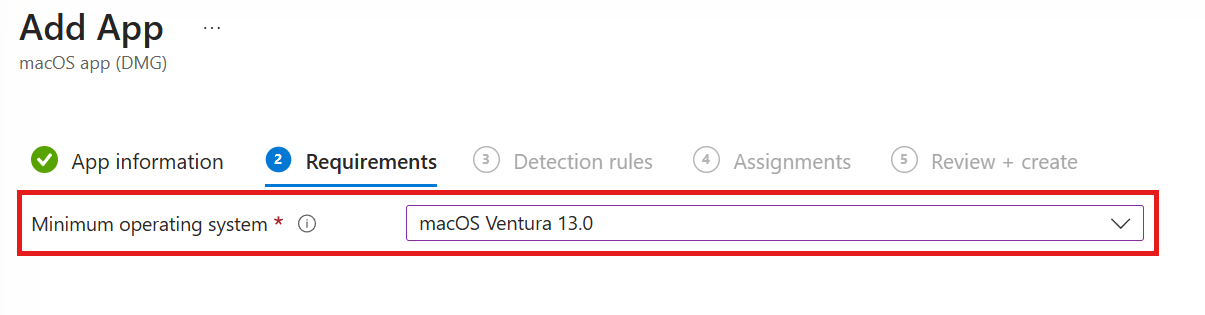
On the Requirements page, set the Minimum operating system to macOS Ventura 13.0, and then click Next. Keytos Connect requires macOS 13 or later.
-
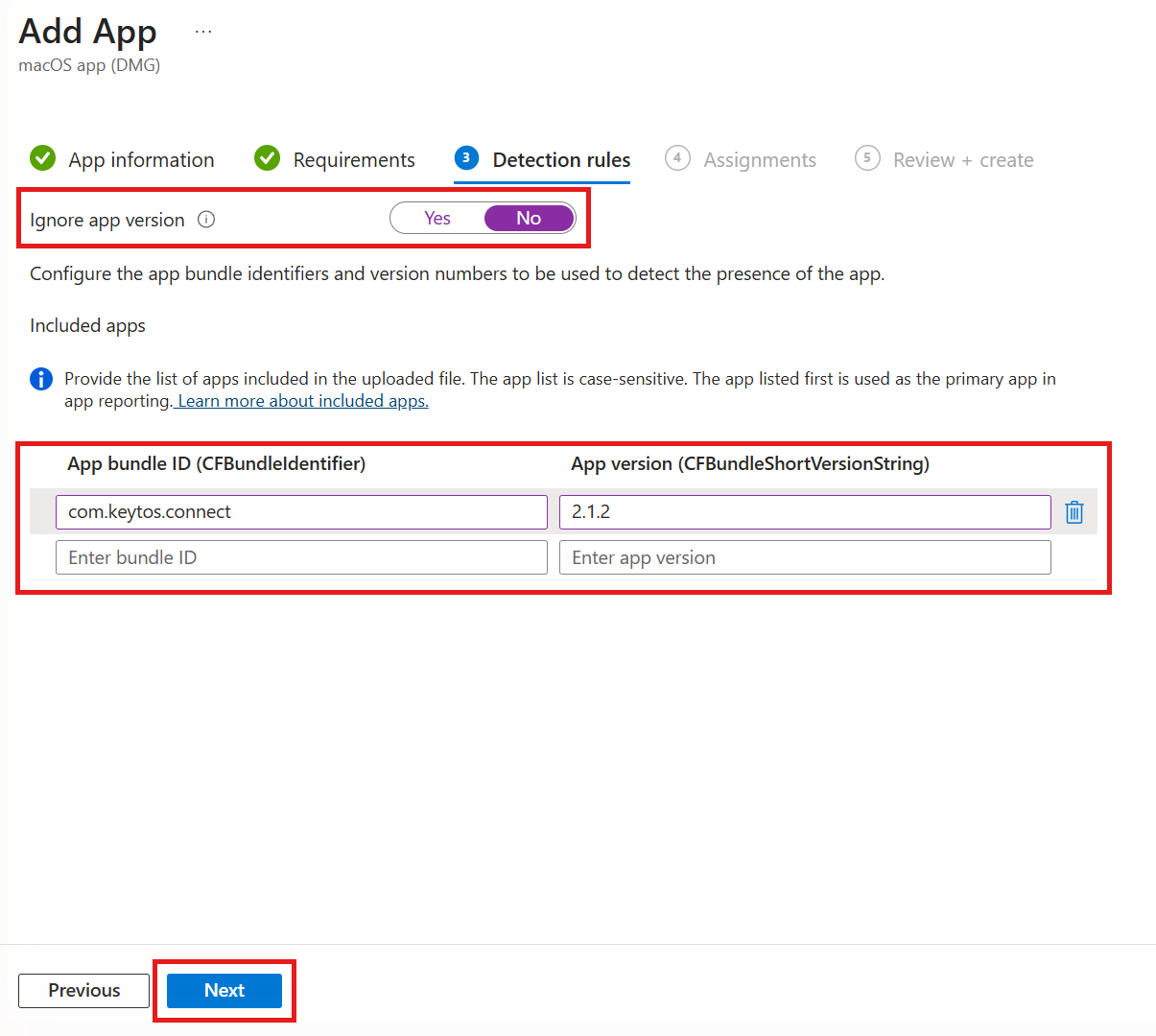
On the Detection rules page, fill in the following, and then click Next:
- Ignore app version: Select No, so Intune updates Keytos Connect when you upload a newer DMG.
- App bundle ID (CFBundleIdentifier): Enter
com.keytos.connect. - App version (CFBundleShortVersionString): Enter the version of the DMG you uploaded, such as
2.1.2. On a Mac, you can find it by selecting Keytos Connect in Applications and choosing File > Get Info.
-
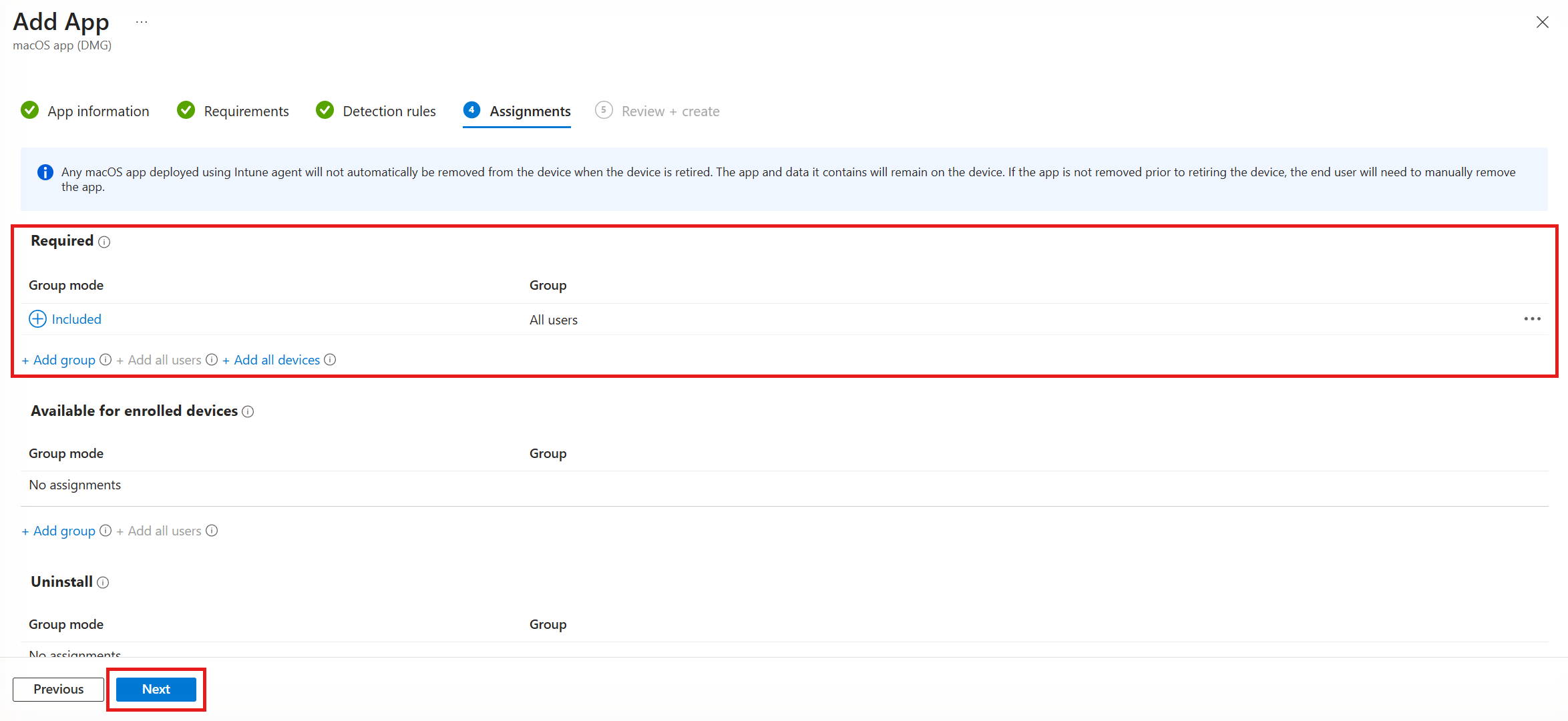
On the Assignments page, add your groups under Required or Available for enrolled devices, and then click Next.
-
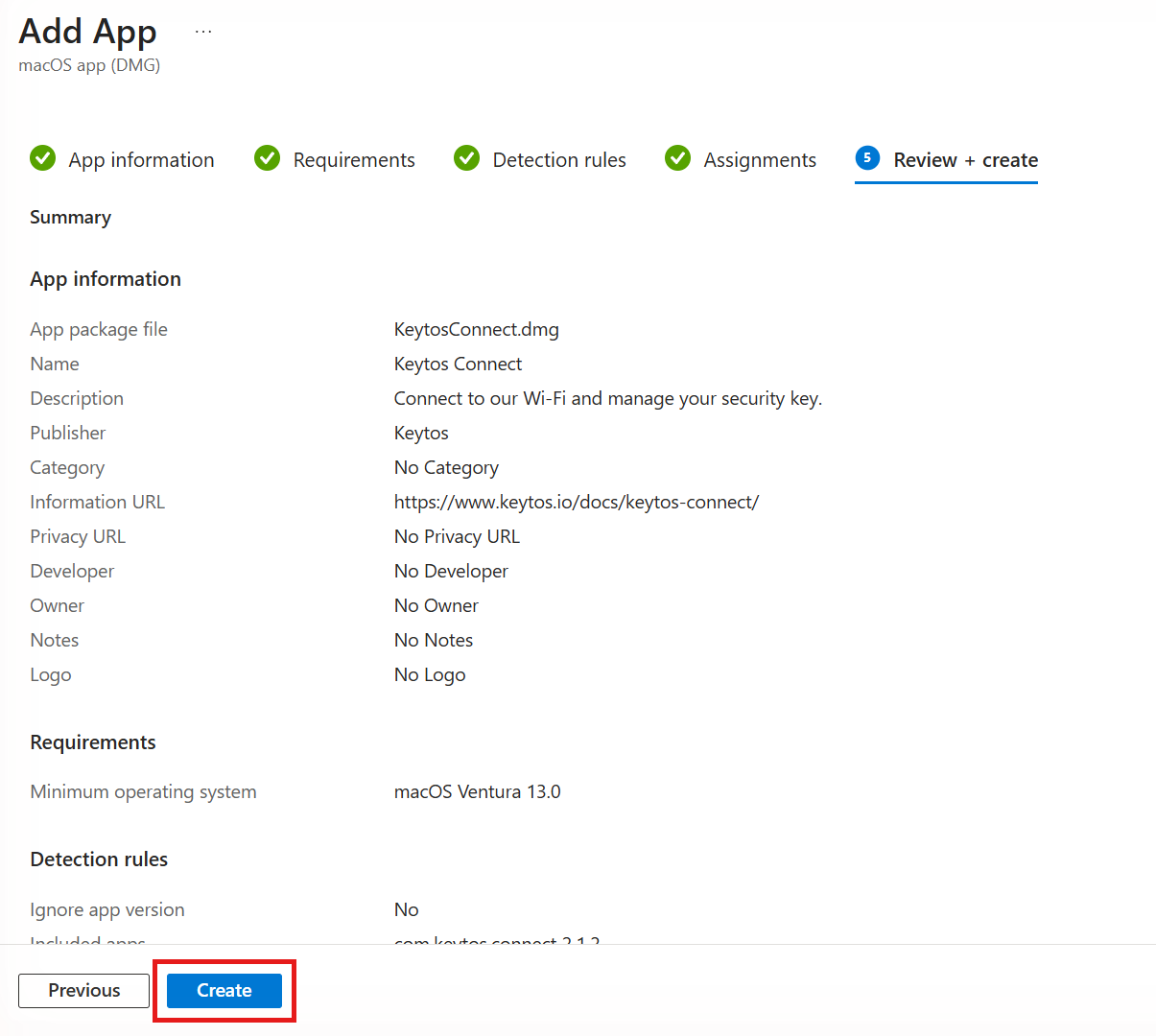
On the Review + create page, check your settings, and then click Create.
We recommend deploying Keytos Connect through Apple Business Manager or Apple School Manager with device licensing. Your users don’t need to sign in to the App Store with an Apple Account, and Intune can install the app silently on supervised devices.
Step 1: How to Get Keytos Connect for iOS and iPadOS in Apple Business Manager
- Sign in to Apple Business Manager (or Apple School Manager) with an account that can manage content.
- Select Apps and Books, and search for Keytos Connect.
- Select Keytos Connect from Keytos LLC, choose the location that’s connected to Intune, enter the number of licenses you need, and then click Get. Keytos Connect is free, so there’s no cost for the licenses.
Step 2: How to Sync Your Apple VPP Token in Intune for iOS and iPadOS
- Sign in to the Microsoft Intune admin center.
- Select Tenant administration > Connectors and tokens > Apple VPP tokens.
- Select the token for the location where you got Keytos Connect, and then click Sync.
After the sync finishes, Keytos Connect appears in Apps > iOS/iPadOS as a volume purchase program app.
Step 3: How to Assign Keytos Connect to Your iPhones and iPads in Intune
- Select Apps > iOS/iPadOS, and then select Keytos Connect.
- Select Properties, and then click Edit next to Assignments.
- Choose how you want to deploy Keytos Connect:
- Required (recommended): Click Add group under Required and select the user or device groups that need Keytos Connect. Intune installs it automatically.
- Available for enrolled devices: Users install Keytos Connect themselves from the Company Portal. This option only works for user groups.
- Keep the License type set to Device. With device licensing, your users don’t need an Apple Account to get the app.
- Click Review + save, and then click Save.
Not Using Apple Business Manager? How to Add Keytos Connect as an iOS Store App
You can also add Keytos Connect directly from the App Store. With this option, each user must be signed in to the App Store with their own Apple Account to install it.
-
In the Microsoft Intune admin center, select Apps > All Apps, and then click Create.
-
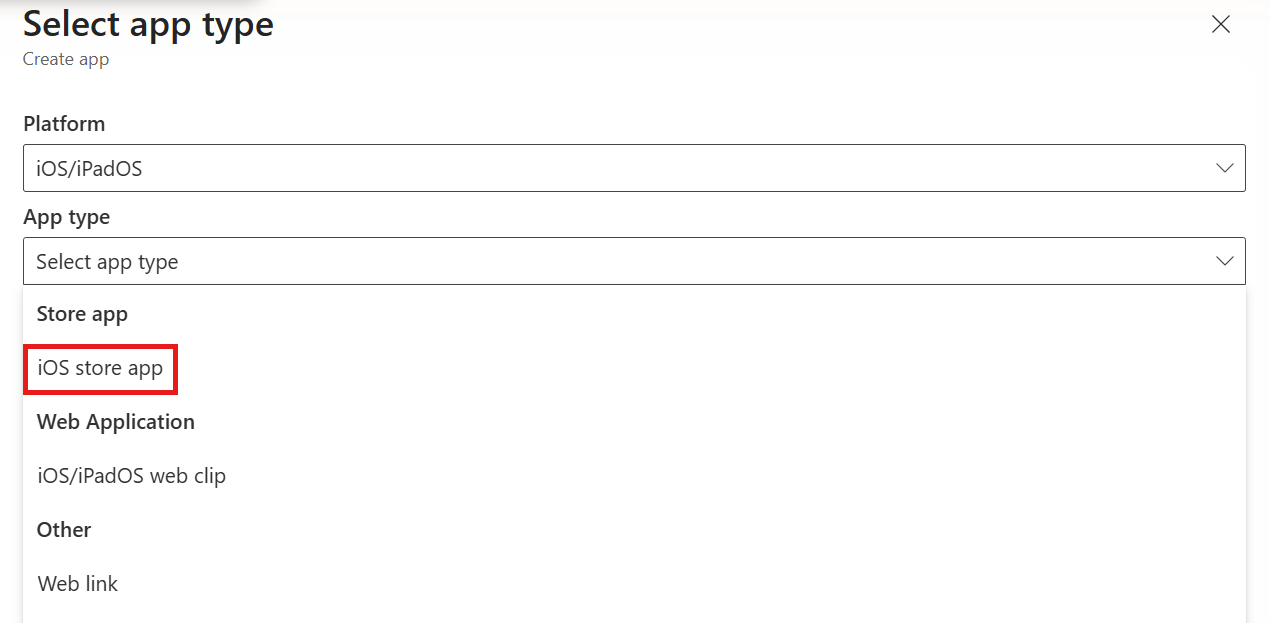
In the Select app type pane, set Platform to iOS/iPadOS. Then open the App type list, select iOS store app under Store app, and click Select.
-
Click Search the App Store, search for
Keytos Connect, select Keytos Connect from Keytos LLC, and then click Select.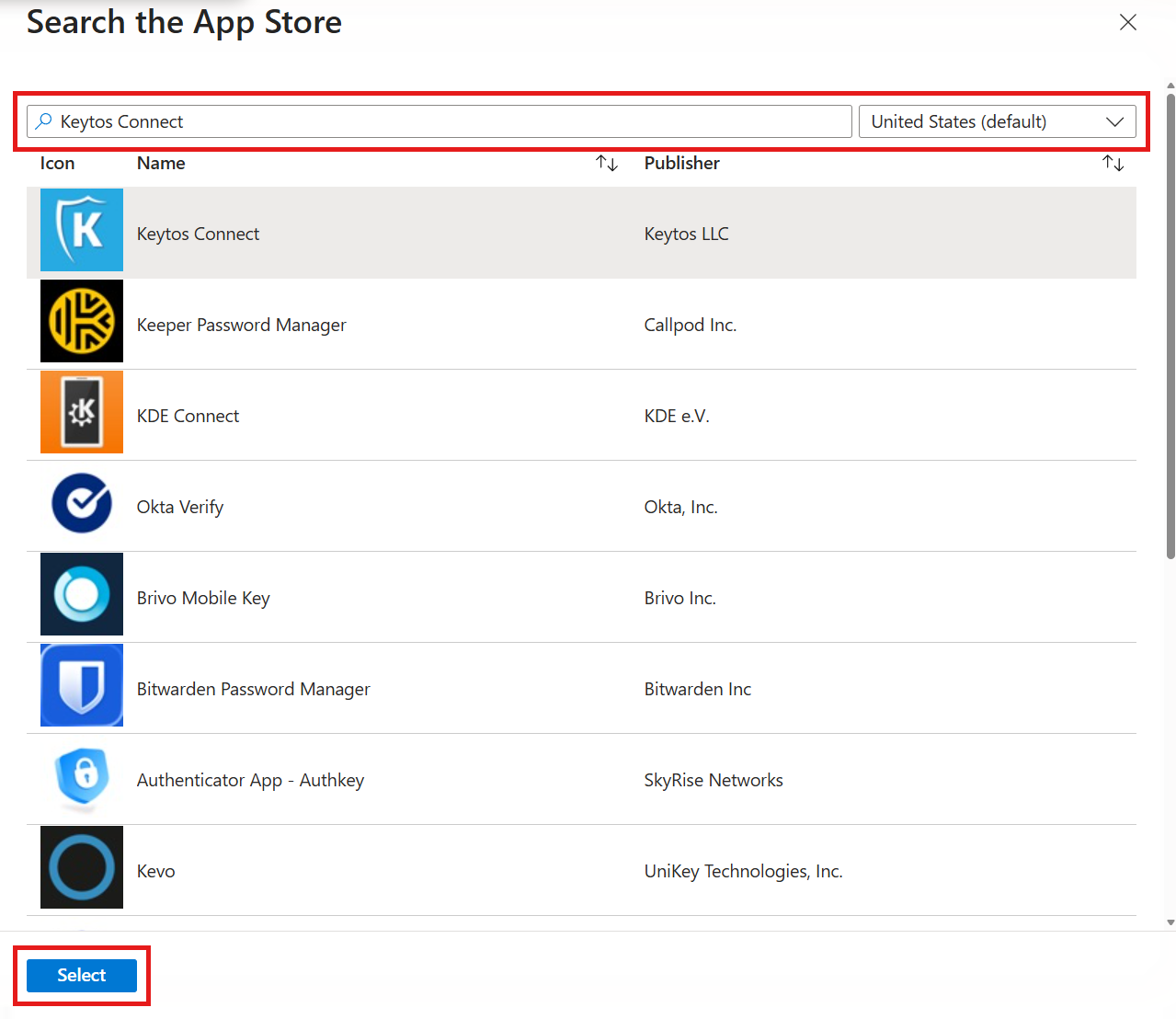
-
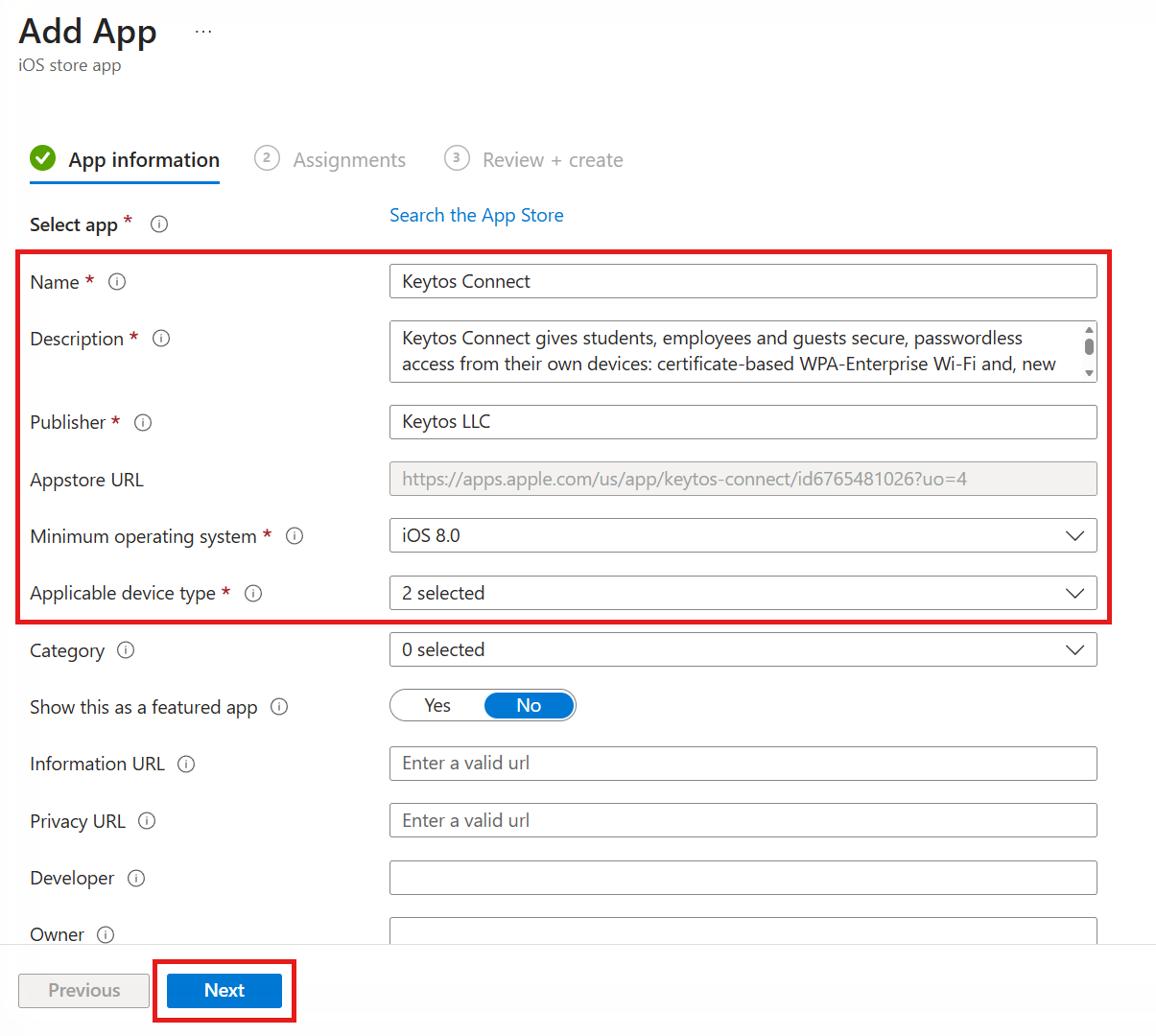
On the App information page, keep the details Intune filled in from the App Store, and then click Next.
-
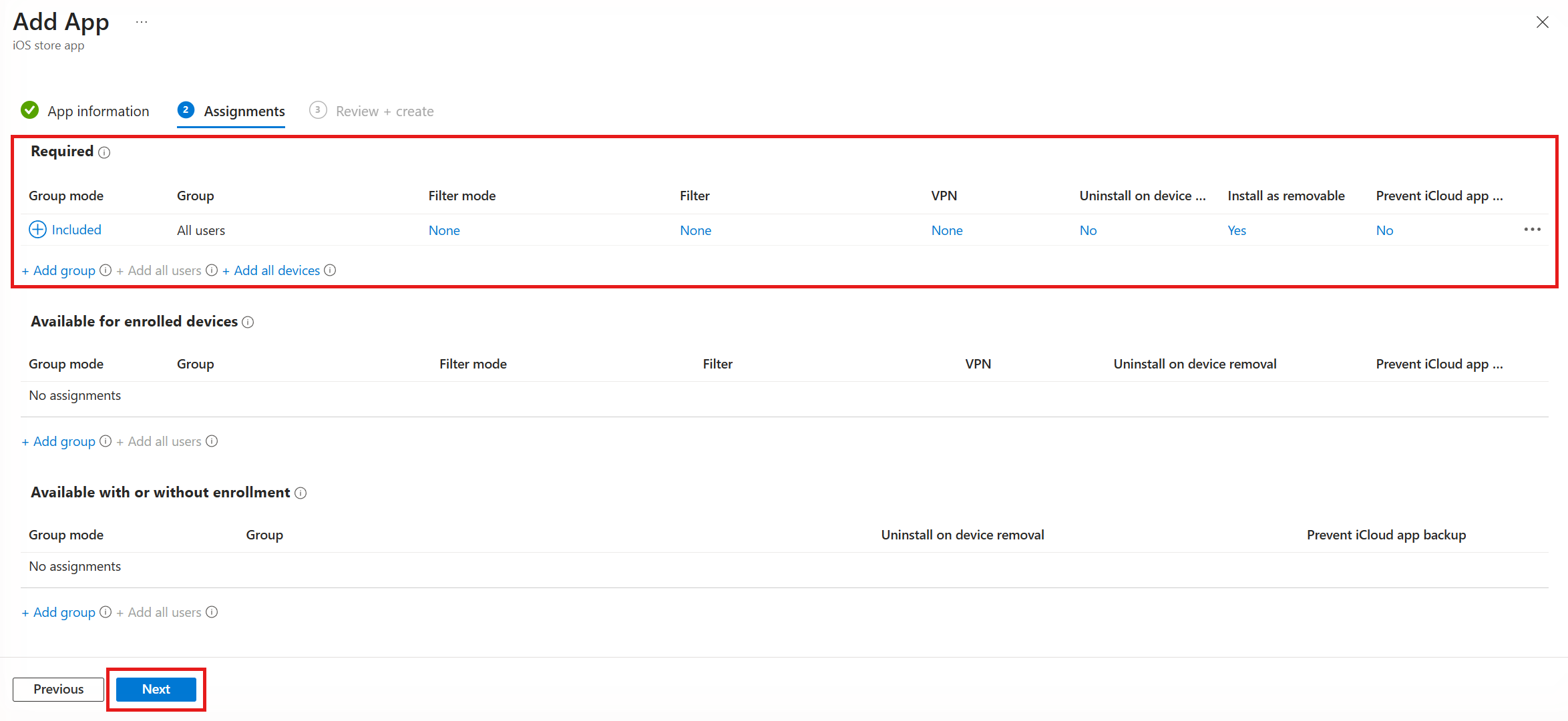
On the Assignments page, add your groups under Required or Available for enrolled devices, and then click Next.
-
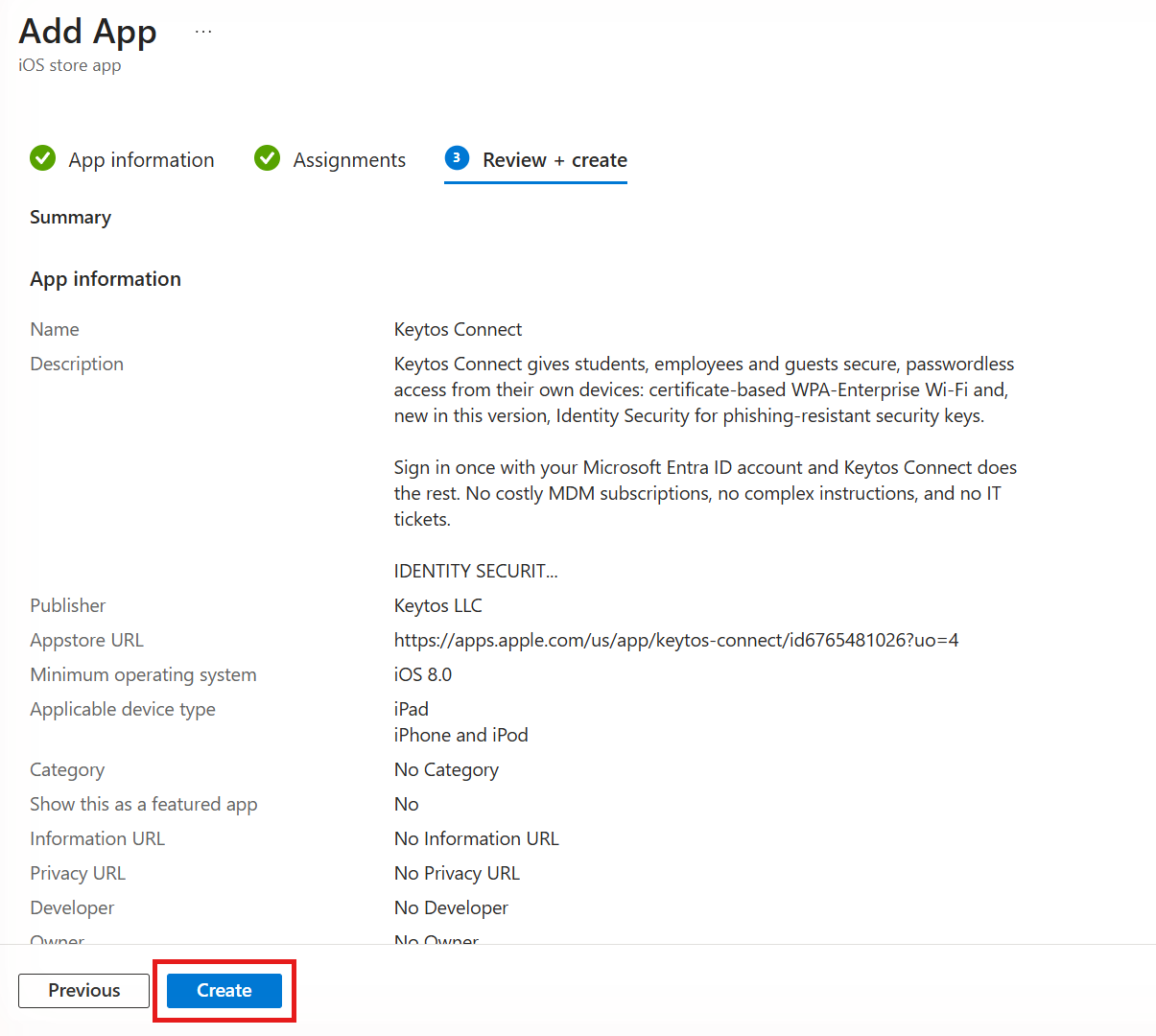
On the Review + create page, check your settings, and then click Create.
Intune deploys Keytos Connect to Android devices from Managed Google Play. Your devices must be enrolled as Android Enterprise devices, such as a personally owned work profile, a corporate-owned work profile, or fully managed.
Step 1: How to Add Keytos Connect from Managed Google Play in Intune
-
Sign in to the Microsoft Intune admin center.
-
Select Apps > All Apps, and then click Create.
-
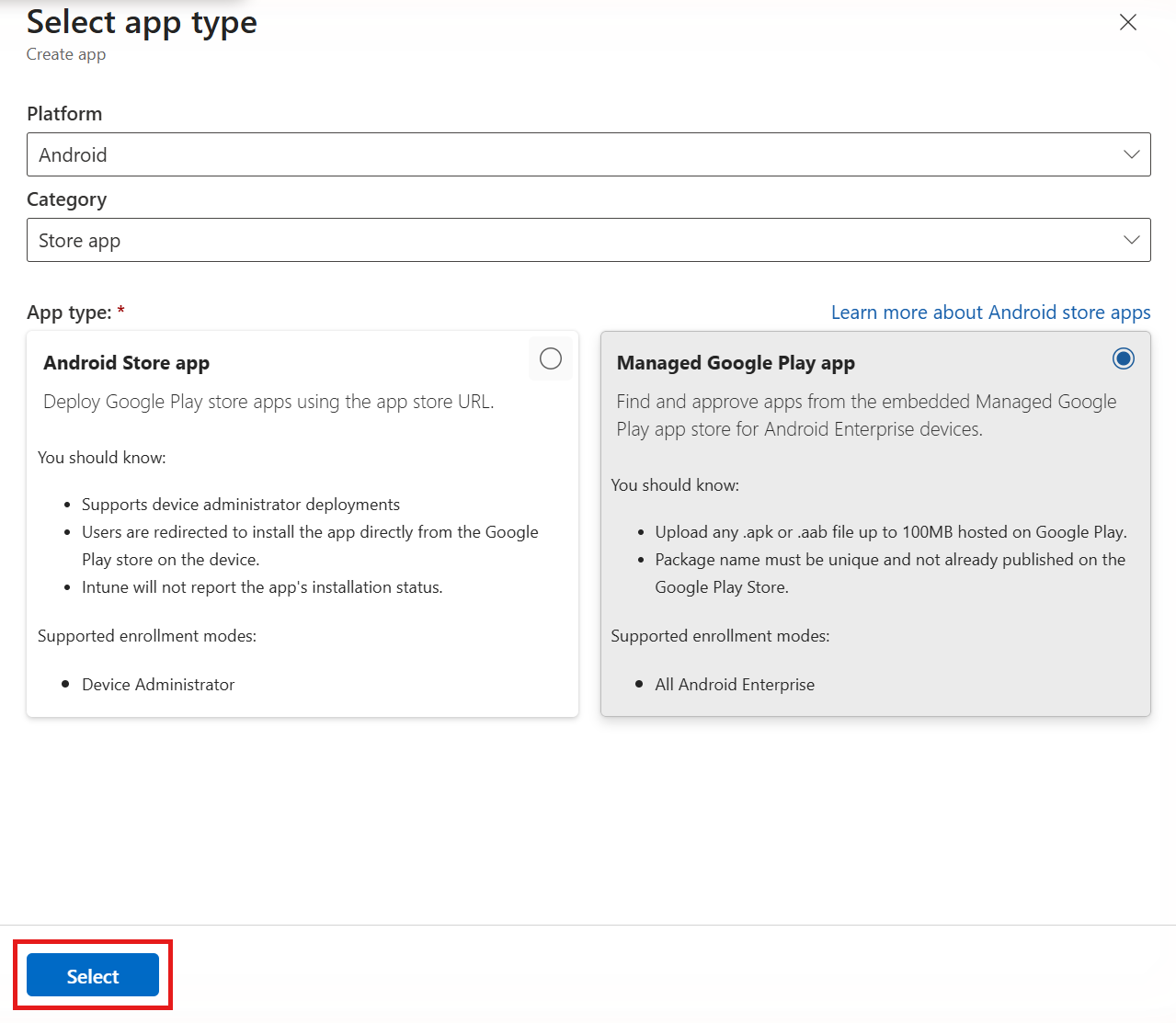
In the Select app type pane, set Platform to Android and Category to Store app. Select the Managed Google Play app card, and then click Select.
-
In the Managed Google Play store, search for Keytos Connect, and select the Keytos Connect app from Keytos.
-
Click Select to approve Keytos Connect for your organization, and then click Sync.
-
Click Refresh until Keytos Connect appears in your list of apps.
Step 2: How to Assign Keytos Connect to Your Android Devices in Intune
- Select Apps > Android, and then select Keytos Connect.
- Select Properties, and then click Edit next to Assignments.
- Choose how you want to deploy Keytos Connect:
- Required (recommended): Click Add group under Required and select the user or device groups that need Keytos Connect. Intune installs it in the work profile, or on the device for fully managed devices.
- Available for enrolled devices: Users install Keytos Connect themselves from the managed Google Play Store app.
- Click Review + save, and then click Save.
On devices with a work profile, Intune installs Keytos Connect in the work profile, so your users open it from their work apps (the apps with a briefcase badge).
What Happens After Intune Installs Keytos Connect?
Once Keytos Connect is installed, your users open it and sign in with their work or school account. Keytos Connect then shows the Wi-Fi profiles and security key options you’ve set up for them. Share our Keytos Connect getting started guide with your users so they know what to expect.
To check the rollout, select Apps > All Apps > Keytos Connect in the Intune admin center, and then select Device install status or User install status.
How to Update Keytos Connect in Microsoft Intune
How Keytos Connect gets updated depends on how you deployed it:
-
App Store, Apple Business Manager, and Managed Google Play: Updates install automatically from the store. For Apple volume purchase program apps, make sure Automatic app updates is set to Yes on your Apple VPP token in Intune.
-
Windows MSI and macOS DMG: Intune installs the version you uploaded. When we release a new version of Keytos Connect, download the latest installer and update the app in Intune:
- Select Apps > All Apps, and then select Keytos Connect.
- Select Properties, and then click Edit next to App information.
- Click the file name next to Select file to update, select the new installer, and then click OK.
- Click Review + save, and then click Save.
The new MSI upgrades Keytos Connect in place on each device, so you don’t need to uninstall the old version first.
For the macOS DMG, also open Detection rules and change the App version to the new version, so Intune knows which version to expect.
How to Troubleshoot Keytos Connect Deployments in Intune
If Keytos Connect isn’t installing on a device, check the following:
- The device is enrolled and checking in: Open the device in Intune and click Sync, or wait for its next check-in.
- The device or user is in the assigned group: Assignments only apply to the groups you added on the Assignments page.
- Available assignments target user groups: Intune doesn’t support Available for enrolled devices for device groups, so the app won’t appear in the Company Portal.
- Android devices use Android Enterprise: Managed Google Play apps don’t install on devices enrolled with Android device administrator.
- Apple licenses are available: For volume purchase program apps, make sure your location has enough Keytos Connect licenses, and sync your VPP token after you get more.
If Keytos Connect is installed but your users can’t sign in or don’t see their Wi-Fi profiles, see how to troubleshoot signing in to Keytos Connect. Still stuck? Don’t hesitate to reach out to our support team.
Next Steps - How to Help Your Users Get Started with Keytos Connect
Now that Keytos Connect is on your devices, share our user guide so your users can sign in, connect to Wi-Fi, and set up their security keys.
🚀 Get Started with Keytos Connect