










How-To: Run the EZCA ACME Agent in Docker on Linux
Overview - How to Run Your Internal ACME Server in Docker on Linux
For EZCA to validate ownership of your internal domains, an ACME agent has to run inside your network. This web service receives the ACME requests from your servers, validates their domains on behalf of EZCA, and requests their certificates from your private CA. This guide shows you how to run the agent as a Docker container on any Linux server.
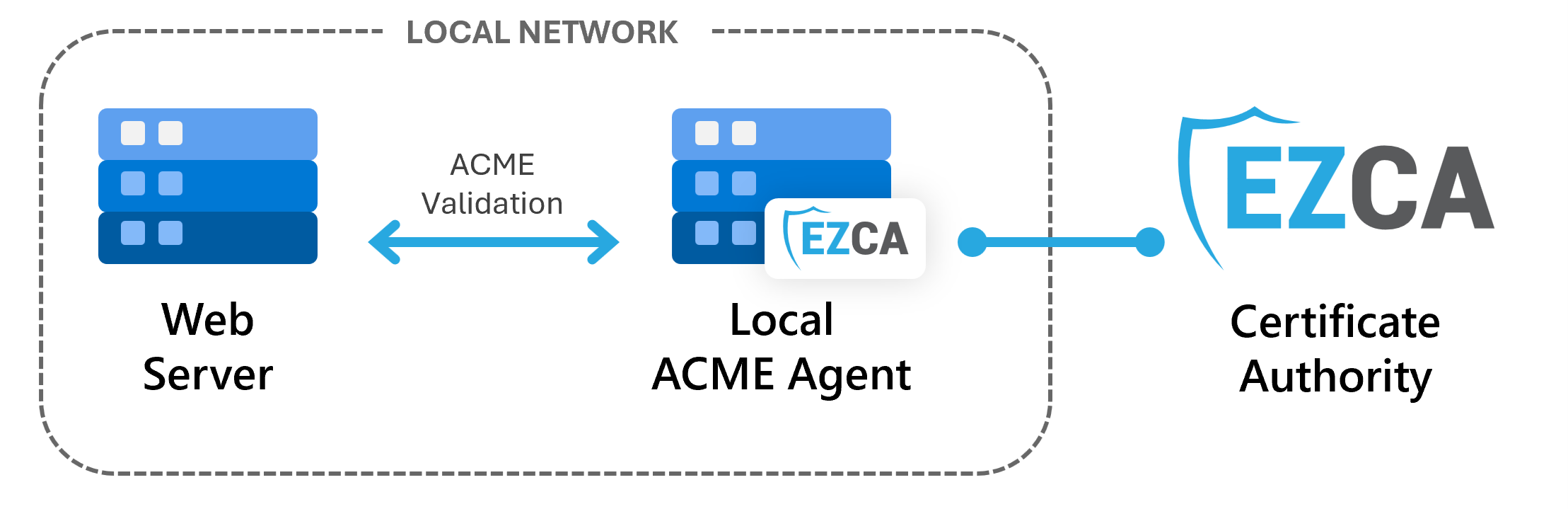
We recommend running the ACME agent in Docker. EZCA builds a ready-to-run bundle for you with one click, so you don’t have to create any certificates by hand:
- No manual certificate requests: EZCA issues the agent’s authentication certificate and the HTTPS certificate it serves, and puts both in the bundle.
- Automatic renewal of both certificates: Docker checks the agent’s health every 5 minutes, and that check renews both certificates before they expire, even when EZCA can’t reach the agent.
- No Windows Server or IIS: Any Linux server or VM with Docker runs the agent, on x64 or ARM64.
If you need to run the agent on Windows Server instead, follow our IIS setup guide.
What Is Inside the EZCA ACME Agent Docker Bundle?
When you click Download Docker Bundle in EZCA, you get a zip file named after your agent, acme_agent_<CertificateSubjectName>.zip, where <CertificateSubjectName> is your agent’s Certificate Subject Name. In the commands on this page, replace <CertificateSubjectName> (including the < and >) with that name. The zip file contains everything the agent needs:
| File | What It Is |
|---|---|
compose.yaml |
The Docker Compose file that runs the agent, already filled in with your agent’s URL, its certificate subject name, and your EZCA portal. |
scripts.sh |
A setup script that gives the container access to the certificate files and starts the agent. |
import/agent.pem |
The agent’s authentication certificate and private key. The agent uses it to authenticate to EZCA. |
tls/tls.crt |
The HTTPS certificate the agent serves to your ACME clients, followed by the CA certificates in its chain. |
tls/tls.key |
The private key of the HTTPS certificate. |
The bundle contains two private keys. Anyone who has import/agent.pem can request certificates from your CA as your agent. Copy it only to the server that runs the agent, and delete the zip file from your computer once the agent is running.
Prerequisites for Running the EZCA ACME Agent in Docker
Before you run the ACME agent in Docker, make sure you have the following in place:
- You have registered your ACME agent in EZCA.
- You are a PKI Admin of the subscription your CA belongs to, and a requester on the CA’s SSL template. Only PKI Admins see the ACME Agents section, and EZCA issues the agent’s certificates in your name when you download the bundle.
- If your CA requires domain approval, the domain EZCA registered for your agent’s Certificate Subject Name (such as
acmeboston) has been approved. - You have a Linux server in your local network (x64 or ARM64, a VM in Azure or on-premises) with Docker Engine and the Docker Compose plugin installed, and you can run commands with
sudoon it. - You have a DNS name for the agent that points to that server, such as
acmeagent.example.com. Your ACME clients use this name to reach the agent. - Your network allows the following traffic:
- From the agent to EZCA: HTTPS (port 443) to your EZCA portal, such as
portal.ezca.io. - From the agent’s server to the Keytos container registry: HTTPS (port 443) to
*.azurecr.io(*.azurecr.usin Azure Government), so Docker can download the agent’s image. - From your ACME clients to the agent: HTTPS on the agent’s port (443 unless you choose another one in Step 1).
- From the agent to your ACME clients: HTTP (port 80) for
http-01challenges, or DNS lookups of the_acme-challengerecords fordns-01challenges.
- From the agent to EZCA: HTTPS (port 443) to your EZCA portal, such as
Step-by-Step Guide - How to Run the EZCA ACME Agent in Docker
The following steps will guide you through setting the agent’s URL, downloading its Docker bundle, and starting the agent on your Linux server.
Step 1: How to Set the Agent URL in EZCA
The agent’s URL is the address your ACME clients use to reach it. EZCA issues the agent’s HTTPS certificate for the host name in this URL, and the bundle publishes the agent on the port in this URL, so set it before you download the bundle.
-
Navigate to your EZCA portal (If you have your private instance, or you are in our EU Version go to that specific portal).
-
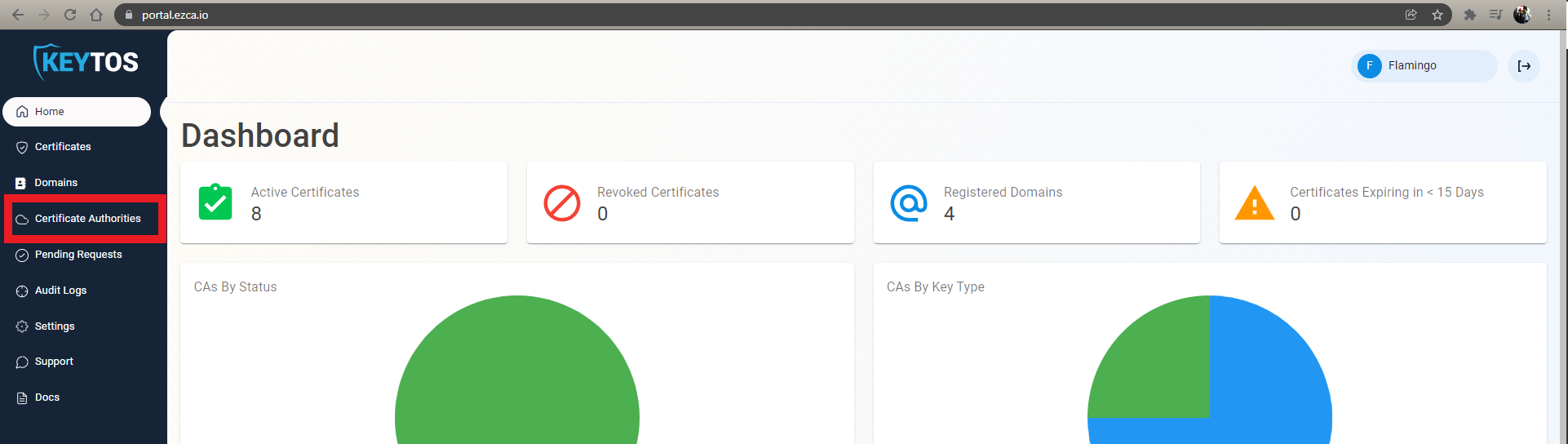
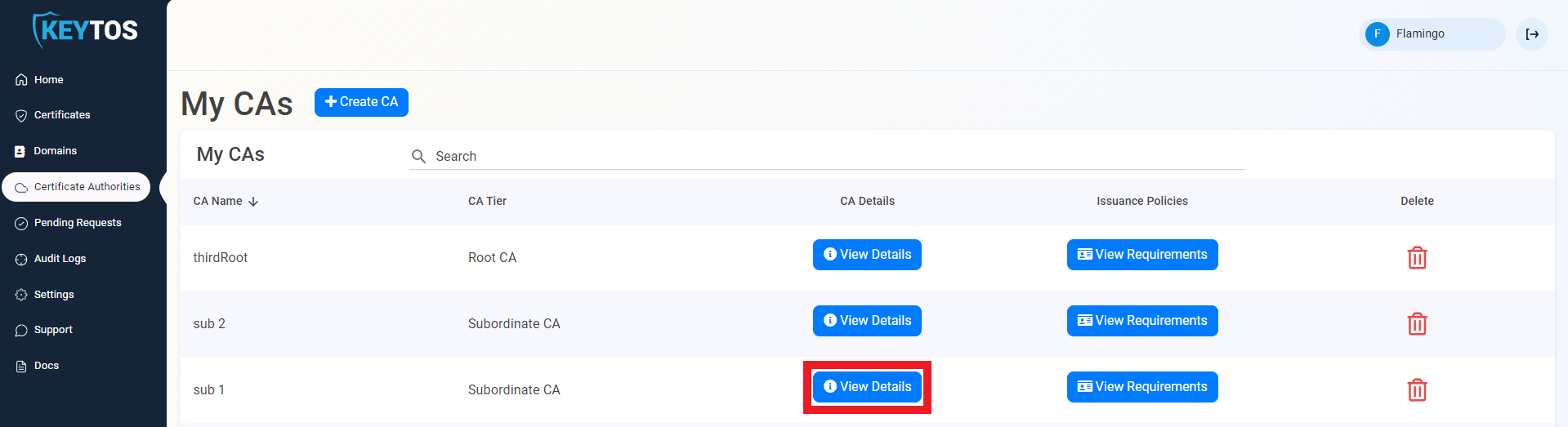
From the left-hand menu, select Certificate Authorities.
-
For the CA you registered your ACME agent on, click View Details.
-
Scroll down to the ACME Agents section and find your agent.
-
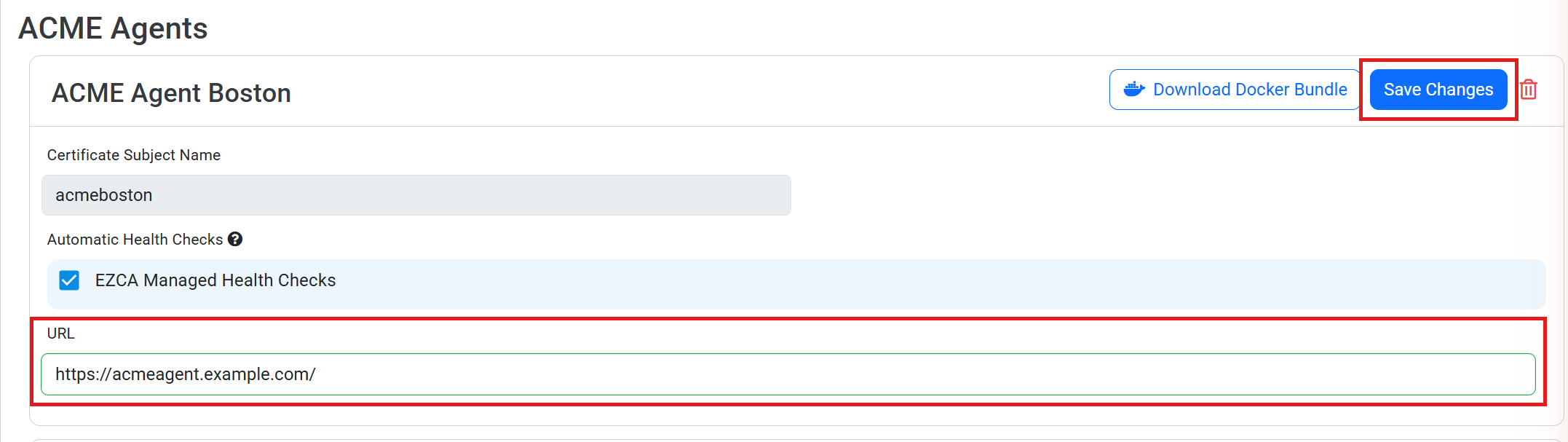
In the URL field, enter the HTTPS address of your agent, such as
https://acmeagent.example.com/.- The URL must start with
https://and must not have a path after the host name. - (optional) To run the agent on a port other than 443, add it to the URL, such as
https://acmeagent.example.com:8443/. The bundle then publishes the agent on that port. - Use a DNS name rather than an IP address. EZCA can only issue the agent’s HTTPS certificate for a DNS name. With an IP address, you have to bring your own TLS certificate.
- The URL must start with
-
(optional) Check EZCA Managed Health Checks if the agent URL is reachable from the internet. EZCA then calls the agent’s health API and notifies you when it is not reachable. If your agent is only reachable inside your network, leave it unchecked. The Docker agent calls its own health API every 5 minutes, which is what renews its certificates, so you can ignore the reminder to call the health API that appears when this box is unchecked.
-
Click Save Changes.
Step 2: How to Download the ACME Agent Docker Bundle From EZCA
When you download the bundle, EZCA issues two certificates from your CA: the agent’s authentication certificate, with your agent’s Certificate Subject Name, and the HTTPS certificate for the host name in the agent URL. Your browser creates the private keys of both certificates, so the keys never leave your computer except in the bundle.
-
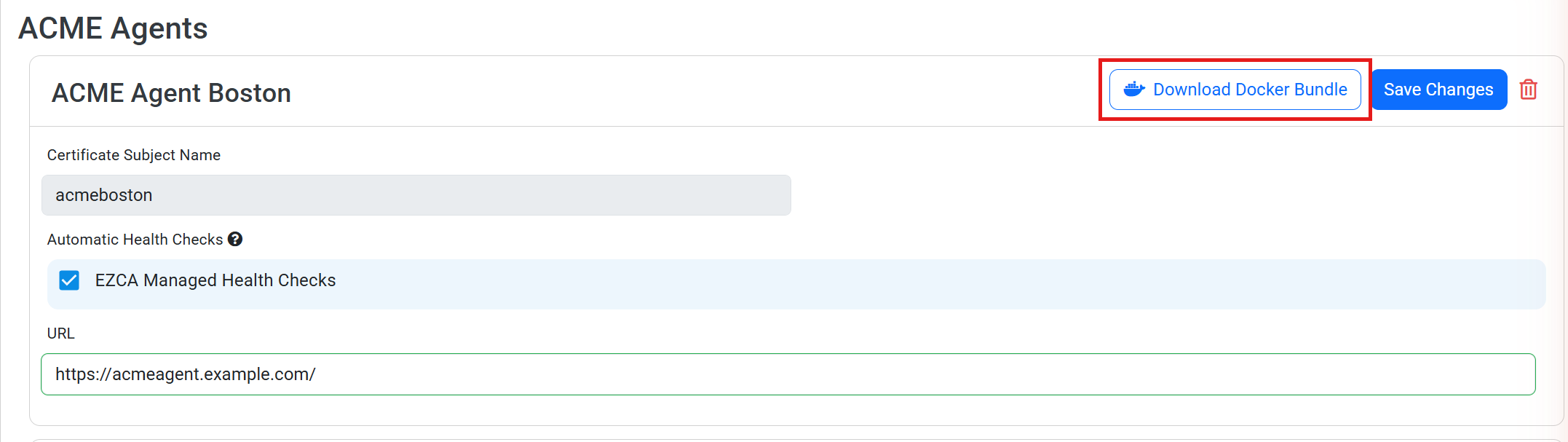
In the same agent card, click Download Docker Bundle.
-
The button shows Creating Docker Bundle while EZCA issues the certificates. This can take a few seconds.
-
Your browser downloads the bundle,
acme_agent_<CertificateSubjectName>.zip, and EZCA shows the messageDocker bundle downloaded. Unzip it on your Linux server, then run sudo bash scripts.sh.
Every click on Download Docker Bundle issues a new agent certificate and a new HTTPS certificate. Download the bundle once for each server that runs the agent, and keep the zip file private until you copy it to the server.
If EZCA shows the message Docker bundle downloaded. Unzip it on your Linux server, copy the TLS certificate and key the agent serves HTTPS with to tls/tls.crt and tls/tls.key, then run sudo bash scripts.sh., EZCA could not issue the HTTPS certificate for your agent URL. This happens when the URL uses an IP address, or when your CA’s SSL template does not allow the Server Authentication EKU. Complete Step 3, then follow How to Use Your Own TLS Certificate instead of Step 4.
Step 3: How to Copy the Docker Bundle to Your Linux Server
The following steps use /opt/ezca-acme-agent on the Linux server as the folder for the agent. You can use any folder, as long as it stays in place, because the agent saves its renewed HTTPS certificate there.
-
On the computer where you downloaded the bundle, copy it to your Linux server. For example, with
scp:scp acme_agent_<CertificateSubjectName>.zip user@your-linux-server:~ -
Connect to your Linux server over SSH, or open a terminal on it.
-
(only if
unzipis not installed) Installunzip. For example, on Ubuntu or Debian:sudo apt-get install -y unzip -
Unzip the bundle into the agent’s folder:
sudo mkdir -p /opt/ezca-acme-agent sudo unzip ~/acme_agent_<CertificateSubjectName>.zip -d /opt/ezca-acme-agent -
Delete the zip file from your home folder, because it contains the agent’s private keys:
rm ~/acme_agent_<CertificateSubjectName>.zip -
Open the folder the bundle created:
cd /opt/ezca-acme-agent/acme_agent_<CertificateSubjectName>
Step 4: How to Start the EZCA ACME Agent Container
The bundle’s scripts.sh gives the container’s user (a non-root user with the user ID 1654) ownership of the certificate files, makes the private keys readable only by that user, and starts the agent with Docker Compose.
-
Run the setup script as root:
sudo bash scripts.sh -
Docker downloads the agent’s image and starts the container. When the script finishes, it prints:
The ACME agent is starting. Check its logs with: docker logs ezca-acme-agent
Docker checks the agent's health every 5 minutes, which also renews its EZCA certificate before it expires. See its health with: docker ps --filter name=ezca-acme-agent
The container restarts on its own after a reboot or a crash, so you only run the script once.
Step 5: How to Verify Your ACME Agent Is Running
-
Check the agent’s logs:
sudo docker logs ezca-acme-agentOn its first start, the agent logs that it imported its certificate, which certificate it uses, and the HTTPS port it listens on inside the container:
Imported agent certificate <thumbprint> from /import/agent.pem
Using agent certificate <thumbprint>, valid until <date>
Now listening on: https://[::]:8443
If the container keeps restarting instead, the last lines of the log tell you what to fix. See Troubleshooting.
-
Check the container’s health:
sudo docker ps --filter name=ezca-acme-agentThe STATUS column shows
(health: starting)for a few seconds until the first health check passes, and(healthy)after that. -
From a computer that trusts your CA, go to
https://acmeagent.example.com/api/Health/Overall. You should see a JSON response where every entry has"Success":true.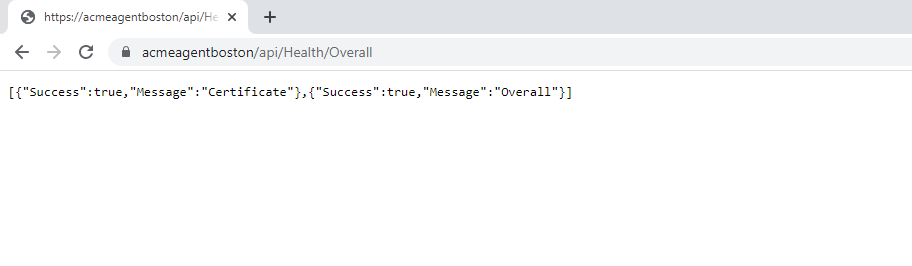
-
Go to
https://acmeagent.example.com/api/Health/Authentication. A response with"Success":trueconfirms that EZCA accepts the agent’s certificate. -
Done! Your ACME agent is up and running, and its ACME directory is at
https://acmeagent.example.com/directory.
How to Request Your First Certificate From the ACME Agent With Certbot
Now that your agent is running, you can request a certificate from it with any ACME client. Follow these steps to test it with Certbot on an Ubuntu or Debian server in your network:
-
Download your Root CA’s certificate from EZCA. Open the details of your Root CA (the Root CA of the CA your agent is registered on) in Certificate Authorities, and click Download Certificate.
-
Copy the downloaded file to the server that needs a certificate, and add it to the server’s trusted root certificates, so Certbot trusts the agent’s HTTPS certificate. Replace
Your Root CA.cerwith the name of the file you downloaded:sudo cp "Your Root CA.cer" /usr/local/share/ca-certificates/ezca-root.crt sudo update-ca-certificates -
Install Certbot:
sudo apt-get install -y certbot -
Request a certificate for the server, replacing the domain, the email, and the agent URL with yours:
sudo certbot certonly --standalone -d server1.example.com -m admin@example.com --agree-tos --server https://acmeagent.example.com/directory-d: The domain of the server. Your CA’s SSL template must allow it.-m: Your email address. The agent requires an email contact for every ACME account.--standalone: Certbot answers thehttp-01challenge itself on port 80, so port 80 must be free on the server and reachable from the agent.
-
Certbot saves the certificate and its private key in
/etc/letsencrypt/live/server1.example.com/, and renews them automatically before they expire.
To set up other ACME clients, such as win-acme on Windows, see How to Set Up ACME Clients for Your Internal CA.
How the ACME Agent Renews Its Certificates in Docker
Every 5 minutes, Docker runs the container’s health check, which calls the agent’s health API. When either of the agent’s certificates is within 15 days of expiring (or within the last third of its lifetime, for certificates that live less than 45 days), that call makes the agent create a new private key, renew the certificate with EZCA, and save it:
- The agent’s authentication certificate is saved in the Docker volume
ezca-acme-agent-certificates. The agent logsRenewed agent certificate. - The HTTPS certificate replaces
tls/tls.crtandtls/tls.keyin the agent’s folder. The agent logsRenewed HTTPS certificateand starts serving the new certificate within 5 minutes, without a restart.
Renewal only happens while the agent is running, so keep the container running at all times. If you enabled EZCA Managed Health Checks, EZCA also calls the health API and notifies you when the agent can’t be reached.
The ezca-acme-agent-certificates volume holds the agent’s renewed certificates, and the tls folder holds its renewed HTTPS certificate. Don’t delete the volume (for example with docker compose down --volumes) or the agent’s folder. If you lose them, download a new bundle as described in How to Reinstall the ACME Agent.
If you restrict access to your CA by IP address, make sure the public IP address the agent connects from is allowed. Otherwise EZCA rejects every certificate request the agent makes, including its own renewals, so its certificates eventually expire.
The volume and the tls folder hold the agent’s private keys, in files only the container’s user can read. Anyone who can run Docker commands or read the Docker volumes on the server can read them, so limit who has access to the server.
How to Use Your Own TLS Certificate for the ACME Agent
The bundle includes an HTTPS certificate from your CA whenever EZCA can issue one. You need your own TLS certificate when the agent URL uses an IP address, when your CA’s SSL template does not allow the Server Authentication EKU, or when your ACME clients need a certificate from another CA. These steps assume you already unzipped the bundle on your server as described in Step 3.
-
Get the certificate and its private key as PEM files. The certificate file must start with the agent’s certificate, followed by the CA certificates in its chain. The private key must not be encrypted.
-
Copy them into the
tlsfolder of the agent, with these exact names:sudo cp your-certificate.pem /opt/ezca-acme-agent/acme_agent_<CertificateSubjectName>/tls/tls.crt sudo cp your-private-key.pem /opt/ezca-acme-agent/acme_agent_<CertificateSubjectName>/tls/tls.key -
Run
sudo bash scripts.shin the agent’s folder, then verify the agent as described in Step 5. If the agent is already running, the script gives the container access to the new files, and the agent starts serving the new certificate within 5 minutes.
The agent can only renew an HTTPS certificate that your EZCA CA issued. If you use a certificate from anywhere else, replace the files before it expires. Within 15 days of its expiration (or the last third of its lifetime, for certificates that live less than 45 days), the HTTPS Certificate entry of https://acmeagent.example.com/api/Health/Overall shows "Success":false, and sudo docker ps shows the container as (unhealthy) to remind you.
How to Update the EZCA ACME Agent Container
The agent’s certificates live in its volume and its tls folder, so you can replace the container at any time. Follow these steps to update the agent to the latest version:
-
Open the agent’s folder:
cd /opt/ezca-acme-agent/acme_agent_<CertificateSubjectName> -
Download the latest image and recreate the container with it:
sudo docker compose pull
sudo docker compose up --detach
How to Reinstall or Move the ACME Agent
If you move the agent to another server, or the agent’s certificates expired because it was stopped for too long, download a new bundle and start it like the first time:
-
On the old server, stop and remove the agent, if it still runs:
cd /opt/ezca-acme-agent/acme_agent_<CertificateSubjectName> sudo docker compose down -
Follow Step 2 to Step 5 again on the server that runs the agent. If you reuse the same folder, delete the old one first with
sudo rm -rf /opt/ezca-acme-agent/acme_agent_<CertificateSubjectName>.
The agent imports the certificate in the new bundle because it expires later than the certificate it already has.
Next Steps - Request ACME Certificates from Your CA Using the Agent
Now that you have your ACME agent running in Docker, you can request ACME certificates from your CA through the agent from any server in your network. Learn how to set up popular ACME clients in the next page.
🚀 Request ACME Certificates Using Your AgentTroubleshooting the EZCA ACME Agent in Docker
Below you will find common errors when downloading the bundle and running the EZCA ACME agent in Docker, and how to fix them.
Errors When Downloading the Docker Bundle in EZCA
Please enter the https URL your ACME clients use to reach this agent, such as https://acmeagent.example.com/
If you see this error, the agent’s URL is empty, does not start with https://, or has a path after the host name. Enter the URL as described in Step 1.
Could not find an SSL template on this CA that you can request certificates from. Please make sure you are a requester on the CA's SSL template.
If you see this error, you are not a requester on your CA’s SSL template. Add yourself as a requester on the template, or ask another PKI Admin of your CA to do it, then try again.
This CA's SSL template allows neither the Client Authentication nor the Server Authentication EKU, so it cannot issue the ACME agent's certificate.
If you see this error, the agent’s certificate needs the Client Authentication or the Server Authentication EKU, and your CA’s SSL template allows neither. Allow one of them on the template, then try again. We recommend allowing Server Authentication, so EZCA can also issue the agent’s HTTPS certificate.
Error: You do not have permission to request a certificate for the domain: <domain>: <reason>
If you see this error, EZCA could not issue a certificate for <domain>. It is either the host name in the agent URL (such as acmeagent.example.com) or the agent’s Certificate Subject Name (such as acmeboston). The reason at the end tells you what to fix:
<domain> is already registered: Someone else owns the domain in EZCA. Ask a domain owner to add you as a requester on the domain in My Domains. For the agent’s Certificate Subject Name, the owners are the PKI Admins who were admins when the agent was registered.<domain> is already awaiting approvalorDomain registration was submitted for approval successfully: The domain is waiting for approval. Ask an approver of your CA to approve it, then download the bundle again.<domain> is not an approved domain in this CA: Your CA only issues certificates for an approved list of domains. Ask a PKI Admin to add the domain to the list, or use a host name that is on it.
The Setup Script Stops Before Starting the Agent
Run this script as root, for example with sudo, so it can give the container's user the certificate files.
If you see this error, run the script with sudo bash scripts.sh.
Docker Compose is not installed. Install the Docker Compose plugin, then run this script again.
If you see this error, install the Docker Compose plugin and run the script again.
Copy the PEM certificate and unencrypted private key the agent serves HTTPS with to /opt/ezca-acme-agent/acme_agent_<CertificateSubjectName>/tls/tls.crt and /opt/ezca-acme-agent/acme_agent_<CertificateSubjectName>/tls/tls.key, then run this script again.
If you see this error, the bundle has no HTTPS certificate. Follow How to Use Your Own TLS Certificate.
The Port Is Already in Use
Bind for 0.0.0.0:443 failed: port is already allocated
listen tcp4 0.0.0.0:443: bind: address already in use
If scripts.sh fails with one of these errors, another service on the server already uses the agent’s port. Stop that service, or run the agent on another port: change the agent’s URL in EZCA to include the port (such as https://acmeagent.example.com:8443/), then download a new bundle and start it as described in How to Reinstall the ACME Agent.
No Certificate Is in the Certificate Store
System.InvalidOperationException: No certificate for CN=acmeboston is in the certificate store.
If you see this error in sudo docker logs ezca-acme-agent, the agent has no certificate to use. This usually means the ezca-acme-agent-certificates volume was deleted after you removed import/agent.pem. Download a new bundle as described in How to Reinstall the ACME Agent.
The Agent Certificate Expired
System.InvalidOperationException: Agent certificate <thumbprint> for CN=acmeboston expired at <date>.
If you see this error, the newest certificate the agent has is expired, and EZCA does not accept an expired certificate, not even to renew it. This usually means the agent was stopped while its certificate was due for renewal. Download a new bundle as described in How to Reinstall the ACME Agent, and keep the container running afterwards.
The Certificate Store Belongs to Another User
System.Security.Cryptography.CryptographicException: The owner of '/home/app/.dotnet/corefx/cryptography/x509stores/my' is not the current user.
If you see this error, the agent’s certificate store was mounted from a host folder owned by another user, instead of the named volume in the bundle’s compose.yaml. .NET only writes to a certificate store owned by the user it runs as. Use the bundle’s compose.yaml as it is, or run sudo chown -R 1654:1654 on that host folder.
ACME Account Creation Fails Without an Email
At least one contact is required to create an account
If your ACME client shows this error, it created its account without an email address. The agent requires one. For Certbot, add -m admin@example.com, and don’t use --register-unsafely-without-email.
Domain Validation Failure
For http-01 challenges, make sure the agent’s server can reach the server requesting the certificate over HTTP (port 80). For dns-01 challenges, make sure the agent can resolve the _acme-challenge TXT record of the domain.
Enjoying EZCA? Leave Us a Review!
We hope you’re enjoying using EZCA to automate your internal certificates with ACME! If you have a moment, we would greatly appreciate it if you could leave us a review on G2. Your feedback helps other IT professionals discover EZCA and helps us continue to improve our service. Thank you for your support!