













How-To: Set Up Your YubiKey on iPhone for Microsoft Entra ID Passkeys and Certificate-Based Authentication (CBA)
Overview - How Do I Set Up My YubiKey on iPhone for Entra ID Passkeys and Entra CBA?
When you get a new security key from your workplace or school, such as a YubiKey, you can set it up for Microsoft Entra ID (formerly Azure AD) right from your iPhone with the Keytos Connect app. Keytos Connect puts your work or school credentials on the key, such as a FIDO2 passkey and a certificate for Entra certificate-based authentication (CBA), so you can sign in to Microsoft 365 and your other work apps with your YubiKey instead of a password.
You can prove who you are in one of two ways, depending on what your organization allows:
- Entra ID: Sign in with your existing work or school account. Use this if you can already sign in.
- Government ID: Verify your identity with a government-issued ID and your phone. Use this if you’re new and don’t have a working account yet, or if you’re locked out.
On iPhone, Keytos Connect only supports onboarding your security key over NFC, not USB. Whenever a step asks you to connect, plug in, or touch your security key, hold it against the top of your iPhone until Keytos Connect reads it instead. Your security key must support NFC, such as a YubiKey 5 NFC or YubiKey 5C NFC. Because iPads don’t have NFC, you can’t set up a security key on an iPad.
Before You Begin - What You Need to Set Up a YubiKey on iPhone
- Install Keytos Connect from the App Store on your iPhone.
- Have your new NFC security key ready, such as the YubiKey your IT team sent you.
- If you’re using a government ID, have your ID and a smartphone with a camera ready.
Step-by-Step Guide - How to Set Up Your YubiKey on iPhone with Keytos Connect
Use the tabs below to follow the steps for how you’re verifying your identity.
If you’re onboarding for the first time, or you need to do a full recovery because you can’t sign in, use the Government ID tab instead.
How to Sign In with Your Work or School Account
-
Open Keytos Connect, enter your work or school email under Enter your email to begin, and click Begin.
-
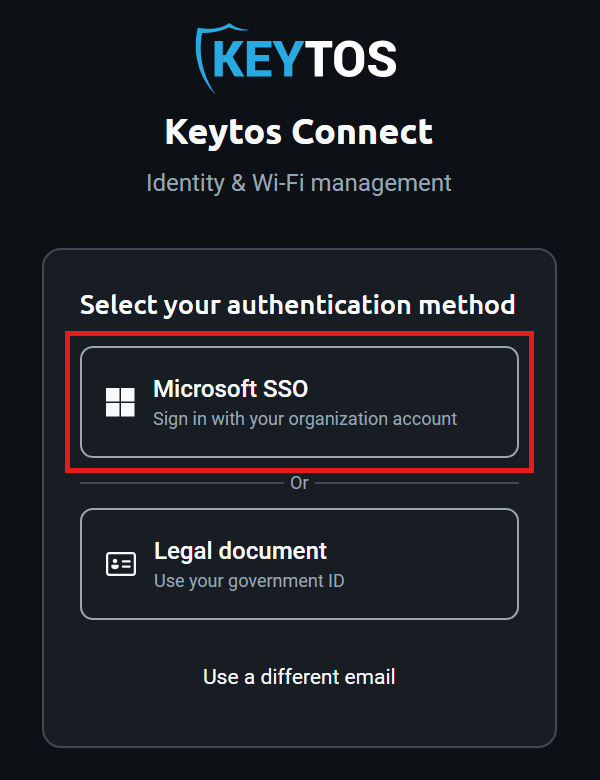
Under Select your authentication method, click Microsoft SSO, and complete the sign-in in the browser window that opens.
How to Install Your Identity on Your Security Key
-
Connect your security key to your device.
-
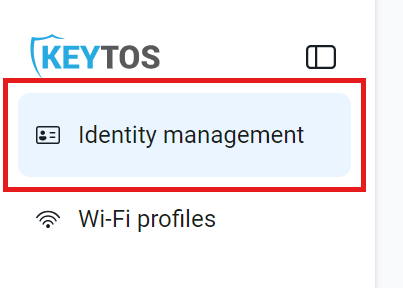
In the left-hand menu, click Identity management.
-
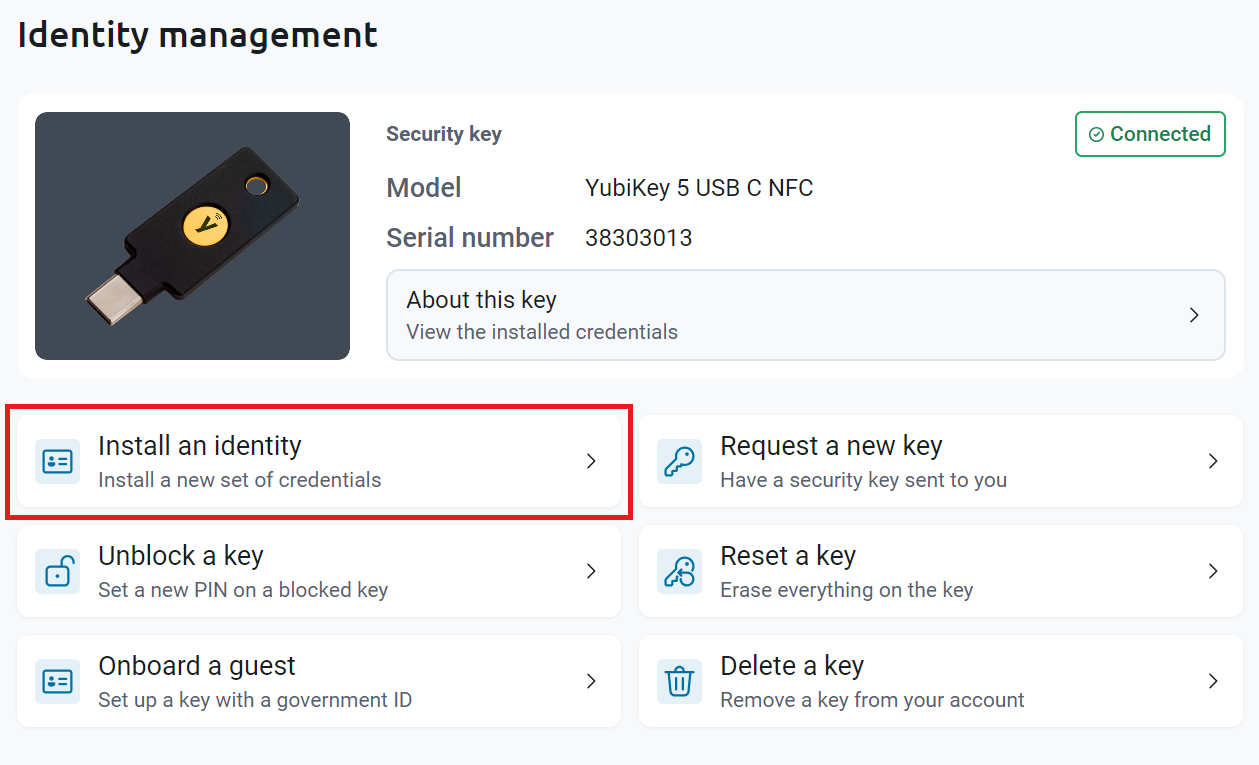
Click Install an identity.
-
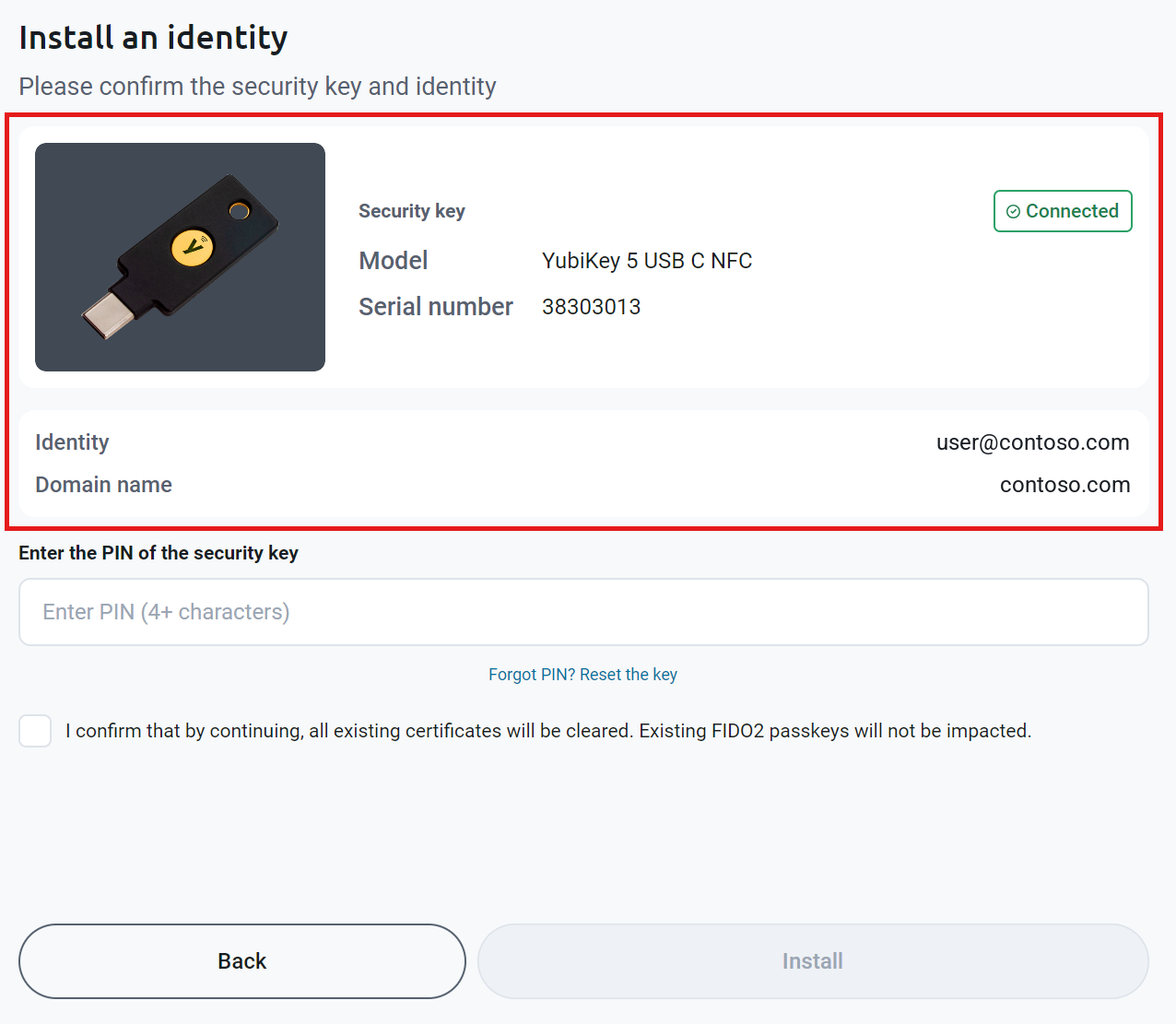
Under Please confirm the security key and identity, check that the Model and Serial number match your key, and that Identity shows your work or school account.
-
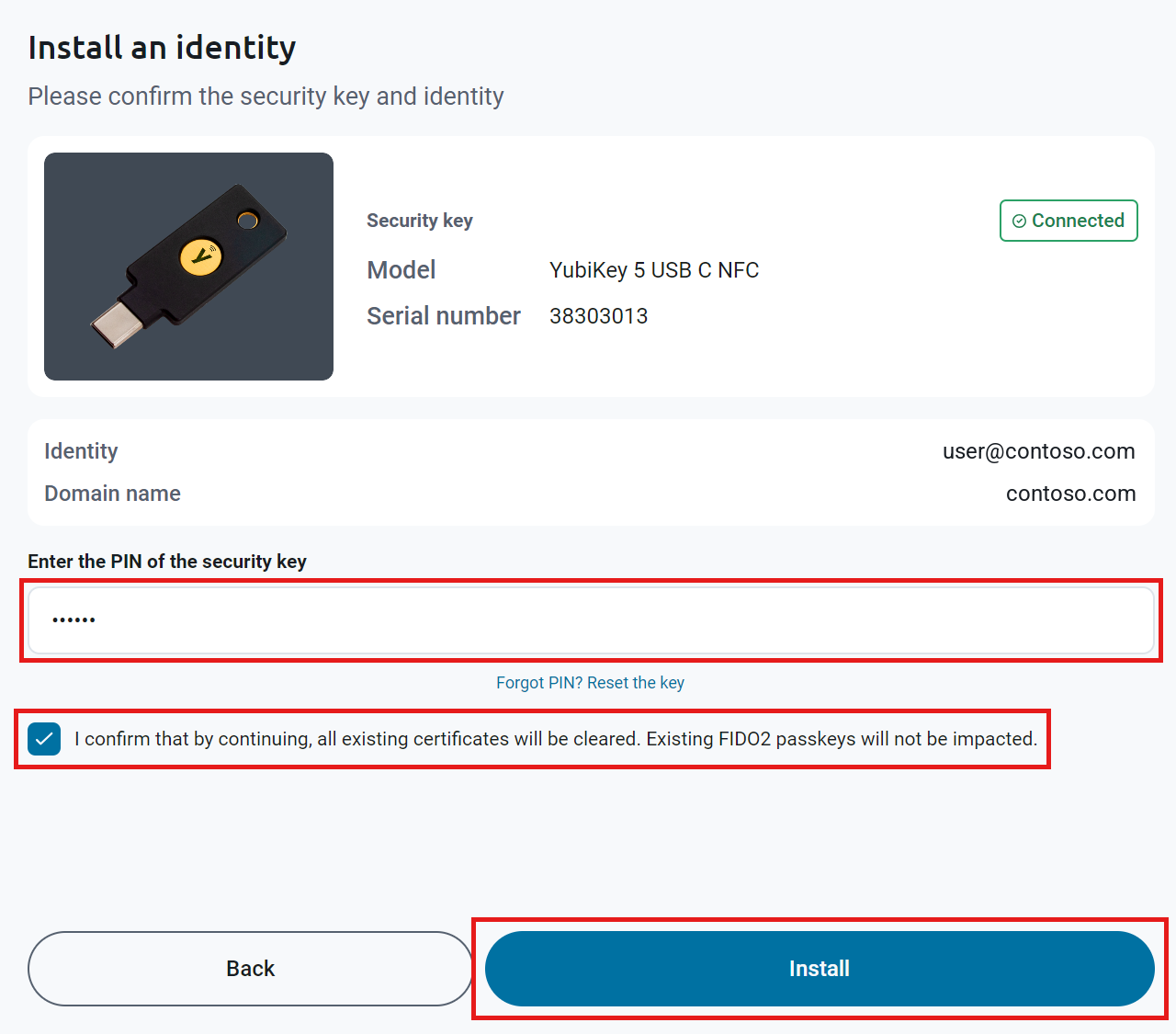
Under Enter the PIN of the security key, enter your key’s PIN. If you don’t know it, click Forgot PIN? Reset the key. Then check the box to confirm that all existing certificates on the key will be cleared, and click Install. Existing FIDO2 passkeys on the key aren’t affected.
-
Keep your security key connected, and touch it each time it blinks until Keytos Connect finishes installing your credentials.
How to Check That Your Security Key Is Ready
-
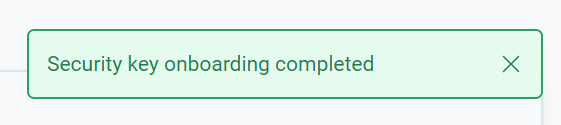
Keytos Connect shows Security key onboarding completed.
-
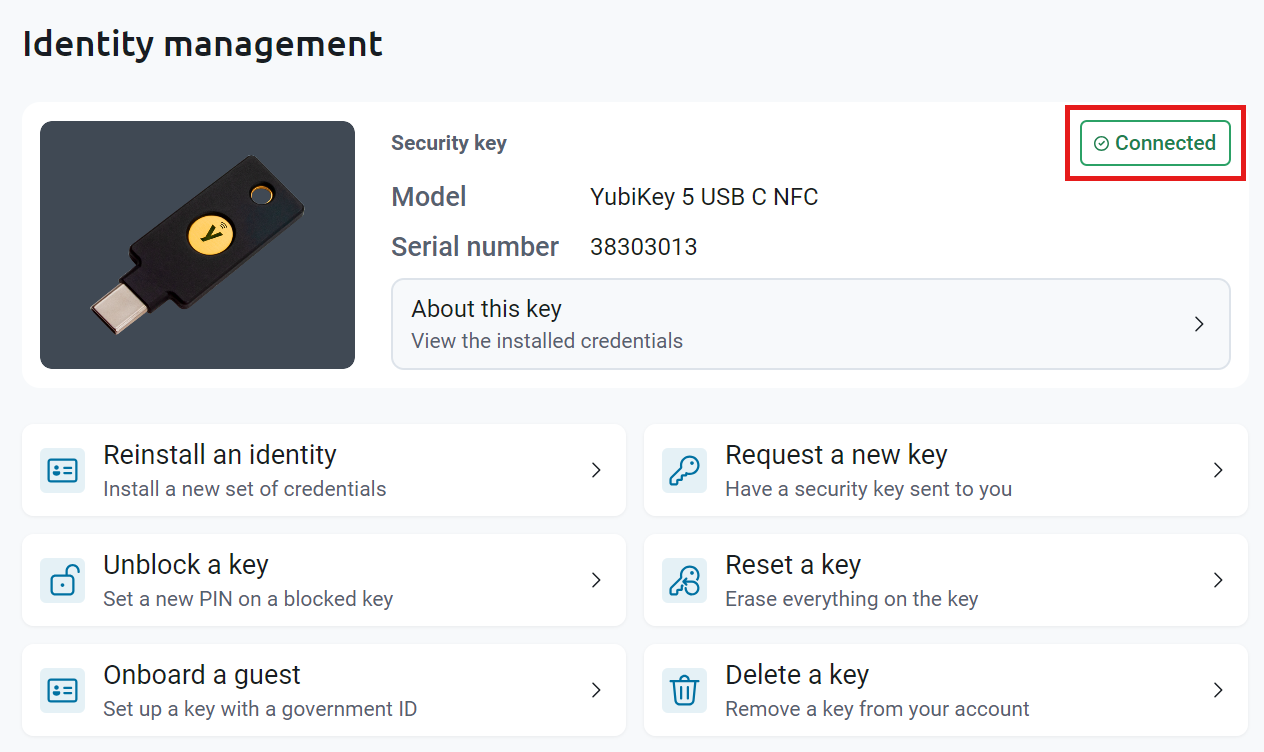
On the Identity management page, your security key shows as Connected, with its Model and Serial number. To see what’s on it, click About this key.
If you don’t see Legal document when you sign in, your IT team hasn’t turned on government ID verification for your organization. Contact your IT team for help.
How to Choose Government ID Verification
-
Open Keytos Connect, enter your work or school email under Enter your email to begin, and click Begin.
-
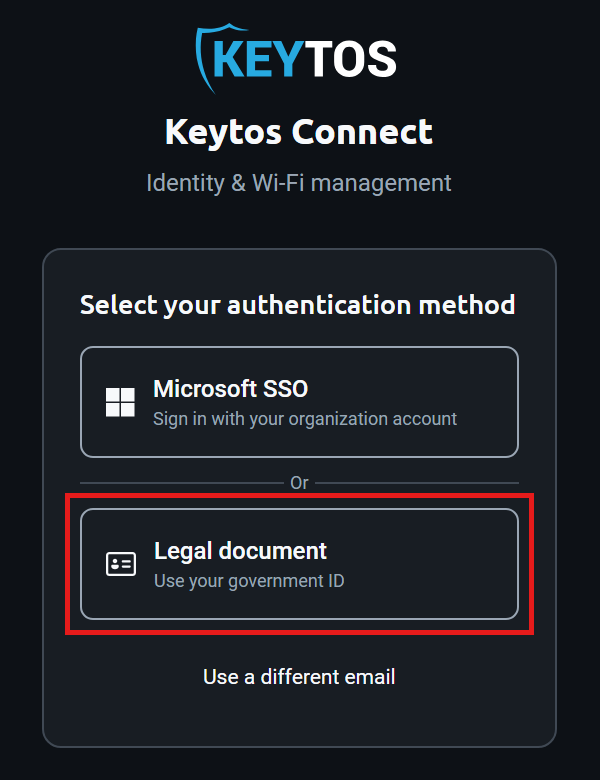
Under Select your authentication method, click Legal document.
How to Verify Your Identity with Your Phone
-
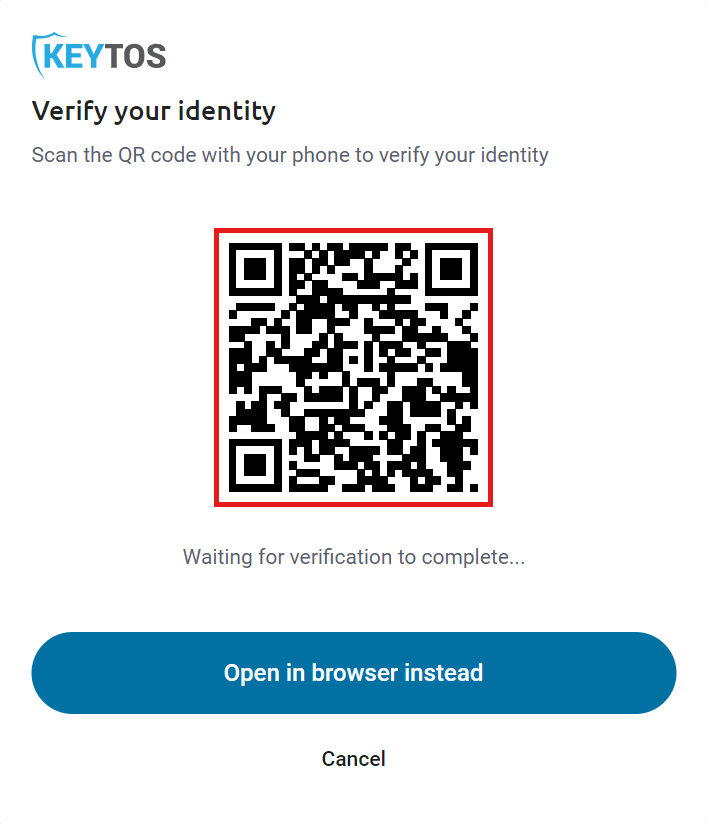
Keytos Connect shows a QR code. Scan it with your phone’s camera to open the identity verification page on your phone. To verify on this computer instead, click Open in browser instead.
-
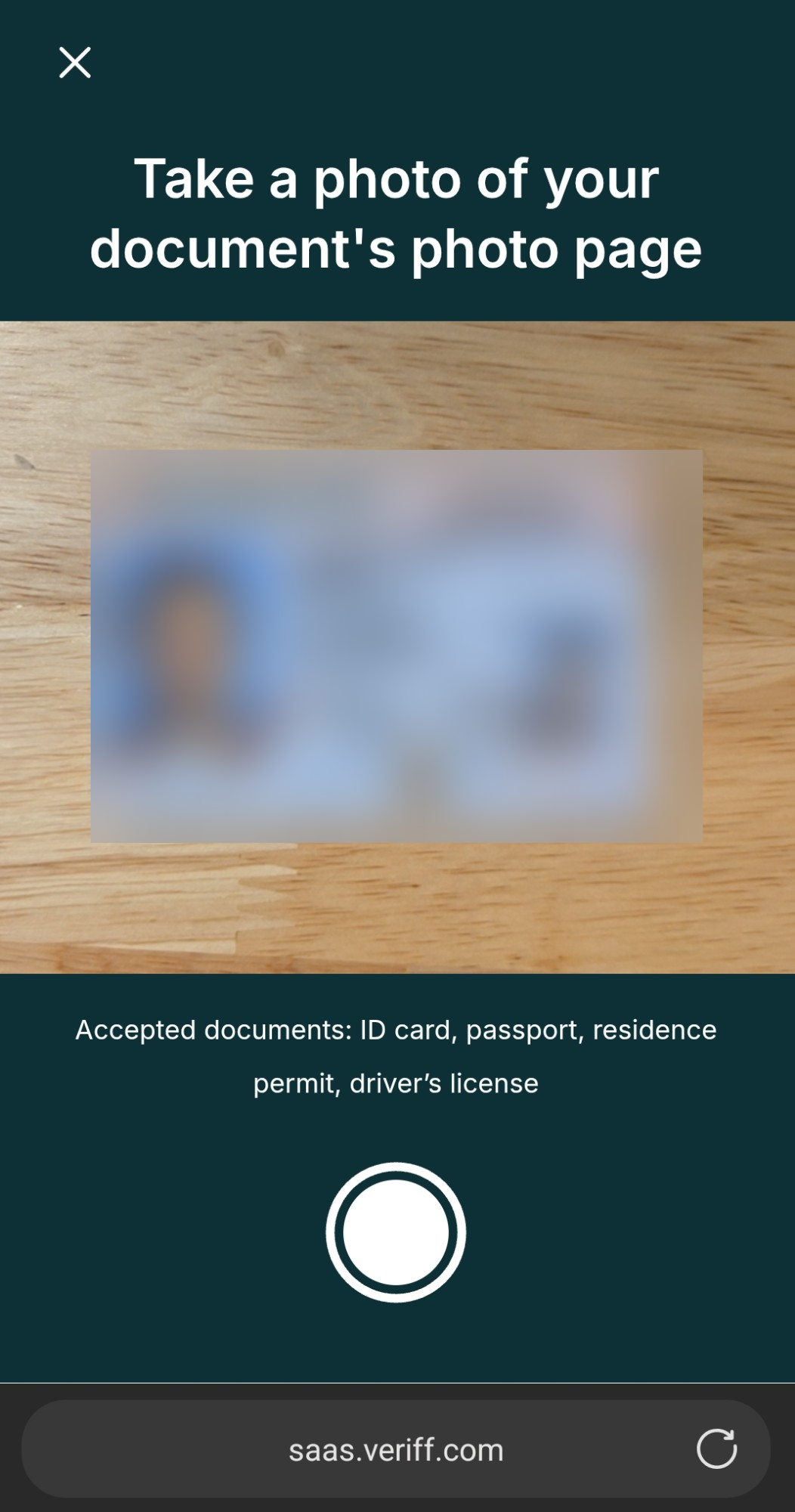
On your phone, follow the prompts on the Veriff identity verification page. When asked to Take a photo of your document’s photo page, place your ID on a flat surface and take a photo. Accepted documents are an ID card, passport, residence permit, or driver’s license.
-
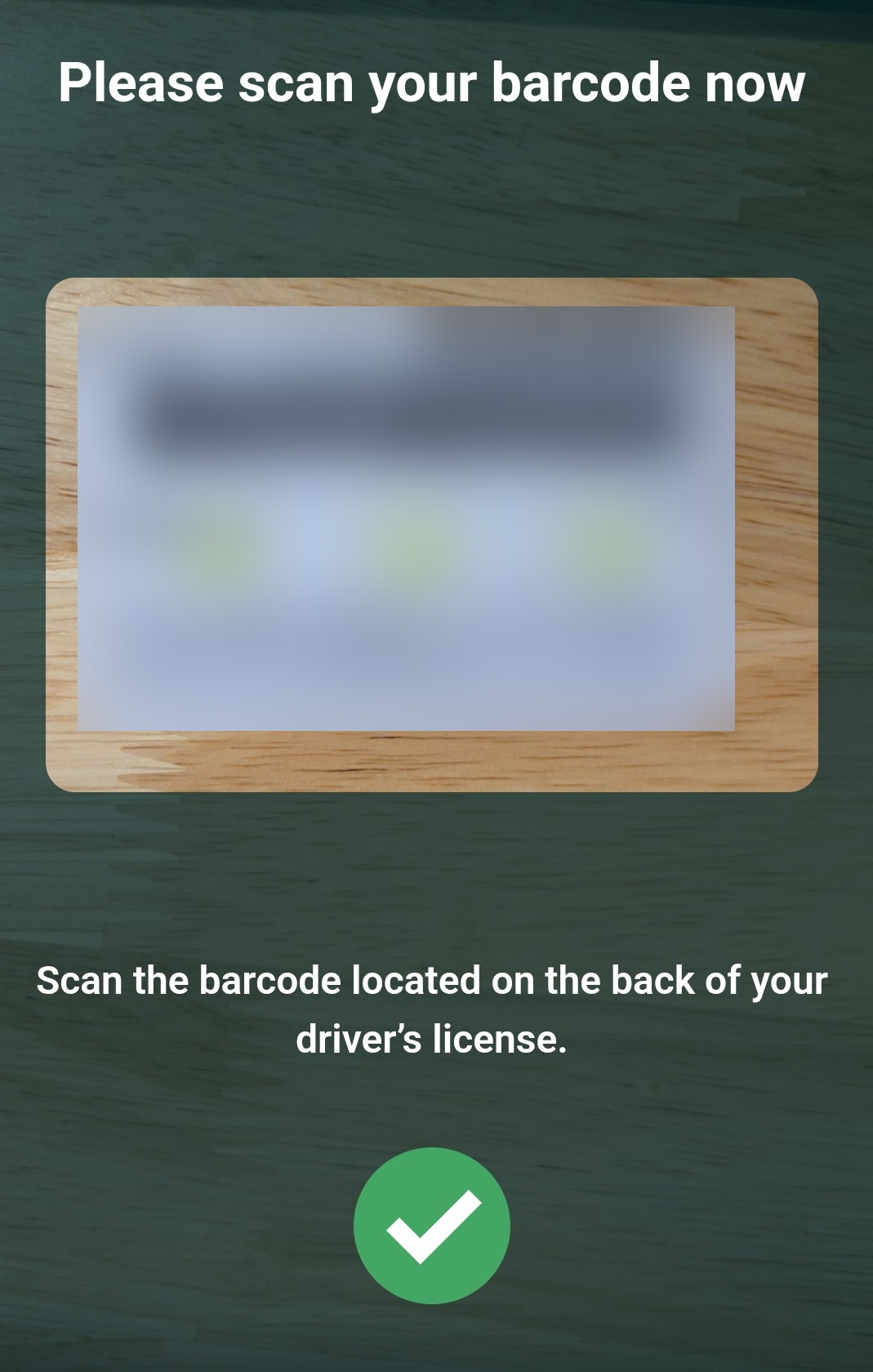
If you’re using a driver’s license, you’re asked to scan the barcode located on the back of your driver’s license. Turn your license over and hold the barcode in the frame until you see a green check mark.
-
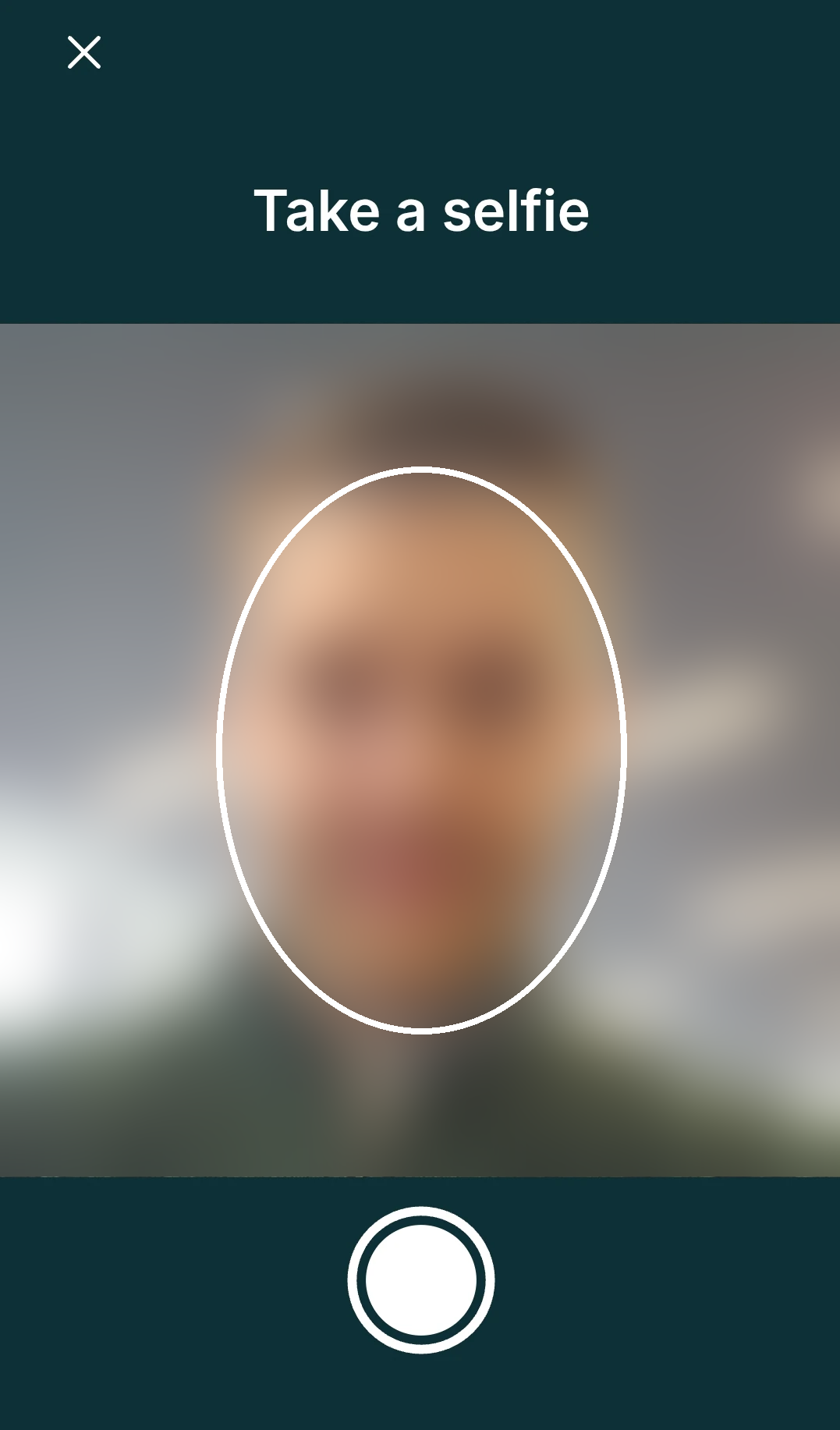
When asked to Take a selfie, hold your phone at eye level, center your face in the oval, and tap the shutter button. Veriff compares your selfie with the photo on your ID.
-
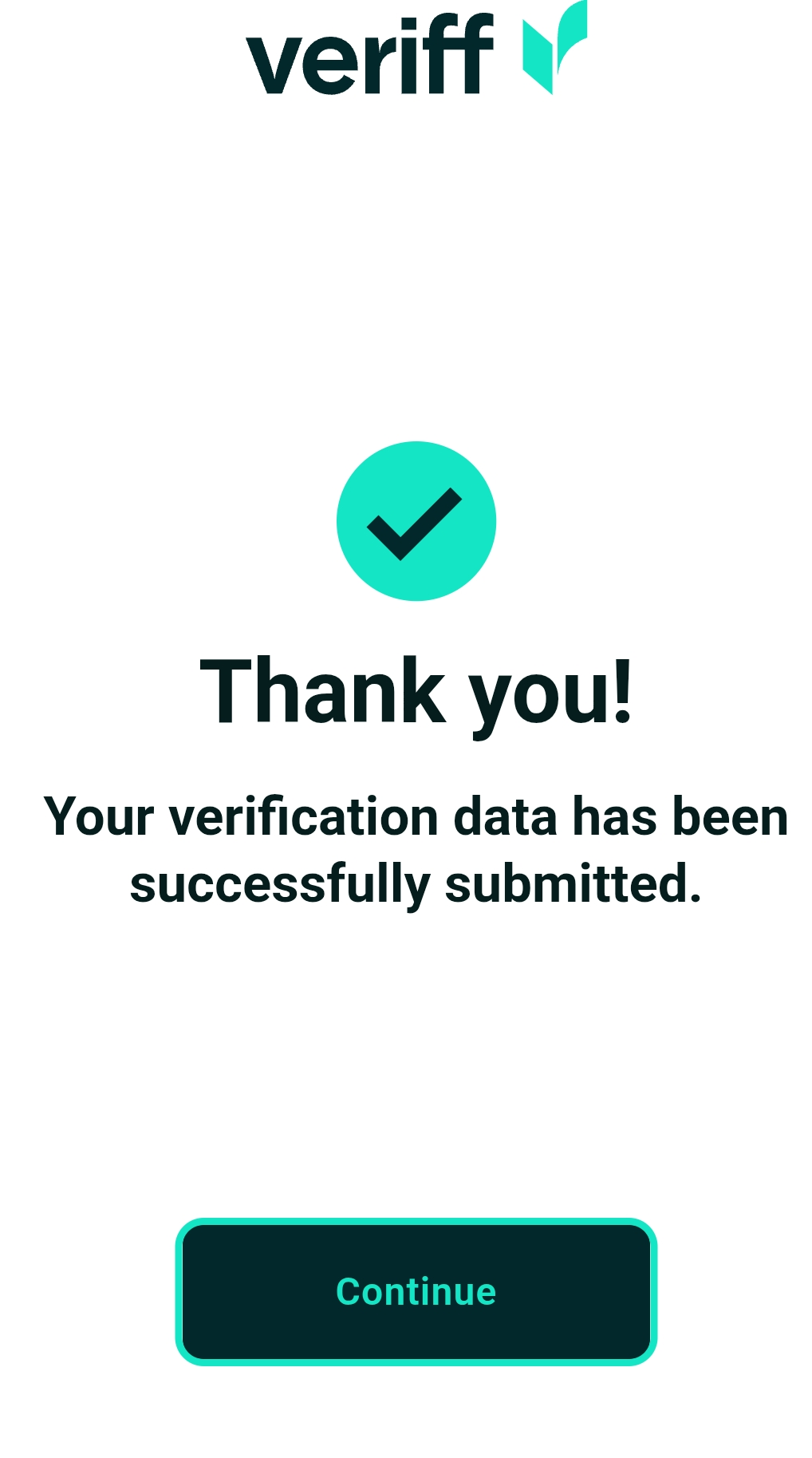
Complete any other prompts. When you see Thank you!, your verification data has been submitted. Tap Continue.
How to Start Setting Up Your Security Key
-
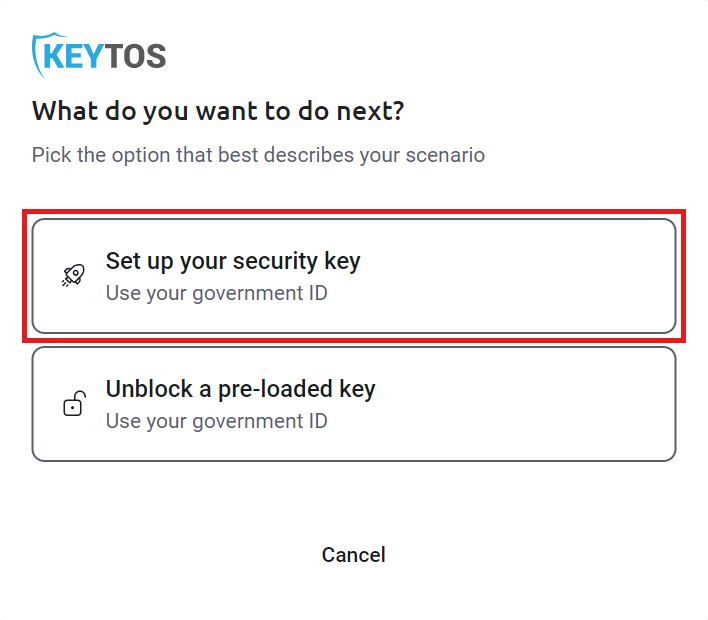
Back in Keytos Connect, under What do you want to do next?, click Set up your security key. If your IT team already put your credentials on the key, click Unblock a pre-loaded key instead, and set your own PIN.
How to Connect Your Security Key
-
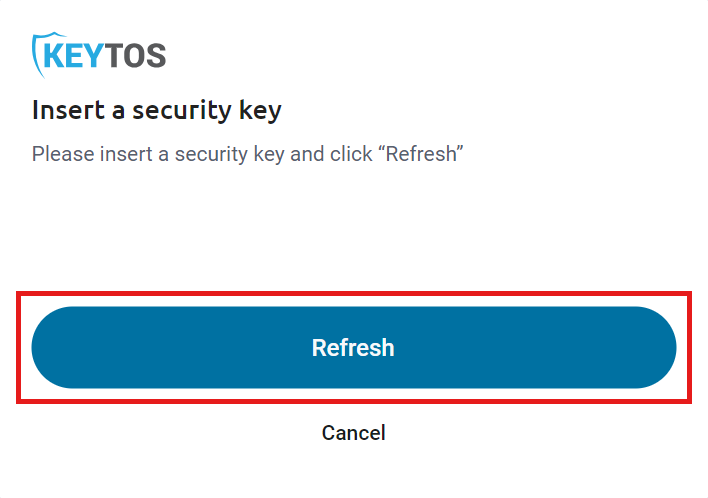
If you see Insert a security key, plug your security key into your computer, and click Refresh.
-
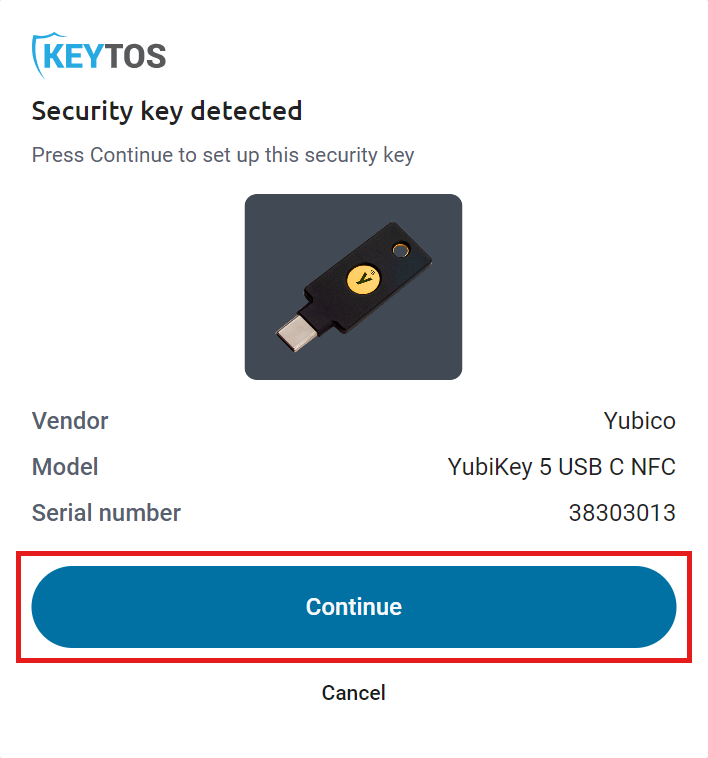
Under Security key detected, check that the Vendor, Model, and Serial number match the key you plugged in, and click Continue.
How to Put Your Credentials on Your Security Key
-
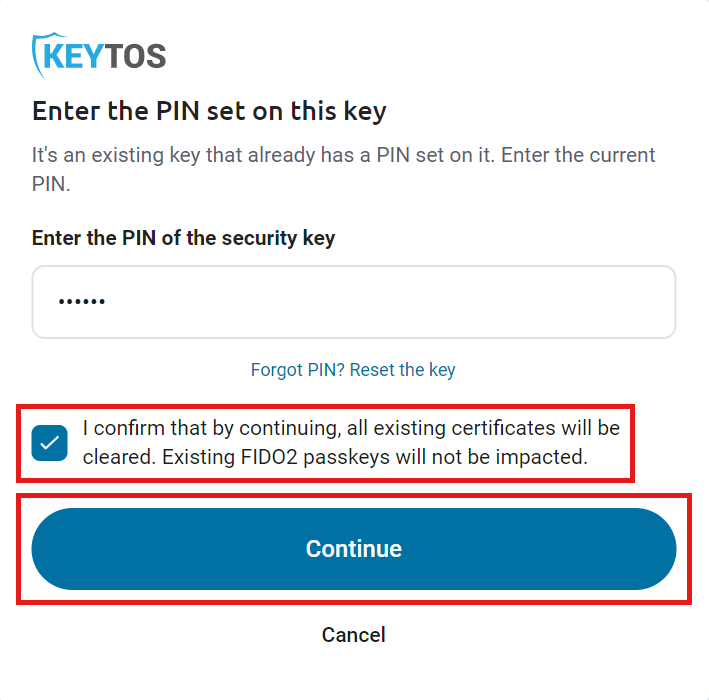
If your key already has a PIN, you see Enter the PIN set on this key. Enter the key’s current PIN. If you don’t know it, click Forgot PIN? Reset the key.
-
Check the box to confirm that all existing certificates on the key will be cleared. Existing FIDO2 passkeys on the key aren’t affected. Click Continue.
-
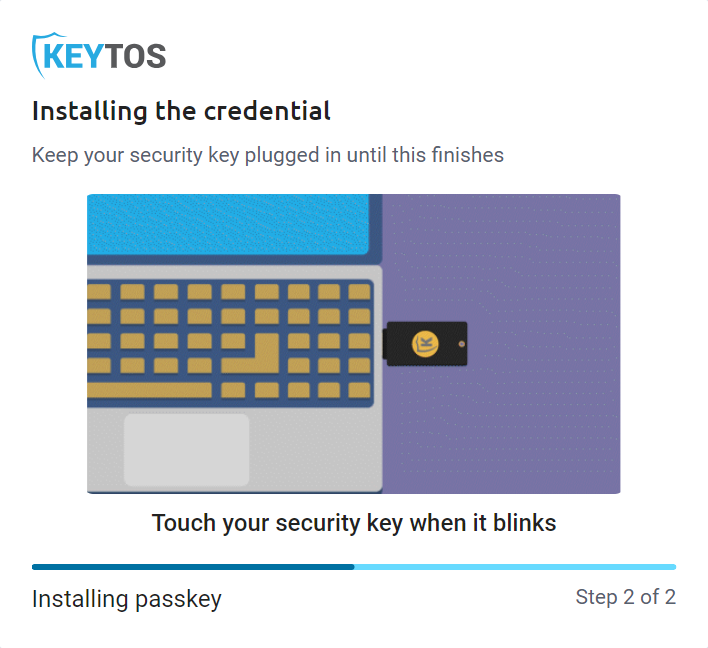
Keytos Connect shows Installing the credential. Keep your security key connected, and touch it each time it blinks. Setup has two steps, and the last one installs your passkey.
-
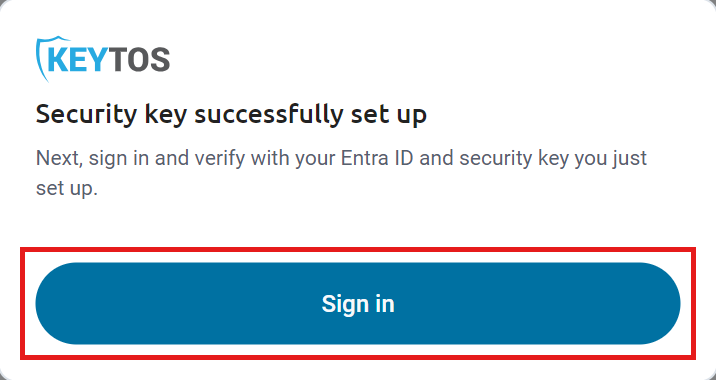
When you see Security key successfully set up, click Sign in.
How to Sign In to Microsoft Entra ID with Your YubiKey on iPhone
- In the Microsoft sign-in window, choose Face, fingerprint, PIN or security key. When your iPhone asks how you want to sign in with your passkey, choose the security key option.
- Hold your security key against the top of your iPhone, enter your security key’s PIN, and hold the key against your iPhone again if asked.
How to Check That Your Security Key Is Ready
-
Keytos Connect shows Security key onboarding completed.
-
On the Identity management page, your security key shows as Connected, with its Model and Serial number. To see what’s on it, click About this key.
Done! You can now use your YubiKey to sign in to your Microsoft Entra ID work or school account on your iPhone.
Frequently Asked Questions (FAQ) About Setting Up a YubiKey on iPhone
Does a YubiKey Work with iPhone for Microsoft Entra ID Sign-In?
Yes. iPhone supports FIDO2 security keys such as YubiKeys for passkey sign-in to Microsoft Entra ID. For the browsers and apps that support it, see Microsoft’s FIDO2 passkey compatibility list.
Which YubiKey Do I Need to Set Up on My iPhone?
To set up your key in Keytos Connect on an iPhone, your key must support NFC, such as a YubiKey 5 NFC or YubiKey 5C NFC. Keys without NFC can’t be set up from an iPhone. Set those up on Windows, macOS, or Linux instead.
Can I Set Up My YubiKey on an iPad?
No. Keytos Connect on iOS and iPadOS only sets up security keys over NFC, not USB, and iPads don’t have NFC. Plugging your YubiKey into your iPad’s USB-C or Lightning port doesn’t work for setup either. To set up your key, use an iPhone, an Android phone or tablet, or a Windows, macOS, or Linux computer.
What Does Keytos Connect Put on My YubiKey?
Keytos Connect installs the credentials your organization uses for Entra ID, such as a FIDO2 passkey and a smart card certificate for Entra certificate-based authentication (CBA) as well as an encryption certificate used for your Keychain if using certificate-based authentication in macOS. Setup clears any existing certificates on the key, but it doesn’t affect FIDO2 passkeys that are already on it. To see what’s on your key after setup, follow How to View Your Security Key Details.
What If I Don’t Know My YubiKey’s PIN?
During setup, click Forgot PIN? Reset the key. If your IT team already put your credentials on the key and gave you a temporary PIN, follow How to Unblock a Security Key to set your own PIN instead.
Can I Set Up My YubiKey for Entra ID Before Setting Up My Laptop?
Yes. Keytos Connect is designed so you can set up your YubiKey for Entra ID from your iPhone, without a computer. This solves a common problem with new laptops: you need your YubiKey to enroll the laptop in Windows Autopilot, but you’d otherwise need a working Windows device to set up the YubiKey.