










How to Export Keytos Shield Audit Logs to Datadog
Overview - How to Send Keytos Shield Logs to Datadog
Keytos Shield can send its audit logs to Datadog through the Datadog logs intake API, so your security team can search, alert on, and retain them alongside the rest of your security data.
Prerequisites
- An active Keytos Shield subscription.
- A Datadog account and permission to create API keys.
How to Export Keytos Shield Audit Logs to Datadog
How to Enable Log Export in Keytos Shield
-
Open the Keytos Shield global portal in your browser (US Government Portal) and sign in.
-
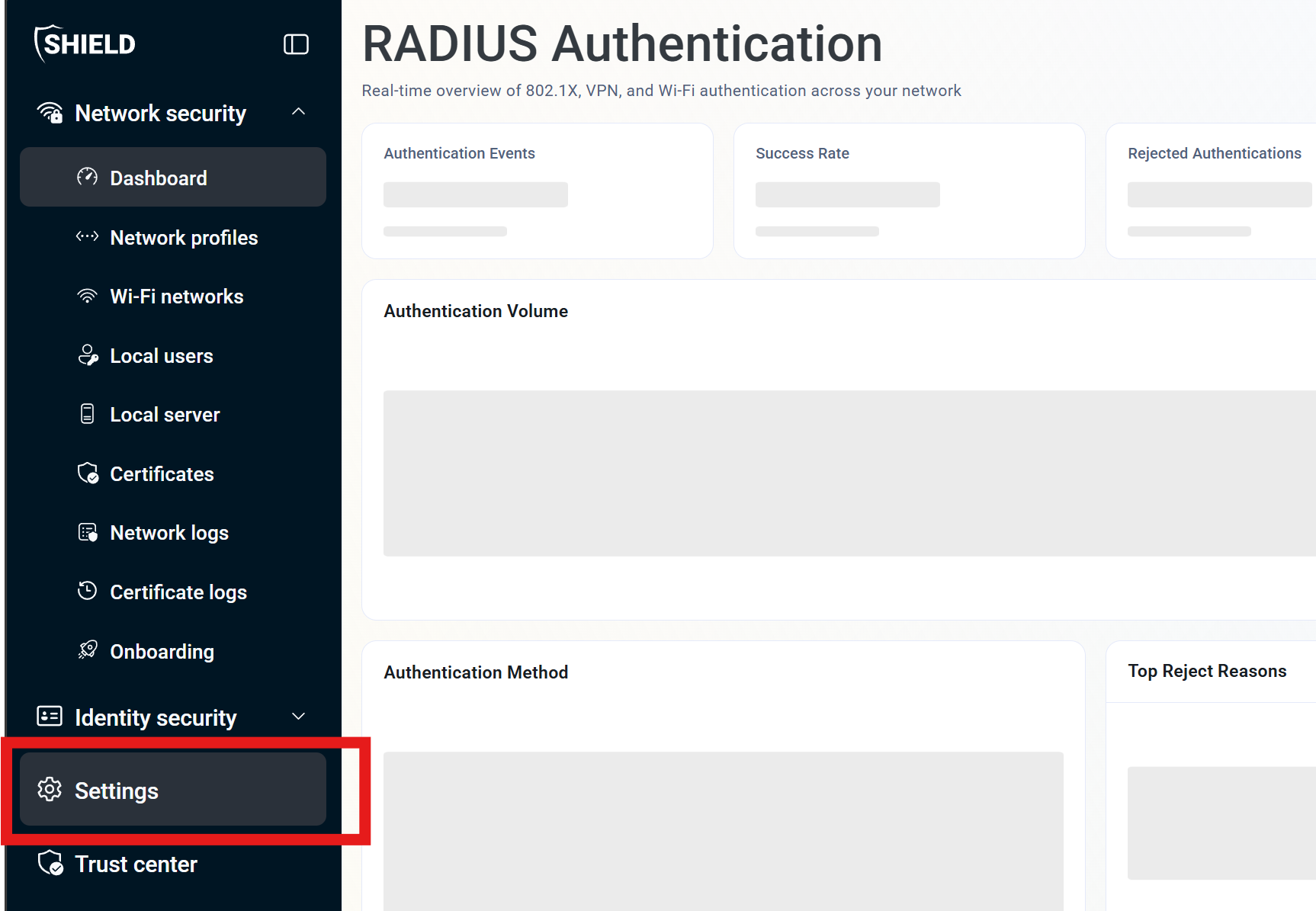
Click Settings in the left menu.
-
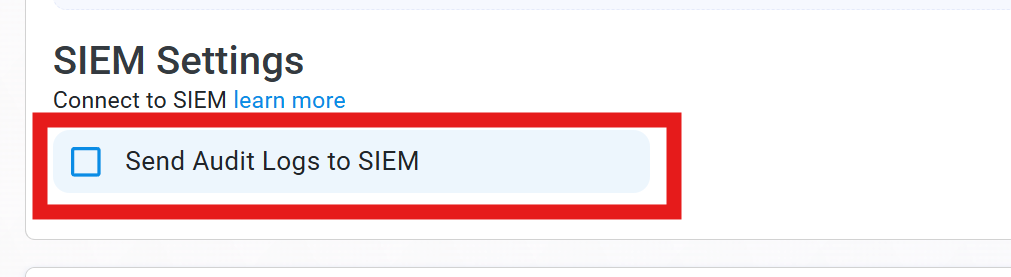
Scroll down to SIEM Settings and enable Send Audit Logs to SIEM.
How to Get Your Datadog Logs URL and API Key
-
In another tab, go to the Datadog Logs API docs: Datadog Docs.
-
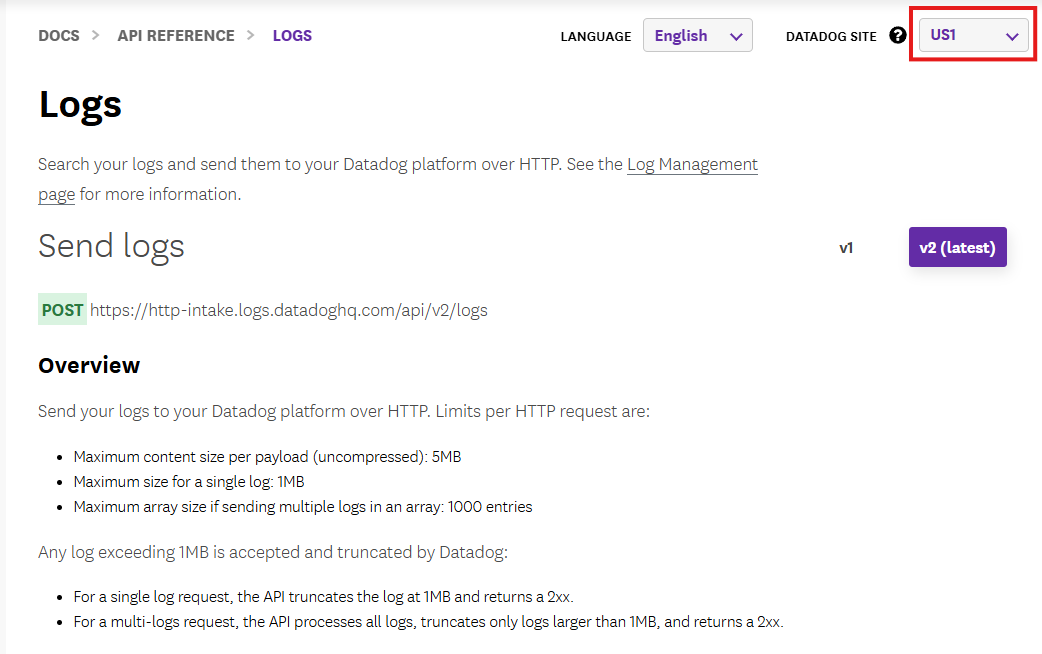
Look on the top right and check that you have the correct Datadog site selected.
-
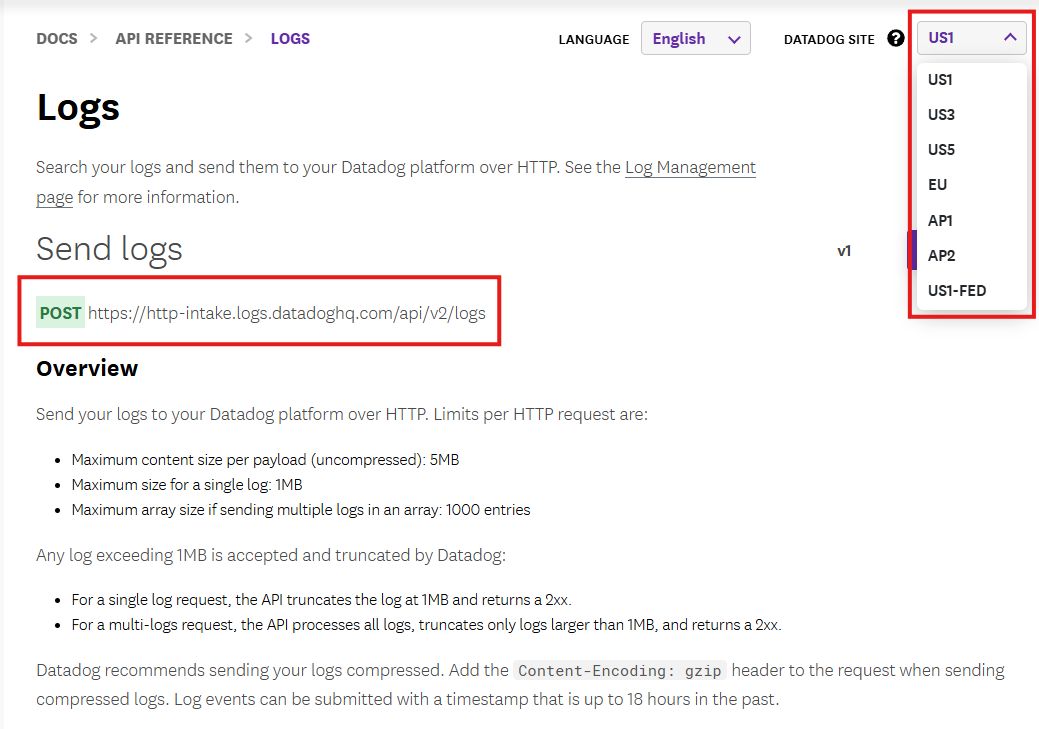
Select the correct site, then copy the corresponding URL.
-
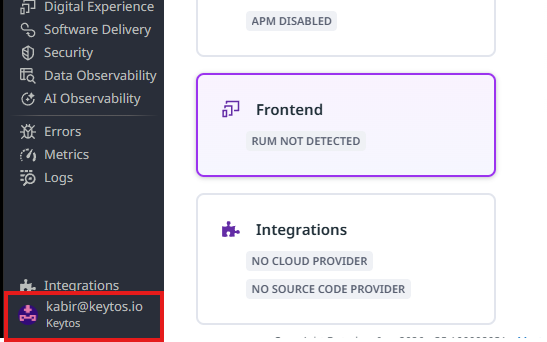
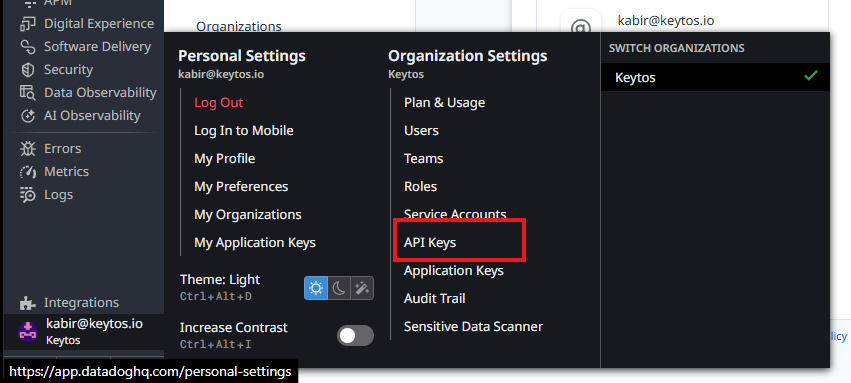
Now go to your Datadog Instance. Here you will find your personal settings.
-
Hover over your username and click the API Keys option.
-
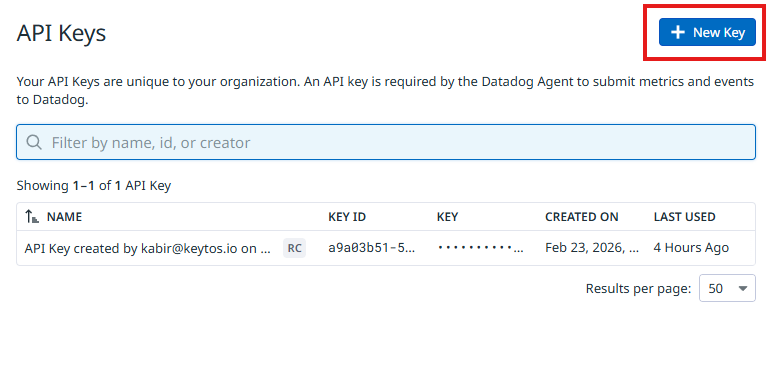
Then click the + New Key button.
-
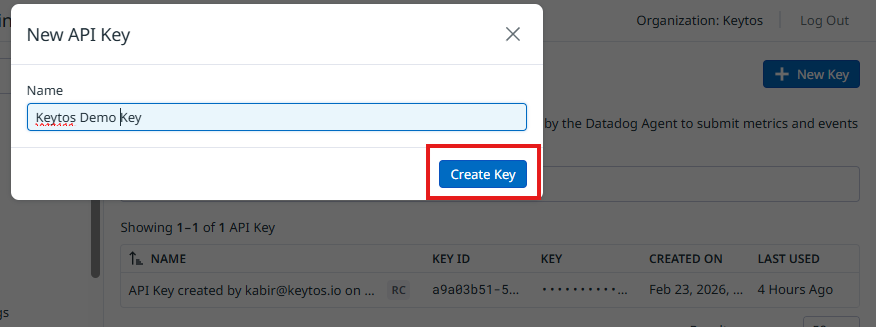
Give your key a name and click on the Create Key button.
-
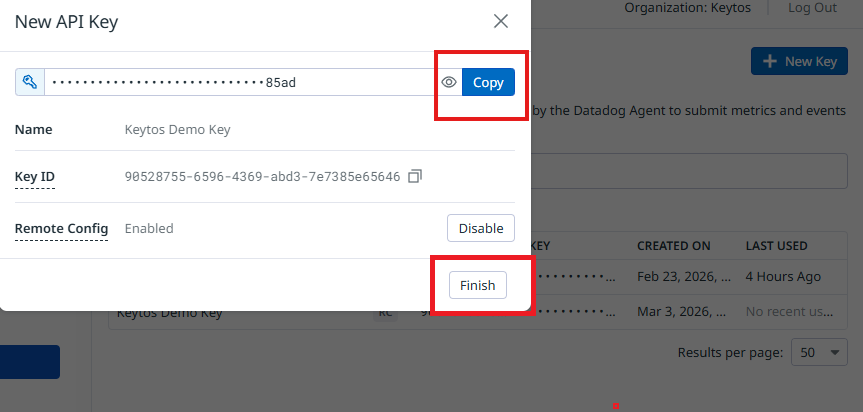
Copy your key and hit the Finish button.
How to Connect Keytos Shield to Datadog
-
Go back to the Keytos Shield tab.
-
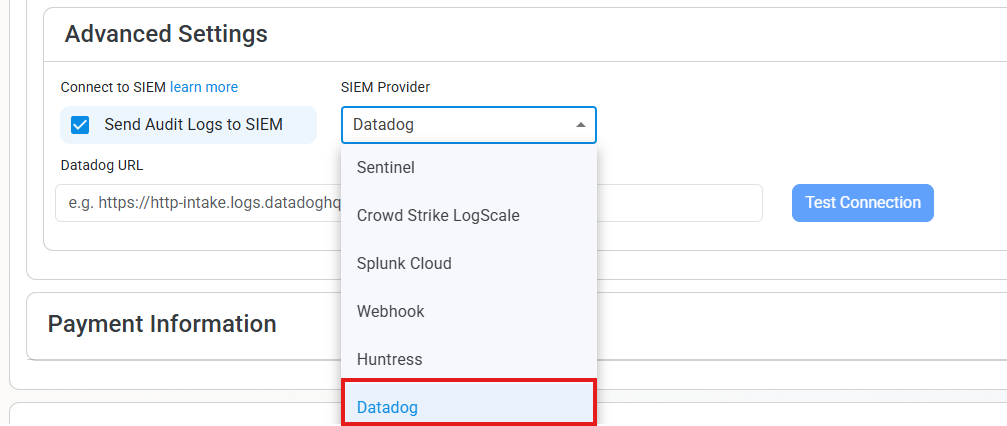
From the SIEM Provider dropdown, select Datadog.
-
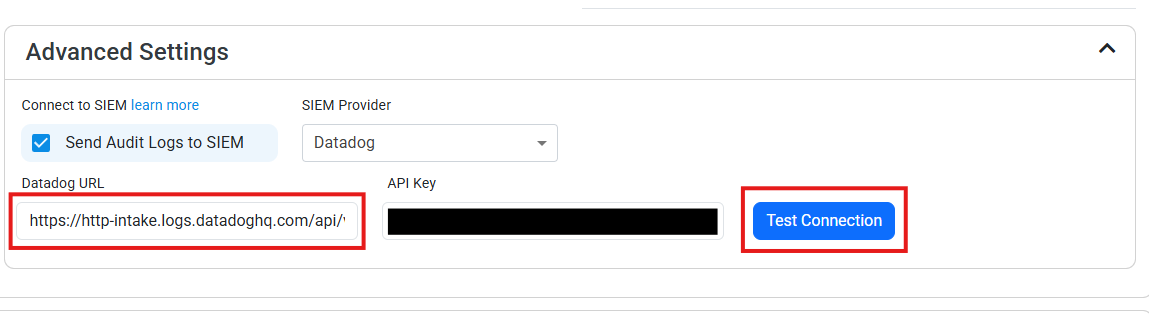
Paste the Datadog logs URL into Datadog URL and your API key into API Key. Then click Test Connection. This sends a test log to Datadog (allow a few minutes for it to show up).
-
If the connection test succeeds, scroll up and click Save Changes to apply your SIEM configuration.
-
Done! Keytos Shield will now send your audit logs to Datadog.
Other Supported SIEM Platforms
Using a different SIEM? See all SIEM platforms supported by Keytos Shield.